WiFi (Wireless Fidelity) is a wireless networking technology that uses radio waves to connect devices like smartphones, laptops, smart TVs, routers, and IoT devices to the internet without physical cables.
Now, this is what the formal answer you may have heard multiple times is. Talking about me, I started using WiFi during its early consumer days when weak signals and unstable connections were common.
As time passed, I tested routers, fixed my dead zones, and worked with different wireless setups for my digital marketing agency, Webtech Solutions. Based on all of that experience, here I will give you a demonstration of what wifi is in reality, getting out of that Wikipedia paperwork only.
Next, you’ll get a clear understanding of what WiFi is, how it works, WiFi standards, frequency bands, security, and ways to improve wireless performance.
What Does WiFi Stand For?
WiFi stands for Wireless Fidelity, a wireless networking technology based on the IEEE 802.11 standards and certified by the Wi-Fi Alliance.
Let me explain in simple terms: it is the technology that both you and I use at home and in workspaces for the purpose of connecting our devices, like smartphones, laptops, and smart TVs, to the internet without physical cables.
Many people use “WiFi” and “home internet” interchangeably, but they are not the same thing.
| Term | Meaning |
| Internet | The global network of websites, servers, and online services |
| WiFi | The wireless technology connecting devices to a router |
| WiFi Network | The local wireless network created by your router |
| WiFi Connection | The wireless link between your device and the network |
| WiFi Connectivity | A device’s ability to connect to WiFi |
You may also see variations like Wi-Fi, WiFi, Wi Fi, or WIFI. All refer to the same wireless networking technology.
How Does WiFi Work? 5 Simple Step Process Explained Along with Key Components
WiFi connects your devices to a local network by carrying data through radio waves instead of requiring a cable for every device.
In a typical home setup, the modem brings in the internet connection, the router creates and manages the local network, and WiFi-enabled devices communicate with that router wirelessly. Here is the complete process in five steps.

1. Your Internet Connection Reaches the Modem
Your Internet Service Provider (ISP) brings internet service to your home through fiber, cable, DSL, or another supported connection. The modem serves as the connection point between your ISP and home network.
This is where modems and routers have different jobs. The modem connects your network to the internet, while the router shares that connection with devices over WiFi or Ethernet.
You may also have a single gateway device that handles both jobs. If you use separate equipment, NogenTech’s modem vs router guide explains the differences in more detail.
2. The Router Creates the Wireless Connection
The router takes care of communication within your local network and broadcasts WiFi signals that nearby compatible devices can detect.
WiFi commonly operates across 2.4 GHz and 5 GHz frequency bands, while newer WiFi generations can also use 6 GHz.
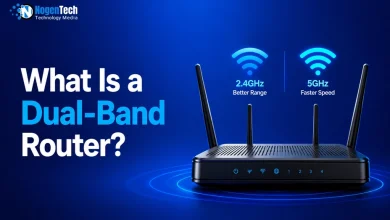
You may also come across dual-band routers, which support both 2.4 GHz and 5 GHz. This gives compatible devices more than one band to use depending on factors such as range, interference, and performance.
3. Your Devices Connect to the Router
Phones, laptops, smart TVs, and other WiFi-capable devices have wireless hardware that allows them to detect available networks and communicate with the router.
Common examples include smartphones, tablets, computers, gaming consoles, streaming devices, smart speakers, cameras, thermostats, doorbells, and wearables such as smartwatches and fitness trackers.
Once connected, these devices can exchange data with the router without needing an Ethernet cable.
4. Data Travels in Both Directions
Suppose you open a website on your phone. Your phone sends the request wirelessly to the router, and the request then travels through your internet connection to reach the required online service.
The response comes back through your internet connection and router before being transmitted to your phone over WiFi. The same basic exchange continues while you browse websites, send messages, stream videos, or use other online services.
5. Your Devices Form a Wireless Local Network
Your router and connected wireless devices together operate as a WLAN (Wireless Local Area Network).
WLAN describes the wireless local network itself, whereas WiFi refers to the wireless networking technology commonly used to create that connection. This is why you may see “WLAN” in router settings even though you normally call your connection WiFi.
The overall path can be simplified as: Internet/ISP → Modem → Router → WiFi → Your Device
Data can travel in the opposite direction as well, which allows your devices and online services to continuously exchange information.
What are WiFi Standards? From WiFi 4 to WiFi 7
WiFi standards are the technical generations of wireless networking that determine how fast, efficient, and reliable a connection can be.
Each new generation improves speed, jitter, device handling, latency, and network performance. These standards are developed by IEEE and marketed using simpler names like WiFi 5, WiFi 6, and WiFi 7.
WiFi Standards Reference Table (2026)
| Standard | Name | Year | Max Speed | Key Improvement |
| 802.11b | — | 1999 | 11 Mbps | First mainstream WiFi |
| 802.11a | — | 1999 | 54 Mbps | First use of 5 GHz |
| 802.11g | — | 2003 | 54 Mbps | Better compatibility |
| 802.11n | WiFi 4 | 2009 | 600 Mbps | Dual-band support, MIMO |
| 802.11ac | WiFi 5 | 2013 | 6.9 Gbps | Downlink MU-MIMO, beamforming |
| 802.11ax | WiFi 6 | 2020 | 9.6 Gbps | Better multi-device performance |
| 802.11ax | WiFi 6E | 2021 | 9.6 Gbps | Added 6 GHz band |
| 802.11be | WiFi 7 | 2024 | 46 Gbps | Multi-Link Operation (MLO) |
| 802.11bn | WiFi 8 | ~2028 | ~46 Gbps | Smarter Throughput and Real-World Efficiency |
As I remember, Wi-Fi 5 was introduced in 2013, around the same time my company, Webtech Solutions, was registered. It provided faster wireless speeds for all types of web work and introduced technologies like MU-MIMO to handle devices more efficiently.
However, by around the time of the pandemic, when multi-device connectivity became essential, Wi-Fi 5 started struggling with a large number of simultaneously connected devices, despite its widespread adoption. To address this, Wi-Fi 6 was introduced with higher speeds and features specifically designed to improve performance in multi-device environments.
Then, around 1.5 years ago, Wi-Fi 7 was launched, and from my experience, it has no match. Having worked with the previous Wi-Fi standards as well, I noticed a significant boost in the speed of all my tasks from the very first day.
Now I’m waiting for Wi-Fi 8. You may have heard about it too. At the moment, it is expected to launch in 2028. Let’s see what happens then.
What is a Wifi Frequency Band?
WiFi frequency bands determine how fast, stable, and far your wireless connection can travel.
By the way, this is a very important point to discuss because choosing the right band can significantly improve WiFi performance without upgrading your internet plan.
Modern routers mainly use three WiFi bands: 2.4 GHz, 5 GHz, and 6 GHz. Here is a precise real-world comparison of the 2 most used ones:
| Scenario | 2.4 GHz | 5 GHz | Best Choice |
| The device is close to the router | Slower | Faster | 5 GHz |
| Long-distance coverage | Better | Moderate | 2.4 GHz |
| Through walls | Better penetration | Weaker penetration | 2.4 GHz |
| 4K streaming | Adequate | Excellent | 5 GHz |
| Gaming and low latency | Moderate | Better | 5 GHz |
| Smart home devices | Excellent | Good | 2.4 GHz |
| Multi-device households | Congested easily | More stable | 5 GHz |
What is the 6 GHz Band?
Now, I didn’t cover the 6 GHz band, as it is not the most used one. Introduced with WiFi 6E and WiFi 7, the 6 GHz band provides the fastest wireless speeds and lowest congestion.
Because fewer devices use this band, it delivers extremely high performance for demanding tasks. However, its shorter range makes it most effective near the router.
Best for:
- Competitive gaming
- AR/VR applications
- 4K and 8K streaming
- Large file transfers and cloud backups
What Is a Wi-Fi SSID and Why Does It Matter?
SSID stands for Service Set Identifier, which is simply the name of your WiFi network.
When you open WiFi settings on your phone, laptop, or smart TV and see a list of available networks, each network name you see is an SSID.
It is also common that most routers come with a default SSID such as “NETGEAR_2847”, “Tenda” or “TP-Link_AC1200.” Changing this during setup is recommended for better security and easier identification.
SSID vs WiFi Password
Many people confuse the SSID with the WiFi password, but they are completely different.
| Term | Meaning |
| SSID | The visible name of your WiFi network |
| WiFi Password | The secret key required to join the network |
| BSSID | The router’s hardware MAC address is used for network identification |
Important SSID Facts
- SSIDs can contain up to 32 characters
- WiFi network names are case-sensitive
- A router can broadcast multiple SSIDs for guest or separate device networks
- Hidden SSIDs provide very limited real security benefits
Now, as we are discussing SSIDs, here are some of the best recommendations that you must keep in mind:
Recommended:
- Use a unique but simple network name
- Create separate guest and smart device networks if possible
- Avoid using personal information in the SSID
Avoid:
- Keeping the default router name
- Using your full name or address
- Including your ISP or router brand in the network name
A properly configured SSID helps improve both WiFi organization and basic network security.
What Is Wi-Fi Calling and How Does It Work?
WiFi Calling is a smartphone feature that allows phone calls and text messages to work over a WiFi internet connection instead of a cellular network.
When your mobile signal is weak but your WiFi connection is strong, your phone automatically uses WiFi to improve call quality and reliability.
I personally find this one very interesting, especially useful in homes, offices, basements, or rural areas with poor cellular coverage.
How Does WiFi Calling Work?
WiFi Calling converts your voice into encrypted internet data and sends it through your WiFi network to your carrier’s servers.
To the person receiving the call, everything works like a normal phone call. In most cases, they will not even know you are using WiFi instead of a cellular tower.
This process works the same on both iOS and Android; whether you are using one or the other doesn’t matter, as you don’t have to worry about whether your mobile supports it or not
Common setup locations on Android include:
- Samsung: Settings > Connections > WiFi Calling
- Google Pixel: Settings > Network & Internet > Calls & SMS
- Other Android phones: Mobile Network > Advanced > WiFi Calling

Once enabled, your phone automatically switches to WiFi when it provides a stronger connection than cellular service. And to enable it:
- Open Settings
- Tap Phone
- Select WiFi Calling
- Turn on WiFi Calling on this iPhone
You may also need to confirm your emergency address for 911 services.
My Experience Using WiFi Calling
I live in an area where indoor cellular signals often drop to one or two bars. After enabling WiFi Calling, without any doubt, call quality became significantly more stable.
If your home WiFi is strong but mobile coverage is weak, enabling WiFi Calling is one of the easiest ways to improve call reliability for free.
Cellular Calling vs WiFi Calling
WiFi Calling uses your internet connection instead of your mobile data plan, and bandwidth usage is minimal for normal voice calls.
| Feature | WiFi Calling | Cellular Calling |
| Network Used | WiFi internet connection | Cellular towers |
| Works with a weak signal | Yes | No |
| Indoor coverage | Usually better | Can be weak |
| Uses mobile data | No | No |
| Emergency calling support | Yes | Yes |
What is WiFi Direct and its Common Uses?
WiFi Direct is a wireless technology that allows two WiFi-enabled devices to connect directly without needing a router or internet connection.
It solves your problem by being simple to get into use, as it works similarly to Bluetooth but offers faster speeds, better range and signal strength, and improved support for large file transfers, screen sharing, and wireless printing.
With standard WiFi, devices communicate through a router:
- Regular WiFi: Device > Router > Device
- WiFi Direct: Device ←→ Device
One device temporarily acts as a mini access point while the other connects directly to it.
Common Uses of WiFi Direct
WiFi Direct is commonly used for:
- Wireless printing
- Screen mirroring
- Fast file sharing
- Device-to-device connections without the internet
What is WiFi Direct Printing?
Many modern printers support WiFi Direct, allowing phones and laptops to print documents without joining the same WiFi network. This is especially useful for guest printing or locations where you do not have the WiFi password.
Screen Mirroring and File Sharing
Technologies like Miracast and some Android file-sharing features use WiFi Direct to transfer data much faster than Bluetooth. This makes it useful for streaming screens to TVs and sharing large photos or videos between nearby devices.
What is Mesh WiFi?
Mesh WiFi is a wireless networking system that uses multiple devices, called Nodes, to create a single seamless WiFi network.
Now, this is not like traditional routers that broadcast from one location; mesh systems spread WiFi coverage through multiple connected nodes placed in different rooms. This helps eliminate dead zones and improve signal strength in larger homes.
As you move around the house or workspace, as I told you before, multiple devices at a time, like your phone, laptop, or smart TV, are not easy to handle at once, but when you use a mesh wifi system, it automatically connects to the strongest node without disconnecting.
This system provides much more stable coverage than relying on a single router, especially in homes where walls and distance weaken WiFi signals.
Compared to Mesh WiFi systems, Wifi boosters and extenders are cheaper and easier to set up, but they are best suited for fixing one or two weak-signal areas rather than covering an entire home.
They usually reduce internet speed in the extended area because the same device must receive and retransmit the signal simultaneously. A WiFi extender works well for small coverage problems, while mesh systems provide a more stable long-term solution for larger homes.
What a Good WiFi Speed Actually Is?
A good WiFi speed depends on how many devices are connected and what activities you perform online.
Basic browsing and streaming require far less bandwidth than 4K video, online gaming, or a remote work setup with multiple connected devices.
Here is a screenshot of one of my Wi-Fi connection speed tests at my office, which is used by my marketing team, and they feel comfortable using it and never complain, like Gmail is not working or any website is not opening, and anything like that.

Recommended WiFi Speeds by Activity
| Activity | Recommended Speed |
| Web browsing and email | 5 Mbps |
| HD streaming | 5 Mbps |
| 4K streaming | 25 Mbps |
| Video calls | 4 Mbps |
| Online gaming | 5 Mbps (Requires low latency) |
| Remote work | 25–50 Mbps |
| Smart home devices | 1 Mbps per device |
| Large downloads | 100 Mbps+ |
Recommended Speeds by Household Type
| Household Type | Recommended Internet Speed |
| 1 person, light usage | 25–50 Mbps |
| 2–3 people, streaming and browsing | 100 Mbps |
| Family with multiple devices | 200–500 Mbps |
| Heavy gaming and 4K streaming | 500 Mbps–1 Gbps |
| Smart homes and power users | 1 Gbps+ |
One important reality of home networks is that internet plan speed and actual WiFi performance are not always the same.
Router quality, WiFi bands, home layout, wall interference, and the total number of connected devices all affect real-world wireless speed. Even with a fast internet plan, weak WiFi coverage can still make a connection feel slow.
How to Set Up WiFi at Home?
Setting up WiFi at home is a simple process that can be completed in just a few minutes. Before starting, you will need:
- An active internet service from an ISP
- A modem or ISP gateway
- A standalone WiFi router
- An Ethernet cable
- A phone or a laptop for setup
Basic WiFi Setup Steps
- Connect the modem to your active internet line and power it on.
- Connect an Ethernet cable from the modem to the router’s WAN port.
- Turn on the router and wait for it to boot completely.
- Open the router setup page using the default IP address on the router’s label.
- Create a custom WiFi network name (SSID) and a strong password.
- Enable WPA2 or WPA3 security in the settings.
- Update the router firmware to the newest version.
- Connect your personal devices to the new WiFi network.
By the way, let me point out one thing here: skipping router firmware updates during initial setup remains a common mistake. And keeping the router updated maximizes wireless performance and secures the network against modern security vulnerabilities. So keep that in check to get the maximum experience.
For most homes, a properly placed router provides stable coverage immediately after completing these configuration steps.
How to Manage and Monitor Your WiFi Network?
Managing your network properly includes securing your WiFi, monitoring connected devices, testing speed as you saw the screenshot of my wifi speed above, improving coverage, and troubleshooting weak signals when problems appear.
How to Change Your WiFi Name and Password?
You can change your WiFi network name (SSID) and password through your router’s admin panel.
Simply open your router settings using its IP address, log in, and navigate to the Wireless or WiFi Settings section. From there, you can:
- Change your network name
- Create a stronger password
- Save the settings
- Reconnect your devices
Changing default credentials is one of the easiest ways to improve home network security.
To have a secure browsing experience and internet security, many people create a separate guest WiFi network for visitors instead of sharing their main network credentials.
How to See Who Is Connected to Your WiFi?
Most routers allow you to view connected devices through the admin panel or companion mobile app. You can usually see:
- Smartphones and laptops
- Smart TVs and gaming consoles
- Smart home devices
- Device names and IP addresses
If you notice an unfamiliar device connected to your network, changing your WiFi password immediately is usually the safest first step.
How to Check Your WiFi Speed?
Testing your WiFi speed helps identify performance problems and confirms whether your network is delivering expected speeds. Popular speed test tools include:
- Speedtest by Ookla
- Fast.com
- Google Speed Test
The one I showed you above was done by Ookla. However, I suggest that for accurate results, test your speed near the router and from the rooms where you normally use WiFi.
How to Connect Devices to WiFi?
Most devices connect to WiFi using the same basic process:
- Open WiFi settings
- Select your network name
- Enter the password
- Confirm the connection
This applies to smartphones, laptops, smart TVs, gaming consoles, printers, streaming devices, and smart home gadgets. In my experience, restarting both the router and the device solves a surprisingly large number of everyday WiFi connection problems.
However, reading all this, I feel you may not know the step-by-step process of sharing wifi. If you know, then it’s good, but for a detailed look, you can check out NogenTech’s complete guide on how to share your Wi-Fi, in which all this is explained end-to-end.
These are WiFi Security Considerations that You Must Take Care of
WiFi security is a necessary part of any workspace network, especially now that most of the data coverage takes place in cloud systems and contains dozens of connected devices, including IoT devices.
A poorly secured WiFi network can expose personal data, connected devices, and even smart home systems to unauthorized access.
WiFi Security Protocols Explained
Over the years, WiFi security standards have evolved significantly.
| Protocol | Security Status in 2026 |
| WEP | Obsolete and insecure |
| WPA | Outdated and vulnerable |
| WPA2 | Still usable but aging |
| WPA3 | Recommended modern standard |
In 2026, WPA3 is considered the best security option for most home networks because it provides stronger encryption and better protection against password attacks.
Essential WiFi Security Tips
To improve home WiFi security:
- Use WPA3 or WPA2/WPA3 mode
- Create a strong and unique WiFi password
- Change the default router admin password
- Disable WPS if possible
- Update router firmware regularly
- Create a separate guest network for visitors
- Monitor connected devices occasionally
One thing I have learned from troubleshooting home networks is that many security problems happen simply because people never change the default settings that come with their router.
Even basic security improvements can dramatically reduce the risk of unauthorized access and network misuse.
People Also Ask
What is the WPS button on my router?
The WPS (WiFi Protected Setup) button allows devices to connect to your WiFi network without manually entering the password. Pressing the button temporarily enables automatic pairing between the router and compatible devices such as printers or smart TVs.
What is the IP address of my router?
Most home routers use default IP addresses such as 192.168.1.1, 192.168.0.1, or 10.0.0.1. You can enter these addresses in a web browser to access your router settings.
Which WiFi standards use the 2.4 GHz frequency?
Several WiFi standards support the 2.4 GHz band, including 802.11b, 802.11g, 802.11n (WiFi 4), and WiFi 6 operating in dual-band mode.
What uses the 2.4 GHz band and runs at 54 Mbps?
The 802.11g WiFi standard operates on the 2.4 GHz frequency band and supports theoretical speeds of up to 54 Mbps.
What does weak security mean on WiFi?
A “Weak Security” warning usually appears when your router uses outdated security protocols such as WEP or WPA. Upgrading to WPA2 or WPA3 improves network security significantly.
What is the network security key for WiFi?
A network security key is simply your WiFi password. It is the security code required to connect devices to your wireless network.
Why does WiFi slow down at night?
WiFi often slows down during evening hours because more people in your area are actively using the internet at the same time, creating higher network congestion.
Can walls affect WiFi signals?
Yes. Thick walls, concrete, metal surfaces, mirrors, and large furniture can weaken WiFi signals and reduce wireless coverage.
Should I leave my router on all the time?
Yes. Modern routers are designed to remain powered on continuously. Restarting occasionally can help fix temporary performance problems, but constantly turning the router off is unnecessary.
Does WiFi work without internet?
Yes. WiFi can still create a local wireless network even if the internet connection is unavailable. Devices on the same network may still communicate with each other.
How often should I replace my WiFi router?
Most home routers perform well for around 3–5 years. Older routers may struggle with modern internet speeds, newer WiFi standards, and growing numbers of connected devices.
Why does my WiFi signal keep disconnecting?
Frequent disconnections are commonly caused by interference, outdated router firmware, overloaded networks, poor router placement, or weak signal coverage.
Is Ethernet faster than WiFi?
Yes. Ethernet connections are usually faster, more stable, and have lower latency than wireless WiFi connections because they use direct physical cables.
Can too many devices slow down WiFi?
Yes. Large numbers of connected devices can overload older routers and reduce overall network performance, especially on crowded WiFi bands.
Final Thoughts on Why WiFi Is the Backbone of Modern Connectivity
Now, concluding all of the discussion, Wi-Fi has evolved from a simple convenience into one of the most essential technologies in everyday life. From smartphones, laptops, and smart TVs to gaming consoles, cloud platforms, and modern workspaces, almost everything now depends on reliable wireless connectivity.
That is why having a clear understanding of Wi-Fi standards, frequency bands, routers, mesh systems, and network security is important. It helps you make smarter decisions based on your requirements and avoid many common connectivity problems.
As someone who started using Wi-Fi in its early days, I still believe that most Wi-Fi issues come down to basic setup, placement, security, and network management. I say that spending a little time understanding these fundamentals can save you from unnecessary headaches and help you identify which problems are serious enough to require wifi support and which you can easily fix yourself.