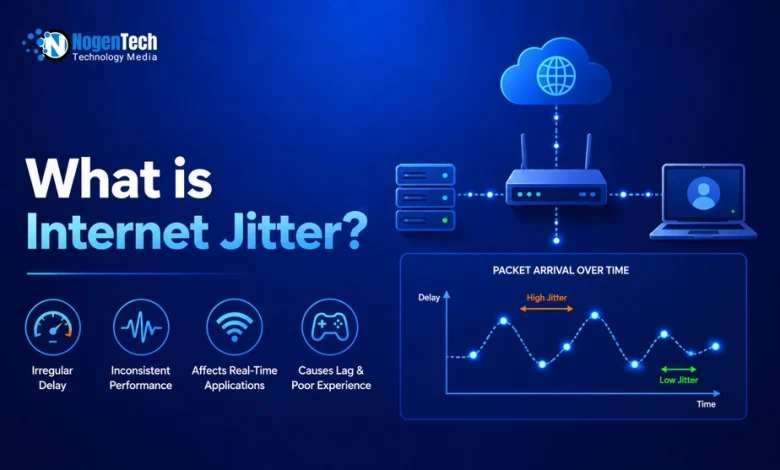
Internet jitter is the variation in how long data packets take to travel across your internet connection. In simple terms, it measures whether your connection delay stays steady or keeps changing.
A small amount of jitter is normal. However, high internet jitter can cause lag spikes in games, robotic audio on Zoom calls, frozen video meetings, buffering during streaming, and poor VoIP phone call quality.
For most home internet users, jitter below 30 ms is generally acceptable. I have created this guide to explain what is jitter in Internet, along with explaining the ways to fix it.
If you play competitive games, work from home, make frequent video calls, or use internet phone services, aim for jitter below 10 to 20 ms.
What Is Internet Jitter?
Internet jitter is the inconsistency in packet delivery time across your network.
In simple terms, your internet may be fast overall, but if packets arrive unevenly, real-time activities can feel unstable.
When you use the internet, your device sends and receives small pieces of information called data packets. Ideally, those packets should arrive at a steady pace. Jitter happens when some packets arrive quickly while others arrive late.
For example, when I was testing Xfinity Home Internet, these ping results:
| Ping Test | Result |
| First test | 20 ms |
| Second test | 21 ms |
| Third test | 19 ms |
This connection has low jitter because the delay stays consistent.
Now look at the test for Spectrum Home Internet:
| Ping Test | Result |
| First test | 20 ms |
| Second test | 75 ms |
| Third test | 35 ms |
This connection has high jitter because the delay changes sharply between tests.
High jitter does not always mean your internet plan is slow. You can have 500 Mbps download speed from the Xfinity Internet Plans and still experience lag, choppy calls, or unstable gaming if your packet delivery is inconsistent.
What Is Jitter in Internet Speed?
Jitter is not your internet speed in Mbps. It measures how stable your connection delay is in milliseconds. You can have fast download speeds but still experience poor gaming or video calls if jitter is high.
- Download speed measures how quickly you receive data, such as when streaming Netflix, downloading a game, or browsing a website.
- Upload speed measures how quickly you send data, such as when joining Zoom calls, uploading files, or livestreaming.
Jitter measures how stable your connection delay is.
A fast internet plan can still have high jitter. For example, a household may have gigabit internet but experience poor gaming or video calls because WiFi interference, network congestion, or an overloaded router is causing unstable packet delivery.
How to Fix High Internet Jitter?
To fix high Internet jitter, you should
- Connect your computer, console, or work device with an Ethernet cable.
- Restart your modem and router.
- Pause game downloads, cloud backups, Windows updates, and streaming on other devices.
- Move closer to your router or switch to the 5 GHz or 6 GHz WiFi band.
- Update your router firmware and computer network drivers.
- Turn on Quality of Service settings if your router supports them.
- Run multiple speed tests at different times of day.
- Contact your ISP if high jitter continues on Ethernet.
You can reduce internet jitter by using Ethernet instead of WiFi, restarting your modem and router, pausing downloads, and moving closer to the router.
Besides, you can update your network equipment and contact your internet service provider if jitter remains high on a wired connection.
What Does Jitter Mean on an Internet Speed Test?
Jitter on an internet speed test shows how much your ping changes during the test.
A lower jitter score means your connection is more stable. A higher jitter score means your connection delay is changing more often, which can affect real-time activities.
This matters most for:
- Online competitive gaming
- Zoom meetings
- Microsoft Teams calls
- Google Meet calls
- FaceTime calls
- Internet phone services
- Streaming
- Remote desktop work
- Cloud gaming
- Security camera uploads
What Is Jitter on an Internet Speed Test?
Jitter is the variation between ping results during a speed test. If your ping jumps from 15 ms to 80 ms, your connection has high jitter even if your download speed looks good.
What Is Ping and Jitter in an Internet Speed Test?
Ping and jitter both measure connection delay, but they show different things.
| Metric | What It Measures | Good Result for Most Homes | Why It Matters |
| Download Speed | How fast you receive data | Depends on your plan and household use | Streaming, browsing, downloads |
| Upload Speed | How fast you send data | Depends on work and video call needs | Video calls, uploads, livestreaming |
| Ping | Average response time | Under 50 ms is usually good | Gaming responsiveness |
| Jitter | Variation in ping | Under 30 ms is generally acceptable | Stable gaming and calls |
| Packet Loss | Missing data packets | 0% is ideal | Prevents glitches and disconnects |
What Is a Good Jitter Speed for Internet?
A good jitter speed for internet is usually below 30 ms. However, lower is better for gaming, video conferencing, VoIP calls, and livestreaming.
You can use this table to understand your result:
| Jitter Result | What It Means | Best For |
| 0 to 10 ms | Excellent | Competitive gaming, Zoom, VoIP, livestreaming |
| 10 to 20 ms | Good | Remote work, HD streaming, casual gaming |
| 20 to 30 ms | Acceptable | General browsing and everyday home use |
| 30 to 50 ms | May cause problems | Video calls and online games may stutter |
| Over 50 ms | Poor | Likely noticeable lag, choppy audio, or freezing |
If you want to know the best Internet speed for gaming, you can get through my detailed article.
What Is Acceptable Jitter for Internet?
Acceptable internet jitter is generally below 30 ms. For gaming, video calls, and internet phone calls, a jitter score below 10 to 20 ms is better.
What Is a Good Internet Jitter for Gaming?
A good internet jitter score for gaming is below 20 ms. A score below 10 ms is excellent for competitive gaming that needs stable real-time performance.
What Is a Good Jitter Number for Internet Speed?
A good jitter number for internet speed is under 30 ms. If you are a gamer, remote worker, streamer, or frequent video caller, aim for under 10 to 20 ms.
Jitter vs Ping vs Latency vs Packet Loss
Internet jitter is often confused with ping, latency, and packet loss. They are related, but they are not the same.
| Term | Simple Meaning | Example |
| Ping | How long a packet takes to travel and return | 25 ms |
| Latency | The overall delay in a connection | 25 ms average delay |
| Jitter | How much latency changes over time | Ping jumps from 25 ms to 70 ms |
| Packet Loss | Data packets that never arrive | 2 out of 100 packets missing |
Is Jitter the Same as Ping?
No. Ping measures average delay, while jitter measures how much that delay changes.
You can have low ping but still have high jitter. For example, your average ping may be 25 ms, but if it keeps jumping between 10 ms and 80 ms, your connection can still feel unstable.
Can You Have Good Internet Speed but Bad Jitter?
Yes. You can have fast internet speed but bad jitter.
This is common when WiFi interference, network congestion, background downloads, weak router coverage, or ISP issues affect how consistently data packets arrive.
What Causes High Internet Jitter?
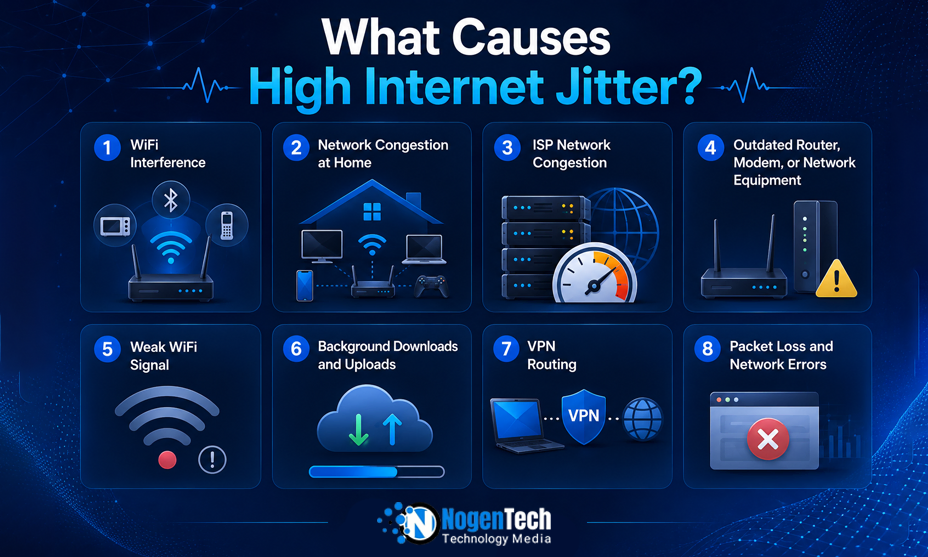
High internet jitter usually happens when packets are delayed unevenly because of WiFi interference, network congestion, outdated equipment, overloaded devices, or ISP problems.
1. WiFi Interference
WiFi interference is one of the most common causes of high jitter in American homes.
Nearby routers, Bluetooth devices, microwaves, thick walls, metal furniture, smart home devices, and crowded apartment buildings can interfere with wireless signals.
This is especially common in apartments, condos, townhomes, and neighborhoods where many homes use the same WiFi channels.
2. Network Congestion at Home
Your home network can become congested when several devices use the connection at the same time.
Common causes include:
- 4K streaming on multiple TVs
- PlayStation, Xbox, or Steam game downloads
- Cloud backups from Google Drive, iCloud, Dropbox, or OneDrive
- Security camera uploads
- Large file uploads
- Smart TVs and smart home devices
- Multiple Zoom or Teams meetings
- Video calls running while someone is gaming
3. ISP Network Congestion
Your internet provider can also experience congestion.
This often happens during peak evening hours when more people in your neighborhood are online. Cable internet users may notice this more often in busy areas because nearby homes can share local network capacity.
If your jitter is low in the morning but becomes high every evening, your ISP network may be congested.
4. Outdated Router, Modem, or Network Equipment
Older routers may struggle with modern households that have dozens of connected devices.
Your equipment may be part of the problem if it:
- Only supports WiFi 4 or older standards.
- Overheats frequently.
- Loses connection during busy periods.
- Has weak coverage in bedrooms or home offices.
- Cannot handle your current internet plan speed.
- Your router is more than four or five years old.
Check my article on the best WiFi routers for high-speed Internet to get the suitable pick.
5. Weak WiFi Signal
A weak WiFi signal can increase jitter because your devices may need to resend data packets.
This often happens when you are far from the router, on another floor, behind thick walls, or using WiFi in a garage, basement, backyard office, or detached room.
6. Background Downloads and Uploads
Large background tasks can create sudden jitter spikes.
Check for:
- Windows updates
- macOS updates
- Xbox game updates
- PlayStation game updates
- Steam downloads
- Cloud photo backups
- Security camera uploads
- Torrent downloads
- Large work file uploads
- Automatic phone backups
7. VPN Routing
A VPN can increase jitter because your traffic must travel through an extra server before reaching its destination.
If you use a VPN for work, gaming, or privacy, test your connection with and without the VPN. If jitter improves without it, try a closer server location.
8. Packet Loss and Network Errors
Jitter and packet loss often happen together.
When packets arrive too late, applications such as Zoom, Teams, Discord, and online games may treat them as lost. This can cause robotic audio, missing words, delayed gameplay, or sudden freezes.
How Does Internet Jitter Affect Your Connection?
High jitter affects real-time internet activities more than basic browsing.
You may still be able to open websites, check email, and watch preloaded videos. However, activities that need instant packet delivery can become frustrating.
Internet Jitter for Gaming
High jitter can cause:
- Lag spikes
- Rubber banding
- Delayed button inputs
- Sudden character movement
- Missed shots
- Delayed hit registration
- Match disconnects
- Voice chat problems
Jitter can affect games such as Call of Duty, Fortnite, Valorant, Apex Legends, Rocket League, EA Sports FC, NBA 2K, Overwatch, and Minecraft.
For competitive gaming, low jitter is often more important than extremely high download speed.
Internet Jitter for Zoom, Teams, and Google Meet
High jitter can make voices sound robotic, delayed, choppy, or cut off during video calls.
You may also experience:
- Frozen video
- Audio delay
- Lip sync problems
- Dropped calls
- “Your internet connection is unstable” warnings
- Delayed screen sharing
- Trouble hearing other participants
Internet Jitter for Streaming
Jitter usually affects live streaming more than normal Netflix or YouTube playback.
Netflix and YouTube can preload video content to hide small connection problems. Livestreaming does not have the same buffer, so high jitter can cause stream interruptions, quality drops, or unstable uploads.
Internet Jitter for VoIP Calls
High jitter can cause broken audio, missing words, echo, delayed conversations, and dropped calls.
VoIP services need voice packets to arrive in the correct order and at the right time. If packets arrive inconsistently, the call quality drops.
Internet Jitter for Remote Work
Remote workers may notice high jitter when using:
- Zoom
- Microsoft Teams
- Google Meet
- Slack calls
- VPN connections
- Remote desktop software
- Cloud phone systems
- Virtual desktops
- File syncing tools
- Online collaboration platforms
How to Test Internet Jitter?
You can test internet jitter by running a speed test that reports ping, jitter, and packet loss.
For the most accurate result, test your connection with Ethernet first. Then run the same test on WiFi.
This helps you identify whether the problem is your home wireless network or your internet provider.
How to Run an Accurate Jitter Test?
Follow these steps:
- Disconnect or pause unnecessary devices.
- Close downloads, game launchers, cloud backups, and streaming apps.
- Connect your computer directly to the router with Ethernet if possible.
- Run at least three tests.
- Write down ping, jitter, upload speed, download speed, and packet loss.
- Test again using WiFi.
- Test in the room where you usually experience problems.
- Repeat the test in the morning, afternoon, and evening.
Why You Should Test Jitter at Different Times?
- If your jitter is low in the morning but high every evening, your ISP may be dealing with neighborhood congestion.
- If jitter is high only in one room, the problem is more likely WiFi coverage, router placement, walls, or wireless interference.
- If jitter is high on both Ethernet and WiFi throughout the day, the issue may be your modem, router, cable line, ISP signal, or local network infrastructure.
How to Fix High Internet Jitter?
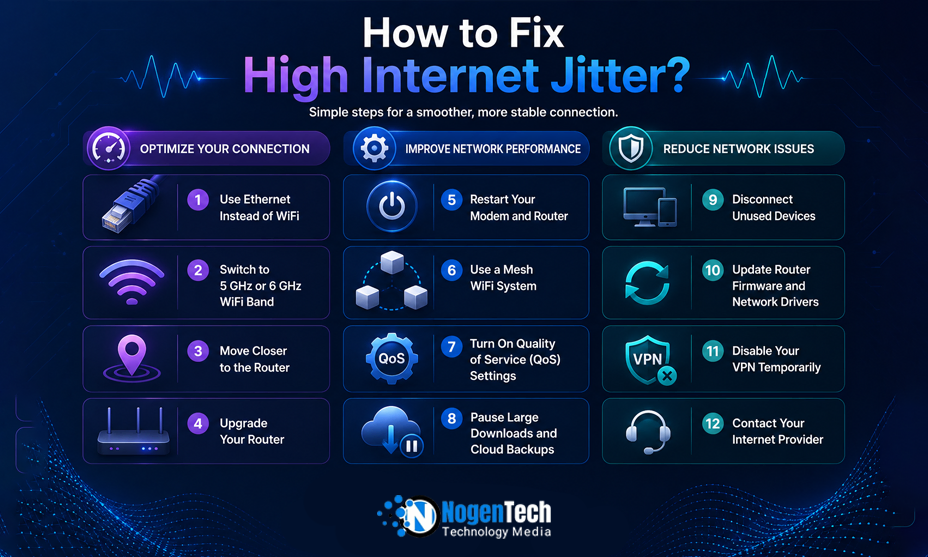
The best way to fix high jitter depends on whether the problem is caused by WiFi, your home network, your equipment, or your ISP.
1. Use Ethernet Instead of WiFi
Using Ethernet is one of the fastest ways to reduce jitter. Ethernet avoids WiFi interference and gives your computer, console, or work device a more stable connection.
Use Ethernet for:
- Gaming PCs
- PlayStation consoles
- Xbox consoles
- Work computers
- Streaming PCs
- Smart TVs
- Home office setups
- VoIP phones
If you cannot run a long Ethernet cable, consider a mesh system with wired backhaul or a MoCA adapter if your home has coaxial cable wiring.
2. Restart Your Modem and Router
Restarting your modem and router can clear temporary network errors, memory issues, and connection problems.
To restart properly:
- Unplug the modem and router.
- Wait at least 60 seconds.
- Plug the modem back in first.
- Wait until the modem reconnects.
- Plug the router back in.
- Test your jitter again.
3. Move Closer to the Router
If you use WiFi, move closer to the router and test again.
Place your router in a central, open, elevated location. Avoid placing it inside cabinets, closets, behind TVs, near microwaves, or on the floor.
4. Switch to the 5 GHz or 6 GHz WiFi Band
The 5 GHz and 6 GHz WiFi bands usually provide better performance and less interference than 2.4 GHz when you are near the router.
- Use 2.4 GHz mainly for longer-range devices such as smart home products, outdoor cameras, and devices far from the router.
- Use 5 GHz or 6 GHz for gaming, video calls, laptops, and high-bandwidth devices.
You can also read my detailed guide to know the difference between 2.4 GHz and 5 GHz WiFi frequency bands.
5. Upgrade Your Router
Consider upgrading your router if it is old, frequently drops connections, has poor range, or cannot handle many connected devices.
A newer WiFi 6, WiFi 6E, or WiFi 7 router can improve stability in homes with multiple users, smart devices, gaming systems, and remote workers.
6. Use a Mesh WiFi System for Larger Homes
A mesh WiFi system can help reduce jitter in larger homes, multi story houses, homes with thick walls, and properties with dead zones.
Mesh systems work best when nodes are placed correctly and have a strong connection to the main router. If possible, use wired backhaul between mesh nodes for the most stable performance.
7. Turn On Quality of Service Settings
Quality of Service, also called QoS, allows your router to prioritize important traffic.
For example, you can prioritize:
- Gaming traffic
- Zoom calls
- Teams meetings
- VoIP calls
- Work laptops
- Streaming devices
QoS can help prevent a large download or cloud backup from ruining a video call or online match.
8. Pause Large Downloads and Cloud Backups
Pause large downloads before gaming, joining meetings, or livestreaming.
Check for activity from:
- Steam
- Epic Games Launcher
- Xbox downloads
- PlayStation downloads
- Windows Update
- OneDrive
- Google Drive
- Dropbox
- iCloud
- Security camera apps
9. Disconnect Unused Devices
Too many connected devices can overload a router or create wireless congestion.
Disconnect devices you are not using, especially old phones, tablets, smart TVs, streaming sticks, smart speakers, cameras, and guest devices.
10. Update Router Firmware and Network Drivers
Outdated router firmware can cause stability, security, and compatibility problems.
Check your router manufacturer’s app or admin panel for firmware updates. Also update WiFi and Ethernet drivers on your computer.
11. Disable Your VPN Temporarily
If you use a VPN, turn it off temporarily and run another jitter test.
If your jitter improves, use a closer VPN server or consider a VPN service with better routing for your location.
12. Contact Your Internet Provider
Contact your ISP if your jitter remains high on a wired connection after trying the steps above.
Ask the provider to check:
- Signal levels
- Line quality
- Modem provisioning
- Packet loss
- Network congestion
- Local outages
- Equipment compatibility
- Neighborhood capacity
- Maintenance issues
- Cable or fiber line problems
Take screenshots of your wired speed tests, especially if the issue happens at the same time every day.
Internet Jitter by Connection Type
Different internet connection types can have different jitter patterns.
| Internet Type | Typical Jitter Risk | Why |
| Fiber Internet | Lowest | Usually offers stable latency and strong consistency |
| Cable Internet | Moderate | May experience neighborhood congestion during peak hours |
| Fixed Wireless | Moderate to High | Signal quality and tower congestion can affect stability |
| 5G Home Internet | Moderate to High | Performance can change based on signal strength and local demand |
| DSL Internet | Moderate | Older infrastructure may create instability |
| Satellite Internet | High | Long distance signal travel can increase latency and jitter |
Is Fiber Internet Better for Jitter?
Fiber internet usually provides the lowest jitter because it offers stable latency and is less affected by local congestion than many cable or wireless connections.
Fiber is often the best choice for competitive gaming, remote work, livestreaming, and households with frequent video calls.
If you want to know the details of the best Fiber Internet providers in the USA, you can check my guide.
Can 5G Home Internet Cause Jitter?
Yes, 5G home internet can cause jitter.
5G home internet may offer fast download speeds, but performance can change based on signal strength, tower congestion, weather, indoor placement, and the number of users connected to the nearby cell tower.
Does Satellite Internet Have High Jitter?
Satellite internet, like Starlink, can have higher jitter than fiber or cable because data must travel much farther between your home, satellites, and ground stations.
Satellite can work well for browsing, streaming, and basic work, but it may be less ideal for competitive gaming and sensitive video calling.
When Should You Contact Your ISP About Jitter?
Contact your internet provider if your jitter stays above 30 ms on a wired connection, you see packet loss, or the problem gets worse at predictable times every day.
You should contact your ISP if:
- Jitter is high on both Ethernet and WiFi.
- Packet loss is above 1%.
- Zoom, Teams, or VoIP calls regularly become robotic or drop.
- Gaming has frequent lag spikes.
- The issue happens every evening.
- Restarting your equipment does not help.
- You have tested multiple devices.
- Your modem or router is approved and compatible with your internet plan.
- Neighbors using the same provider report similar issues.
- Your speed test results are inconsistent throughout the day.
My Practical Jitter Troubleshooting Method
When troubleshooting internet jitter, start with Ethernet because WiFi can hide the real source of the problem.
First, test your connection directly from a computer connected to the router with Ethernet. Run several tests and record your ping, jitter, packet loss, upload speed, and download speed.
Next, test the same device on WiFi near the router. Then test it again in the room where you normally experience problems.
- If wired jitter is low but WiFi jitter is high, the issue is usually router placement, WiFi interference, weak coverage, or an overloaded wireless network.
- If wired jitter is also high, especially during evening hours, the problem may be your ISP network, modem signal, cable line, or neighborhood congestion.
Jitter Troubleshooting Order
- Test Ethernet.
- Test WiFi near the router and test WiFi in the problem room.
- Pause downloads and cloud backups.
- Restart the modem and router.
- Switch to 5 GHz or 6 GHz WiFi.
- Update router firmware.
- Test at peak evening hours.
- Check packet loss.
- Contact the ISP with screenshots of your results.
Final Thoughts on Internet Jitter
Internet jitter is a stability problem, not simply a speed problem. You may have a fast internet plan and still experience lag spikes, robotic calls, and poor gaming if your connection delay keeps changing.
The fastest way to identify the problem is to test your connection on Ethernet and WiFi, compare the results, pause background activity, and test at different times of day.
If jitter remains high on a wired connection, especially with packet loss or predictable evening slowdowns, contact your internet provider and share your test results.
Frequently Asked Questions About Internet Jitter
What Is Internet Jitter?
Internet jitter is the variation in packet delay on your connection. High jitter can make gaming, video calls, and internet phone calls feel unstable.
What Is Jitter in Internet Speed?
Jitter is the change in latency over time, measured in milliseconds. It is different from download and upload speed.
What Is a Good Jitter Speed for Internet?
A good jitter speed is below 30 ms, while below 10 to 20 ms is better for gaming and video calls.
What Is Acceptable Jitter for Internet?
Acceptable jitter is usually below 30 ms. Higher results may cause lag spikes, choppy audio, and frozen video.
What Is Jitter on an Internet Speed Test?
Jitter on a speed test shows how much your ping changes during the test. Lower jitter means a more stable connection.
Is 20 ms Jitter Good?
Yes, 20 ms jitter is usually acceptable for normal internet use. Lower jitter is better for competitive gaming, livestreaming, and video calls.
Is 50 ms Jitter Bad?
Yes, 50 ms jitter can cause noticeable lag, robotic call audio, unstable gaming performance, and video call problems.
Can WiFi Cause High Jitter?
Yes, WiFi interference, weak signals, crowded channels, router placement, and distance from the router can all cause high jitter.
Does Ethernet Reduce Jitter?
Yes, Ethernet often reduces jitter because it provides a more stable connection than WiFi and avoids wireless interference.
Can a Router Cause High Jitter?
Yes, an outdated, overloaded, poorly placed, or malfunctioning router can increase jitter.
Is Jitter More Important Than Download Speed?
For gaming, video calls, and VoIP, low jitter can be more important than high download speed because those activities need stable packet delivery.