Have you ever been in a situation where you invite someone over, and the first thing they ask is, “Hey, what’s your WiFi password?” Suddenly, you are flipping the router, squinting at tiny letters, or trying to remember that random mix of symbols you set two years ago.
You may even Google how to share a WiFi password. It’s funny how something so simple can turn into such a hassle.
But in 2026, sharing your WiFi is easy on iPhone, Android, Windows, and Mac. Most modern devices let you securely share your network without typing the password manually by using built-in sharing features or QR codes.
This guide explains every method step by step. Whether it is an iPhone, Android, Windows, or even a QR code method, I have got you covered.
How to Share WiFi Password on Any Device?
You can share your WiFi password by:
- Using Apple’s built-in Share Password feature
- Generating a QR code on Android
- Revealing the password in Windows Network Settings
- Creating a guest network from your router
And remember, sharing the WiFi password has nothing to do with your Wireless networking standards like WiFi 7 or WiFi 6. Also, which Home Internet you are using does not affect WiFi password sharing.
Can I Share WiFi Without Revealing The Password?
Yes, you can share your WiFi access without telling anyone the actual password.
Most modern devices include secure sharing features that let others connect without seeing your WiFi credentials.
- Apple devices: Use the built-in Share Password feature to securely transfer the WiFi password between compatible Apple devices.
- Android devices: Generate a WiFi QR code from your WiFi settings. The other person can scan it to connect instantly without viewing the password.
- Guest network: If your router supports it, create a guest WiFi network for visitors. This keeps your main network and password private while still providing internet access.
These methods are more secure than sharing your password in a text message or writing it down, especially if you frequently have guests at home or in the office.
How to Share WiFi Password on iPhone?
If you and the person you are sharing with both have iPhones (or any Apple device), then good news, Apple has made this super easy. No need to read out or type long strings of characters.
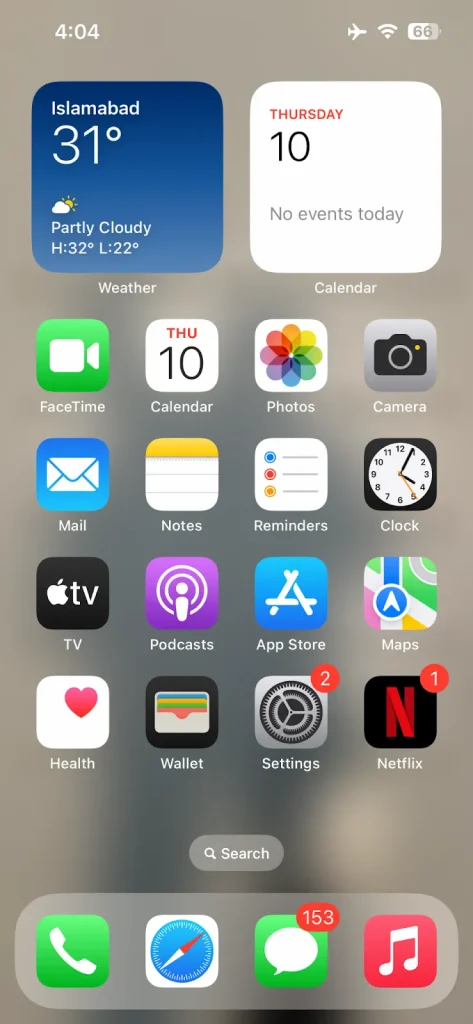
- Click the Settings app.
- Go to the WiFi option.
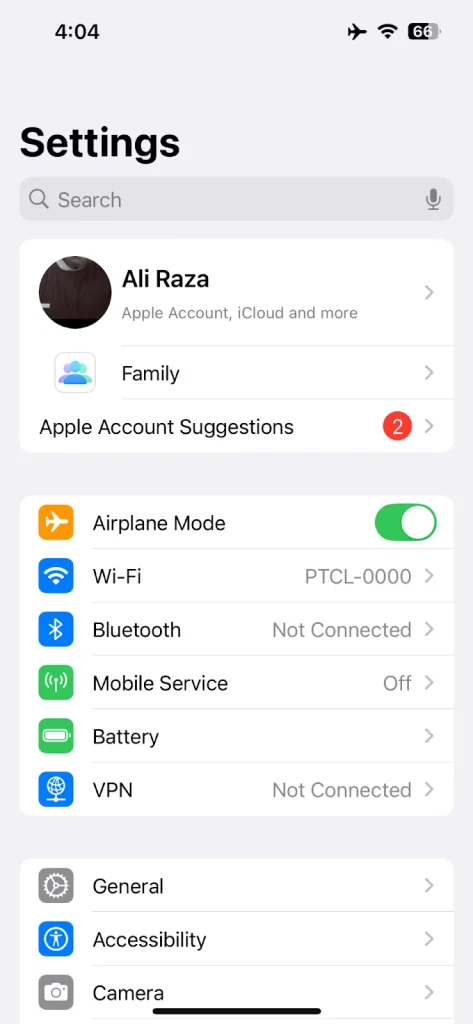
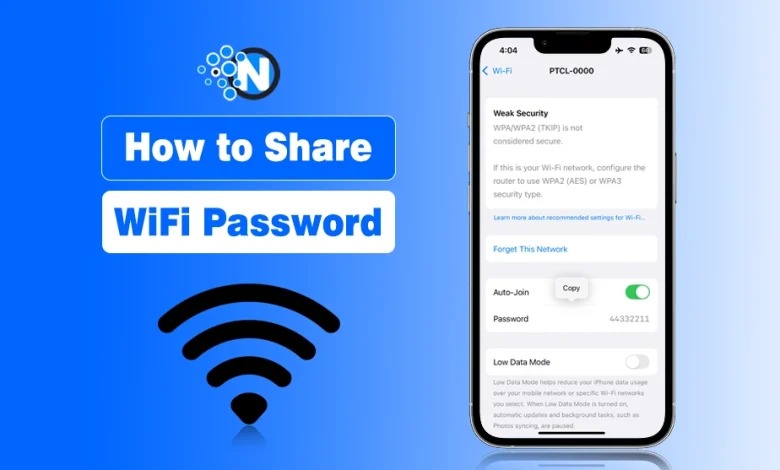
- Find the network connected to your mobile and click it.
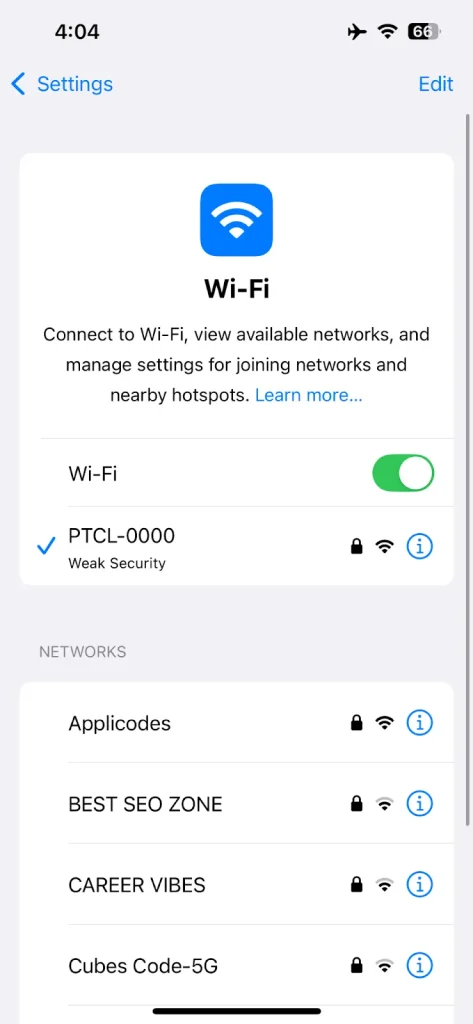
- Next, tap on the “i” icon.
- Now, you have to click on Password.
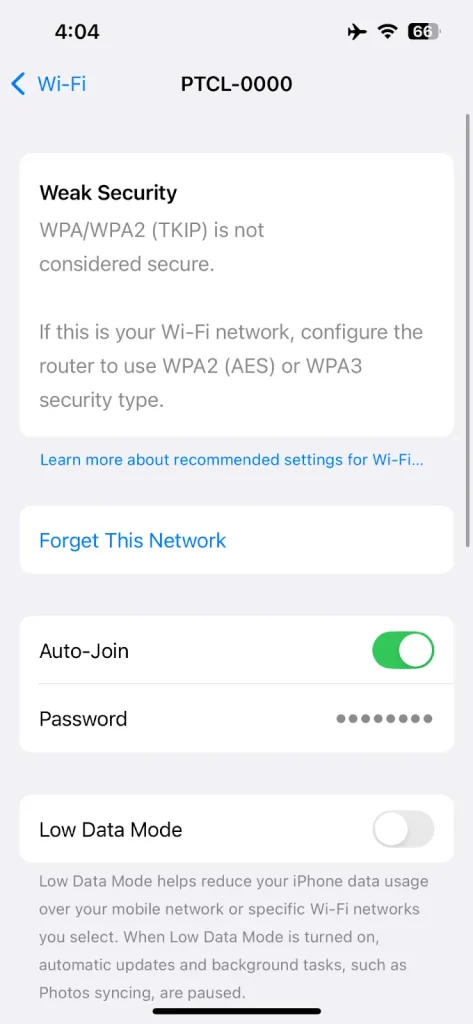
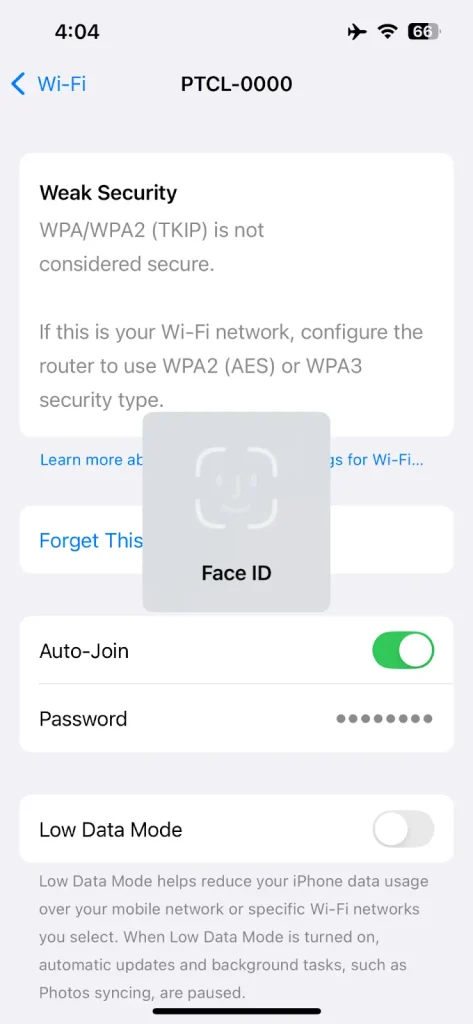
- Confirm your Face ID.
- The password will be revealed.
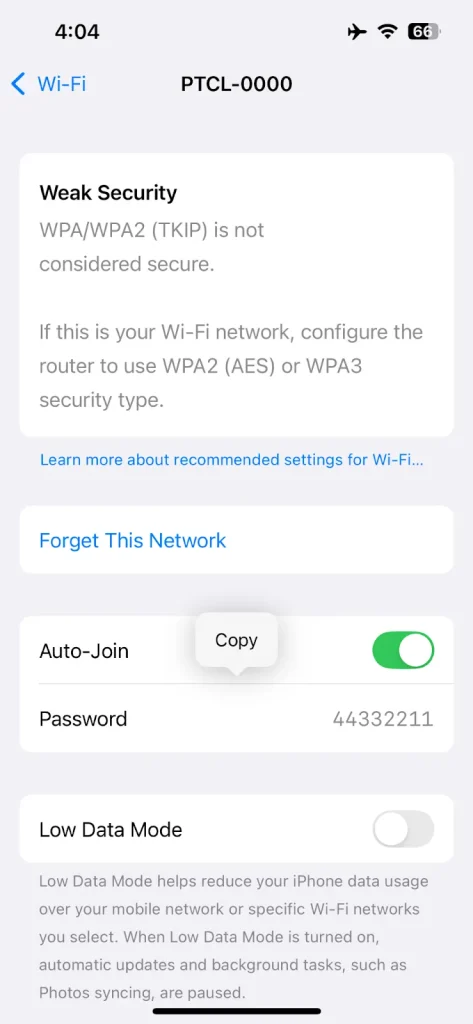
Now, you can tell this to your guests or send them the screenshot to let them connect with the same WiFi network you are already connected to.
How to Share a WiFi Password Automatically Between Apple Devices
If both you and the other person use Apple devices, you can share your WiFi password without revealing or typing it. Apple’s built-in Share Password feature securely sends the saved WiFi credentials from one device to another in just a few taps.
But before you start, make sure the following requirements are met:
- Both devices have Wi-Fi and Bluetooth turned on.
- Both devices are unlocked and within Bluetooth range.
- The email address or phone number associated with each person’s Apple Account is saved in the other’s Contacts app.
- Your iPhone, iPad, or Mac is already connected to the WiFi network you want to share.
- The other person’s device is not already connected to that WiFi network.
Steps to Share Your WiFi Password
- On the recipient’s Apple device, open Settings > Wi-Fi and select the WiFi network they want to join.
- Bring both devices close to each other.
- A Share WiFi Password prompt will automatically appear on your device.
- Tap Share Password.
- Wait a few seconds while the password is securely transferred.
- Tap Done once the process is complete.
The recipient’s device will connect to the WiFi network automatically without ever displaying the actual password.
How to Share WiFi Password on Android?
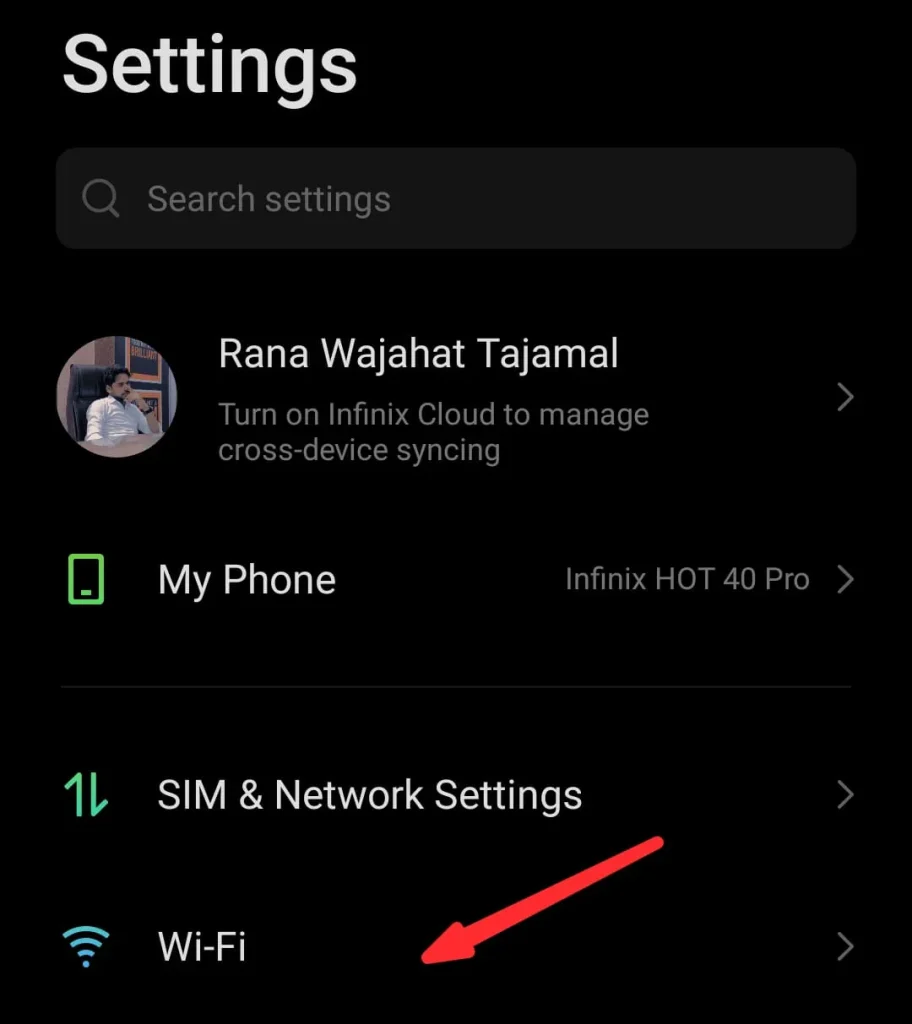
On most Android phones running Android 10 or later, users can easily share the WiFi, especially with QR code features baked right into the system. Here is how you can do it.
- Go to your WiFi settings.
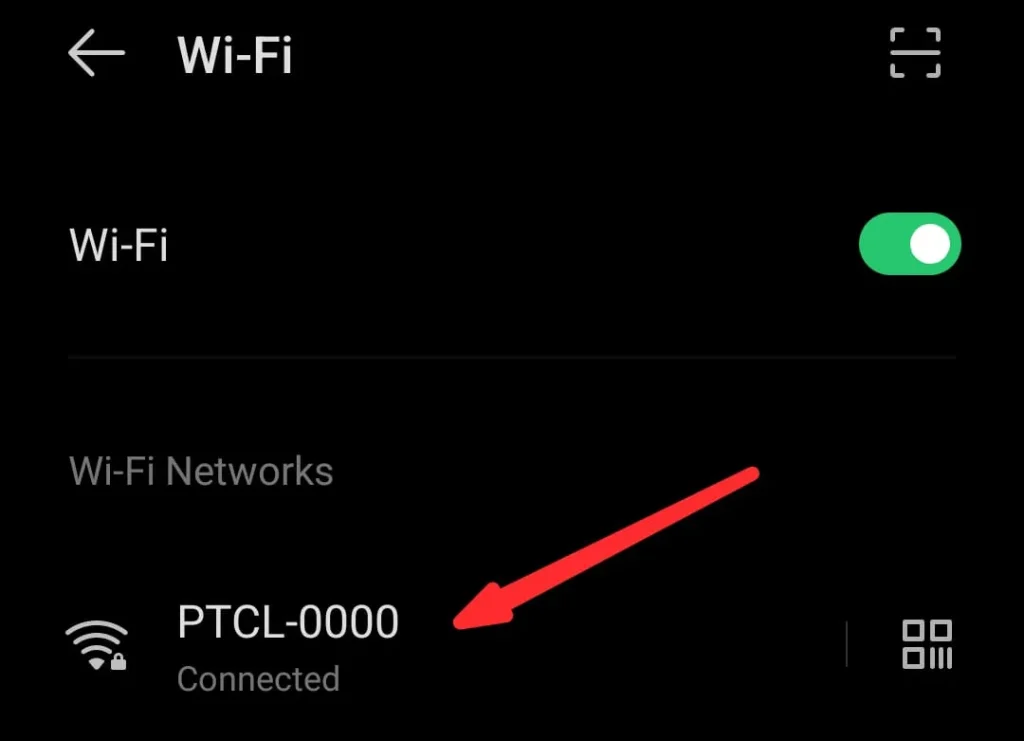
- Tap the name of the network you are connected to.
- You will see a small “Share” option with a QR code icon. Tap that.
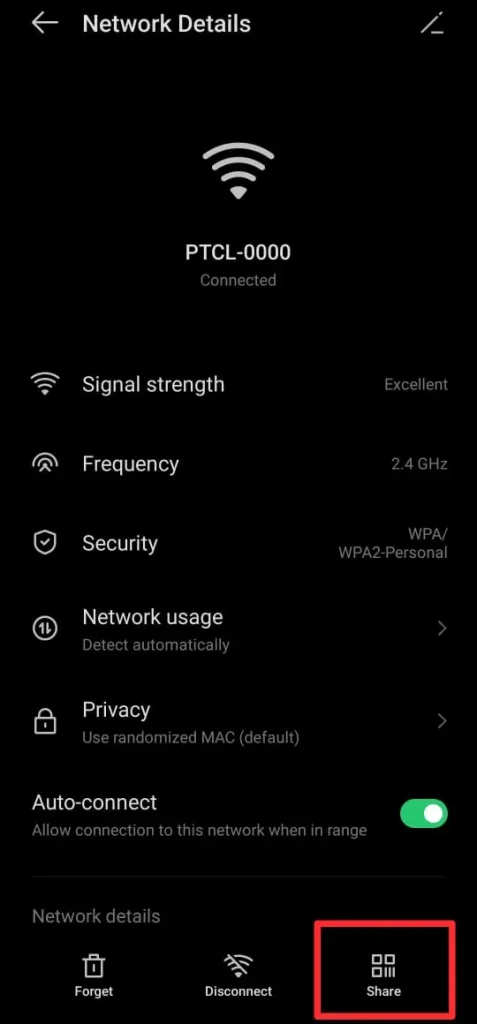
- Depending on your phone’s security, you might need to unlock using a fingerprint, PIN, or face scan.
- Now your phone will display a QR code.
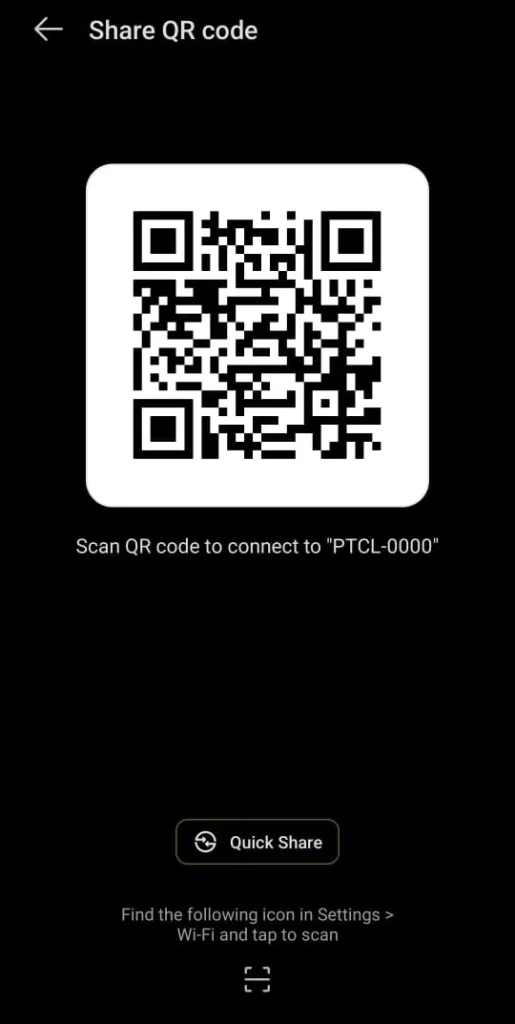
- Your friend can simply scan this code using their phone’s camera or QR scanner app and connect automatically.
👉 Pro Tip: Some older Android versions don’t support QR sharing.
How to Share WiFi Password on Windows
Now let’s talk about Windows. While it is not as seamless as mobile platforms, there are a couple of effective ways to share your WiFi from a Windows laptop or PC.
If someone needs the password and you forgot it yourself, here is how to find it:
Windows 10
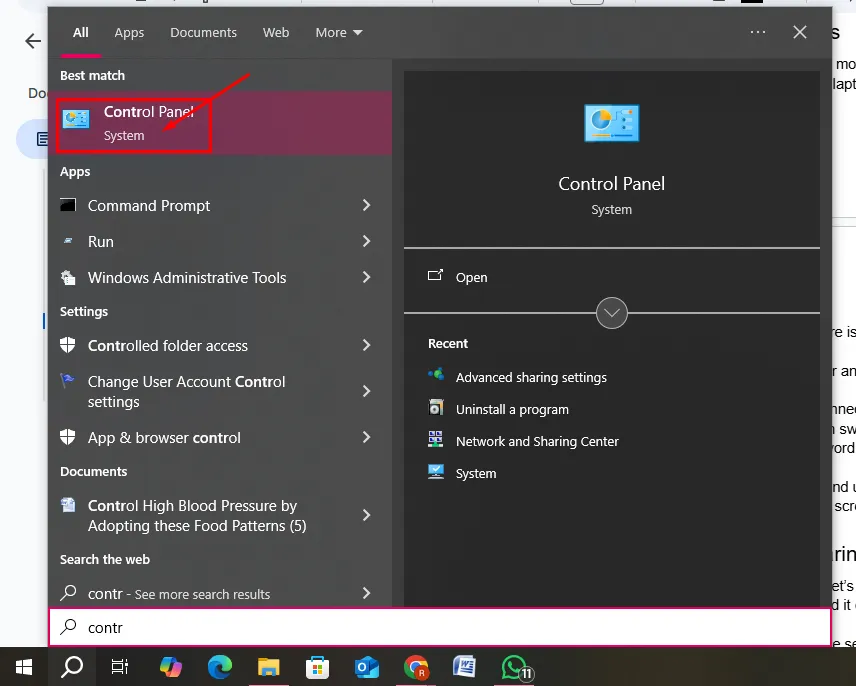
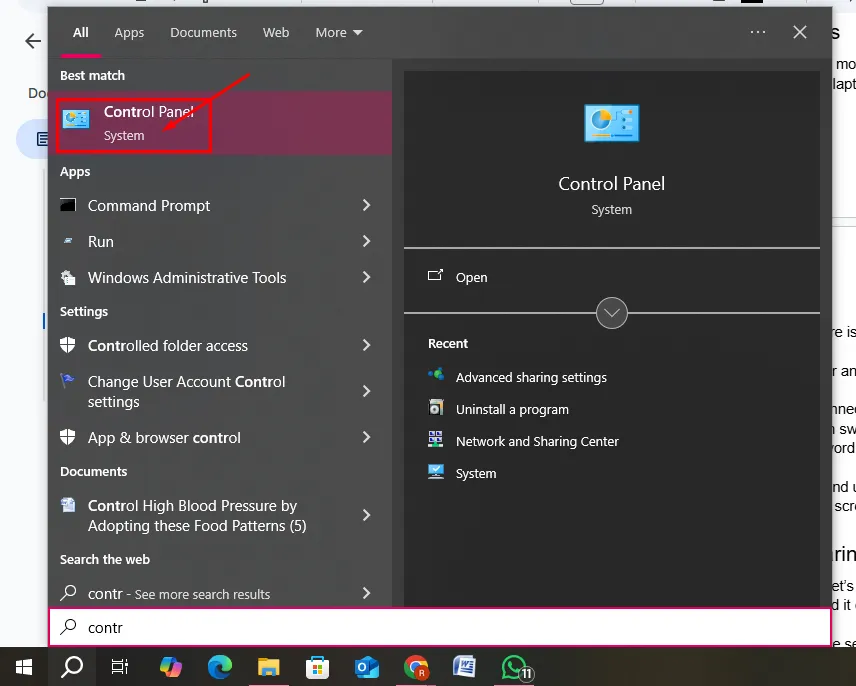
- Search for “Control Panel” in the Windows search bar and open it.
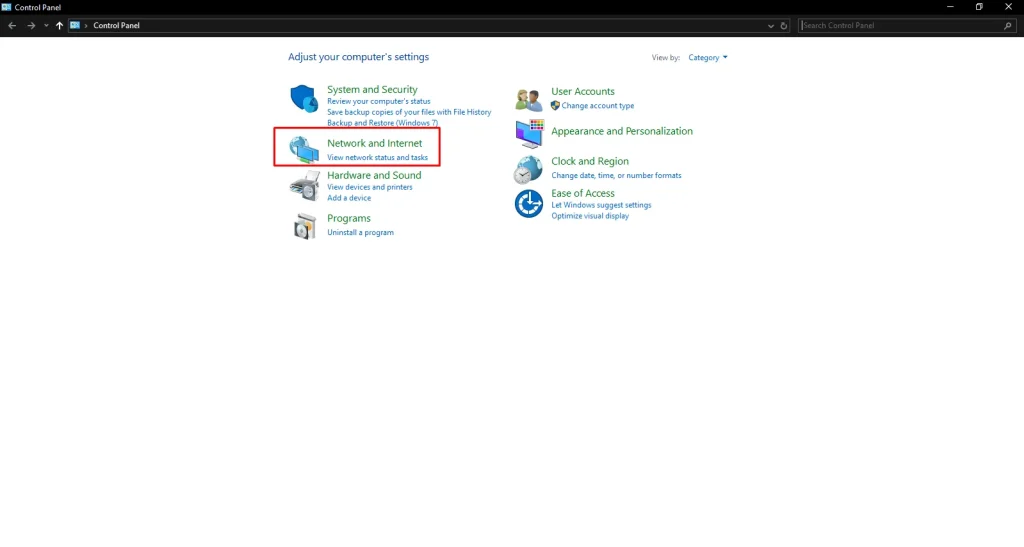
- Choose the Network and Internet.
- Click on “Network and Sharing Center”
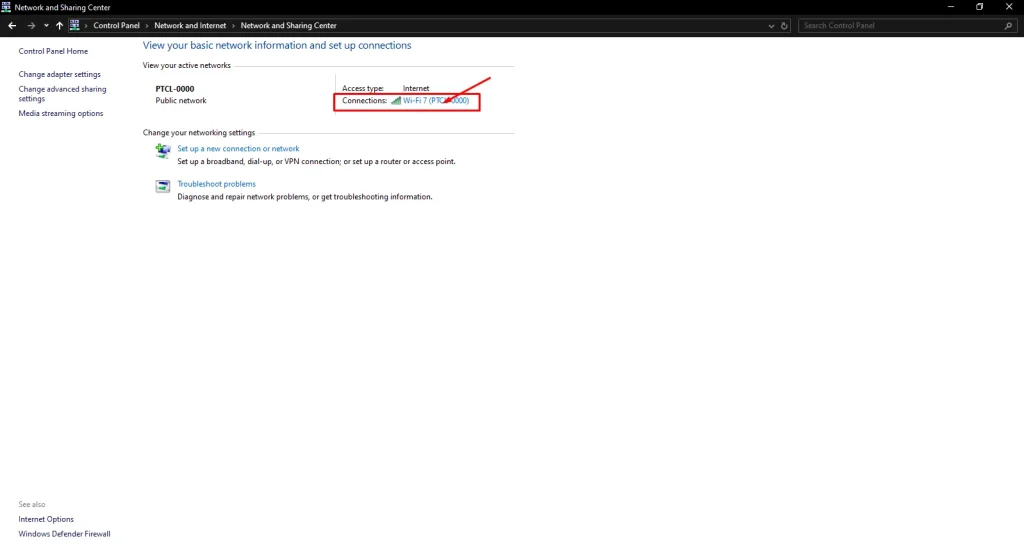
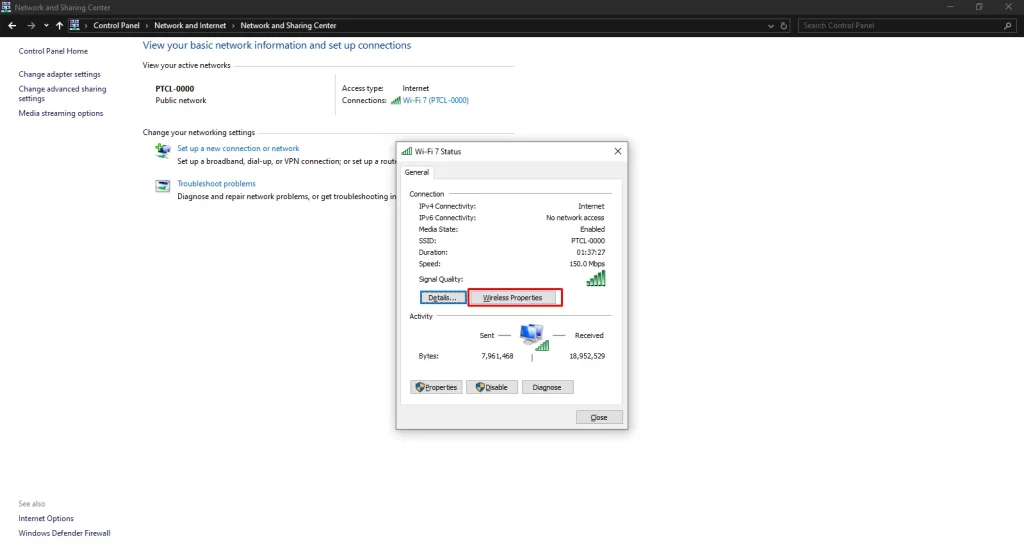
- Then click on your connected WiFi name next to “Connections.”
- A pop-up will appear. Click “Wireless Properties.”
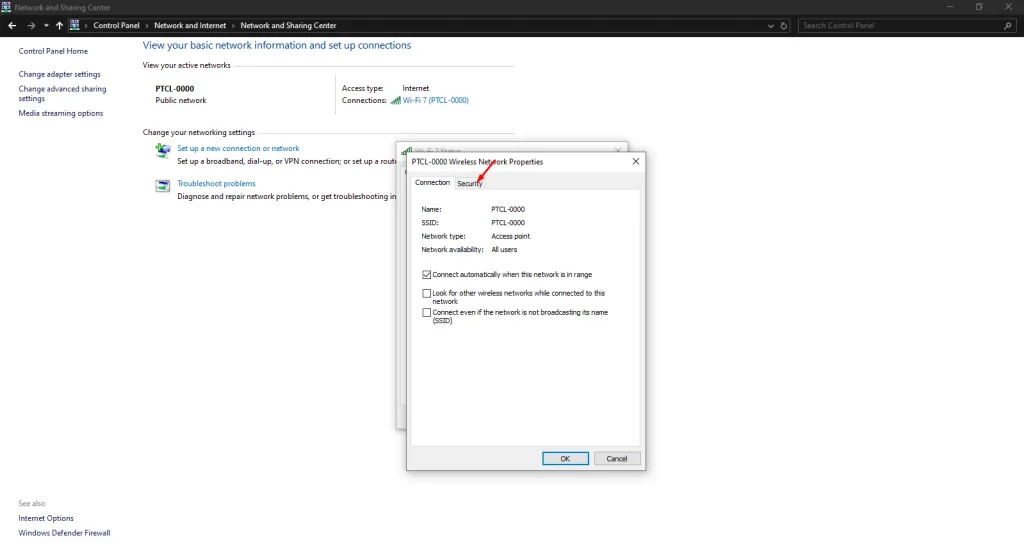
- Then switch to the “Security” tab.
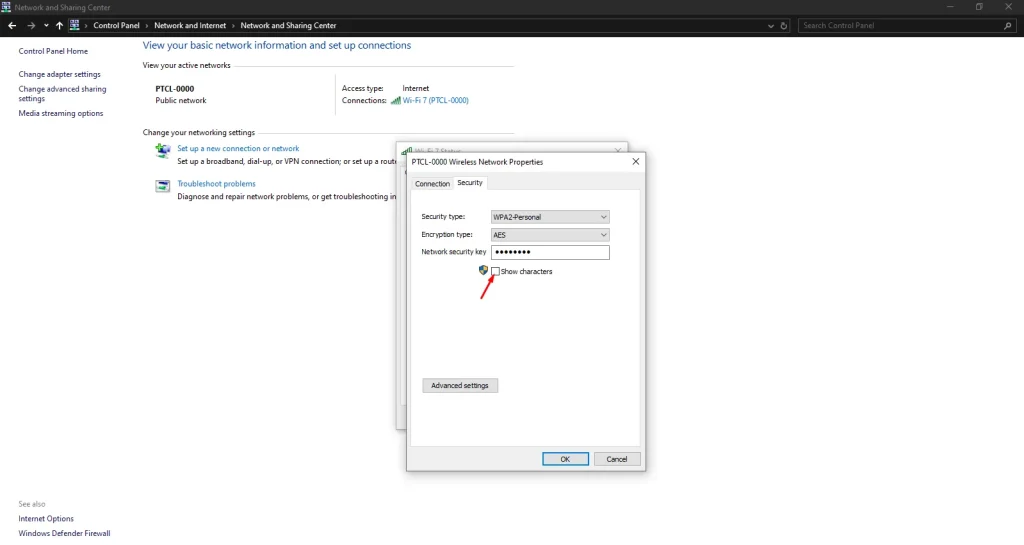
- Check the box for “Show characters” and your password will be visible.
Once you know the password, you can go one step further and use any online QR code generator to create a QR code. Print it out or keep it on your screen for others to scan.
Tips to Keep Your WiFi Secure While Sharing
Now that I have covered how to share your WiFi password, let’s make sure you are sharing it wisely. Just because it is easy doesn’t mean you should hand it out like candy.
So, you have to make sure you can share it while keeping the security intact. Below are a few tips.
- Create a Guest Network: Most modern routers allow you to set up a guest WiFi. If you’re using xFi Complete service, this feature is built in and super simple to manage, keeping your main network safe while still offering internet access to visitors.
- Use a QR Code Instead of Typing: It is way safer and reduces errors. You don’t have to worry about typos or people seeing your actual password.
- Change Your Password Regularly: If you are someone who hosts a lot of guests, it is a good idea to reset your WiFi password every few months to maintain security.
Final Words on Sharing Your WiFi Password
So the next time someone asks, What is your WiFi password, you won’t be fumbling around, Google how to share WiFi password, or look at a sticky note from under the router. Whether you possess an iPhone, Android, or PC, you now have the steps to share your WiFi smoothly, securely, and without stress.
I hope this guide makes your life a little easier because let’s be honest, the internet should just work. If you found this helpful, feel free to share it with someone who is always asking for your password.
Frequently Asked Questions
How can I share my WiFi password without telling it?
You can share your WiFi without revealing the actual password by using built-in features like iPhone’s Share Password, Android QR code sharing, or by generating a WiFi QR code that others can scan to connect instantly.
How do I share my WiFi password using a QR code?
On most Android phones, go to Settings > WiFi > Connected Network > Share/QR Code. A QR code will appear that anyone can scan with their camera to join the network instantly.
Can I share WiFi from iPhone to Android?
Yes, but iPhones don’t generate QR codes. Instead, the Android phone should scan a QR code generated by another Android device or you can share manually. Apple’s auto-share feature only works with Apple devices.
How do I see my WiFi password on Windows?
Go to Control Panel > Network and Sharing Center > WiFi Properties > Security tab, then check Show characters to reveal the password so you can share it.
Is it safe to share my WiFi password?
Yes, as long as you share it with trusted people. For extra safety, use guest networks, QR codes, or Apple’s Share Password feature to avoid typing the actual password.