Your WiFi network connects almost everything in your home, from phones and laptops to smart TVs and security cameras. No doubt that is a great convenience, but this also makes your router a core security point in your home.
I learned this the hard way when my social accounts were hacked because I was using the same password everywhere. That thing also made me curious: if by having a single password everywhere all of my socials are at risk, then how is it possible that all of my internet-connected devices are connected to the same router and it can’t get hacked?
You may have got my point, and don’t worry; moving next, you will also explore all of the simple tactics that help you stay protected from being hacked.
Whether you want to protect your WiFi from neighbors, secure WiFi cameras, or want to know what to do about WiFi jammers, and how to stay safer when using public WiFi.
What Does It Mean to Protect WiFi?
Protecting WiFi means securing your wireless router, network credentials, connected devices, and administrative settings against unauthorized access.
Your router acts as a central connection point between your devices and the internet. A typical home network may include:
- Smartphones
- Computers and laptops
- Smart TVs
- Security cameras
- Game consoles
- Printers
- Smart speakers
- Thermostats
- Smart appliances
- Other IoT devices
That means securing only your WiFi password isn’t enough. You should also secure the router itself and the devices connected to it.
The Federal Trade Commission (FTC) recommends WPA3 or WPA2 encryption, changing default router credentials, keeping router software updated, using guest networks, and enabling the router firewall to keep your WiFi network protected.
How to Protect WiFi From Hackers? Basic Steps Everyone Can Act on
First, keep in mind it is not necessary to have any deep technical knowledge to protect yourself from hackers; start with your router. The following steps provide a strong foundation for most networks.
Use WPA3 or WPA2 Encryption
Open your router’s wireless security settings and check the encryption method.
Choose:
- WPA3 Personal – preferred when supported
- WPA2 Personal – a good option for compatible older devices
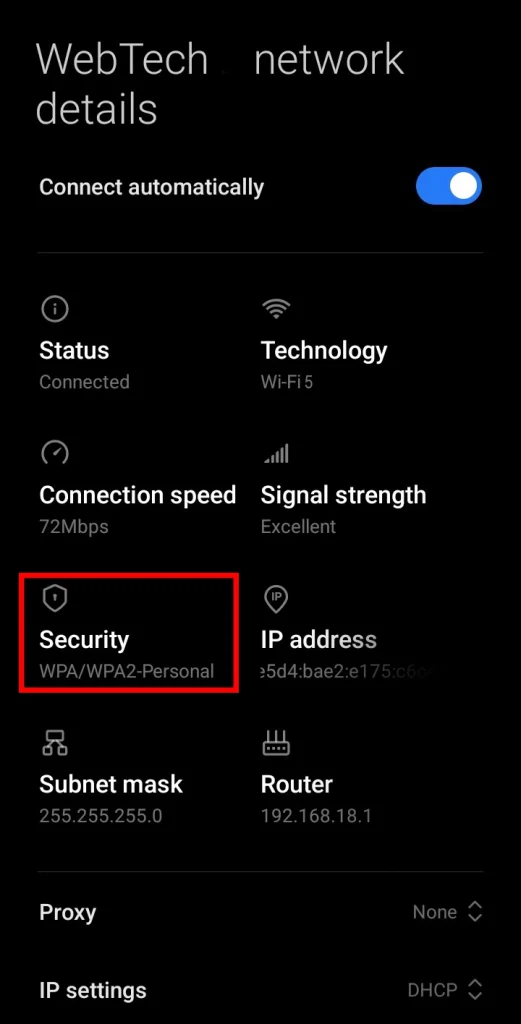
Here in this image, as you can see, I am also using WPA2 Personal. I showed it here so you don’t think that I am just telling you everything, copying from the internet.
Avoid outdated security protocols such as WEP and older WPA configurations. The FTC recommends WPA3 Personal or WPA2 Personal and suggests replacing an older router if it cannot support either standard.
Create a Strong WiFi Password
Your WiFi password should be long, unique, and difficult to guess. Avoid using:
- Your name
- Home address
- Phone number
- Birthday
- Pet’s name
- Family member’s name
- Router brand
- Simple sequences such as
12345678
Don’t reuse your WiFi password for email, banking, social media, or other important accounts.
A long passphrase can be easier to remember than a short, complicated password. It is recommended to use long, unique passwords and a password manager when helpful.
Change the Router Administrator Password
Moving next, let me make this clear to you: the WiFi password and the router administrator password are two different things. The WiFi password lets devices connect to your network. The administrator password lets someone access the router’s settings.
You must change the default administrator credentials immediately after setting up your router. Otherwise, someone who obtains administrative access could potentially change network settings, including your WiFi password.
Keep Your Router Firmware Updated
Router manufacturers regularly release software updates that can improve functionality and address security vulnerabilities.
Check your router manufacturer’s app or administration page for updates. If your internet provider supplied the router, check whether it automatically handles firmware updates.
Keeping the router updated is one of the simplest security improvements you can make.
Disable WPS, Remote Management, and UPnP When Unnecessary
Some router features make networking more convenient but can increase the attack surface when you don’t need them. If you don’t use them, consider disabling:
- WPS (WiFi Protected Setup)
- Remote management
- UPnP (Universal Plug and Play)
It is specifically recommended to turn off these features when they’re not needed because they can make the network less secure.
Keep the Router Firewall Enabled
Most modern routers include a built-in firewall. Check the router’s settings and make sure it is enabled unless you have a specific technical reason to configure it differently.
A firewall provides another layer of protection between your home network and outside traffic.
Create a Guest WiFi Network
Instead of giving visitors your main WiFi password, create a separate guest network. This provides two advantages:
- Guests don’t receive your primary network credentials.
- A compromised guest device has less direct access to your main network.
A guest network is particularly useful if you regularly have friends, family members, contractors, or other visitors connecting to your WiFi.
Check Which Devices Are Connected
Most routers allow you to see connected devices through an app or administration interface. Look for devices you recognize, such as:
- Your phone
- Laptop
- Smart TV
- Printer
- Camera
- Gaming console
- Smart speaker
If you see something unfamiliar, don’t immediately assume it’s a hacker. Some devices appear under manufacturer names or technical model numbers.
If you genuinely don’t recognize a device, investigate it and consider changing your WiFi password.
How to Stop Neighbors From Using Your WiFi?
Sometimes this also happens: neighbors get your wifi password, and you become aware of it when you are working, and signals drop due to limited reach.
By the way, protecting your Wi-Fi from that simple issue is not a big deal; you just have to follow a few steps, and the easiest steps are the same as I told you before:
- Use WPA3 or WPA2 encryption.
- Change the default WiFi password.
- Use a long, unique password.
- Don’t share your main WiFi credentials unnecessarily.
- Create a guest network for visitors.
- Check your connected-device list regularly.
- Change your password if you believe someone has obtained it.
If you’ve previously shared your password with a neighbor or another person and no longer want them to have access, changing the password is the simplest solution.
How to Protect WiFi Cameras From Hackers?
Security cameras deserve additional attention because they can contain sensitive video footage, account information, and sometimes audio.
If you’re searching for how to protect WiFi cameras from hackers, secure both the camera and the network it uses.
- Change the camera’s default password. Don’t continue using factory credentials.
- Update the camera firmware. Install security and software updates when available.
- Enable two-factor authentication. Use it if the camera’s account supports it.
- Choose cameras with encryption. Look for encryption for account information, live streams, and stored footage.
- Secure the home router. Use WPA3 or WPA2, a strong router password, current firmware, and an enabled firewall.
- Consider a separate network. Putting cameras on a separate network can limit their exposure if another device on your main network is compromised.
How to Protect WiFi From Jammers?
A WiFi jammer is different from someone trying to guess your WiFi password.
A jammer attempts to interfere with wireless communications rather than authenticate to your network. Possible symptoms include:
- Frequent WiFi disconnections
- Multiple devices losing connection at the same time
- Unusual wireless interference
- WiFi working normally in one location but failing in another
There is no WiFi password that can simply block a jammer. If you suspect persistent wireless interference:
- Test the connection using Ethernet if possible.
- Check whether multiple wireless devices experience the same problem.
- Move closer to the router and compare performance.
- Check your router’s diagnostic information.
- Contact your ISP if the problem continues.
- Consider professional wireless interference testing if necessary.
Don’t attempt to counter-jam or interfere with radio signals yourself.
How to Protect Yourself on Public WiFi?
This is also a concern; most people don’t give importance to the distinction between a home WiFi and public WiFi, because both require different approaches to remain protected.
When you’re at a hotel, airport, coffee shop, library, or other public location, you have little control over the network itself. Fortunately, public WiFi is not automatically dangerous.
Widespread website encryption means many public WiFi connections are safer than they were in the past. However, you should still protect your accounts and devices.
When using public WiFi:
- Check that websites use HTTPS.
- Avoid entering sensitive information on suspicious websites.
- Keep your phone and laptop updated.
- Use strong, unique passwords.
- Enable two-factor authentication on important accounts.
- Turn off automatic WiFi connections when appropriate.
- Avoid connecting to networks with suspicious names.
- Log out of accounts when you’re finished using shared devices.
Does a VPN Protect You on Public WiFi?
A VPN can provide an additional layer of privacy by encrypting traffic between your device and the VPN service. However, a VPN isn’t a complete security solution.
It doesn’t automatically:
- Remove malware.
- Protect an outdated device.
- Stop phishing attacks.
- Make a malicious website trustworthy.
- Fix an insecure home router.
- Protect accounts with weak passwords.
So, think of a VPN as an additional layer rather than a replacement for basic security practices.
How to Tell If Someone Has Hacked Your WiFi?
There isn’t always an obvious sign that someone has accessed your network. However, several things can indicate that you should investigate.
Signs Someone May Be Using Your WiFi
- An unfamiliar device appears in your router’s connected-device list.
- Your internet suddenly becomes unusually slow.
- Your WiFi password stops working unexpectedly.
- Router settings change without your permission.
- Devices repeatedly disconnect or behave unusually.
- You notice unexpected activity in your router’s administration panel.
An unknown device doesn’t automatically mean your network has been hacked. Smart home products and phones can have confusing device names, so identify the device before taking action.
What to Do If You Think Your WiFi Has Been Hacked
If you believe someone has unauthorized access, work through these steps:
- Change your WiFi password.
- Change the router administrator password.
- Update the router firmware.
- Check connected devices.
- Review router settings.
- Disable unnecessary remote management, WPS, and UPnP.
- Secure individual devices connected to the network.
- Contact your ISP if suspicious activity continues.
Remember that the problem might originate from an individual device rather than the WiFi itself. Secure each connected device with unique credentials, updates, and two-factor authentication where available.
Common WiFi Security Mistakes to Avoid
Even a modern router can become less secure because of simple configuration mistakes. Avoid these common problems:
- Keeping the default WiFi password
- Using outdated WEP or WPA security
- Using the same password everywhere
- Leaving router firmware outdated
- Sharing your primary WiFi password with everyone
- Leaving unnecessary remote management enabled
- Ignoring unknown connected devices
- Using default passwords on cameras and smart devices
- Connecting outdated IoT devices indefinitely
- Assuming a VPN protects against every online threat
Your router is only one part of your security. Every device connected to it should also be protected and updated.
Frequently Asked Questions About Protecting WiFi
Can I protect my WiFi without changing the network name?
Yes. You can keep your existing WiFi name and improve security by using WPA3 or WPA2 encryption, a strong password, updated router firmware, and a changed administrator password.
Should I hide my WiFi network to make it more secure?
No. Hiding your SSID provides little meaningful security compared with using strong encryption and a secure password. Focus on WPA3/WPA2 and proper router configuration instead.
How often should I change my WiFi password?
You don’t need to change it on a fixed schedule if it is strong and unique, but you should change it immediately if you shared it with someone you no longer trust or suspect unauthorized access.
Can a guest WiFi network protect my main network?
Yes. A guest network keeps visitors from needing your primary WiFi password and can provide separation between guest devices and your main network.
Does restarting my router remove hackers?
No. Restarting a router may resolve temporary connection problems, but it does not permanently remove unauthorized access. If you suspect a compromise, change your WiFi and administrator passwords, update the firmware, and review connected devices.
Is WPA3 better than WPA2 for home WiFi?
Yes. WPA3 is the newer WiFi security standard and should be preferred when your router and devices support it. WPA2 Personal remains a suitable option for compatible older equipment.
Final Thoughts on How to Protect WiFi
At the end, closing th whole discussion, again telling that learning how to protect WiFi doesn’t require advanced networking knowledge.
For most homes, the biggest improvements come from getting the basics right: use WPA3 or WPA2, create a strong password, change the router administrator credentials, keep firmware updated, enable the firewall, and disable unnecessary features.
A guest network can further reduce exposure when visitors need internet access, while separate networking for cameras and other IoT devices can provide another layer of isolation.
Don’t forget about the devices themselves. Phones, computers, cameras, smart TVs, and other connected products can introduce security weaknesses even when the router is properly configured.
If you complete the security checklist above and keep your router and connected devices updated, you’ll have a much stronger foundation for protecting your home WiFi from unauthorized access and common security threats.