Your internet plan may promise 300 Mbps, 500 Mbps, or even 1 Gbps, yet your phone can still struggle to load a webpage from the next room.
That does not necessarily mean your internet connection is slow.
The problem may be somewhere between your router and the device you’re using. A weak signal, a busy wireless environment, poor router placement, too many active devices, or outdated network hardware can reduce the speed you actually experience.
According to Cloudflare’s network performance guidance, distance from the router, physical obstacles, and wireless interference can all reduce WiFi performance.
This matters even more in a modern smart home, where phones, TVs, cameras, speakers, thermostats, and other connected devices may all share the same wireless network.
So instead of immediately buying a faster internet plan, start by finding where the slowdown is happening.
Quick Troubleshooting Checklist
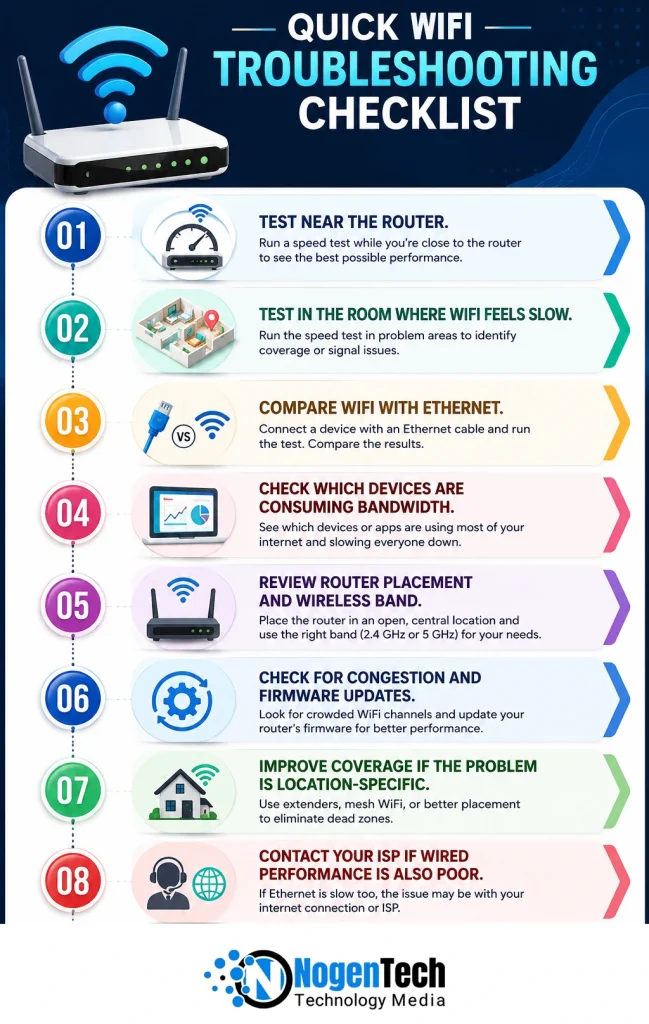
If you want to work through the problem without changing everything at once, follow this order:
- Step 1: Test near the router.
- Step 2: Test in the room where WiFi feels slow.
- Step 3: Compare WiFi with Ethernet.
- Step 4: Check which devices are consuming bandwidth.
- Step 5: Review router placement and wireless band.
- Step 6: Check for congestion and firmware updates.
- Step 7: Improve coverage if the problem is location-specific.
- Step 8: Contact your ISP if wired performance is also poor.
This approach gives you a much better chance of fixing the actual problem instead of applying random “WiFi speed hacks.”
First, Find Out What Is Actually Slow
Before changing router settings, run two simple tests.
First, run a speed test close to your router over WiFi. Then, if possible, connect a computer directly to the router with Ethernet and run the test again.
The results tell you more than a single speed-test number.
| What you see | Most likely problem |
| Fast Ethernet, slow WiFi | Wireless network or signal problem |
| Fast WiFi near the router, slow in another room | Coverage, walls, or interference |
| Slow Ethernet and WiFi | Internet connection, modem, router, or ISP |
| Only one device is slow | Device-specific problem |
| Speed drops when several people are online | Bandwidth demand or network management |
This simple comparison prevents one of the most common mistakes: replacing a router when the real problem is the internet connection or upgrading an internet plan when the real problem is weak WiFi.
Step-by-Step Process To Use for Fixing Your Slow-Speed Internet
I know I’ve already given you the checklist, but the bullets don’t explain the process in detail. If that helps you, that’s perfectly fine.
However, in case you need a little more guidance, here is a detailed step-by-step explanation that you can go through.
1. Fix the Router’s Location Before Changing Its Settings
Where your router sits can matter more than changing a dozen settings.
If it is hidden inside a cabinet, placed behind a television, sitting on the floor, or pushed into a corner, the wireless signal has to work through unnecessary obstacles before reaching your devices.
Move it to:
- An open area
- A higher position
- A relatively central location
- A place away from large metal objects
- A location with fewer walls between the router and frequently used devices
Do not assume that “center of the house” always means the best location. Think about where you actually use the internet.
For example, if your home office and smart TV are on one side of the house, placing the router at the opposite end simply because it is technically central may not give you the best real-world coverage.
2. Check Whether You Are Using the Right WiFi Band
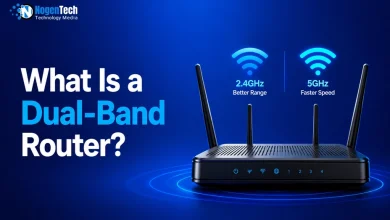
Modern routers can use multiple frequency bands, including 2.4 GHz and 5 GHz, and, on compatible WiFi 6E and WiFi 7 equipment, 6 GHz.
They are not interchangeable.
According to FCC guidance on in-home connectivity, 2.4 GHz generally provides broader coverage, while 5 GHz can deliver faster performance at shorter ranges, and 6 GHz provides additional wireless capacity for compatible devices, but its useful range is generally shorter, like 5GHz.
So if your laptop is sitting next to the router but connected through 2.4 GHz, switching to a suitable 5 GHz or 6 GHz connection may help.
On the other hand, forcing a distant smart-home device onto a higher-frequency band can make its connection worse.
The goal is not simply to choose the “fastest” band. Choose the band that fits the device’s location and use.
3. Test the Room Where the Problem Happens
A speed test beside the router does not tell you how well WiFi works throughout your home.
Walk to the room where you notice buffering, slow downloads, or dropped video calls and run another test there.
If performance falls sharply with distance, you have identified a coverage problem.
This is particularly important in smart homes because devices such as security cameras, smart thermostats, smart speakers, and connected appliances may be installed in locations where you cannot simply move them closer to the router.
You can improve coverage by repositioning the router, reducing obstacles, or using a properly placed mesh system. If the problem affects several rooms, see our guide on extending WiFi to multiple rooms for practical coverage options.
4. Look for Devices That Are Quietly Using Your Bandwidth
Not every connected device is constantly consuming large amounts of data, but some can become heavy users when they are performing specific tasks.
Check your router’s connected-device list for:
- Cloud backups
- Security cameras are uploading video
- Game downloads and updates
- 4K streaming
- Large file transfers
- Computers syncing cloud storage
- Smart TVs and streaming boxes
You may discover that the WiFi itself is fine; the network is simply busy.
For example, if a gaming PC is downloading a 100 GB update while someone else is trying to make a video call, the experience can deteriorate even though the router and internet connection are working normally.
Pause unnecessary transfers first. If your router supports traffic prioritization or QoS, you can also prioritize latency-sensitive activities such as video calls or gaming.
5. Give Stationary Devices a Wired Connection
A smart TV, desktop PC, gaming console, or streaming box does not need to use WiFi simply because the device supports it.
If the device is close enough to the router, Ethernet is often the cleaner solution.
A wired connection can reduce wireless traffic and provide more consistent performance for devices that regularly use large amounts of bandwidth.
That can leave more wireless capacity for phones, tablets, smart speakers, and other devices that actually need to move around.
This is especially useful in a busy smart home where dozens of devices may share the same wireless environment.
6. Check for Wireless Congestion Before Changing Channels
If you live in an apartment building or a densely populated neighborhood, your router may be surrounded by many nearby networks.
This can be particularly noticeable on the 2.4 GHz band.
Before manually changing channels, check whether congestion is actually present. Many modern routers can automatically select an appropriate channel, and leaving that setting enabled may be sufficient.
If your router or WiFi analyzer shows heavy congestion, experimenting with a less crowded channel may help.
Do not change channels repeatedly without testing the result. The objective is to solve a measurable problem, not to keep changing settings because a particular configuration is recommended online.
7. Restart the Router When the Problem Is Sudden
A restart is worth trying when your WiFi suddenly becomes unstable or unusually slow.
It can clear temporary software or connection problems and force the router to establish its connection again.
But restarting the router every day is not a speed optimization strategy.
If you repeatedly have to reboot the router to get normal performance back, investigate the cause instead. The problem could involve firmware, overheating, hardware failure, or the incoming internet connection.
8. Check Router Firmware and Hardware Age
Your router has to handle every wireless connection in the home.
If the hardware is several generations old, regularly disconnects, overheats, or struggles when many devices are connected, it may be the bottleneck.
Check for firmware updates through the manufacturer’s app or router interface. Updates can address bugs, security problems, compatibility issues, and network stability.
Also check whether the router supports the WiFi generation and speeds your current devices and internet plan require.
You do not need to replace a router simply because a newer WiFi standard exists. Upgrade when your existing hardware is actually limiting your network.
9. Treat Smart-Home Devices Differently
A smart home changes the way you should think about WiFi.
A phone or laptop may need high throughput for a short period, while a smart thermostat, sensor, or doorbell may need only a small amount of bandwidth but a reliable connection for long periods.
That means the “fastest WiFi everywhere” is not necessarily the goal.
For a connected home, you want:
- Reliable coverage
- Low enough latency for interactive devices
- Enough capacity for simultaneous users
- Stable connections for security devices
- Good compatibility with your smart-home ecosystem
This is why a network that feels perfectly fine with three phones may behave differently after adding cameras, smart TVs, speakers, plugs, and other connected equipment.
If you’re building a connected home from scratch, our guide to Smart Home Internet explains why the internet connection and wireless network both matter.
10. Know When the Problem Is Outside Your Home
If you have tested multiple devices, checked WiFi coverage, tried Ethernet, and still get poor performance, stop changing WiFi settings and investigate the internet connection itself.
Run a wired speed test if possible.
If the Ethernet result is also significantly below what your plan normally provides, check:
- Your ISP’s outage status
- Modem connection status
- Your subscribed speed
- Any plan-specific data restrictions
- Router-to-modem Ethernet connection
- Whether the problem occurs at particular times
If the issue persists, contact your ISP and ask them to test the connection from their side. A new WiFi router cannot fix an ISP-side connection problem.
What If WiFi Is Fast Near the Router but Slow in Another Room?
This is one of the easiest situations to diagnose.
If your connection is strong beside the router but much slower in another room, your internet plan is probably not the first thing you should change.
Instead:
- Check the router’s location.
- Test the affected room separately.
- Compare 2.4 GHz with 5 GHz where appropriate.
- Look for walls, floors, appliances, and other obstacles.
- Check nearby wireless congestion.
- Move the router if practical.
- Consider mesh WiFi if the weak area cannot be solved through placement.
If several rooms have the same problem, think about coverage, not simply internet speed.
What If Every Device Is Slow?
If phones, laptops, TVs, and other devices are all performing poorly even close to the router, run an Ethernet test.
If Ethernet is also slow, focus on the modem, router-to-modem connection, ISP service, or internet plan. If Ethernet is fast but every WiFi device is slow, the wireless side is the more likely bottleneck.
That distinction can save you from spending money on the wrong upgrade.
Do You Always Need a Faster Internet Plan?
Not necessarily.
A faster plan increases the bandwidth available from your ISP, but it cannot repair weak WiFi coverage.
For example, moving from a 300 Mbps plan to 1 Gbps will not automatically solve a weak signal caused by several walls between your router and phone.
Likewise, buying a powerful WiFi router will not fix an ISP connection that is already delivering poor speeds over Ethernet.
Find the bottleneck first. Upgrade second.
Frequently Asked Questions About Fixing Slow Internet
Why is my WiFi slow when my internet is fast?
Your internet connection and WiFi connection are different parts of your home network. If your internet is fast over Ethernet but slow over WiFi, the issue is likely related to signal strength, interference, router placement, wireless congestion, or the router itself.
Does moving a router really improve WiFi speed?
It can improve the speed experienced by devices that previously had a weak signal. Moving the router to an open location with fewer obstacles can improve coverage and signal quality.
Is 5 GHz always better than 2.4 GHz?
No. 5 GHz generally provides higher speeds at shorter distances, while 2.4 GHz can travel farther and work better through obstacles. The better option depends on the device and its location.
Can too many smart-home devices slow down WiFi?
They can contribute to network congestion, particularly when several devices are actively transmitting data. A large number of low-bandwidth devices does not automatically make WiFi slow, but cameras, streaming devices, downloads, and other high-traffic devices can consume substantial network capacity.
Will a WiFi extender make my internet faster?
An extender can improve coverage in an area with a weak signal, but it does not increase the speed supplied by your ISP. Its usefulness depends on where it is installed and how well it communicates with the main router.
Should I buy a new router or faster internet?
Find the bottleneck first. If Ethernet is fast but WiFi is poor, investigate the wireless network. If both Ethernet and WiFi are slow, investigate the internet connection, modem, or ISP before buying a new router.
Final Takeaway on Enhancing Internet Speed
Improving home WiFi is less about finding one magic setting and more about identifying where performance is being lost.
Start with the simplest comparison: test near the router, test where the problem occurs, and compare WiFi with Ethernet.
That tells you whether you’re dealing with weak coverage, wireless congestion, device demand, outdated hardware, or an internet connection problem.
And if your home is packed with connected devices, remember that good WiFi is not just about peak speed. A smart home needs a network that stays reliable as phones, TVs, cameras, speakers, thermostats, and other devices use it at the same time.