Xfinity internet can feel slow because of an outage, weak WiFi coverage, heavy activity from connected devices, unsuitable equipment, a coaxial-line problem, or a plan that no longer meets the household’s needs. Sometimes, the service is working normally, and the slowdown affects only one phone, computer, website, or app.
The quickest way to identify the source is to compare the connection reaching your Xfinity Gateway with the performance reaching individual devices. If several devices are slow over both Ethernet and WiFi, investigate the service, gateway, and cable line. If Ethernet performs normally but WiFi is slow, focus on wireless coverage and interference.
Follow the checks below in order. This will help you address the actual cause before replacing equipment or paying for a faster plan.
Quick Diagnosis: What Is Causing the Slowdown?
| What You Notice | Likely Source | First Check |
| All devices suddenly become slow | Outage, gateway, or cable line | Xfinity Status Center |
| Only one device is slow | Device, app, VPN, or weak signal | Test another device nearby |
| Ethernet is normal, but WiFi is slow | Coverage, distance, or interference | Test beside the gateway |
| Speed falls when everyone is online | Shared bandwidth is under heavy use | Pause streams and downloads |
| Slowdown happens mainly at night | Household or local congestion | Compare timed wired tests |
| Uploads and video calls struggle | Upload demand or line issue | Pause uploads and test by Ethernet |
| Speed changed after the new equipment | Compatibility or activation problem | Check the modem on the account |
Change one thing at a time and retest. Otherwise, you will not know which step made a difference.
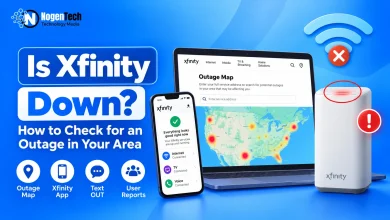
However, before adjusting your router settings or checking cables, confirm whether a regional service disruption is affecting your neighborhood by checking if Xfinity is experiencing an outage.
How to Find and Fix Slow Xfinity Internet
1. Check for an Xfinity Outage
Start by checking whether the problem is on Xfinity’s end. An outage does not always take your connection completely offline; local maintenance or a network fault can also cause slow speeds, high latency, or intermittent service.
Check the Xfinity Status Center or open the Xfinity app using your service address. If an outage is reported, wait for the network issue to be resolved. Restarting or resetting your gateway will not fix a problem outside your home.
If Xfinity reports no local issue, move to the next step.
2. Separate an Internet Problem From a WiFi Problem
The speed reaching your gateway and the speed reaching your device can differ. Walls, distance, interference, and device capability can slow WiFi even when your Xfinity connection is working normally.
Use the official Xfinity Speed Test and the Xfinity app’s network test to compare the speed reaching your gateway with the WiFi performance on your devices.
For a controlled comparison:
- Pause downloads, cloud backups, streams, software updates, and VPN connections.
- Connect a compatible computer to the gateway with a known-good Ethernet cable.
- Run a wired test and record the available download, upload, and latency results.
- Test over WiFi beside the gateway.
- Repeat the WiFi test in the room where the connection feels slow.
If the wired result is normal but performance falls with distance, the internet plan is unlikely to be the immediate problem. If multiple compatible devices remain slow over Ethernet, continue checking the gateway, cables, and equipment.
Xfinity advertises plans with speeds “up to” a stated level. Actual results are not guaranteed and can vary because of equipment, device limitations, network conditions, WiFi, and background activity. Use several controlled tests rather than judging the service from one wireless result.
3. Restart the Gateway and Inspect Its Connections
In the Xfinity app, open WiFi, select Troubleshoot, and choose the option to restart the gateway. You can also unplug its power cable, wait about one minute, reconnect it, and allow it to come fully online. Xfinity notes that an app-based restart can take several minutes.
A normal restart does not delete the WiFi name and password. Avoid pressing and holding the physical reset button during routine troubleshooting because that initiates a factory reset and can erase customized settings.
While the gateway is restarting, inspect the following:
- Make sure the coaxial connectors at the wall and gateway are finger-tight.
- Look for a bent center pin, corrosion, crushing, or visible cable damage.
- Check that the Ethernet cable fits securely and supports the speed being tested.
- Avoid adding unnecessary coaxial splitters, which can reduce signal strength.
If the connection drops completely rather than simply slowing down, a blinking green light on your Xfinity Gateway usually points to a signal loss that requires checking active service outages and the coaxial connection first.
Do not remove a splitter blindly if it also serves other Xfinity equipment. If the gateway frequently disconnects or every wired device remains slow after these checks, ask Xfinity to inspect the coaxial line and signal levels.
4. Check Connected Devices and Background Activity
Several active devices share the bandwidth available to the home. Streaming, game downloads, operating-system updates, cloud backups, security-camera uploads, and video calls can affect other users even when those tasks are running in the background.
This is increasingly relevant in connected homes. According to Deloitte, U.S. households have an average of 22 connected devices, including smart-home, entertainment, and other connected technology.
Pause high-bandwidth activity and test with one computer connected by Ethernet. If performance improves, reconnect devices gradually and watch for the slowdown to return.
You can also review the connected-device list in the Xfinity app. An unfamiliar device may indicate that the WiFi password should be changed, while a known device may simply be downloading or uploading more than expected.
If the connection works properly under light use but repeatedly struggles during the household’s normal routine, the available plan capacity may no longer be sufficient.
5. Improve WiFi Coverage & Gateway Placement
If Ethernet works normally, avoid changing the internet plan until you address the wireless network.
Place the gateway in an open, elevated, and reasonably central position. Avoid cabinets, floors, large metal objects, thick walls, microwaves, and other potential sources of WiFi interference. Xfinity recommends reducing obstacles and moving devices closer to the gateway when possible.
Xfinity Gateways can use one WiFi name across supported 2.4 GHz, 5 GHz, and 6 GHz bands and automatically select an appropriate connection for compatible devices. In general, 5 GHz and 6 GHz can provide faster performance at shorter distances, while 2.4 GHz reaches farther but may face more interference.
Avoid separating the bands unless you are resolving a specific device-compatibility problem. For a complete home-network check, follow our guide to improving home WiFi speed.
If only distant rooms remain weak, existing xFi Pods or another compatible mesh solution may extend coverage. An extender will not fix a slow Ethernet connection entering the gateway.
6. Confirm That the Equipment Supports Your Plan
Older or unsupported equipment may limit performance after a speed upgrade. A modem can establish an internet connection without supporting every speed tier or newer network capability.
If you own the modem or gateway, enter its information into Xfinity’s device compatibility tool. Confirm that it remains supported and is recommended for the plan currently active on the account.
Customers using their own hardware can also review our comparison of Xfinity-compatible modems before buying a replacement.
If you rent an Xfinity Gateway, the model supplied depends on the plan, service address, network technology, and availability.
A newer model will not automatically improve performance when the existing gateway already supports the connection; however, our XB10 vs XB8 comparison explains when the newer hardware may provide a practical benefit.
Existing customers who still subscribe to xFi Complete through an eligible legacy plan may have an included xFi Gateway and whole-home WiFi evaluation, which may help identify an equipment or coverage problem.
7. Verify a New Modem or Speed Upgrade
After installing a new modem, confirm that Xfinity has activated it on the correct account. If its wired performance remains unexpectedly low, ask support to verify the activation, configuration, and signal reaching the device.
After a plan upgrade, restart the gateway and test with compatible wired equipment. An older computer, WiFi adapter, Ethernet port, or cable can prevent a device from showing the higher speed even when the upgraded service is active.
If speeds still match your previous tier, ask Xfinity to confirm that the new plan is active and correctly configured for your modem.
8. Decide Whether You Need a Faster Plan
Consider an upgrade when controlled tests show that the connection works normally under light use but cannot support the household’s regular simultaneous usage.
Compare the available Xfinity internet plans against the number of active users and the tasks they perform. If you work from home and standard residential tiers still don’t provide the stability or support you need, consider whether getting Comcast Business Internet at home is a practical alternative for your setup.
On the flip side, if you are looking to downgrade to a simple, low-cost prepaid tier without long-term commitments, check out NogenTech’s detailed guide on Xfinity NOW Internet.
However, if you’re not getting the speeds your current plan already promises, troubleshoot the connection first. Upgrading the plan won’t fix an underlying equipment or network problem.
What Specific Slowdown Patterns Mean
Some symptoms can provide additional clues about the problem after you complete the basic tests.
Xfinity Becomes Slow at the Same Time Each Night
If your connection slows down around the same time every night, compare wired speeds from the same device in the morning, afternoon, and evening. Pause downloads, streaming, and backups during each test for a fair comparison.
If speeds consistently drop only in the evening, the issue may be related to network demand outside your home. Save your test times and results so Xfinity has a clear pattern to investigate.
Only One Phone or Computer Is Slow
When another device works normally from the same location, focus on the affected device. Restart it, pause its downloads, temporarily disable its VPN, install relevant system or Wi-Fi driver updates, and forget and reconnect to the home network.
If only one website or app performs badly, check that service on another device before changing the Xfinity setup.
If only one website or app performs badly, check that service on another device before changing the Xfinity setup.
Sometimes, a single device or browser slows down or fails to load a specific page because built-in network security tools such as Xfinity Advanced Security have incorrectly flagged or blocked the connection.
Upload Speed Is the Main Problem
Xfinity upload speeds can be lower than download speeds, depending on the plan and network available at the address. Compare the wired result with the upload rate associated with your specific service rather than with the download figure.
Pause security-camera uploads, file syncing, cloud backups, and livestreaming before testing. If upload performance remains unexpectedly low over Ethernet, ask Xfinity to check the line and account configuration.
When Should You Contact Xfinity?
Contact Xfinity when the problem affects multiple devices over both Ethernet and WiFi, continues after a restart, and is not explained by an outage or heavy household use.
Support may also be necessary when:
- The gateway repeatedly disconnects or cannot maintain an online connection.
- Several controlled wired tests produce unexpectedly low results.
- Coaxial cables, connectors, or the wall outlet appear damaged.
- The slowdown follows a consistent daily pattern.
- A supported new modem does not perform correctly after activation.
- The Xfinity app reports a connection, signal, or equipment problem.
Before contacting support, record the test time, wired download and upload results, affected devices, gateway model, and steps already completed.
Ask the representative to verify the modem’s account configuration and line signal levels rather than repeating only the gateway restart.
Frequently Asked Questions
Does Slow Xfinity Internet Prove That the Connection Is Being Throttled?
No. A slow result alone does not prove intentional throttling. Outages, WiFi interference, device limitations, background traffic, equipment compatibility, line conditions, and congestion can produce similar symptoms. Diagnose these factors before making that conclusion.
Why Does the Speed Test Not Match the Number Advertised for My Plan?
Xfinity markets tiers with speeds “up to” a stated level and says actual speeds can vary. A device’s hardware, connection type, background activity, WiFi conditions, equipment, and network conditions can all affect a test.
Compare several controlled wired results instead of relying on one WiFi test.