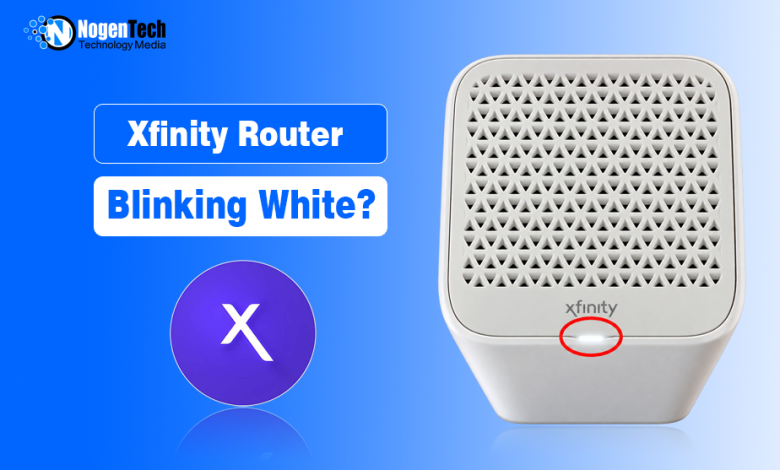
Setting up a new Xfinity Gateway? A blinking white light can be part of the activation process rather than a sign that something is wrong. Xfinity describes solid or blinking white light during activation as a limited operational state, while an activated Gateway normally shows a steady white light.
If a Gateway that was already working suddenly starts blinking white and loses internet access, treat it differently. Check Xfinity service status and the cable connection, then restart the Gateway if needed.
Replacement Gateways also need a separate check because the new equipment must complete activation before it can operate normally.
What Does a Blinking White Light Mean on an Xfinity Router?
The meaning depends on when the white light appears.
According to the Xfinity Gateway LED guide, a steady white light means an activated Gateway is on and operational. During activation, however, a single-light Gateway can display a steady or blinking white light while in a limited operational state.
That creates three common situations:
| Gateway Status | What to Check |
| New Gateway blinking white | Continue or verify activation |
| Replacement Gateway blinking white | Make sure the replacement has been activated |
| Previously working Gateway blinking white with no internet | Check service status and connection |
| Steady white after activation | Normal operation |
| Blinking blue | WPS pairing, not a white-light issue |
Identifying your situation first can prevent unnecessary resets and other troubleshooting that does not address the actual problem.
New Xfinity Gateway Blinking White? Start With Activation
If you have just installed a Gateway for Xfinity Home Internet, activation should be your first check.
The Gateway needs a secure connection to an active coaxial outlet before setup can finish. Xfinity says a single-light Gateway is ready for activation when the light turns white, either solid or blinking.
Open the Xfinity app and follow the setup prompts:
- Make sure the coaxial cable is finger-tight at both ends.
- Connect the Gateway to power.
- Start or continue activation in the Xfinity app.
- Run the connection check when prompted.
- Leave the Gateway powered on while activation completes.
Xfinity’s Gateway activation instructions say activation should take about 20 minutes.
Avoid repeatedly unplugging the Gateway during this process. If it is new and blinking white, complete the activation checks before assuming the hardware has failed.
What if the App Cannot Detect the Cable Outlet?
A Gateway can have power even when the connected coaxial outlet is not providing an active Xfinity connection.
If the Xfinity app cannot detect the connection during setup, it provides a Try Another Outlet option. Check that the current coaxial connection is secure first, then try another available cable outlet if necessary.
If multiple outlets fail the connection check, repeated restarts are unlikely to solve the underlying issue. Xfinity may need to verify the outlet or incoming service connection.
Why Is a Replacement Xfinity Gateway Blinking White?
Replacement equipment introduces another possibility: the new Gateway is connected correctly but has not completed activation for your account.
Xfinity notes that customers replacing an existing Gateway may not automatically see an activation prompt after signing in to the app.
If that happens, open the Xfinity app and go to:
Account → Set up equipment or devices → Xfinity Gateway or Modem
Then follow the activation prompts for the replacement device.
This check is particularly important when your previous Gateway worked at the same address and coaxial outlet, but the replacement remains in a blinking-white state.
In one Xfinity Community case, a replacement Gateway could not activate because the previous modem was still assigned as the primary device on the account.
After the equipment assignment was corrected, activation could proceed. That does not mean every blinking-white replacement has the same cause, but it shows why account activation should be checked before assuming the new hardware is defective.
Already Activated? Check Whether the Internet Is Down
If the Gateway was already activated and working normally, first check whether the connection problem affects the entire network.
Try the internet on more than one device. If only one laptop or phone is affected while other devices remain online, troubleshoot that device or its WiFi connection instead of treating the Gateway as offline.
If every device has lost access, continue with the service and Gateway checks below.
If the connection still works but performance has dropped, troubleshoot why Xfinity internet is slow separately. A blinking light alone does not identify the cause of a speed problem.
Check Xfinity Service Status
Before changing Gateway settings, see whether Xfinity has reported an interruption in your area.
Use the Xfinity Status Center or check the Xfinity app over mobile data if your home internet is unavailable.
If an outage is confirmed, a factory reset or WiFi configuration change will not restore the external connection. Wait for the reported interruption to end and then check the Gateway again.
If there is no reported outage, move on to the physical connection.
Check the Coaxial and Power Connections
Inspect the coaxial cable running between the Gateway and wall outlet. Both connectors should be secure and finger-tight. Look for an obviously loose fitting, damaged connector, crushed cable, or severe bend.
Check the power connection as well.
This step is especially relevant if the problem began after moving the Gateway or connecting it to another coaxial outlet. As Xfinity’s own activation process indicates, not every available cable outlet is necessarily providing the connection needed by the Gateway.
If the cables are secure and nothing has recently changed, restart the Gateway.
Restart the Gateway
A normal restart can re-establish the connection without erasing your WiFi configuration.
You can restart through the Xfinity app or manually:
- Disconnect the Gateway from power.
- Wait about one minute.
- Reconnect the power.
- Allow the Gateway to finish starting before testing the internet.
Do not repeatedly unplug it during startup.
After it boots, test the internet again. If an already-activated Gateway continues blinking white and all devices remain offline, use the Xfinity app for further troubleshooting.
Blinking White vs. Solid White: What's the Difference?
The two states have different meanings.
- Blinking white during activation: The Gateway can be in a limited operational state and may be ready for activation.
- Solid white after activation: The Gateway is on and operating normally.
- Blinking white after previously working normally: Check whether internet service has also been lost, then investigate the outage status, physical connection, and Gateway.
Also make sure the LED is actually white. Xfinity identifies a slowly blinking blue light on XB6, XB7, and XB8 Gateways as WiFi Protected Setup (WPS) pairing mode.
If someone recently pressed the WPS button or tried to pair a wireless device, blinking blue should not be diagnosed as a white-light connection problem.
Should You Factory Reset a Gateway Blinking White?
A factory reset should not be the first fix.
For a new Gateway, complete activation first. For replacement equipment, verify that the new device is activated for the account. For a previously working Gateway, check service status and cables and perform a normal restart first.
A factory reset can remove customized network settings without fixing an outage, inactive coaxial outlet, or account activation issue.
If the basic checks fail and the Gateway remains offline, Xfinity can investigate the service and equipment status before you erase the existing configuration.
When Should You Contact Xfinity?
Contact Xfinity when the issue reaches a point that cannot be resolved through local troubleshooting. Examples include a new Gateway that cannot detect an active cable outlet, a replacement that will not complete activation, or an existing Gateway that remains offline after checking service status, cables, and restarting it.
When contacting support, explain whether the Gateway is new, replacement, or previously working. For a replacement, mention whether the old Gateway worked on the same coaxial outlet. These details can help separate an activation problem from a service or equipment issue.
If Xfinity determines that the Gateway needs replacing or upgrading, the XB10 vs. XB8 Gateway comparison explains the differences between its newer Gateway options.
Related Guides:
- If your router keeps blinking an orange light, here’s how you can explore what that orange light indicates and how to fix it.
- And by any chance, if you encounter a green light, you can also check out that green light’s meaning and how you can fix it.
Frequently Asked Questions
Why is my Xfinity Gateway blinking white but the internet works?
Confirm whether the Gateway is still completing activation and make sure the light is white rather than blue. If the Gateway is already activated and your internet works normally, avoid resetting it based only on the LED. Check its status in the Xfinity app if the blinking continues.
Why is my replacement Xfinity Gateway blinking white?
First verify that the replacement has completed activation. Xfinity notes that replacement customers may not automatically see the activation prompt, so setup may need to be started manually through the app.