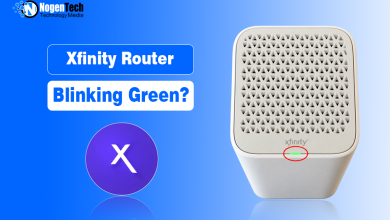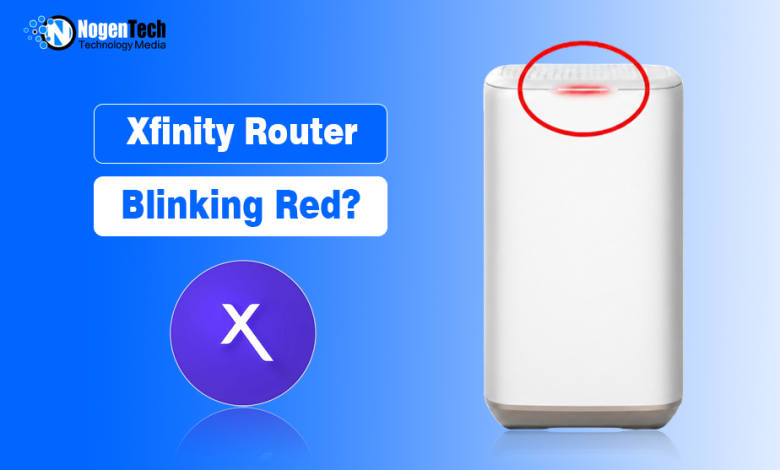
If I go strictly by what Xfinity says, a red light means there’s no internet connection. And interestingly, they don’t throw a long list of troubleshooting steps at you either. Their advice is pretty straightforward: contact Xfinity support.
The thing is, as you guys may have seen on NogenTech, I’ve already covered the green, orange, and white lights blinking on the Xfinity router. Looking back, though, I probably should’ve discussed the red light first because it’s the most annoying one.
- The orange light, basically amber, usually shows up while the device is powering up.
- Green means the modem is configuring, updating, or downloading something
- White means everything is running normally.
Red is a different story. It usually points to a network or connectivity issue, and when your internet isn’t working, that’s what really matters.
The good news? Don’t sweat it. It’s usually fixable. Stick with me to the end, and trust me, you’ll have this blinking red light figured out without jumping from guide to guide online.
Common Causes That Make Your Xfinity Router Blink Red
The red light is basically your gateway saying, “Hey, I can’t connect to the network.” But what broke that connection is the real question. It could be anything from a loose cable or outage to an issue with the gateway itself.
1. Connection or Service Issues
The most obvious culprit is the connection itself. A cable may have come loose, Xfinity internet service could be dealing with a service outage or network issue, or there could even be a billing problem that caused your service to be disconnected.
2. Hardware Problems
The problem could also be sitting right in the hardware. A damaged cable, faulty power adapter, or another component that isn’t doing its job can interrupt the connection and trigger that blinking red light.
3. Configuration Issues
Remember how the green light can show up while the gateway is configuring or updating? If something goes sideways during that process say, an update doesn’t install properly, or the firmware runs into trouble the gateway may struggle to operate normally or maintain a stable connection, eventually leaving you with that red light.
Fix Xfinity Router Blinking Red: 8 Simple Checks to Try
Like I mentioned earlier, Xfinity itself tells you to contact support when the gateway shows a red light.
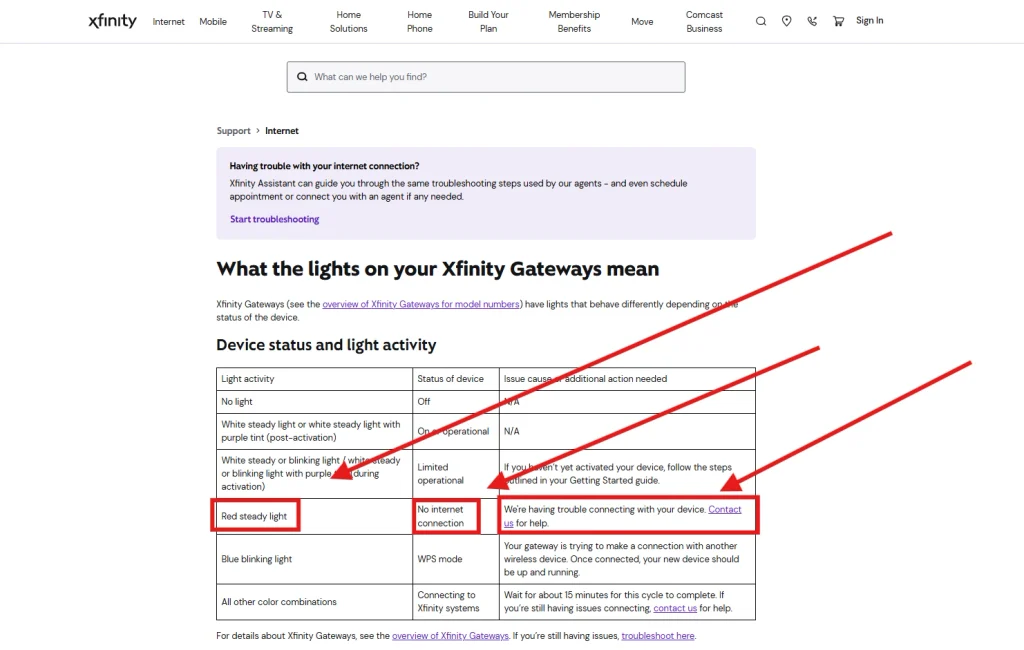
Fair enough but chances are, support will walk you through some basic checks anyway. So why not knock those out yourself first? That way, you’ll have a better idea whether the problem is actually on Xfinity’s end.
1. Check for an Xfinity Outage First
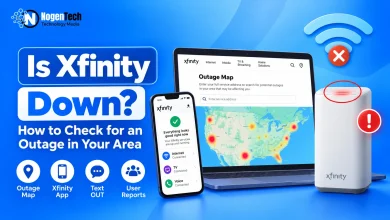
Before touching anything, check whether there’s an outage in your area. Head to the Xfinity app or official Status Center and see what’s going on.
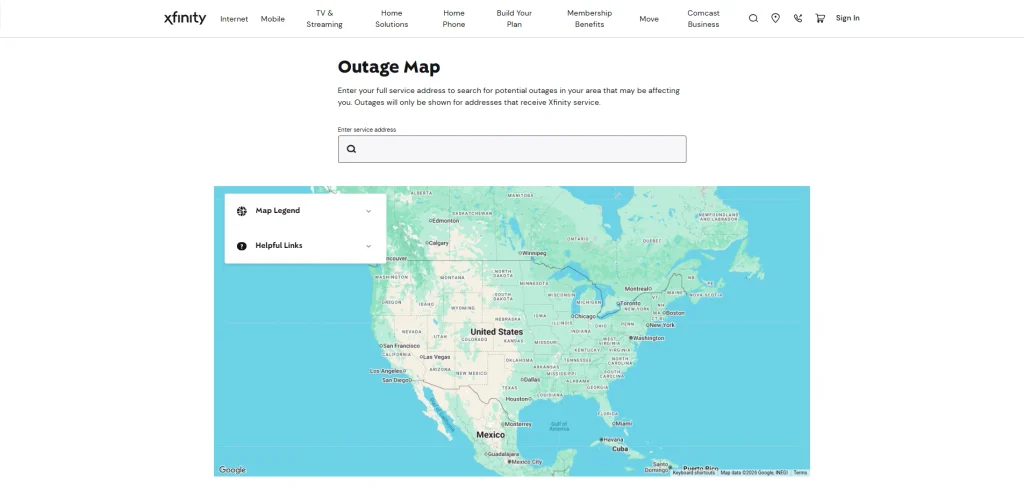
This quickly tells you whether Xfinity is having trouble or your gateway is the one acting up. If there’s an active outage, there’s really nothing to fix on your end. Sit tight and wait for Xfinity to restore the service.
If you’re not sure how to navigate the status map or want to check via SMS, you can follow our detailed guide on how to check if Xfinity is down step by step.
2. Check All Cable Connections
No outage? Alright, don’t just sit there you got a few more things to check.
Start with the cables. It sounds almost too basic, but one loose connection can be enough to knock your gateway offline. Make sure the power and Ethernet cables are plugged in nice and tight.
If you have a separate modem and router, pay extra attention to the Ethernet cable connecting them. Also look for bent connectors, cuts, fraying, or anything else that seems off. If a cable looks beat up, swap it out.
3. Restarting Your Xfinity Gateway is the Next Option
Sometimes your gateway simply needs a fresh start. You can restart it through the Xfinity app or website, giving it another shot at connecting with Xfinity’s network.
Give the restart a few minutes to finish. If that red light changes back to its normal state and your internet comes alive again, you’re good to go.
4. Power Cycle the Gateway
Still staring at that red light where you’d rather see white? Time for a full power cycle.
Unplug the gateway from the power outlet and leave it alone for about one to two minutes. Plug it back in, then give it a few minutes to boot up and reconnect.
If you have a separate modem and router, unplug both. Turn the modem back on first, wait for it to reconnect, and then power up the router. It sounds ridiculously simple, but a full power cycle can clear glitches that a regular restart sometimes doesn’t.
5. Point toward Checking the Coaxial Cable
If the red light is still hanging around, take a closer look at the coaxial cable. Make sure it’s screwed firmly into the gateway and isn’t pinched, bent, or visibly damaged.
By the way, if you can safely access the point where the cable enters your home, give that a look too. Sometimes weather, animals, or plain old physical damage can mess with the line and cut your gateway off from Xfinity.
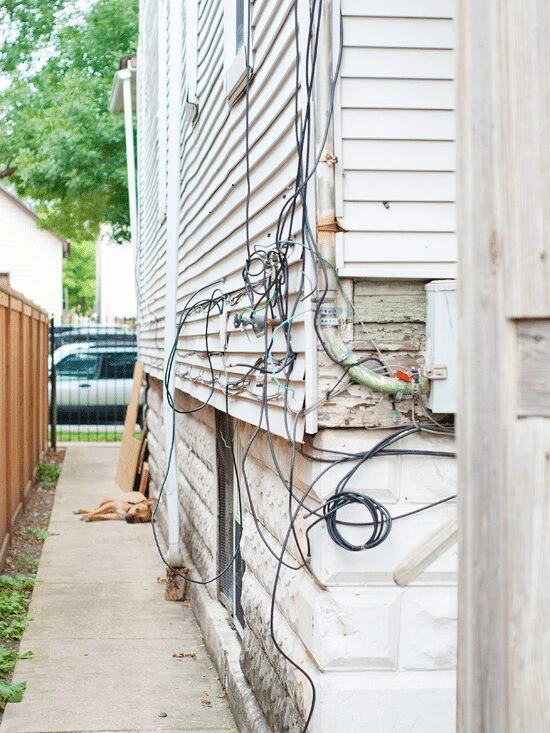
However, just don’t start climbing poles or messing around with Xfinity’s outside equipment. If the damage is beyond your side of the connection, leave that headache to a technician.
6. Save the Factory Reset for Last
Done everything above and still getting nowhere? Then a factory reset is the last thing you can try if bad settings or a configuration issue is behind the red light.
But don’t rush into it. A factory reset wipes your custom network settings, so you’ll have to set things up again.
If you don’t mind losing your network settings, you can go for it; however, at this point, I’d still suggest you actually contact Xfinity before hitting reset.
7. Nothing Worked: Contact Xfinity Support
After all of this, if nothing worked till now, it’s time to let Xfinity take over.
Tell them exactly what you’ve already tried and what the gateway is showing. They can check things from their end and arrange a technician if there’s a line or hardware problem.
And one heads-up from me: don’t lose your cool if support asks you to repeat some of the same checks. Yeah, you’ve already done them, but they still need to confirm things on their end.
I’ve seen plenty of people online get worked up over this on Reddit, but getting aggressive won’t get the internet back any faster. Let them do their thing.
8. Consider Using Your Own Modem (An Extra Opinion)
One more option I’ve heard from some users is ditching the rented Xfinity gateway and using your own compatible modem or gateway instead.
I wouldn’t treat this as some magic fix, though. It’s simply another route worth considering if you keep having hardware-related trouble and would rather own your equipment.
Just remember, once you bring your own hardware into the mix, you’re taking more responsibility for that equipment and its setup.
So don’t make the switch out of frustration. Check compatibility, understand what Xfinity will and won’t support, and then decide whether it actually makes sense for you.