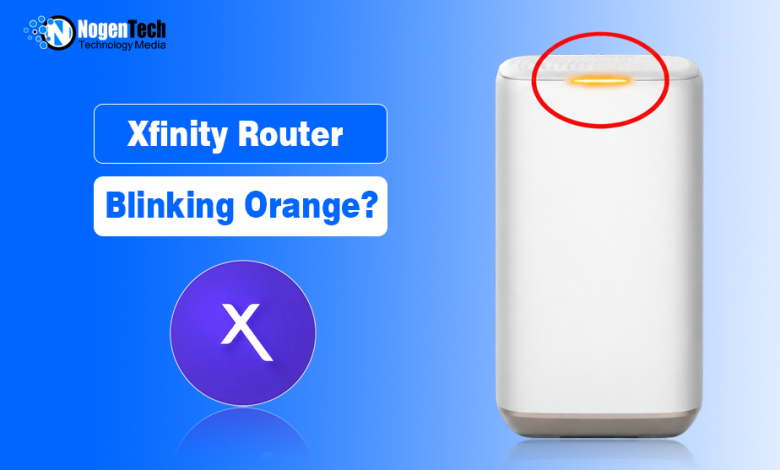
A blinking orange light on an Xfinity Gateway usually appears while the device is trying to establish a connection with Xfinity systems. It does not identify one specific fault, so avoid assuming immediately that the router is damaged.
If the light continues and your internet is not working, start by checking for an outage and then inspect the Gateway’s coaxial connection, activation status, and power. If your connection works normally and the orange light is beside an Ethernet port instead of the main status light, you may not have an internet problem at all.
If your connection is online but performing poorly, the issue may instead be related to WiFi, equipment, or network conditions. In that situation, troubleshoot why your Xfinity internet is slow rather than treating the orange light as the only symptom.
What Does a Blinking Orange Light Mean on an Xfinity Router?
Xfinity’s official Gateway light guidance does not assign a standalone “orange = one specific problem” definition.
According to Xfinity’s Gateway LED guide, a steady white light means the Gateway is operational after activation, a steady red light indicates no internet connection, and a blinking blue light indicates WPS pairing. Xfinity groups other color combinations under the state in which the Gateway is connected to Xfinity systems.
Xfinity recommends allowing about 15 minutes for that connection cycle to complete before escalating the problem.
That distinction matters because a blinking orange light can appear while the Gateway is starting or attempting to connect. The light itself does not tell you whether the underlying cause is an outage, an inactive cable outlet, incomplete activation, a coaxial connection problem, or another issue affecting the connection.
First, Check Where the Orange Light Is Blinking
Before changing anything, identify the light you are looking at.
| What You See | What to Do |
| Main Gateway light blinking orange after startup | Give the connection cycle time to complete |
| The main light stays orange, and the internet is unavailable | Check the outage status, coaxial connection, and Gateway status |
| The new or replacement Gateway will not come online | Check setup and activation in the Xfinity app |
| Orange light beside an Ethernet port, but the internet works | Check the Ethernet connection before troubleshooting the entire Gateway |
This prevents a normal Ethernet indicator from being mistaken for a Gateway connection failure.
How to Fix an Xfinity Gateway Blinking Orange
If the main status light continues blinking orange and your internet is unavailable, work through the following checks in order.
1. Wait If the Gateway Has Just Started
Do not immediately reset or unplug a Gateway that has just been powered on, restarted, or connected.
Xfinity says that other Gateway light combinations can appear while the device is connecting to its systems and recommends waiting about 15 minutes for the cycle to finish.
If the Gateway reaches a steady white light and your internet starts working, no further troubleshooting is necessary.
If it continues blinking and remains offline after the connection cycle has had enough time to complete, move to the next check.
2. Check for an Xfinity Outage
Before changing your equipment, determine whether Xfinity is experiencing a service problem at your address.
Open the Xfinity Status Center using mobile data or check the Xfinity app for service updates.
If Xfinity reports an outage, restarting the Gateway repeatedly will not resolve the external network problem. Wait for service to be restored and check the Gateway again afterward.
If no outage is reported, continue troubleshooting the connection inside your home.
3. Inspect the Coaxial and Power Connections
The Gateway needs an active coaxial connection to communicate with Xfinity’s network.
Check the coaxial cable where it connects to both the wall outlet and the Gateway. The connectors should be secure and finger-tight. Look for obvious damage, severe bends, crushed sections, or a loose connector.
Also make sure the Gateway’s power cable is fully connected.
If a splitter sits between the Gateway and the wall outlet, inspect its connections as well. Do not remove a splitter blindly if it serves other Xfinity equipment.
For a new installation, the cable outlet itself also matters. Xfinity’s current activation instructions allow users to test the connection through the Xfinity app. If the app cannot detect an active outlet, it can prompt you to try another outlet or proceed toward technician assistance.
4. Restart the Xfinity Gateway
If there is no reported outage and the physical connections look secure, restart the Gateway.
For a rented Xfinity Gateway, open the Xfinity app, select WiFi, choose Troubleshoot, and select Restart your Gateway.
Xfinity says a restart can take up to approximately 12 minutes, during which your home network will be unavailable.
You can also manually restart most Gateways by:
- Unplugging the power cable.
- Waiting one minute.
- Reconnecting the power.
- Allowing the Gateway to complete its startup process.
A restart is different from a factory reset. A normal restart does not intentionally erase your WiFi configuration, while a factory reset can restore settings to their defaults. Do not jump to a factory reset simply because the light is orange.
5. Check Activation on a New or Replacement Gateway
If the blinking orange light appears while installing a new or replacement Xfinity Gateway, confirm that setup and activation have been completed.
Xfinity currently handles Gateway activation through the Xfinity app. During activation, the app checks whether the cable outlet is active and walks you through connecting and configuring the Gateway.
For a single-light Gateway, Xfinity says the device is ready for the activation stage when the light becomes white, either solid or blinking.
If the app cannot detect an active cable outlet, try another known active outlet if one is available. If none works, the problem may require Xfinity assistance rather than additional router changes.
Activation is especially worth checking when the previous Gateway worked at the same address, but newly installed equipment never reaches its normal operational state.
6. Check Whether the Gateway Is Actually Offline
The light should be considered alongside what the connection is doing.
Try more than one device. Check whether phones, computers, and wired devices have lost internet access. You can also use the Xfinity app to run its available connection troubleshooting.
If multiple devices cannot access the internet and the Gateway never reaches its normal operational state, continue investigating the Gateway or the incoming Xfinity connection.
If your devices are working normally, however, confirm that you are not looking at an Ethernet-port indicator rather than the Gateway’s primary status light.
Why Is the Ethernet Port Blinking Orange if the Internet Works?
An orange light near an Ethernet port should not automatically be interpreted the same way as an orange main status light.
Ethernet ports can use LEDs to indicate link activity or the negotiated connection speed. The exact behavior depends on the Gateway and port being used.
This is particularly important on Xfinity Gateways that include a multi-gig Ethernet port. An orange Ethernet indicator can appear while the wired connection itself continues working normally.
Before restarting or resetting the entire Gateway, check:
- Whether the orange light is directly beside an Ethernet socket;
- Whether the connected wired device still has internet access;
- Whether other devices on the network are working normally.
If the internet and wired connection are operating as expected, an orange Ethernet-port light by itself is not enough evidence that the Gateway has lost its Xfinity connection.
What If the Xfinity Router Keeps Blinking Orange?
If the main Gateway light continues blinking orange after you have allowed the connection cycle to finish, checked for an outage, secured the cables, restarted the Gateway, and verified activation, the next step is to have Xfinity check the connection.
At that point, the problem may involve the active cable outlet, incoming coaxial signal, account configuration, provisioning, or equipment that cannot establish a normal connection.
Before contacting support, note:
- When the problem started;
- Whether an outage is shown;
- Whether the Gateway ever reaches a steady white light;
- Whether multiple devices are offline;
- Whether you recently installed or replaced the Gateway;
- Which troubleshooting steps have you already completed?
Providing those details can help separate an equipment problem from an issue with the service reaching your home.
Related Guides:
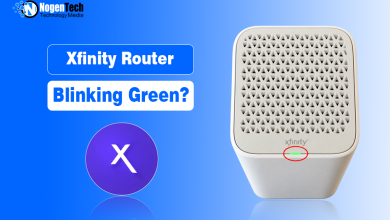
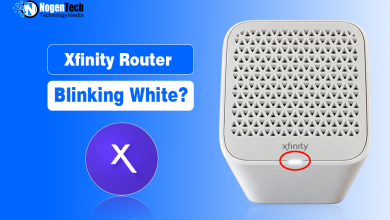
- For users encountering a white light on the router, they can also check out what that white light means and how to get it fixed.
- And in case you encounter a green light on the router, you can also check out what that green light means and how you can fix it.
Do You Need to Replace Your Xfinity Gateway?
Not necessarily.
A blinking orange light alone does not prove that the Gateway has failed. An outage, inactive coaxial outlet, activation problem, loose connection, or incoming signal issue can prevent otherwise functional equipment from reaching its normal online state.
If Xfinity determines that the Gateway itself needs replacing, then it makes sense to consider the available hardware. You can also compare the XB10 and XB8 Xfinity Gateways to understand how the newer models differ.
Customers who use their own equipment should confirm that the modem remains supported before assuming replacement is necessary. NogenTech’s list of Xfinity-compatible modems can help with that check.