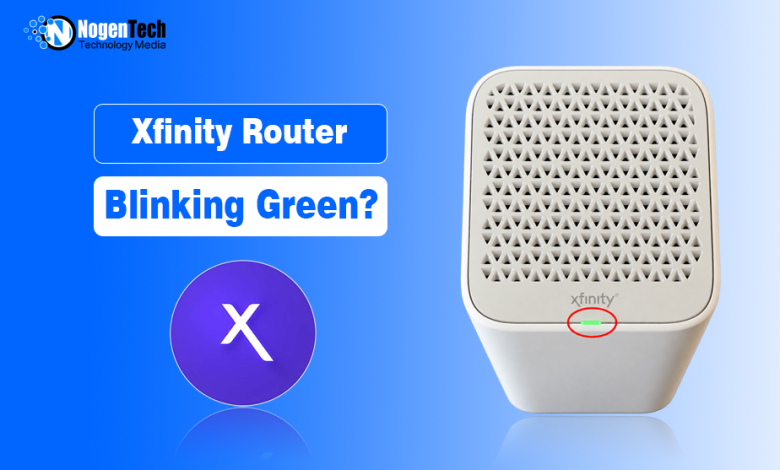
A blinking green light on an Xfinity Gateway often appears while the device is trying to connect to Xfinity systems. If you have just restarted the Gateway, give it time to finish the connection cycle before changing any settings.
If the light keeps blinking and the internet does not return, check the Xfinity service status first. Then follow the physical connection from the wall outlet to the Gateway, including the coaxial cable and any splitter in between. On current Xfinity Gateways, a steady white light, not green, is the normal operational state after activation.
What Does a Blinking Green Light Mean on an Xfinity Router?
The meaning of a green light depends partly on the equipment you have.
Older Comcast modems and customer-owned devices can use separate lights for downstream, upstream, online, or Ethernet activity. Current xFi Gateways use a different LED system.
Xfinity’s Gateway light guide identifies steady white as the normal state after activation. Other color combinations can appear while a Gateway is connecting to Xfinity systems.
For a current xFi Gateway, a blinking green light that continues alongside an internet outage is best treated as a connection problem, rather than assuming the color identifies one exact technical fault.
| Situation | Where to Start |
| Green appears after restarting | Let the startup finish |
| Green continues, and the internet is down | Check Xfinity service status |
| The problem began after moving the Gateway | Inspect the coaxial connection and outlet |
| Gateway uses a coax splitter | Check the splitter and connections |
| New Gateway cannot get online | Verify setup and activation |
| Gateway reaches steady white | Normal operational state |
If you use an older or customer-owned modem with several LEDs, check the documentation for that exact model before interpreting its green light.
Let the Gateway Finish Connecting First
A light that appears during startup does not necessarily need fixing.
Xfinity recommends allowing about 15 minutes for a Gateway that is connecting to its systems to complete the cycle. Leave the device powered on during that period rather than restarting it repeatedly.
If it reaches steady white and your internet returns, no further action is needed.
If it remains stuck in the blinking state, find out whether the problem starts outside your home or somewhere along the connection to the Gateway.
Rule Out an Xfinity Service Interruption
Use mobile data to open the Xfinity Status Center or check service status through the Xfinity app.
If an interruption is reported for your address, wait for Xfinity to restore service. Resetting the Gateway or changing its WiFi settings will not repair an outage on the provider’s network.
No outage showing? The coaxial connection is the next useful place to look.
Follow the Coaxial Cable From the Wall to the Gateway
The Gateway needs more than power and WiFi to get online. It also needs a working connection to the Xfinity network through the cable line.
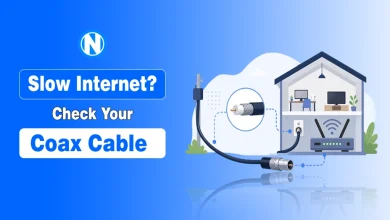
Inspect the coaxial cable at both ends. The connectors should be finger-tight at the wall and the Gateway. Look for an obviously loose-fitting, damaged connector, crushed cable, or severe bend.
This is particularly important if your Xfinity internet connection was working before the Gateway was moved or its cables were disconnected. In that situation, start with what physically changed rather than adjusting network settings.
Xfinity’s internet troubleshooting instructions also recommend confirming that the coaxial connection is tight at the wall outlet and the gateway.
Check Any Splitter in the Cable Path
If the coaxial cable passes through a splitter, include it in your inspection.
A splitter allows one cable connection to serve multiple devices. Its presence does not automatically mean it is causing the problem, but loose or damaged connections along that path can matter when a Gateway is unable to connect.
If your existing wiring allows the Gateway to be tested without an unnecessary splitter, that test can help isolate where the problem occurs.
There is no need to start replacing splitters based solely on the LED color. What matters is whether changing that part of the existing connection allows the Gateway to come online.
Did the Green Light Start After Moving the Gateway?
If the problem appeared after moving the Gateway to another room, test the cable outlet rather than assuming the Gateway suddenly failed.
A coaxial wall socket can be present without currently carrying the connection needed for your Xfinity service. During Gateway setup, Xfinity’s activation process can check whether the connected outlet is active.
Where practical, reconnect the Gateway to the outlet that previously worked. If it comes online there but not from the new outlet, you have narrowed the problem to the cable path or outlet.
If no available outlet can establish a connection, Xfinity may need to check the service coming into the property.
Restart the Gateway Once
When there is no reported outage and the physical connections appear secure, perform a normal restart.
In the Xfinity app, go to:
WiFi → Troubleshoot → Restart your Gateway
You can also unplug the Gateway from power, wait about one minute, reconnect it, and let it start normally.
Xfinity notes that a restart can take up to 12 minutes. Avoid unplugging the device again while it is still working through that process.
A successful restart should eventually return a current Xfinity Gateway to its normal steady-white state.
New or Replacement Gateway Still Blinking Green?
With newly installed equipment, setup deserves a separate check.
Make sure the coaxial cable is connected securely and continue through the Xfinity app. The activation process checks the connection and can identify when the selected cable outlet is not providing the service the Gateway needs.
If you are replacing an existing Gateway, also make sure the replacement has completed activation for your account.
Do not rely on the LED color alone to decide whether a new Gateway is defective. If the app cannot complete setup from a previously working outlet, Xfinity can check the activation and service connection from its side.
If the device changes to a blinking white light during setup, that state has a more specific activation context, which is covered separately in our Xfinity blinking white light troubleshooting article.
However, if the light shifts to a blinking orange light on your Xfinity router, it usually indicates an active firmware update or an upstream connection loss.
What If the Gateway Blinks Green but You Still Have Internet?
Before resetting anything, test the connection.
Try several websites or apps on more than one device. If everything remains online and works normally, check the status of your exact Gateway model in the Xfinity app rather than treating the light itself as proof of a failure.
If the internet remains connected but pages load slowly, videos buffer, or speeds have dropped, troubleshoot the performance issue separately. A guide on fixing slow Xfinity internet is more relevant in that situation because an LED color alone cannot identify why a working connection is slow.
Don't Jump Straight to a Factory Reset
A factory reset is a poor first response to a blinking green light.
It can erase customized network settings while doing nothing to repair an Xfinity outage, inactive cable outlet, loose coaxial connection, or external line problem.
By the time a factory reset becomes worth considering, you should already know that service is available, the physical connection looks correct, and a normal restart did not restore the Gateway.
For customer-owned equipment, follow the modem manufacturer’s reset instructions rather than assuming the procedure for an Xfinity Gateway is the same.
When Does Xfinity Need to Check the Connection?
Some problems cannot be identified from inside the home.
Contact Xfinity if a previously working Gateway no longer connects despite secure cables and no reported outage, or if a new Gateway fails from multiple cable outlets. Repeated drops back into the same blinking state are another reason to have the connection checked.
Tell support what you have already established: whether the outage checker was clear, which coaxial outlet you used, whether a splitter is present, and whether the Gateway completed a normal restart. That gives them more useful information than simply reporting a green light.
If troubleshooting eventually points to aging or replacement equipment, you can compare the newer XB8 and XB10 Xfinity Gateways before deciding whether a hardware change is relevant.