You may have seen Internet plans offering 50 Mbps, 100 Mbps, or more and wondered how much speed you actually need. Terms like upload speed, download speed, ping, and latency can also make choosing the right speed confusing.
Internet speed measures how quickly data moves between your device and the Internet. It affects browsing, streaming, gaming, video calls, and downloads.
After troubleshooting my Internet connections multiple times and helping others with speed issues, I’ve seen people pay for more speed than they need or struggle with speeds that don’t meet their needs.
This guide explains Mbps, upload and download speeds, ping, and latency, how to test your Internet speed, and what the results mean.
What is a Good Internet Speed?
A good Internet speed is one that handles your daily online activities without buffering, long loading times, or dropped video calls. The right speed for your home network or cellular network depends on what you do online and how many people and devices share the connection.
For one person who mainly browses the web and watches videos, 25 Mbps is often enough. A household with four people streaming, gaming, and using multiple devices at the same time will need a faster connection.
- For basic browsing: 5 to 10 Mbps can handle emails, web browsing, and social media platforms.
- For HD streaming: Aim for at least 25 Mbps for smooth streaming without frequent buffering.
- For 4K Ultra HD streaming: Around 50 Mbps per streaming device provides more room for a stable experience.
- For gaming and larger households: 100 Mbps or more can better support online gaming, streaming, and multiple devices at the same time.
How Much Internet Speed Do You Need for a Smoother Experience?
The Internet speed you need depends on how many people and devices use your connection and what they do online. Here’s a simple breakdown:
- Solo user: 25 to 50 Mbps is usually enough for browsing, working on documents, video calls, and watching Netflix.
- Average family: A household of 3 to 4 people using multiple smartphones, laptops, and streaming devices may need 100 to 200 Mbps.
- Power users: Content creators uploading large files to YouTube, TikTok, or Instagram, as well as households with heavy Internet use, may benefit from 500 Mbps to 1 Gbps.
- Smart home user: Homes with many connected smart home devices and smart speakers need enough bandwidth to support multiple devices at the same time.
Remember that your Internet connection is shared across connected devices. Phones, gaming PCs, gaming laptops, tablets, smart TVs, and smart home devices all use available bandwidth. The more devices you use at the same time, the more speed your household may need.
What Metrics Determine Internet Speed?
Your Internet experience depends on how quickly your connection receives and sends data and how fast it responds. The main factors are Mbps, download speed, upload speed, ping, and latency. The FCC also uses download speed, upload speed, and latency as key broadband performance metrics.
Think of your Internet connection like a highway. Bandwidth is the number of lanes available for data, while your internet type affects how that data travels.
1. Mbps
Mbps (Megabits per second) describes how much data your Internet connection can transfer per second. Internet plans commonly list speeds such as 50 Mbps, 100 Mbps, or 500 Mbps.
Mbps is different from MB (Megabytes), which is commonly used for file sizes.
2. Download Speed
Download speed is how quickly data travels from the Internet to your device. It affects loading webpages, streaming videos, and downloading games or files.
Higher download speeds help content load faster and reduce buffering.
3. Upload Speed
Upload speed is how quickly data travels from your device to the Internet. It affects uploading photos, sending large files, cloud backups, and video calls. A sufficient upload speed helps maintain smooth video calls.
4. Ping
Ping is a request sent from your device to a server and back. The response time helps show how responsive your connection is. It matters most for real-time activities such as online gaming and video calls.
5. Latency
Latency is the delay between sending data and receiving a response. According to Cloudflare, latency is the time data takes to travel from one point on a network to another.
Low latency makes your connection feel responsive, while high latency can cause lag during gaming, calls, and other real-time activities.
How to Check Your Internet Speed? Simple Process Explained
You can check your Internet speed using tools such as Speedtest by Ookla or Fast.com. To run a speed test with Speedtest by Ookla:
- Open your browser and search for Speedtest by Ookla.
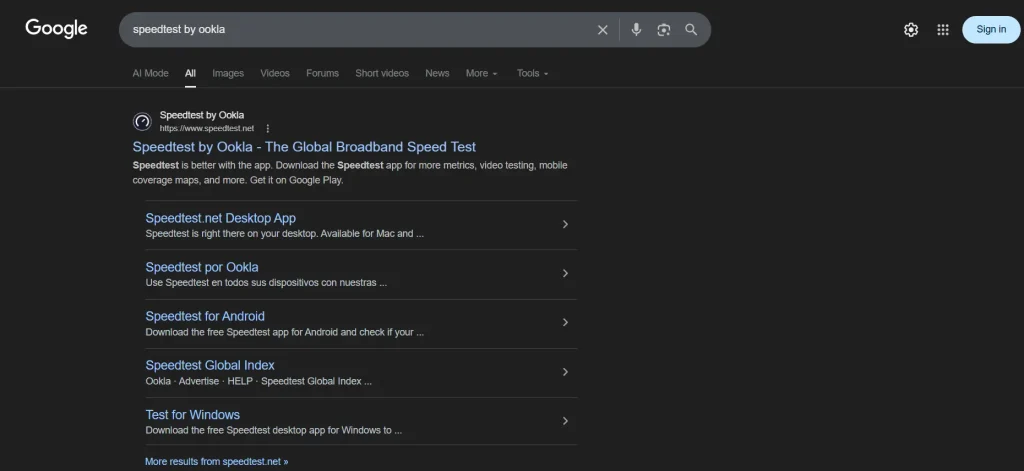
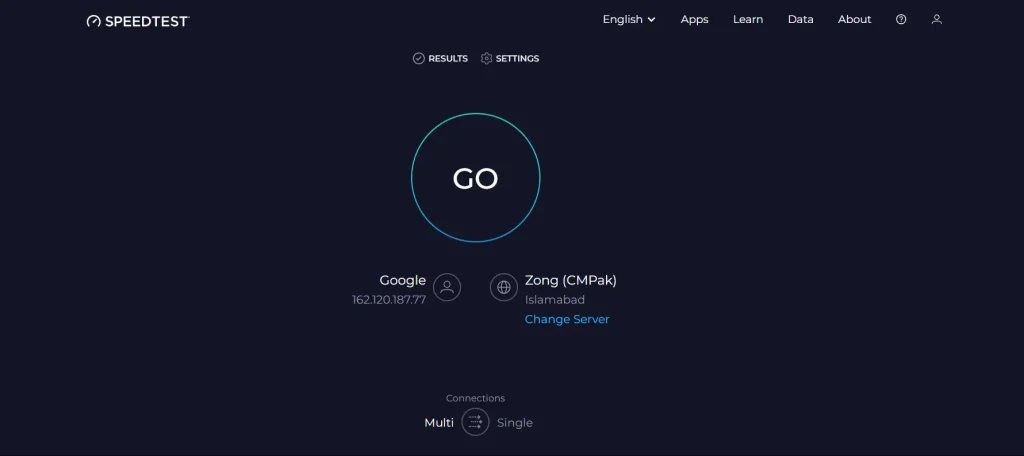
- Click on the official site. On the homepage, click on Go.
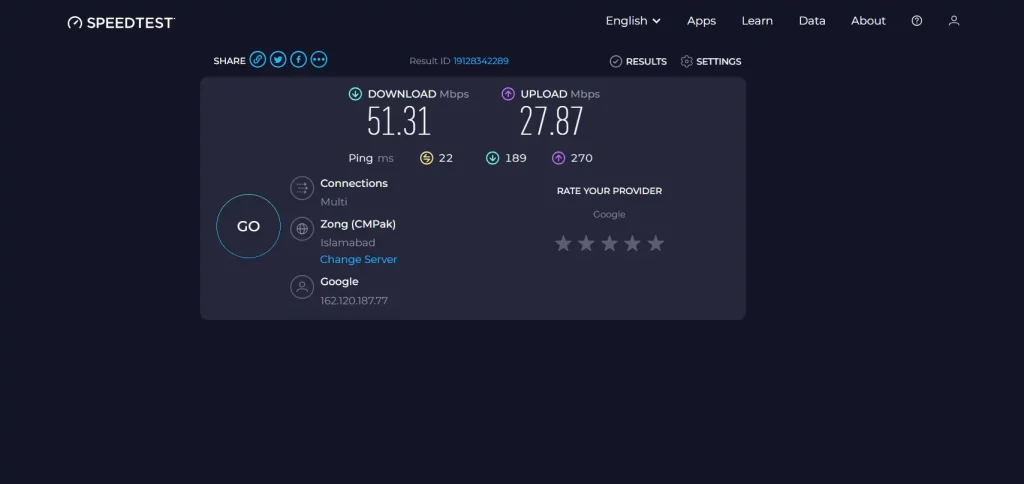
- Wait for the test to show your download speed, upload speed, and ping.
Prefer a quick video walkthrough? Watch the short video below to see how to test your internet speed and check the results:
For a better picture of your connection, test your speed more than once and in different areas of your home:
- Run multiple tests: Test at different times instead of relying on a single result, as Internet performance can vary.
- Test near the router: This shows the speed available when your Wi-Fi signal is strong.
- Test away from the router: A large speed drop in another room may indicate weak Wi-Fi coverage and the need for Wi-Fi extenders or a mesh system.
How to Increase Internet Speed? General Steps Applicable to All Types
If your speed test shows slower performance than expected, try these steps to increase your internet speed before upgrading your Internet plan.
- Restart your router
- Use a wired connection
- Update old hardware
- Improve WiFi coverage
- Limit background usage
If these steps do not solve the problem, compare your speed test results with the speed included in your plan. You may need to contact your provider, upgrade your plan, or consider another provider available in your area.
Options such as Google Fiber may offer faster plans where available. You can also compare the best fiber Internet providers in the USA to find other options.
People Also Ask
What is Starlink Internet Speed?
Starlink typically provides download speeds ranging from 50 to 220 Mbps with a latency between 25 and 60 ms.
What is the Google Internet Speed Test?
Google’s speed test is a built-in tool that appears at the top of search results when you type “internet speed test” into the search bar.