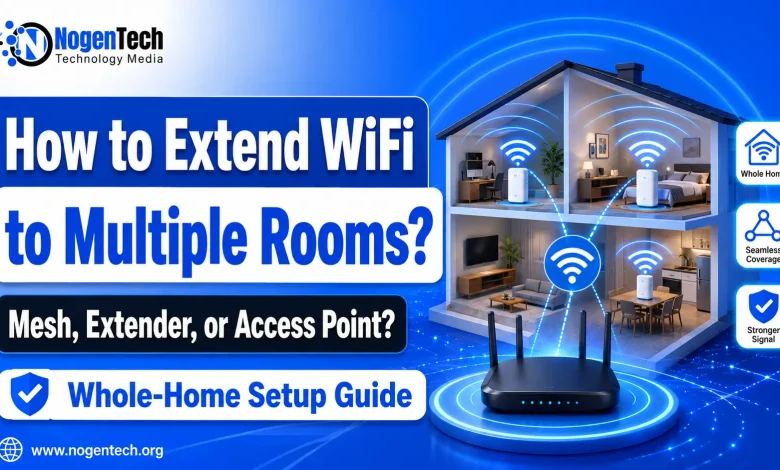
Weak WiFi in one room is annoying. Weak WiFi in 3 rooms can make streaming, video calls, gaming, and smart devices feel broken even when your internet plan is fine.
The good news is simple: you don’t always need a faster internet plan. Many homes already have enough speed coming from the provider. The signal just fails before it reaches bedrooms, upstairs areas, garages, basements, or home offices.
This guide explains how to extend WiFi to multiple rooms in my house using simple options that work for normal homes in the USA. If you want the basic terms first, read NogenTech’s What is WiFi? guide.
Why does WiFi fail in some rooms?
WiFi gets weaker when it passes through walls, floors, furniture, mirrors, appliances, and long distances. A router placed in a corner room may work well near that room but give poor signal across the house.
Common reasons include:
- The router is placed near an outside wall.
- The router is inside a cabinet or behind a TV.
- Thick walls, brick, concrete, or metal block the signal.
- Too many devices use the same WiFi band.
- The router is old or uses older WiFi standards.
- The home has more floors than the router can cover.
Before buying extra gear, test your current setup. A small router placement change can fix weak signal in 1 or 2 rooms. For more router-related help, check NogenTech’s WiFi & Routers section.
Start with router placement before buying anything
The FCC recommends placing your router in a central location for better home WiFi coverage. A central spot gives the signal a shorter path to each room.
Place the router:
- Near the middle of the house.
- On a table, shelf, or wall mount.
- Away from metal objects and large appliances.
- Outside cabinets and closed media units.
- Away from microwaves, baby monitors, and cordless phone bases.
Best ways to extend WiFi to multiple rooms
You have 4 main choices: mesh WiFi, WiFi extenders, wired access points, and powerline adapters. The right one depends on how many rooms need better coverage and how much speed you need.
| Method | Best for | Main benefit | Main limit |
|---|---|---|---|
| Mesh WiFi system | Large homes, 2-story homes, many weak rooms | One WiFi name across the house | Costs more than an extender |
| WiFi extender | One weak room or small dead zone | Low cost and easy setup | Can reduce speed if placed poorly |
| Wired access point | Home offices, gaming rooms, large houses | Fast and stable WiFi in far rooms | Needs Ethernet wiring |
| Powerline adapter | Rooms far from router without Ethernet | Uses electrical wiring | Speed depends on home wiring quality |
If your internet plan itself is confusing, NogenTech’s Internet Plans section can help you compare plan types before buying new equipment.
Use a mesh WiFi system for full-home coverage
A mesh WiFi system uses one main router and extra nodes placed in other rooms. These nodes spread the WiFi signal across your house under one network name. The FCC also lists mesh routers as one way to improve home WiFi coverage.
This is usually the best option if you want WiFi in multiple bedrooms, upstairs rooms, a basement, a garage, or a backyard sitting area.
When mesh WiFi makes sense
- Your home is larger than 1,800 square feet.
- You have weak WiFi in 2 or more rooms.
- You have a 2-story or 3-story house.
- You want one WiFi name for all rooms.
- You have many phones, TVs, laptops, cameras, and smart devices.
For most homes, a 2-pack or 3-pack mesh system is enough. Place the main unit near your modem, then place the second node halfway between the router and the weak room. Avoid placing the node inside the dead zone because it needs a strong signal to repeat.
If you are confused between the device that brings internet into your home and the device that spreads WiFi, read NogenTech’s Modem vs Router guide.
WiFi 6, WiFi 6E, or WiFi 7 mesh?
WiFi 6 is still fine for most homes. WiFi 6E adds support for the 6 GHz band on compatible devices. WiFi 7 is newer and better for homes with newer phones, laptops, gaming devices, and fast internet plans.
| WiFi type | Best choice for |
|---|---|
| WiFi 5 | Small homes with basic browsing and streaming |
| WiFi 6 | Most families with several devices |
| WiFi 6E | Homes with newer 6 GHz devices and less crowded rooms |
| WiFi 7 | Fast fiber plans, gaming, 4K streaming, newer devices, and long-term use |
Use a WiFi extender for one weak room
A WiFi extender repeats your router’s signal. It is cheaper than mesh and easy to set up, but placement matters a lot.
Put the extender between your router and the weak room. If you place it inside the weak room, it may repeat a weak signal and give slow internet.
Best rooms for a WiFi extender
- A bedroom at the end of a hallway.
- A small home office.
- A guest room with light internet use.
- A smart TV room that needs better signal.
A WiFi extender is less ideal for online gaming, heavy video calls, and very large homes. Mesh or wired access points work better for those cases. For more fixes, visit NogenTech’s Internet Troubleshooting section.
Use wired access points for the best speed
A wired access point connects to your router through an Ethernet cable and creates WiFi in another part of the house. This gives better speed and stability than a wireless extender.
Use this option if you already have Ethernet ports in rooms or can run cable through walls, ceilings, or along baseboards.
Good places for wired access points
- Home office
- Gaming room
- Basement
- Garage workspace
- Upstairs hallway
If your work depends on stable internet, wired access points are usually worth the effort. They keep the WiFi signal strong because the data travels through cable before turning into wireless signal in the target area.
Use powerline adapters when Ethernet is hard
Powerline adapters send internet data through your home’s electrical wiring. One adapter plugs near the router. The second adapter plugs into the room where you need better internet.
Some powerline kits also create WiFi in the second room. This can work well in homes where running Ethernet cable is difficult.
Powerline speed depends on wiring quality. Older wiring, different circuits, and power strips can reduce performance. Plug powerline adapters directly into wall outlets for better results.
How many WiFi nodes or extenders do you need?
Most homes do not need 5 or 6 devices. Too many WiFi nodes can cause overlap and slower performance.
| Home size | Suggested setup |
|---|---|
| Apartment or small home | 1 good router or 1 extender for a weak room |
| 1,500 to 2,500 sq. ft. | 2-pack mesh system |
| 2,500 to 4,000 sq. ft. | 3-pack mesh system |
| Large home with thick walls | Mesh with wired backhaul or wired access points |
If possible, place one mesh node in an open hallway instead of hiding it inside a bedroom. Hallways often give better coverage to several rooms at once.
Should you use 2.4 GHz, 5 GHz, or 6 GHz?
Modern routers often support multiple WiFi bands. Each band works better for a different job.
| Band | Range | Speed | Best use |
|---|---|---|---|
| 2.4 GHz | Longer | Lower | Smart devices, far rooms, basic browsing |
| 5 GHz | Medium | Higher | Streaming, video calls, laptops, phones |
| 6 GHz | Shorter | Very high | Newer WiFi 6E and WiFi 7 devices near the router or mesh node |
Use 2.4 GHz for range. Use 5 GHz for daily speed. Use 6 GHz for newer devices near a good router or mesh node.
Simple setup plan for a 3-bedroom house
For a normal 3-bedroom house, start with this setup:
- Place the main router near the middle of the home.
- Run a speed test beside the router.
- Run speed tests in each bedroom, kitchen, office, and living room.
- Add a mesh node in the hallway near the weak rooms.
- Add a second mesh node upstairs or near the farthest room if needed.
- Use Ethernet for TVs, gaming consoles, and desktop PCs when possible.
This setup keeps WiFi simple for the family. Everyone connects to one network name, and the mesh system handles room-to-room movement.
Common mistakes that make extended WiFi worse
Some people buy extenders and still get poor results because the setup is wrong. Avoid these mistakes:
- Placing extenders inside dead zones.
- Hiding mesh nodes behind TVs or inside cabinets.
- Using an old router with a new fast internet plan.
- Adding too many extenders in a small space.
- Using the same crowded channel as nearby routers.
- Ignoring router firmware updates.
If your router app has a placement test, use it. Many mesh apps can tell you if a node is too far from the main router. If speed, ping, and upload numbers confuse you, read NogenTech’s Internet Upload vs Download Speed guide.
WiFi security matters when you extend coverage
Stronger WiFi reaches more rooms, so your network settings should be safe. The FTC recommends changing default router settings, using encryption, and checking for software updates.
Use these basic security steps:
- Change the router admin password.
- Use WPA2 or WPA3 security.
- Create a strong WiFi password.
- Turn off WPS if you do not use it.
- Keep router software updated.
- Use a guest network for visitors and smart devices.
For more home WiFi safety topics, visit NogenTech’s Home Network Security section.
When should you upgrade your router?
Upgrade your router if it is more than 5 years old, lacks WiFi 6, drops devices often, overheats, or cannot cover your home even after good placement.
You should also upgrade if your internet plan is fast but your WiFi speed stays low in the same room as the router. NogenTech’s Internet Speed section has more guides on speed tests, upload speed, download speed, ping, and slow WiFi fixes.
For related reading, check these NogenTech sections:
- Home Internet
- WiFi & Routers
- Internet Speed
- Internet Troubleshooting
- Home Network Security
- Best Internet Speed for Gaming
Final answer
The best method depends on your home. For one weak room, use a WiFi extender. For several weak rooms, use a mesh WiFi system. For the fastest and most stable setup, use wired access points. For rooms where Ethernet is hard, try a powerline adapter with WiFi.
Start with router placement, then test each room. Buy extra gear only after you know where the signal drops.
FAQs
What is the easiest way to extend WiFi to multiple rooms?
The easiest way is to use a mesh WiFi system. It gives one network name and spreads WiFi through several rooms with extra nodes.
Is a WiFi extender enough for a whole house?
A WiFi extender is better for one weak room. A mesh system is better for full-house coverage.
Where should I place a WiFi extender?
Place it halfway between the router and the weak room. It should still receive a strong signal from the router.
Does mesh WiFi increase internet speed?
Mesh WiFi does not increase the speed coming from your internet provider. It improves coverage inside the house, so more rooms can use the speed you already pay for.
Should I use Ethernet with mesh WiFi?
Yes, if possible. Ethernet backhaul between mesh nodes can improve speed and stability, especially in large homes.