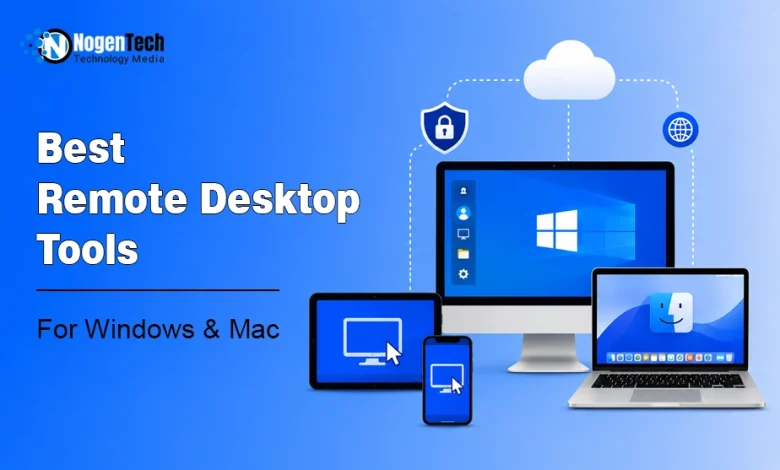
Struggling to access your computer while you are away or help someone troubleshoot technical issues remotely?
Choosing the right remote desktop tool can be frustrating, especially with so many options offering different features, pricing, and platform support. The good news is that the right software can make remote access fast, secure, and hassle-free.
No matter if you are working on a Windows laptop or using a MacBook, you can have dedicated options. In this guide, I will take you through the 7 best remote desktop tools for Windows and Mac.
I have mentioned their features, pricing, pros, and ideal use cases so you can confidently choose the one that best meets your needs.
What are the Best Remote Desktop Tools for Windows & Mac?
The best remote desktop tools for Windows and Mac are:
- Microsoft Remote Desktop
- AnyDesk
- TeamViewer
- UltraViewer
- Apple Remote Desktop
- Screens
- Jump Desktop
Which Remote Desktop Tools Do You Use?
| If You Need… | Recommended Tool |
| Free remote access | AnyDesk |
| Remote IT support | TeamViewer |
| Windows-to-Windows access | Microsoft Remote Desktop |
| Simple remote assistance | UltraViewer |
| Manage multiple Macs | Apple Remote Desktop |
| Best for Apple users | Screens |
| High-performance remote work | Jump Desktop |
What Are Remote Desktop Tools?
Remote desktop tools are software applications that let you securely access and control another computer over the internet or a local network.
They enable users to
- Work remotely
- Troubleshoot devices
- Transfer files
- Collaborate without being physically present at the connected computer
What are the Best Free Remote Desktop Tools?
- AnyDesk
- TeamViewer
- Microsoft Remote Desktop
- UltraViewer
These tools offer free versions for personal use (or, in the case of Microsoft Remote Desktop, a free client), which makes them ideal for individuals who need secure remote access without additional costs.
What are the Best Remote Desktop Tools For Windows?
- Microsoft Remote Desktop
- AnyDesk
- TeamViewer
- UltraViewer
These Windows-compatible tools provide everything from built-in remote access to advanced remote support features for personal, small businesses, and IT use.
What are the Best Remote Desktop Tools For Mac?
- Apple Remote Desktop
- Screens
- Jump Desktop
- AnyDesk
- TeamViewer
Whether you need to manage Mac computers, access devices remotely, or provide technical support, these tools offer reliable solutions for macOS users.
What are the Best Remote Desktop Tools For Hybrid Environments?
- TeamViewer
- AnyDesk
- Jump Desktop
- Microsoft Remote Desktop
If your organization uses both Windows and Mac devices, these cross-platform remote desktop tools make it easy to connect, collaborate, and manage systems across different operating environments.
7 Best Remote Desktop Tools for Windows and Mac in 2026
| Remote Desktop Tool | Supported Platform | Free Version | Best For |
| Microsoft Remote Desktop | Windows, macOS (client) | Yes | Remote access to Windows PCs |
| AnyDesk | Windows, macOS, Linux, Mobile | Personal Use | Fast remote access and support |
| TeamViewer | Windows, macOS, Linux, Mobile | Personal Use | Business and IT support |
| UltraViewer | Windows | Personal Use | Simple remote assistance |
| Apple Remote Desktop | macOS | No | Managing multiple Mac computers |
| Screens | macOS, iPhone, iPad | No | Personal remote access for Apple users |
| Jump Desktop | Windows, macOS, iOS, Android | No | High-performance remote work |
In the under section, I have mentioned the 7 best remote desktop tools for Windows and Mac in 2026.
1. Microsoft Remote Desktop
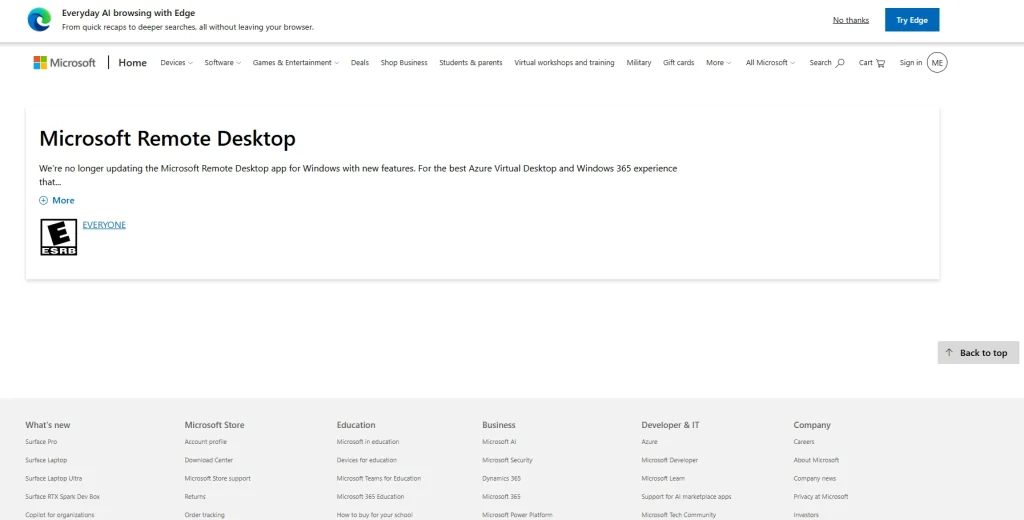
Microsoft Remote Desktop is Microsoft’s built-in remote access solution that allows users to securely connect to Windows PCs from other Windows computers, Macs, or smartphones.
It offers reliable performance, strong security, and seamless integration, which makes it an excellent choice for remote work and IT administration.
Key Features
- Secure Remote Desktop Protocol (RDP) connections
- Multi-monitor support for enhanced productivity
- High-quality audio and video streaming
- Clipboard and file redirection between devices
- Support for Windows, macOS, iOS, and Android clients
Pros & Cons
| Pros | Cons |
| Free to use as a remote desktop client | Requires Windows Pro, Enterprise, or Server edition on the host PC |
| Built directly into the Windows ecosystem | |
| Secure encrypted RDP connections | |
| Fast and reliable performance on local and remote networks | |
| Supports multiple monitors and peripheral redirection |
2. AnyDesk
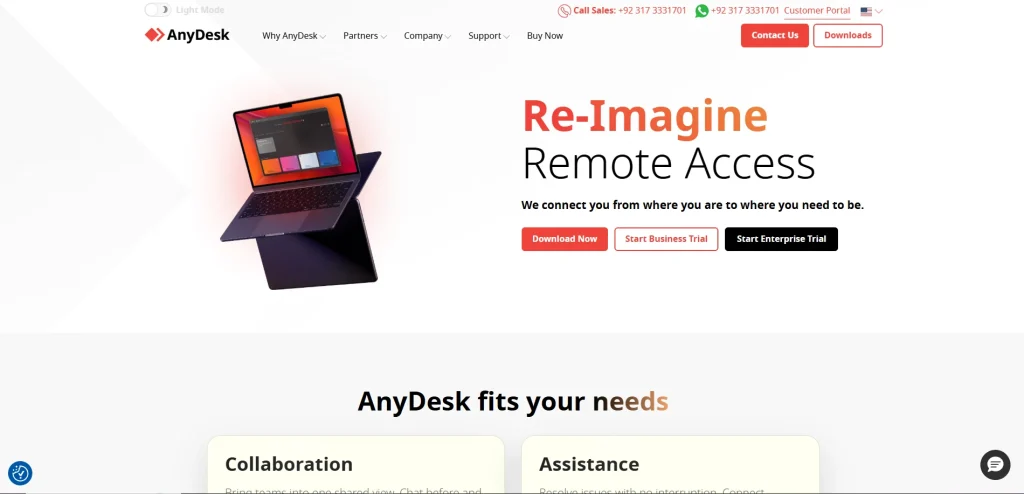
AnyDesk is a fast and lightweight remote desktop solution designed for individuals and businesses. It delivers smooth remote access with low latency, making it ideal for remote work, technical support, and accessing devices across multiple platforms with minimal setup.
Key Features
- High-speed remote connections with low latency
- Cross-platform support for Windows, macOS, Linux, Android, and iOS
- Secure sessions with TLS encryption and two-factor authentication
- File transfer and clipboard synchronization
- Unattended remote access for managing devices anytime
Pros & Cons
| Pros | Cons |
| Free for personal use | Commercial use requires a paid license |
| Fast and responsive remote connections | |
| Supports multiple operating systems | |
| Easy to set up and use | |
| Strong security with encryption and 2FA |
3. TeamViewer
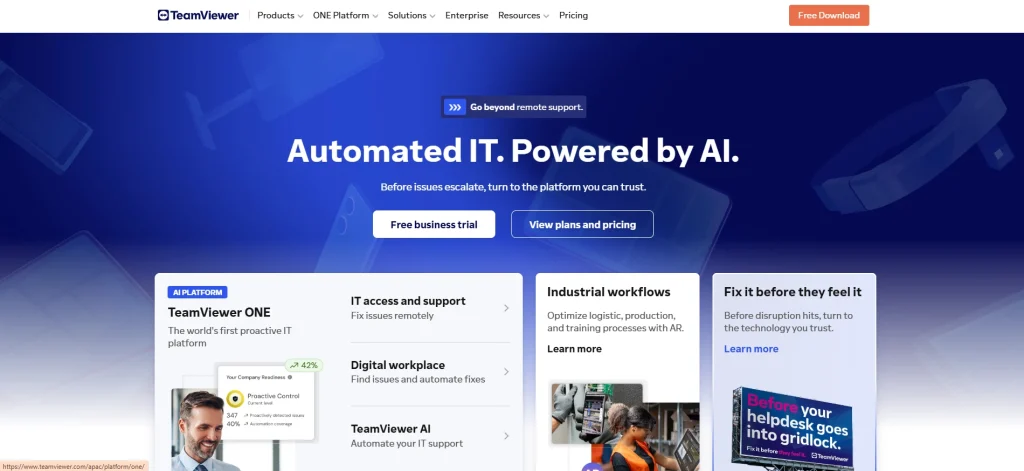
TeamViewer is one of the most popular remote desktop tools for businesses and IT professionals. This SaaS tool enables secure remote access, online collaboration, and device management across multiple platforms, which makes it a trusted solution for remote support and enterprise environments.
Key Features
- Cross-platform remote access and control
- Secure encrypted connections with multi-factor authentication
- File transfer and remote printing
- Built-in chat, voice, and video communication
- Unattended access and centralized device management
Pros & Cons
| Pros | Cons |
| Free for personal use | Can mistakenly flag heavy personal use as commercial use |
| Excellent cross-platform compatibility | |
| Feature-rich for IT support and businesses | |
| Easy file sharing and collaboration tools | |
| Strong security and enterprise-grade management |
4. UltraViewer
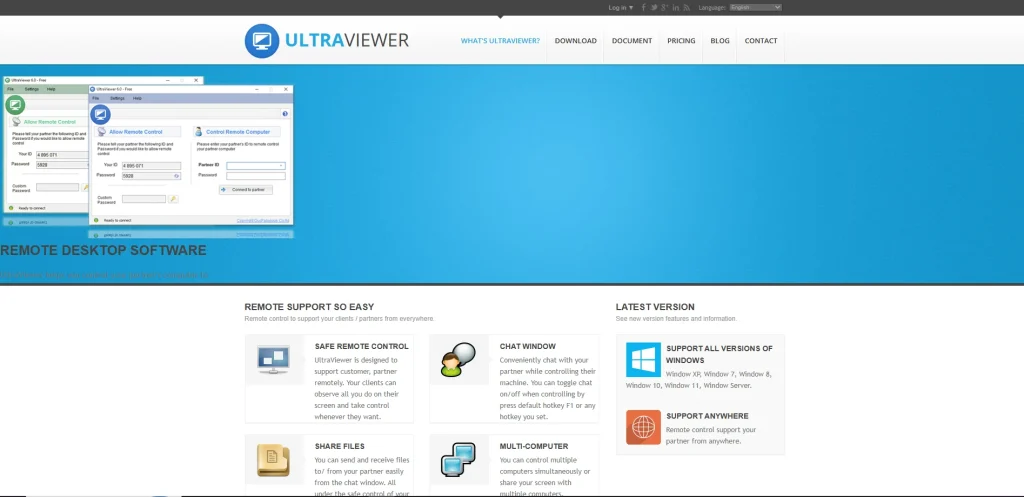
UltraViewer is the one that I have used personally for a long time. It is a lightweight remote desktop application built primarily for Windows users who need to provide or receive remote technical support.
Its simple interface, quick setup, and free personal-use license make it a practical choice for basic remote assistance.
Key Features
- Remote control of Windows computers
- Simple installation and user-friendly interface
- Built-in chat during remote sessions
- File sharing between connected devices
- Unattended access with password protection
Pros & Cons
| Pros | Cons |
| Free for personal use | Available only for Windows |
| Extremely easy to install and configure | |
| Lightweight and consumes minimal system resources | |
| Built-in chat for real-time communication | |
| Ideal for basic remote support and troubleshooting |
5. Apple Remote Desktop
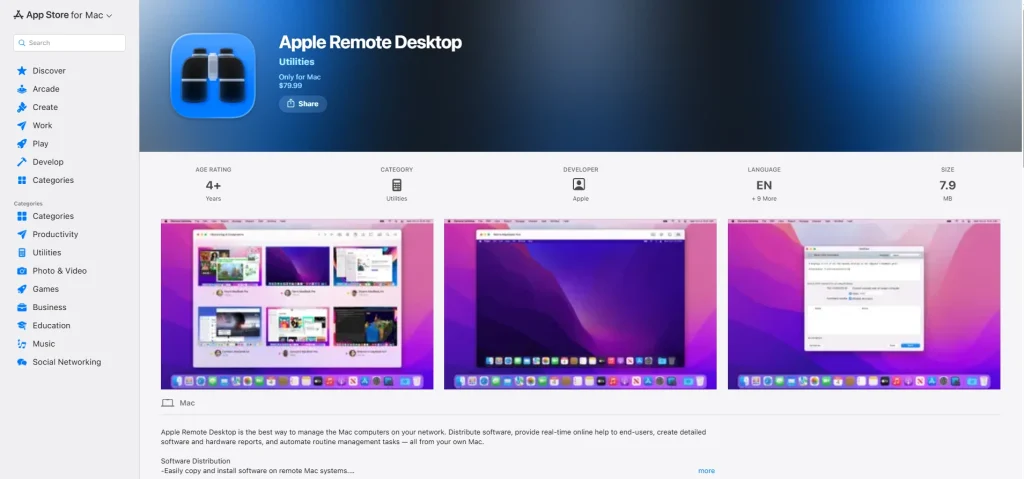
Apple Remote Desktop is Apple’s professional remote management solution for macOS. Designed for IT administrators and businesses, it enables users to manage multiple Mac computers, deploy software, provide remote assistance, and perform administrative tasks from a single interface.
Key Features
- Remote control and management of Mac computers
- Software installation and deployment across multiple devices
- Remote file transfer and system monitoring
- Automated task scheduling and reporting
- Inventory management for Mac hardware and software
Pros & Cons
| Pros | Cons |
| Designed specifically for macOS environments | Paid software with no free version |
| Powerful administration and device management tools | |
| Supports remote software deployment | |
| Automates routine management tasks | |
| Seamlessly integrates with the Apple ecosystem |
6. Screens
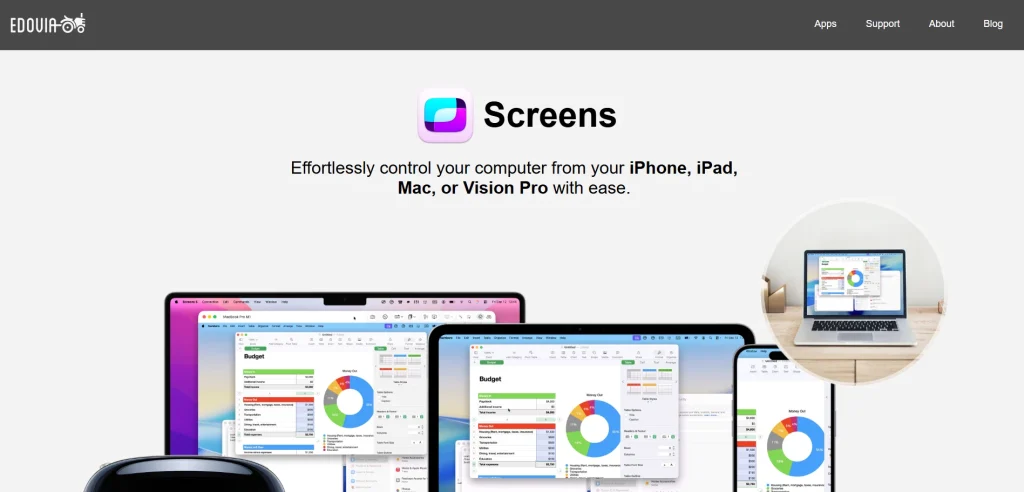
Screens is a premium remote desktop application built for Apple users. It provides a clean, intuitive interface for securely accessing Macs, Windows PCs, and Linux computers using VNC, making it an excellent choice for personal and professional remote access.
You can check my Remote Desktop vs Remote Access article to know the key differences.
Key Features
- Secure VNC-based remote desktop connections
- Optimized for macOS, iPhone, and iPad
- Easy setup with Screens Connect
- Support for multiple remote computers
- Touch gestures and keyboard shortcuts for Apple devices
Pros & Cons
| Pros | Cons |
| Excellent user experience for Apple devices | Paid application |
| Simple setup with Screens Connect | |
| Supports multiple remote computers | |
| Secure encrypted remote connections | |
| Optimized for macOS and iOS performance |
7. Jump Desktop
Jump Desktop is a high-performance remote desktop solution for professionals who need secure, low-latency access to computers from anywhere.
Supporting RDP, VNC, and its proprietary Fluid protocol, it delivers an excellent remote work experience across Windows and macOS.
Key Features
- Supports RDP, VNC, and Fluid Remote Desktop protocols
- High-performance remote sessions with low latency
- Cross-platform compatibility for Windows, macOS, iOS, and Android
- End-to-end encrypted remote connections
- Multi-monitor support and file transfer
Pros & Cons
| Pros | Cons |
| Excellent performance with the Fluid protocol | No free version available |
| Supports multiple remote desktop protocols | |
| Works across Windows, macOS, and mobile devices | |
| Secure encrypted remote access | |
| Ideal for professionals and hybrid work environments |
Final Thoughts
The best remote desktop tool isn’t necessarily the one with the longest feature list. It is the one that matches how you work.
- If you need a free, everyday solution, AnyDesk, TeamViewer, and Microsoft Remote Desktop are excellent starting points.
- For Windows-focused remote support, UltraViewer keeps things simple.
- Apple users will appreciate the seamless experience offered by Apple Remote Desktop, Screens, and Jump Desktop.
Before making your choice, consider your operating system, budget, security requirements, and whether you’ll use it for personal tasks or business.
Picking the right tool now can save you time and frustration every time you connect remotely. And if you face challenges with remote desktop tools and want to fix them, you can read my article.
People Also Ask
What are remote desktop tools?
Remote desktop tools are software applications that let you securely access and control another computer over the internet or a local network.
What are the top open-source remote desktop tools?
RustDesk is the leading open-source remote desktop tool, offering secure, cross-platform remote access with self-hosting capabilities.
What are the best remote desktop tools for IT integration options?
TeamViewer, AnyDesk, and Microsoft Remote Desktop are among the best remote desktop tools for integrating with enterprise IT environments and workflows.
What are the best remote desktop tools for ITSM software integrations?
TeamViewer is the top choice for ITSM integrations, with support for platforms like ServiceNow, Jira, Freshservice, and Zendesk.
What are the best remote desktop tools for Windows 10?
Microsoft Remote Desktop, AnyDesk, TeamViewer, and UltraViewer are some of the best remote desktop tools for Windows 10 users.