UltraViewer is a remote desktop software that lets users access and control another Windows computer over the internet. It is commonly used for remote support, file transfer, troubleshooting, and work-from-home access.
Do you want to control a computer or workstation that is far from your location? If yes, you may be a corporate employee during this work-from-home (WFH) period.
If you need remote access software, UltraViewer is one option worth considering today. I will introduce you to UltraViewer, which enables users to control their workstations.
However, it has multiple uses like remote desktop connection and more, but controlling workstations has another fan base.
So, if you are excited to know more about this efficient tool, then keep reading because I have prepared a comprehensive post on UltraViewer, its usage and alternatives.
Let’s start learning all about UltraViewer.
What is UltraViewer?
UltraViewer is a Windows remote desktop application that enables users to connect to and control another computer over the internet. After entering a partner ID and password, users can securely view the remote desktop, control the keyboard and mouse, transfer files, and communicate through the built-in chat feature.
It is counted among the best remote desktop tools for Windows and is being used by remote employees for remote support and desktop management on Windows-based computer systems. Users who have Windows 7 to Windows 11 can easily get its support to improve their efficiency and proficiency.
What Is UltraViewer.net?
UltraViewer.net is the official website of UltraViewer. It allows users to:
- Download the latest version
- Purchase licenses
- Access documentation
- Read user guides
- Contact customer support
- Learn about new software updates
To avoid counterfeit installers or modified software, always download UltraViewer from its official website.
What Is UltraViewer Used For?
UltraViewer is used to remotely access and control another Windows computer over the internet. It allows users to view a remote screen, operate the keyboard and mouse, transfer files, and provide technical support without being physically present.
Common uses of UltraViewer include:
- Remote technical support
- IT troubleshooting
- Accessing office computers while working from home
- Assisting friends or family with computer issues
- Remote collaboration between employees
- File sharing during remote sessions
Because of its simple setup and free version, UltraViewer is widely used by individuals, freelancers, small businesses, and IT support professionals.
Does Microsoft Use UltraViewer?
There is no public evidence that Microsoft uses UltraViewer as its official remote support solution.
Microsoft provides its own remote access tools, including Windows Remote Desktop and Quick Assist, which are commonly used for remote support within the Windows ecosystem. If someone claims to represent Microsoft and asks you to install UltraViewer unexpectedly, verify their identity before granting remote access.
What are the UltraViewer Versions?
UltraViewer partially works as software as a service, and users often search for specific UltraViewer versions, such as UltraViewer 6.2, 6.4, 6.5, and 6.6, to determine whether they should install an older release.
These version numbers refer to previous software releases that introduced bug fixes, performance improvements, compatibility updates, and new features at the time they were published.
| Versions | Overview | Should You Use It Today? |
|---|---|---|
| UltraViewer 6.2 | An older release that received stability and compatibility improvements over previous versions. | Only if required for compatibility. |
| UltraViewer 6.4 | Included maintenance updates, bug fixes, and incremental feature enhancements. | Install the latest version instead. |
| UltraViewer 6.5 | Improved overall performance and resolved issues found in earlier releases. | Use only if a legacy environment requires it. |
| UltraViewer 6.6 | One of the major release branches that introduced multiple stability and usability improvements through several updates. | Better than earlier releases, but the latest official version is still recommended. |
Unless you’re troubleshooting compatibility with an older system, it’s best to download the latest supported version from the official UltraViewer website. Newer releases typically include security patches, bug fixes, and compatibility improvements that older versions do not receive.
Is UltraViewer Safe to Use?
Yes, UltraViewer is generally safe when downloaded from the official UltraViewer website and used as intended. It establishes remote desktop sessions between two computers using a unique partner ID and password, allowing users to control another Windows PC only after permission is granted.
To use UltraViewer safely:
- Download it only from the official UltraViewer website.
- Never share your partner ID or password with unknown individuals.
- End the remote session when your work is complete.
- Keep the software updated to the latest version.
- Use antivirus software and Windows security features alongside UltraViewer.
Is UltraViewer Legit?
Yes, UltraViewer is a legitimate remote desktop software developed for remote access, technical support, and collaboration. Thousands of individuals and businesses use it to connect to Windows computers remotely.
Its legitimacy should not be confused with the fraudulent activities of scammers who misuse remote desktop software. Similar to other remote access applications, UltraViewer is a tool. Whether it is used safely depends on the person operating it.
If someone claiming to represent a bank, government agency, or technical support company asks you to install UltraViewer unexpectedly, verify their identity before granting remote access.
Don’t know what remote access is? Check my Remote Desktop vs Remote Access comparison guide.
Is UltraViewer a Scam?
No. UltraViewer is not a scam. It is a legitimate remote desktop application used for remote support, troubleshooting, and collaboration.
However, scammers sometimes misuse UltraViewer and similar remote access software to trick people into giving them control of their computers. This is a social engineering attack, not a flaw in UltraViewer itself.
To stay safe:
- Install UltraViewer only from its official website.
- Never grant remote access to unsolicited callers.
- Never share your connection credentials with strangers.
- Disconnect the session immediately if you suspect fraudulent activity.
How Does UltraViewer Work?
UltraViewer works by establishing a secure remote session between two Windows computers connected to the internet.
Each device receives a unique Partner ID and Password. The person requesting access enters these credentials to connect to the remote computer. Once the connection is approved, they can view the screen, control the keyboard and mouse, transfer files, and communicate through the built-in chat feature.
Because the connection is internet-based, both computers do not need to be on the same local network.
How to Download and Install UltraViewer?
Colby Harvey, the CEO and founder of UltraViewer, is a strategic thinker who always considers how to improve users’ experience. Whenever he gets a new idea to do so, he reinforces strategies to offer users the latest version.
On May 19, 2024, the organization updated the old version of it to UltraViewer 6.6.87. Here is a comprehensive guide on how to install UltraViewer’s latest version 6.6.87 on your PC freely.
Step 1- Access the UltraViewer Site
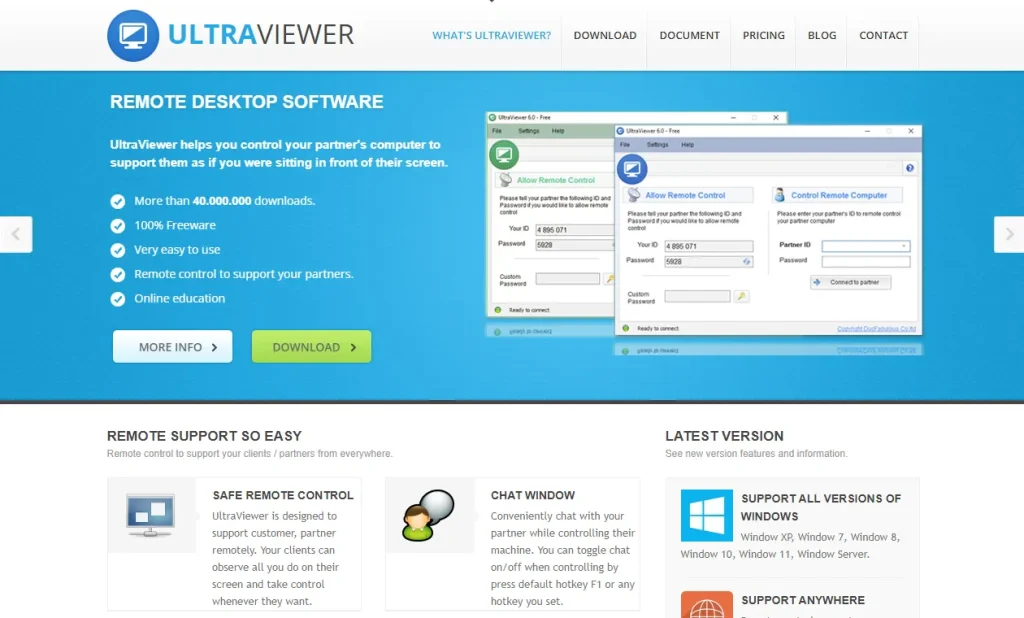
Firstly, you need to access the UltraViewer website to download its latest version on your desktop. I am going to install its 6.6.87 version. Open a new tab on your preferred internet browser and search for UltraViewer software.
Access the site, or you can access the site through this link: https://www.ultraviewer.net/en/
Step 2- Click on Download
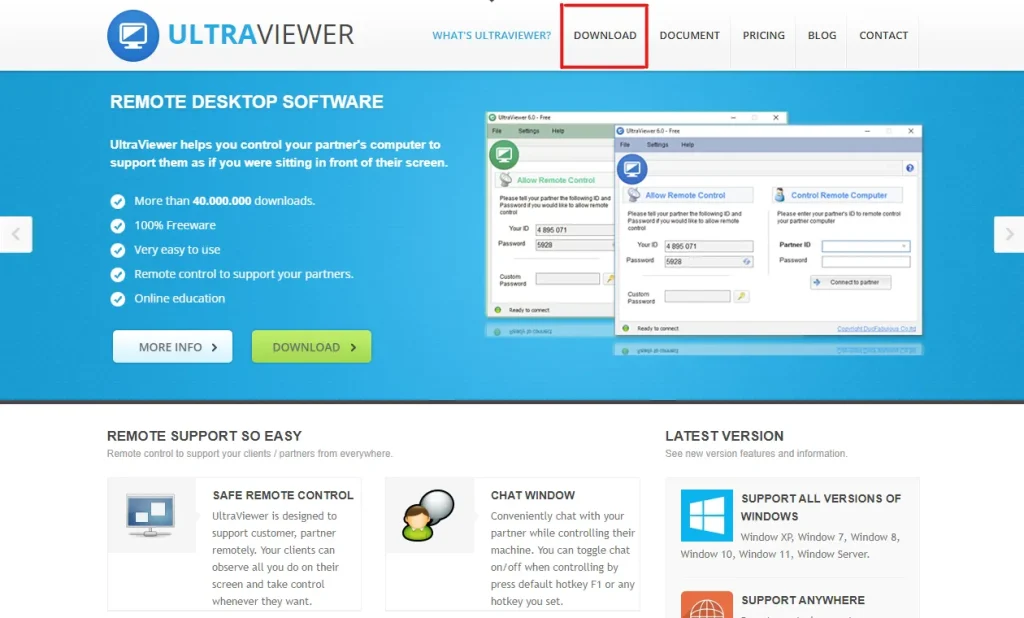
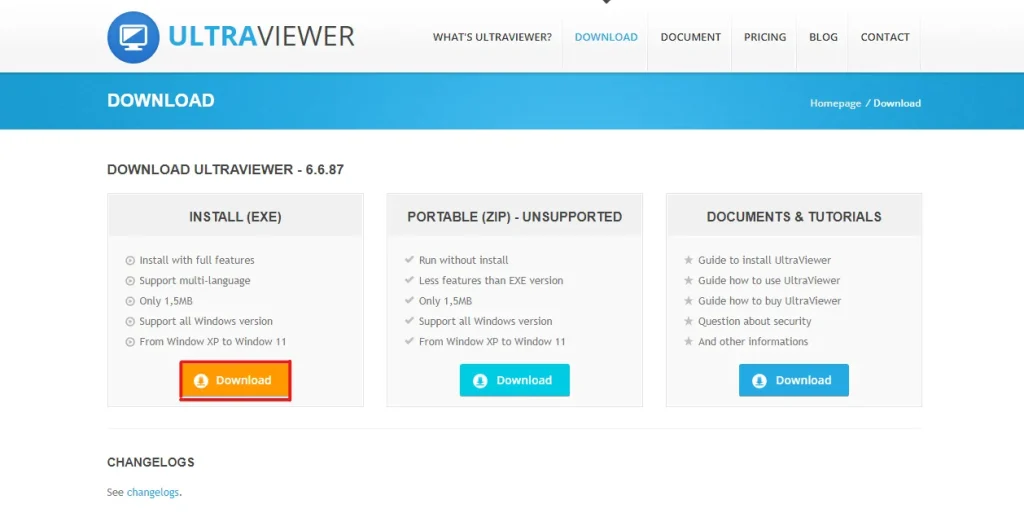
After accessing the site, you need to click on the “Download” button right on the front. This will take you to the UltraViewer download tab, where you will have three options.
Step 3- Choose Install (EXE)
Here, you have three options: Install (EXE), Portable (ZIP) – Unsupported, and Documents & Tutorials. The first option enables you to use it to its full potential, such as complete features and multilingual support. Further, the second one doesn’t offer you such opportunities.
The third one is a guide for your convenience, like installing, using, and buying guides. You need to choose the “Install (EXE)” option to install it directly on your desktop.
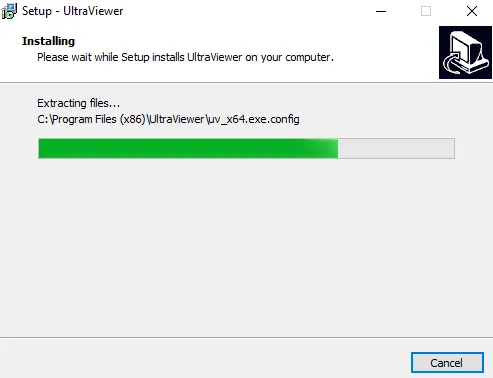
Step 4- Access Your File Manager and Install the UltraViewer (EXE) File
Finally, you will need to provide permission to this file to make changes to your PC. Further, complete the procedure of installing UltraViewer to set up it further and improve your productivity.
How to Uninstall UltraViewer?
If you face common remote desktop problems with UltraViewer and, after trying every fix, you are still struggling, you should consider uninstalling it.
You can uninstall UltraViewer like any other Windows application.
Method 1: Using Windows Settings
- Open Settings > Apps > Installed apps (or Apps & features on older Windows versions).
- Locate UltraViewer in the application list.
- Click Uninstall.
- Follow the on-screen instructions to remove the software.
Method 2: Using Control Panel
- Open Control Panel.
- Select Programs and Features.
- Find UltraViewer.
- Click Uninstall and complete the removal process.
Restart your computer if prompted to ensure all components are removed.
How to Transfer Files via UltraViewer?
UltraViewer includes a built-in file transfer feature that allows users to send files between connected computers during a remote session.
To transfer files:
- Connect to the remote computer.
- Open the File Transfer option within the UltraViewer interface.
- Browse to the file or folder you want to send.
- Select the destination on the remote computer.
- Start the transfer and wait for it to complete.
The available transfer size may depend on the software version and license plan.
UltraViewer vs TeamViewer vs AnyDesk
| Tool | Best For | OS Support |
|---|---|---|
| UltraViewer | Free Windows remote support | Windows |
| TeamViewer | Business support | Multi-platform |
| AnyDesk | Fast lightweight access | Multi-platform |
How to Control Partner Device Using UltraViewer?
Here is a complete step-by-step guide on how to control partner devices by Ultra Viewer.
Step 1- Launch UltraViewer on Both Devices
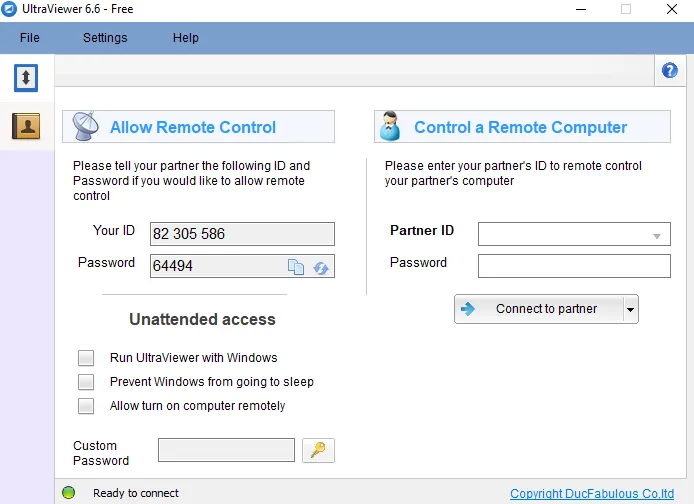
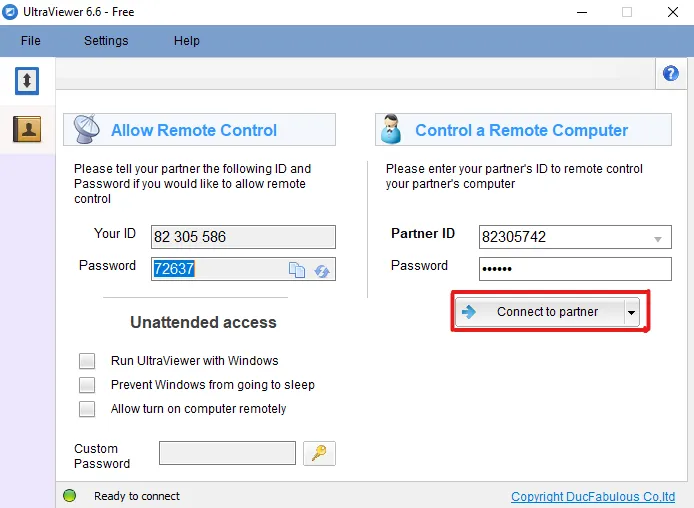
Repeat the process of how to install UltraViewer latest version 6.6.87 on your partner’s device to install the application. Now, launch UltraViewer on both devices. You will see your ID and password filled in the blanks.
Step 2- Put Password and ID
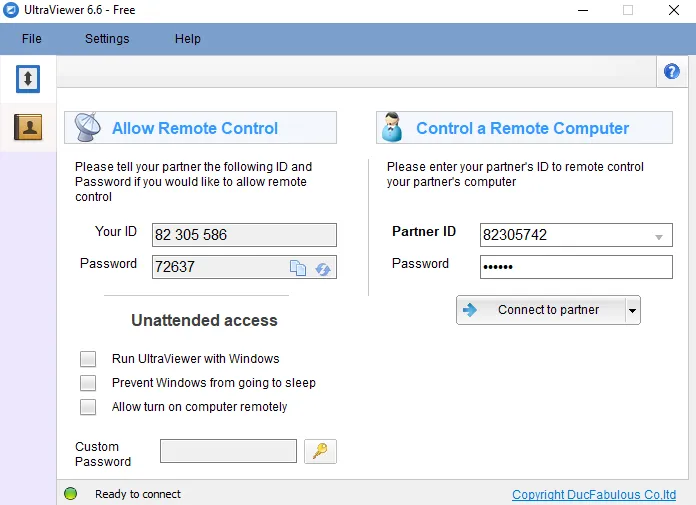
Secondly, you need to put your partner’s ID and password in the second unfilled section. Further, ask your partner to do the same after sending your ID and password.
Step 3- Connect to Partner
After filling up the blanks on both devices, click on the “Connect to partner” option on both devices. Now, both users can connect securely and start the remote session to control and manage task.
Step 4- Control Partner Device
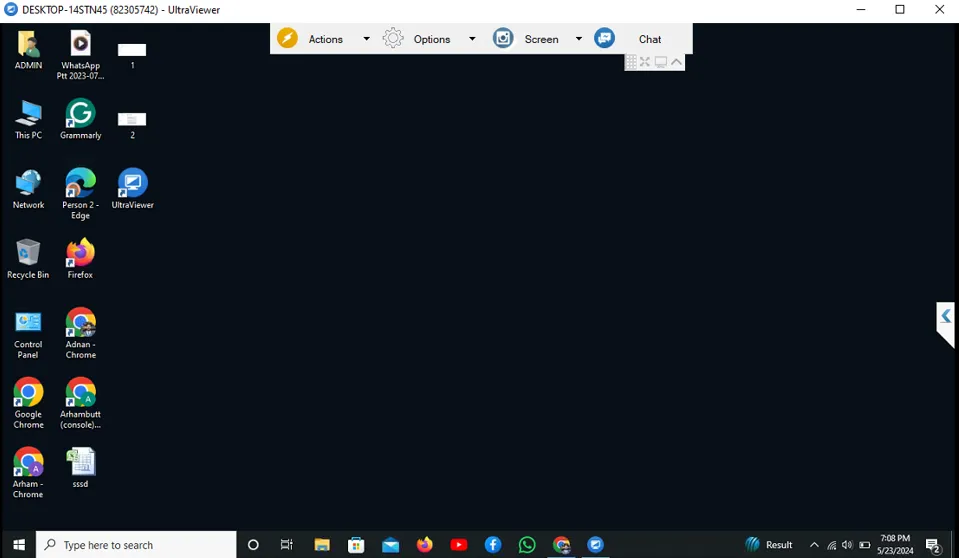
Finally, you will see your partner’s device, and allow to control and conduct operations on that device. It’s what is in front of you, and for that you have made efforts.
UltraViewer Pricing
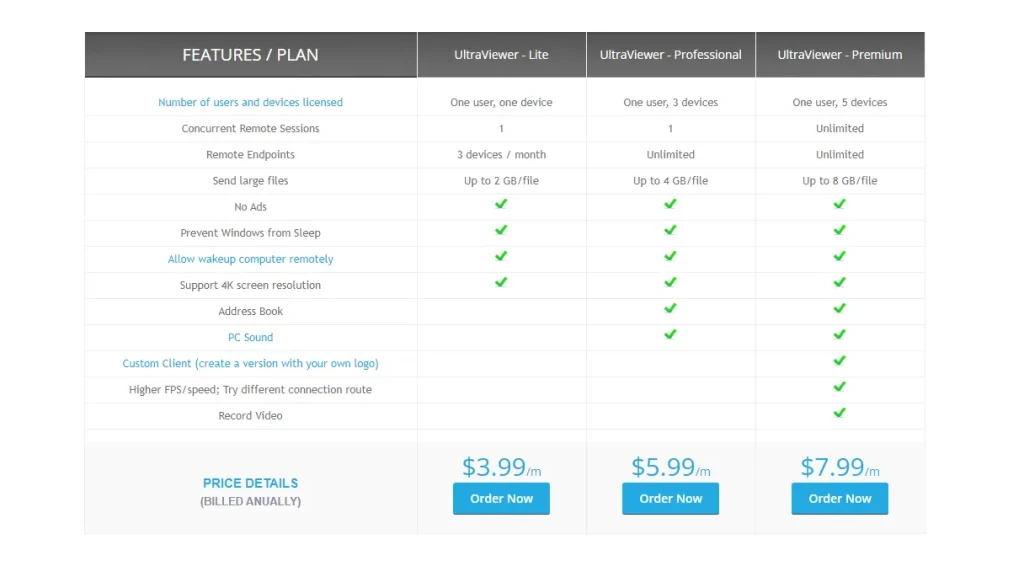
UltraViewer offers three basic plans for its users and enables them to choose what meets their requirements.
- Lite: $3.99/month/user/device
- Professional: $5.99/month/user/3 devices
- Premium: $7.99/month/user/5 devices
UltraViewer Usages for Remote Desktop Connection
Remote workers have manifold benefits, but some users don’t know what they can do with this tool. For those, I have prepared a complete guide on helpful features of UltraViewer.
1. Smart Chat
Have you ever gotten bored while typing similar words repeatedly? Yes, it’s quite boring to me and maybe for all writers, especially for those who have to deal with customers. If you are also one of them, then you need a permanent solution to this concern.
Fortunately, Ultra Viewer has come up with a solution to this problem by offering a smart chat feature to its users. By using this helpful feature, individuals are able to enhance their work efficiency and save time.
2. Chat Prompt
Chat prompts offer users the convenience of conducting new chats with their partners or customers by pressing F1.
Moreover, it works on an automatic basis to suggest sentence patterns and words while chatting and you only need to press Tab to adopt. Whenever I hear about an automatic system, I consider that there will be an AI present, and with UltraViewer, I’m also correct.
Closing the chat window immediately is also very easy. When you have done with your partner just press F1, and the chat window will disappear. Chat history is also important for company employees, therefore, the platform has made a system to save chats in text automatically.
3. File Transfer
Doing remote work is not easy because connection problems and access to files may hinder the working process. Internet connection may be a genuine concern for remote workers, but file management and transfer is not so difficult.
Ultraviewer enables users to send and receive files under 1GB of data efficiently with its free version, but premium versions offer 2GB to 8GB transfer.
Individuals have alternative ways to send and receive large data files to another system like emails and more. Unfortunately, they have to convert files in .zip/.rar formats to send files, but with the premium versions of UltraViewer, they can easily transfer files.
If you are interested in buying its premium version, then you should choose the one that meets your requirements.
4. Turn On Remote Desktop
With the use of UltraViewer, users will have the capability to turn on their remote desktops to improve their proficiency.
Whether your computer is at home, in the office, or in sleep mode, you can work remotely to get the desired results. This type of flexibility allows users to enhance their working capability along with their proficiency without any interruption.
Sometimes, when your desktop is in sleep mode, you need to click a button or move the cursor to wake it up, but with UltraViewer, you can do so remotely. Moreover, it enables users to save costs on energy waste and save things that could be essential to the company.
5. Online Contact
Whether you are a technician or a remote employee managing customer support, Online Contact will help you perform tasks easily. You will have no need to ask thousands of customers to send you an ID and password to connect you every day.
Further, you just have to know how many users are using the Online Directory of UltraViewer to get all the information about them. This will enable you to search for the person you need to contact, get information, and start a conversation.
Pros and Cons of UltraViewer
| Pros | Cons |
|---|---|
| High Security | Security Concerns |
| Fast Connection Speed | Limited Features Compared to Competitors |
| User-Friendly Interface | |
| Low Cost | |
| Lightweight & Compatible |
UltraViewer Alternatives
If you are facing some issues with the tool, then you are free to make use of its alternatives. For your convenience, I have compiled a list of some of the best UltraViewer alternatives.
1. TeamViewer
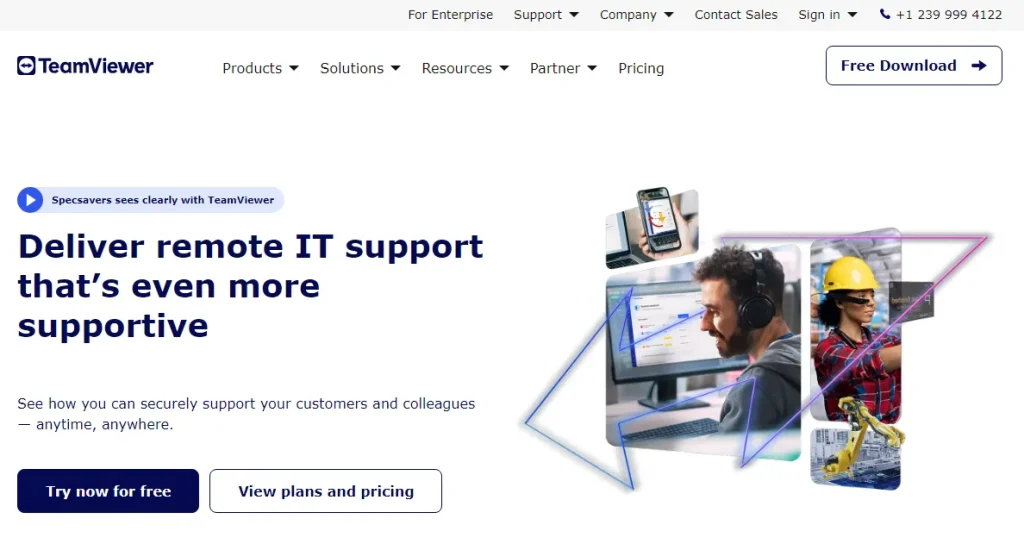
Firstly, I have decided to add TeamViewer to the UltraViewer alternatives because of its ability to make connections in seconds.
This amazing tool allows you to control your partner’s PC like you are operating it directly. It supports Windows, Android, iPhone, and Mac without breaking the bank.
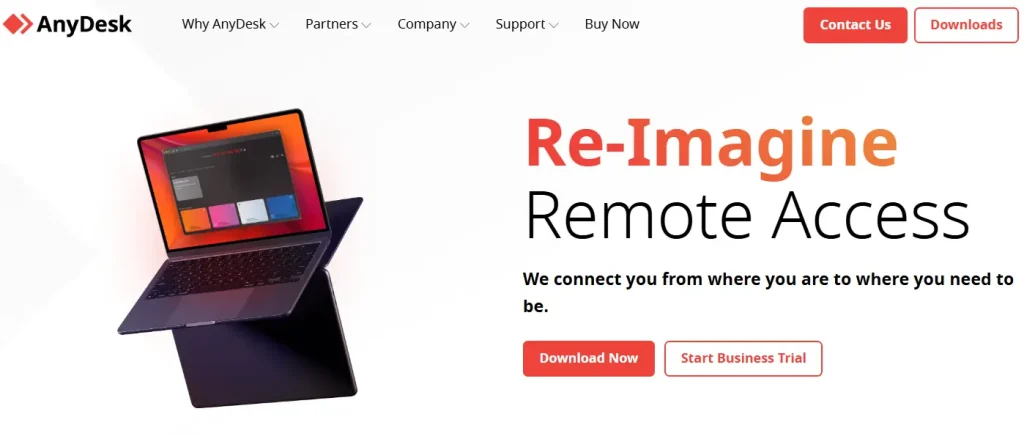
2. AnyDesk
AnyDesk has become a standout software for users to control and manage another PC remotely and efficiently. It provides users with fast, security-focused, and intuitive methods to make connections with a PC.
Whether you are a business entrepreneur or a freelancer, this software will provide you with various opportunities to connect with PCs. In this way, it has become one of the most potent UltraViewer alternatives.
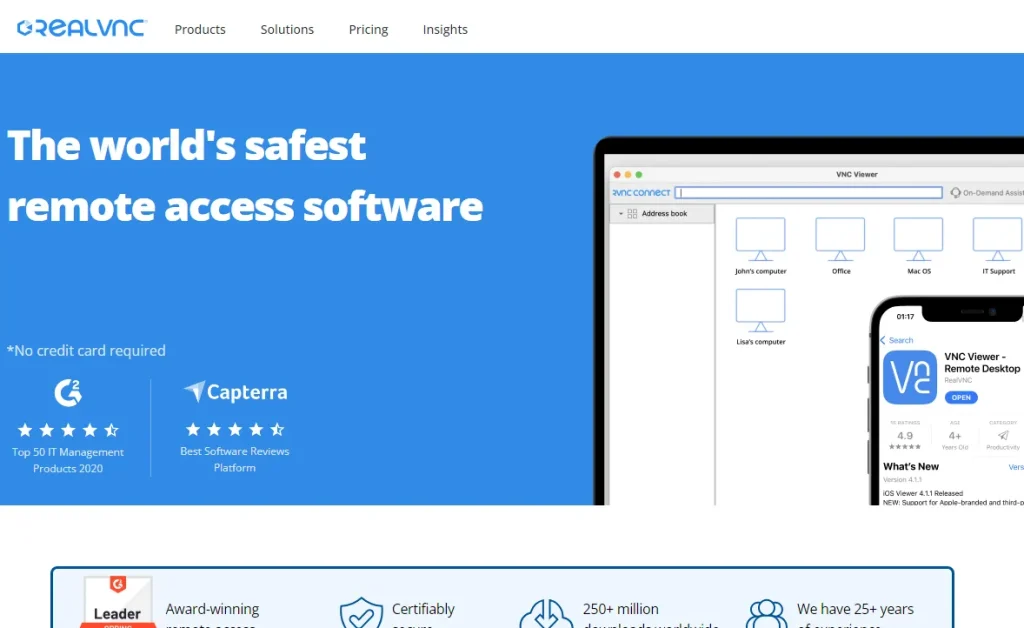
3. RealVNC
What does a user dream of while using a remote desktop connecting software? Yes, users dream of convenience and comfort while using the software, and RealVNC fulfils their demands.
It provides them with cost-effective, secure remote support and access to their computers even by using a smartphone. Moreover, it serves as one of the best UltraViewer alternatives.
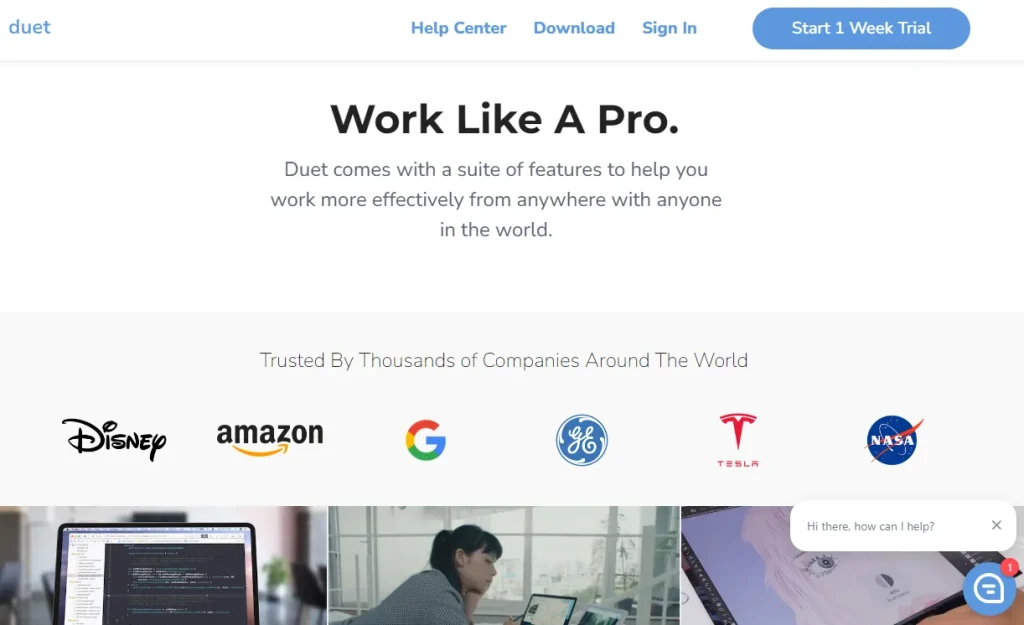
4. Duet Display
Duet Display has become a potent UltraViewer alternative in the realm of Apple users because it can transform an iPad into a Mac computer.
Further, Apple users have the capability to transform small devices into large devices for multitasking and enhancing their productivity.
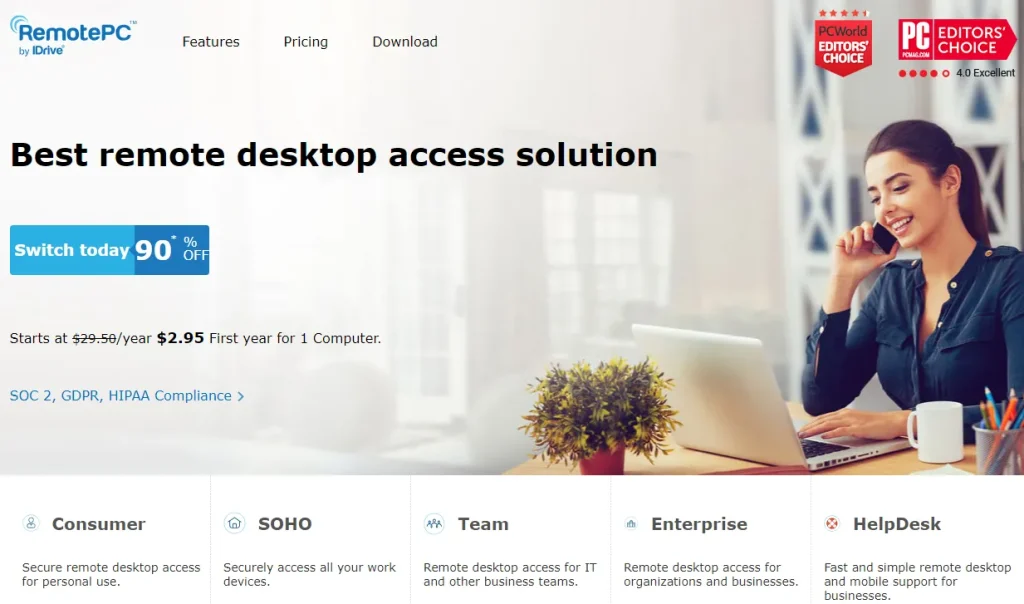
5. RemotePC
You know what? UltraViewer doesn’t support Apple and Linux PCs. Therefore, Apple and Linux users are seeking UltraViewer alternatives to control their PCs remotely, and RemotePC is the perfect choice.
By using RemotePC, users can control their Mac and Windows PCs even from their smartphones, whether iOS or Android. Its real-time remote control feature offers users a convenient and comfortable remote control environment.
The Final Words
UltraViewer is a remote access software that allows people to control and connect computer systems remotely. It offers three fundamental pricing plans for its users to offer them beneficial features like transferring large data files and documents.
Only Windows users who have Windows 7, 8, 10, and Windows 11 can access this software to control and connect multiple devices. I have elaborated on its helpful features in the above section that you can read to know what it’s offering.
People Also Ask
What is the use of UltraViewer?
UltraViewer enables remote control, file transfer, and screen sharing between devices for IT support, teamwork, and remote assistance.
How does UltraViewer work?
UltraViewer connects two computers via the internet using a unique session ID and password i.e., one user to view or control the other’s screen remotely.
Can I transfer files by using UltraViewer?
Yes, you can transfer files by using UltraViewer. Its free version allows you to transfer 1GB of files, and premium versions enable you to transfer 2GB to 8GB.
Can I access UltraViewer on the Firefox browser?
Yes, you can access UltraViewer on the Firefox browser to share files and do things like control another PC.
Does UltraViewer work on Mac?
No, UltraViewer mainly supports Windows systems.
What Is UltraViewer and Is It Safe?
UltraViewer is a Windows remote desktop application that enables users to remotely access and control another computer over the internet. It is generally safe when downloaded from the official website and used with trusted contacts.
Is UltraViewer Used by Hackers?
UltraViewer itself is not hacking software, but like many legitimate remote desktop applications, it can be abused by cybercriminals.
What Is the Purpose of UltraViewer?
The primary purpose of UltraViewer is to provide secure remote access to Windows computers. It allows users to troubleshoot technical issues, provide customer support, access office computers from home, transfer files, and collaborate remotely without being physically present.
What Is UltraViewer Remote Desktop Software?
UltraViewer is remote desktop software designed for Windows that allows users to securely access and control another computer over the internet.
What Is UltraViewer Service?
The UltraViewer Service is the Windows background service that supports remote desktop connections and enables UltraViewer to function correctly.
What Is UltraViewer App?
UltraViewer is remote desktop software that allows one Windows computer to securely access and control another through an internet connection.