Remote Desktop has become an essential tool for small businesses, IT professionals, and remote workers.
It allows users to securely access a computer from virtually anywhere, which makes it easier to work from home, provide technical support, or manage systems without being physically present.
While Remote Desktop technology is reliable, users occasionally encounter issues that interrupt productivity and cause frustration.
In this guide, I will explore 5 common Remote Desktop problems and the direct steps you can take to fix each one.
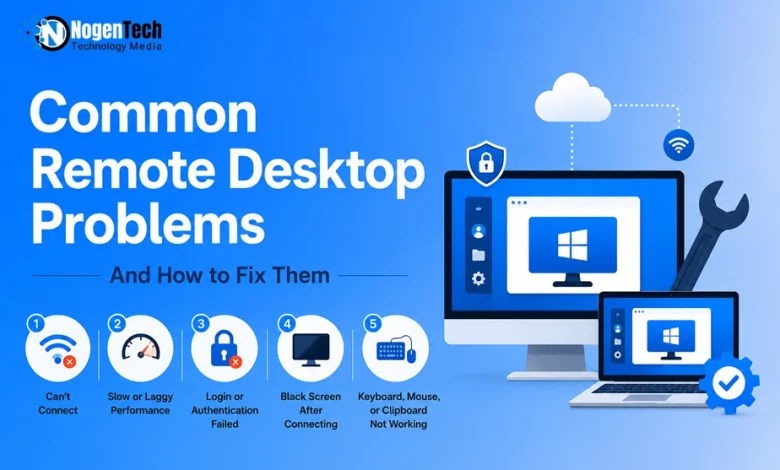
5 Common Remote Desktop Problems and How to Fix Them
I have used Ultraviewer Remote Desktop Software for some essential business tasks, and that’s the time when I noticed the following 5 common Remote Desktop issues:
- Remote Desktop Can’t Connect
- Slow or Laggy Remote Desktop Performance
- Login or Authentication Failed
- Black Screen After Connecting
- Keyboard, Mouse, or Clipboard Not Working
Fortunately, these Remote Desktop problems have simple solutions. When you understand them and know how to resolve them, you can quickly restore your connection and continue working without unnecessary downtime.
1. Remote Desktop Can’t Connect
One of the most common issues users face, even with the best remote desktop tools, is being unable to establish a Remote Desktop connection. You may receive an error message stating that the remote computer can’t be reached or that the connection has failed.
This problem can occur due to network issues, incorrect settings, firewall restrictions, or disabled Remote Desktop services.
How to Fix It?
- Verify that both the local and remote computers have an active internet connection.
- Make sure Remote Desktop is enabled on the host computer through the system settings.
- Double-check the computer name or IP address you’re using to connect.
- Confirm that Windows Firewall or any third-party firewall allows Remote Desktop traffic.
- Restart the Remote Desktop Services on the host computer if the issue persists.
- If you’re connecting over the internet, ensure the necessary network ports are properly configured.
2. Slow or Laggy Remote Desktop Performance
A sluggish Remote Desktop session can make even simple tasks difficult. Delayed mouse movements, slow screen updates, and freezing windows often result from poor network conditions or resource limitations.
Performance problems become more noticeable when transferring files, running heavy applications, or using high-resolution displays.
How to Fix It?
- Switch to a faster and more stable type of internet connection whenever possible.
- Reduce the display quality in the Remote Desktop settings before connecting.
- Disable unnecessary visual effects such as animations, wallpaper, and font smoothing.
- Lower the screen resolution to reduce bandwidth usage.
- Close applications that consume large amounts of internet bandwidth on both devices.
- Restart the remote computer if excessive background processes are consuming system resources.
These adjustments significantly improve responsiveness, especially when working over slower internet connections.
3. Login or Authentication Failed
Sometimes the Remote Desktop connection is established, but users are unable to sign in. Authentication errors usually appear because of incorrect credentials, account permissions, or security settings.
Even after entering the correct password, users may still be denied access if their account isn’t authorized for Remote Desktop.
How to Fix It?
- Verify that the username and password are entered correctly.
- Make sure the user account has permission to access the computer through Remote Desktop.
- Check whether Network Level Authentication (NLA) settings are compatible with both devices.
- Reset the account password if you suspect it has changed or expired.
- Confirm that the account isn’t locked or disabled by your system administrator.
- Restart both computers after making permission changes.
Correct authentication settings ensure secure access while preventing unnecessary login failures.
4. Black Screen After Connecting
Remote desktop software often works as SaaS, and a black screen immediately after connecting is another critical issue. Instead of seeing the desktop, only a blank black window appears, making the session unusable.
This problem is commonly linked to display driver issues, graphics settings, or temporary glitches in the Remote Desktop session.
How to Fix It?
- Refresh the Remote Desktop session using Ctrl + Alt + End.
- Open Task Manager and restart Windows Explorer if possible.
- Disconnect and reconnect to the remote computer.
- Update the graphics or display drivers on the host computer.
- Restart the remote computer if the issue continues.
In many cases, simply reconnecting to the session resolves the black screen without additional troubleshooting.
5. Keyboard, Mouse, or Clipboard Not Working
Remote Desktop is designed to provide a seamless experience, allowing users to control the remote computer as though they were sitting in front of it. However, keyboard shortcuts, mouse input, or clipboard sharing may occasionally stop working.
This can interrupt workflows, especially when copying files or using keyboard commands.
How to Fix It?
- Enable keyboard, mouse, and clipboard redirection in the Remote Desktop client settings before connecting.
- Restart the Remote Desktop session.
- Restart the rdpclip.exe process on the remote computer to restore clipboard functionality.
- Update your Remote Desktop client to the latest version.
- Restart both devices if the problem continues after changing the settings.
Most input-related issues are temporary and can be resolved without advanced troubleshooting.
Tips to Prevent Remote Desktop Problems
Although the issues above are common, many can be avoided with regular maintenance and good system management.
Here are a few best practices:
- Keep Windows and Remote Desktop software updated.
- Use a reliable, high-speed internet connection.
- Regularly update graphics and network drivers.
- Allow Remote Desktop through your firewall and antivirus software.
- Restart computers periodically to clear temporary system issues.
- Limit unnecessary background applications during remote sessions.
- Verify user permissions before attempting to connect.
- Use strong passwords and secure authentication methods to protect remote access.
Don’t know the difference between remote desktop vs remote access? Don’t worry. My dedicated guide will help you learn them.
Following these simple habits can reduce the chances of connection failures and improve your overall Remote Desktop experience.
Final Thoughts
Remote Desktop is a powerful solution for remote work, technical support, and system administration, but occasional issues are inevitable.
Whether you’re dealing with connection failures, slow performance, authentication errors, black screens, or input device problems, most issues can be resolved quickly with the right troubleshooting steps.
When you identify the problem early and apply the appropriate fix, you can minimize downtime and maintain a smooth, secure remote working environment.
People Also Ask
Why is my Remote Desktop not connecting?
Check your internet connection, Remote Desktop settings, and firewall configuration.
How can I speed up a slow Remote Desktop session?
Lower the display quality, close background apps, and use a stable internet connection.
Why does Remote Desktop show a black screen?
Reconnect the session or restart Windows Explorer and update your display drivers.
What causes Remote Desktop login failures?
Incorrect credentials, missing permissions, or Network Level Authentication settings are the most common causes.
How do I fix clipboard or keyboard issues in Remote Desktop?
Enable device redirection, restart the session, and restart the rdpclip.exe process if needed.