Remote desktop and remote access are closely related technologies, but they are not the same. Their purpose, functionality, and use cases differ significantly.
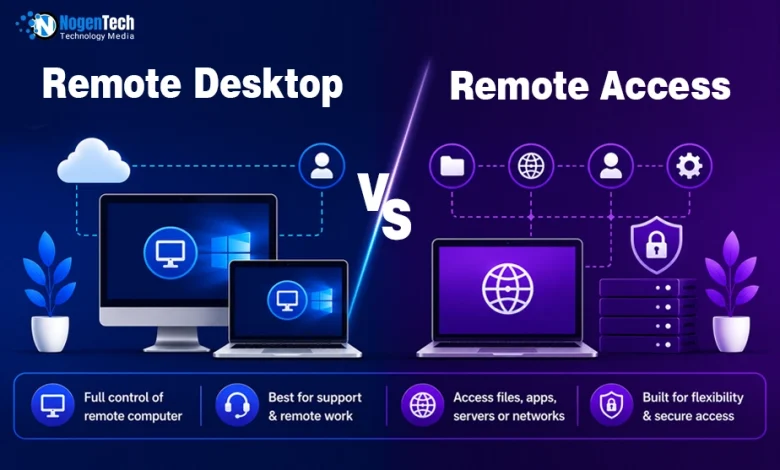
- Remote access is a broad concept that enables users to access devices, networks, servers, or applications remotely.
- Remote desktop is a specific type of remote access that provides complete control of another computer’s graphical interface.
Understanding the difference helps individuals and businesses choose the right solution for remote work, IT support, server management, and secure connectivity.
In this guide, I have provided a complete comparison of Remote Desktop vs Remote Access so you can know the basic differences.
Remote Desktop vs Remote Access: Which is Best for You?
| If You Need To… | Choose |
| Control another computer | Remote Desktop |
| Access files or company resources | Remote Access |
| Provide IT support | Remote Desktop |
| Connect to servers or networks | Remote Access |
| Work on your office PC from home | Remote Desktop |
What is Remote Desktop?
Remote Desktop is a technology that allows users to view and control another computer’s desktop over a network or the internet.
It mirrors the remote computer’s screen and enables users to interact with its applications, files, keyboard, and mouse as though they were physically sitting in front of the device.
Who Uses Remote Desktop?
- IT support technicians resolving technical issues remotely.
- Businesses managing employees’ office computers.
- Remote workers accessing their office desktops from home.
- Managed Service Providers (MSPs) supporting client systems.
- Trainers conducting software demonstrations remotely.
- Individuals helping friends or family troubleshoot computer problems.
How Does Remote Desktop Work?
Remote desktop software establishes a secure connection between two computers using the internet or a private network.
After authentication, the host computer shares its desktop interface with the remote device, allowing the authorized user to view the screen, control the keyboard and mouse, transfer files, and perform administrative tasks in real time.
Ultraviewer is one of the best examples of Remote Desktop Software and is partially used as SaaS.
What is Remote Access?
Remote access is the ability to securely connect to a computer, server, network, application, or other digital resource from a different location.
It includes multiple technologies that allow authorized users to retrieve files, manage systems, run applications, or access business resources without requiring physical access.
Who Uses Remote Access?
- Businesses with hybrid or remote employees.
- Network administrators managing enterprise infrastructure.
- System administrators maintaining servers.
- Developers accessing remote development environments.
- Cloud engineers managing hosted resources.
- Organizations providing secure employee access to internal systems.
How Does Remote Access Work?
Remote access authenticates a user through secure protocols before establishing a connection to the requested resource.
Depending on the technology, users may access an entire desktop, company network, server, cloud platform, or specific applications using encrypted communication to protect data during transmission.
Remote Desktop vs Remote Access: Key Differences
Although remote desktop is a type of remote access, they differ in their purpose, scope, and implementation. The following comparison highlights the key differences to help you determine which solution best fits your requirements.
| Factor | Remote Desktop | Remote Access | Winner |
| Purpose | Controls an entire remote computer. | Connects users to remote systems, networks, servers, or applications. | Remote Access |
| Scope | Limited to desktop control. | Covers multiple remote connectivity technologies. | Remote Access |
| User Experience | Provides a full desktop interface. | May or may not provide a graphical interface. | Remote Desktop |
| Ease of Use | Simple and user-friendly for most users. | Depends on the technology being used. | Remote Desktop |
| Resource Access | Best for accessing a complete computer. | Better for accessing specific resources or services. | Remote Access |
| IT Support | Ideal for troubleshooting and remote assistance. | Primarily used for infrastructure and network access. | Remote Desktop |
| Security | Uses encrypted remote sessions and user authentication. | Often combines VPNs, MFA, firewalls, and access policies. | Remote Access |
| Performance | Depends on internet speed and screen rendering. | Usually consumes fewer resources when no desktop is transmitted. | Remote Access |
| Common Technologies | UltraViewer, TeamViewer, AnyDesk, Windows Remote Desktop. | VPN, SSH, Remote Desktop, Cloud Access, Remote Management Tools. | Remote Access |
| Best Use Case | Operating another computer remotely. | Securely accessing business resources from anywhere. | Depends on Your Needs |
1. Purpose
- Remote Desktop: Designed to let users operate another computer exactly as if they were sitting in front of it. Primarily used for technical support, troubleshooting, and remote work.
- Remote Access: Enables users to securely connect to remote devices, networks, servers, or applications. Focuses on resource accessibility rather than desktop control.
Winner: Remote Access, because it supports a broader range of remote connectivity scenarios.
2. Scope
- Remote Desktop: Represents one specific technology within the remote access ecosystem. Its functionality revolves around controlling a computer’s graphical interface.
- Remote Access: Includes remote desktop along with VPNs, SSH, cloud software, and remote management solutions. Supports virtually every method of connecting to remote digital resources.
Winner: Remote Access, due to its wider scope and flexibility.
3. User Experience
- Remote Desktop: The top remote desktop tools provide you with the complete dashboard, including applications, icons, and system interface. Users interact with the remote computer just like a local machine.
- Remote Access: May only provide access to files, servers, applications, or command-line interfaces. A desktop environment is not always available or necessary.
Winner: Remote Desktop, for delivering a complete interactive computing experience.
4. Ease of Use
- Remote Desktop: Most remote desktop applications require only a device ID and password to establish a connection. Their graphical interface makes them accessible even for non-technical users.
- Remote Access: Some technologies, such as VPNs or SSH, require network configuration and technical knowledge. Ease of use varies depending on the solution being deployed.
Winner: Remote Desktop, because it generally requires less technical expertise.
5. Resource Access
- Remote Desktop: Provides access to every application and file available on the remote computer. Best suited when users need the complete working environment.
- Remote Access: Allows users to connect only to the required files, servers, applications, or databases. Eliminates the need to control an entire desktop when unnecessary.
Winner: Remote Access, because it offers more targeted and efficient access.
6. IT Support
- Remote Desktop: Allows technicians to diagnose, configure, and repair computers remotely. Enables real-time collaboration between support staff and end users.
- Remote Access: Commonly used to manage servers, cloud environments, and enterprise infrastructure. Less suitable for providing live desktop assistance to users.
Winner: Remote Desktop, as it is specifically designed for remote support.
7. Security
- Remote Desktop: Protects sessions using encrypted connections and authentication credentials. Most modern solutions also require user approval before establishing a session.
- Remote Access: Frequently incorporates VPN encryption, multi-factor authentication (MFA), identity verification, and network security policies. Provides organizations with greater control over who can access internal resources.
Winner: Remote Access, due to its enterprise-grade security capabilities.
8. Performance
- Remote Desktop: Continuously transmits the remote desktop interface, which can consume more bandwidth. Performance depends on internet speed and graphical workload.
- Remote Access: Technologies like VPNs and SSH transmit only the required data instead of an entire desktop. This generally results in faster performance and lower bandwidth consumption.
Winner: Remote Access, because it generally requires fewer system and network resources.
9. Common Technologies
- Remote Desktop: Popular solutions include UltraViewer, TeamViewer, AnyDesk, Chrome Remote Desktop, and Windows Remote Desktop. These tools are designed for full desktop control and remote collaboration.
- Remote Access: Includes VPNs, SSH, remote management platforms, cloud services, and remote desktop software. It encompasses a wider range of technologies for secure remote connectivity.
Winner: Remote Access, because it covers multiple remote connection methods instead of a single approach.
Want to know the common remote desktop problems and their fixes? Then, you should check my detailed guide.
10. Best Use Case
- Remote Desktop: Best when users need complete control of another computer to troubleshoot issues, install software, or work remotely on an office PC or gaming PC.
- Remote Access: Best for securely accessing company networks, servers, cloud applications, shared files, or enterprise resources without controlling an entire desktop.
Winner: Depends on Your Needs. Choose Remote Desktop if you need full control of another computer, and Remote Access if you only need secure access to systems, applications, or data.
Final Thoughts
Remote Desktop and remote access are closely connected, but they serve different purposes.
- Remote Desktop focuses on providing complete control of another computer through its graphical interface, making it ideal for remote support, troubleshooting, and accessing office PCs.
- Remote Access, on the other hand, is a broader concept that includes technologies for securely connecting to networks, servers, applications, and devices without necessarily displaying a desktop.
If your goal is to operate another computer as if you were physically present, choose a remote desktop solution.
If you only need secure access to business resources, files, or infrastructure, remote access is the better choice.
People Also Ask
Is remote desktop the same as remote access?
No. Remote desktop is a type of remote access that allows users to view and control another computer’s desktop, while remote access includes many other remote connectivity technologies.
Which is better: remote desktop or remote access?
Neither is universally better. Remote desktop is ideal for controlling another computer, whereas remote access is better for securely accessing networks, servers, applications, or files.
Can remote access work without remote desktop?
Yes. Technologies such as VPNs, SSH, and cloud-based services provide remote access without displaying or controlling another computer’s desktop.
Is a VPN considered remote access?
Yes. A VPN is one of the most common remote access technologies because it securely connects users to private networks over the internet.
Is remote desktop more secure than remote access?
Security depends on the solution and its configuration. Using encryption, strong authentication, multi-factor authentication (MFA), and regular software updates significantly improves the security of both remote desktop and remote access solutions.