After managing my channel since 2016, one thing I’ve learned is that whether you’re into YouTube for business purposes or just casually creating animated content, accessing your dashboard should always be quick. But for many users, it’s still not.
Many people don’t realize that your entire YouTube account is now managed inside YouTube Studio, from tracking analytics and organizing content to deleting unwanted playlists to keep your channel clean.
Now I will give you a step-by-step method for opening your dashboard on desktop, Android, and even the YouTube Studio mobile app.
This will also help you track down key features like analytics and settings, which reveal the best time to post and grow fast.
Steps To Open the YouTube Dashboard On PC
Start creating Verdict in seconds, and convert more of your visitors into leads.
Here are some easy steps for you to access the YouTube desktop dashboard:
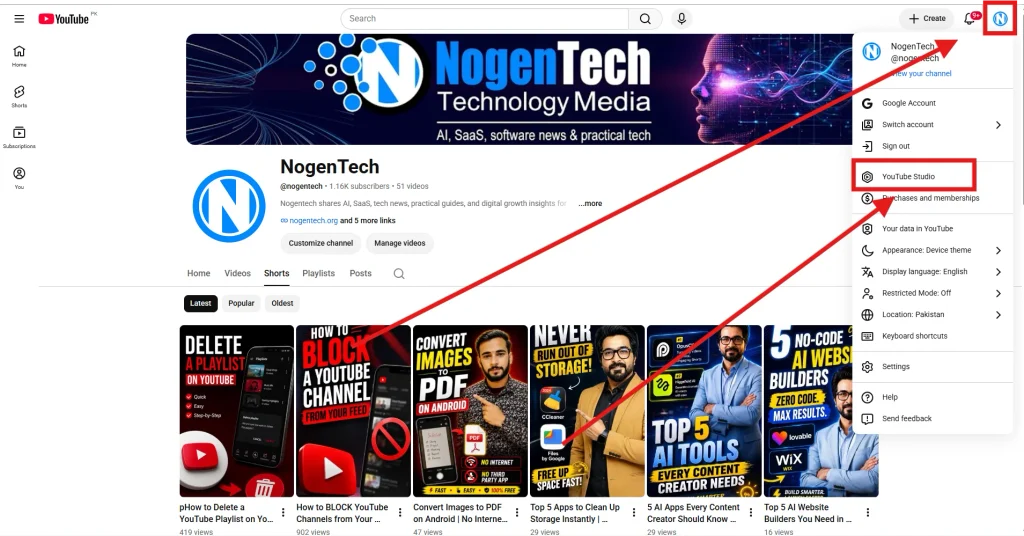
Step 1: Open YouTube and Click Your Channel Icon
Open YouTube in your desktop browser and sign in to the Google account connected to your channel. Then click your channel icon in the top-right corner to open the account menu.
Step 2: Select YouTube Studio
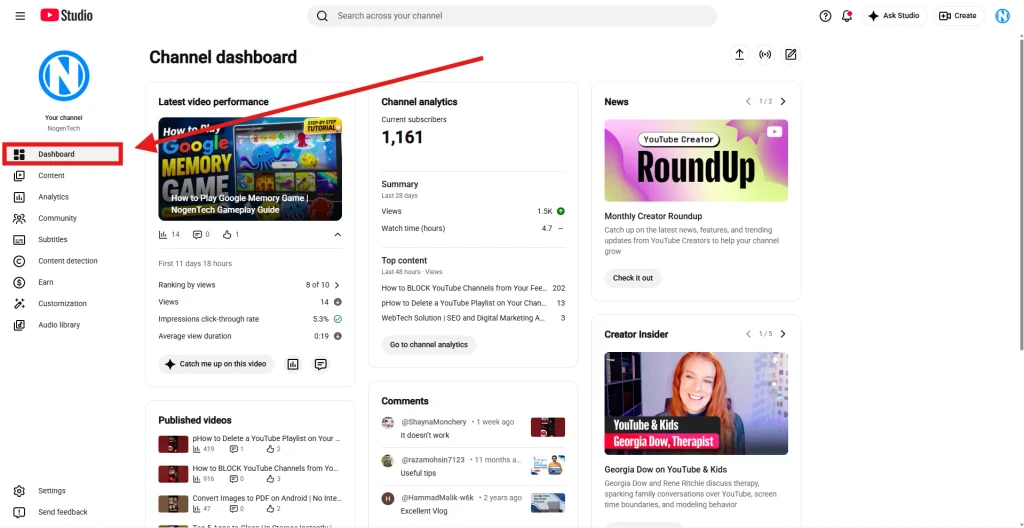
From the account menu, click YouTube Studio. YouTube will take you directly to your channel dashboard, where you can view your latest video performance, analytics, comments, published videos, recent subscribers, and other channel updates.
Steps to Open the YouTube Dashboard on Android
Start creating Verdict in seconds, and convert more of your visitors into leads.
Accessing the YouTube Dashboard on Android is simple and lets you gather insights to improve content performance.
Step 1: Open YouTube in Your Mobile Browser
Open your mobile browser and go to YouTube.com. Sign in to the Google account connected to your YouTube channel.
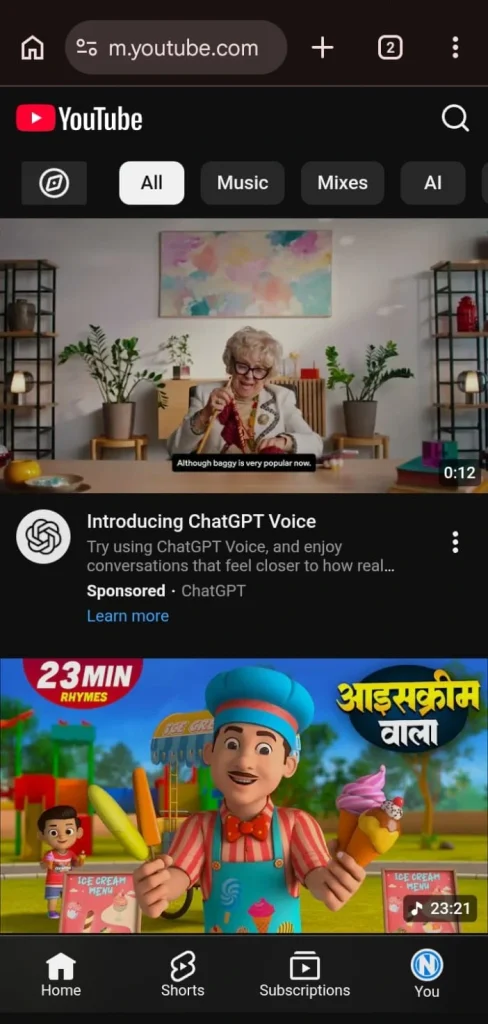
Then, open the browser’s side menu by tapping the three dots and select Desktop site to switch YouTube to the desktop view.
Step 2: Tap Your Profile Icon and then YouTube Studio
After that, on the YouTube homepage, tap your profile/channel icon in the top-right corner. From the account menu, tap YouTube Studio. Your browser will open YouTube Studio for your channel.
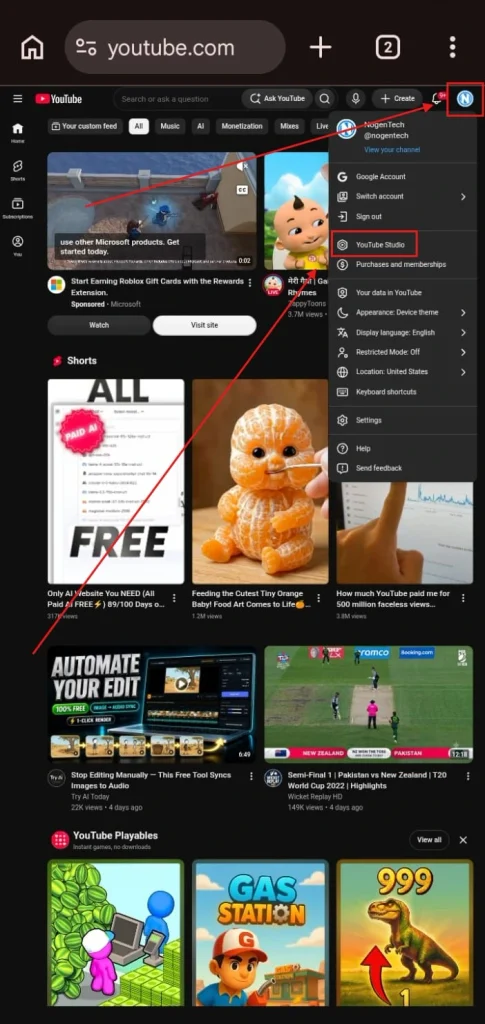
Step 3: View Your Channel Dashboard
After YouTube Studio loads, you will see your Channel dashboard. From here, you can check your latest video performance, channel analytics, comments, published videos, recent subscribers, and other channel information.
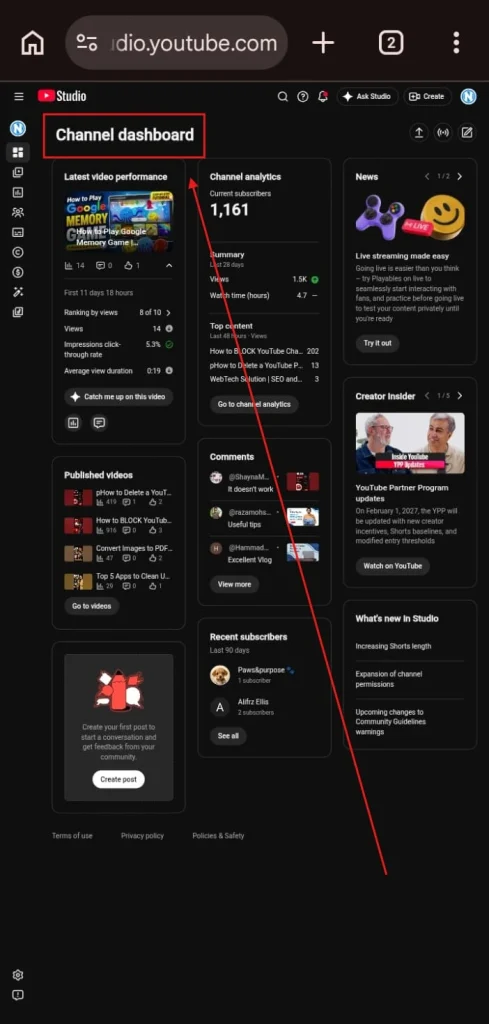
Steps to Access the YouTube Dashboard on the YouTube Studio App
Start creating Verdict in seconds, and convert more of your visitors into leads.
Accessing the YouTube Dashboard through the YouTube Studio App is the easiest and fastest method for both Android and iPhone users.
Step 1 – Download the YouTube Studio App
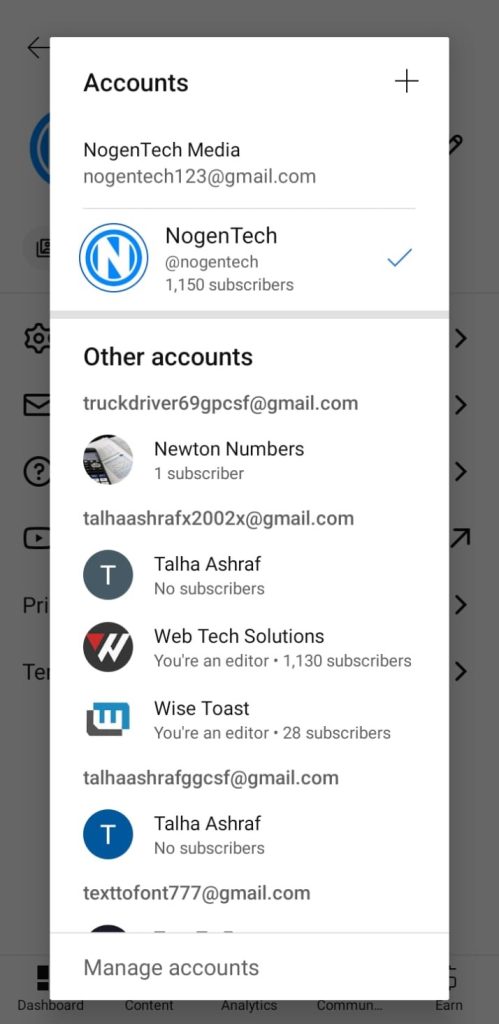
Go to the Google Play Store (Android) or App Store (iPhone) and search for “YouTube Studio.” Download and install the official app by Google LLC.
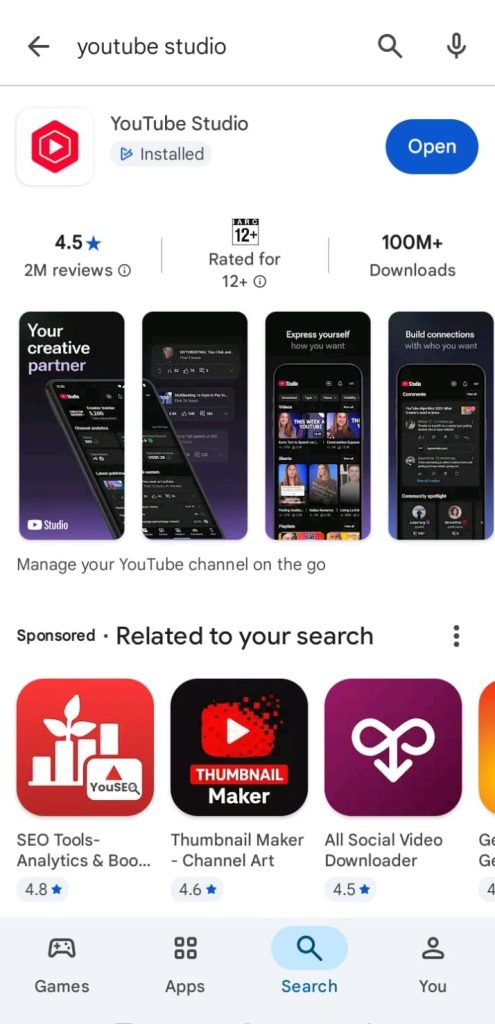
Step 2 – Open the App and Sign In
Open the YouTube Studio app and sign in with the Google account connected to your YouTube channel.
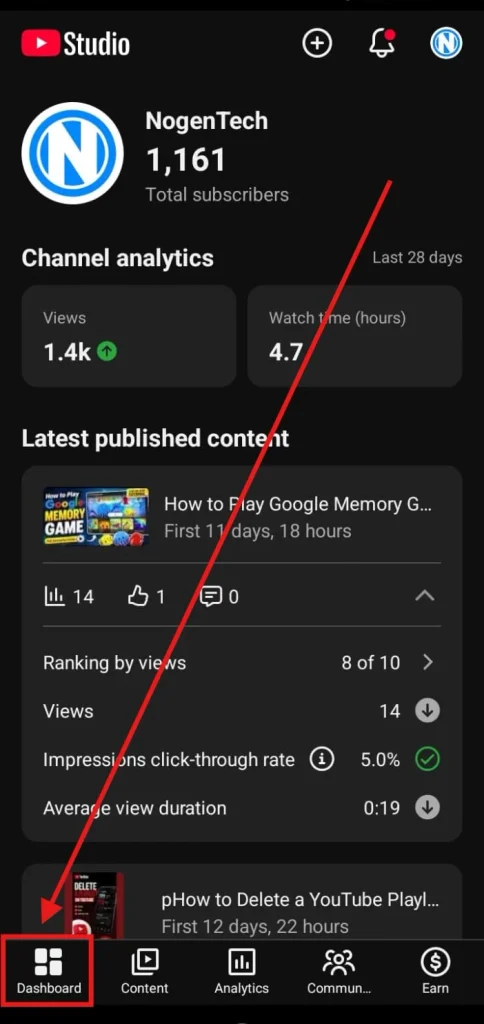
Step 3 – Tap on Dashboard
Tap the Dashboard tab at the bottom of the screen. Your insights, analytics, and audience engagement data will appear instantly.
Here’s a complete video from the NogenTech team that visually walks you through the process if the steps still feel confusing.
How Does the YouTube Channel Dashboard Work?
Start creating Verdict in seconds, and convert more of your visitors into leads.
YouTube Dashboard, also called YouTube Studio, is a centralized hub where creators access insights about their channels.
It provides essential data like performance metrics, audience comments, and engagement trends. With these insights, creators can plan and optimize content effectively, understand what resonates with viewers, and use YouTube’s built-in tools to grow their channels quickly.
This dashboard reveals how viewers interact with your videos, helping you make informed decisions and create more engaging content.
What People Generally Ask About the YouTube Dashboard
Start creating Verdict in seconds, and convert more of your visitors into leads.
Q1- Where is the YouTube Dashboard located?
The YouTube Dashboard is located in the channel settings or in the backend to provide content insights. Further, content creators can access this tool to know what their target audience requires.
Q2- Can I access the YouTube Dashboard on my Android?
Yes. You are able to access the YouTube Dashboard on your Android to make better use of insights like long-term enhanced outcomes.
Q3- Can I open the YouTube Dashboard on my iPhone?
Yes, just simply:
- Open YouTube in Safari
- Tap the share icon
- Request Desktop Website
- sign in
- Go to YouTube Studio.
Q4- How to open a YouTube channel on Android?
Opening your YouTube channel on Android is simple!:
Open the YouTube App> Sign In> Switch Accounts (if needed) > Go to Your Channel> Use YouTube Studio.
Q5- How to find the dashboard on YouTube
You can find your YouTube dashboard through YouTube Studio. Here’s how:
On Mobile (Android/iOS): Download the YouTube Studio app> Open the app and sign in> Tap on Dashboard from the bottom menu
On Desktop: Open YouTube Studio> Sign in to your account> Your dashboard will be the first page you see.
Q6- Does the YouTube Dashboard have an app?
Yes. YouTube Dashboard has an application for Android smartphones that users can install from the Google Play Store. To use it:
- Open the app
- Sign in
- Tap Dashboard at the bottom of the screen.
Finally, You’re Ready to Take Control of Your YouTube Dashboard
Start creating Verdict in seconds, and convert more of your visitors into leads.
At the end, the YouTube Dashboard is your go-to hub for insights, analytics, and audience engagement. From YouTube Studio on desktop or Android, it helps creators like me make informed content decisions, optimize videos, and grow channels faster.
Mastering this tool turns guesswork into strategy, ensuring your content truly resonates with your audience every time.