You know those things you make on YouTube and then completely forget about? I found one of mine yesterday.
I was in my YouTube Channel’s Dashboard checking my video stats when I accidentally clicked the Playlists section. One of the playlists sitting there was three years old, and I couldn’t think of a single reason to keep it. The videos had done their job, so I decided to clean it out.
If you’ve got a playlist sitting on your channel that you don’t need anymore, whether it’s from an old video series, a finished project, or something else, I’ll show you how to delete it on desktop and mobile.
How Do You Delete a YouTube Playlist on Desktop?
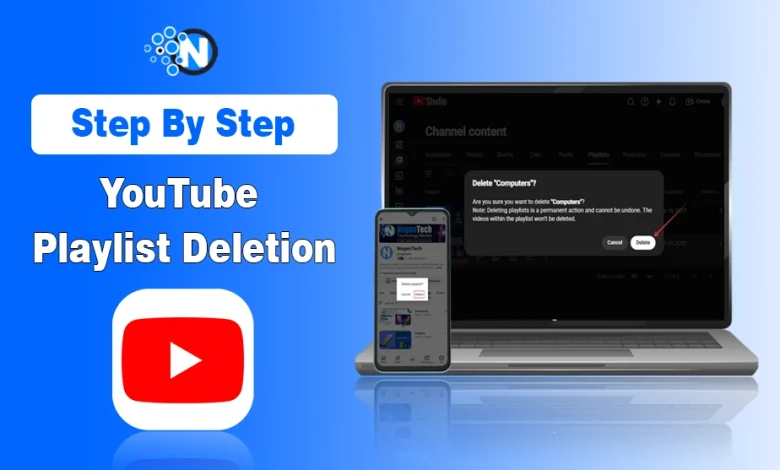
On desktop, start from the YouTube home page and head into YouTube Studio, your central hub to track channel growth, to find the playlist you want to delete.
Here’s a quick way to get there and remove it:
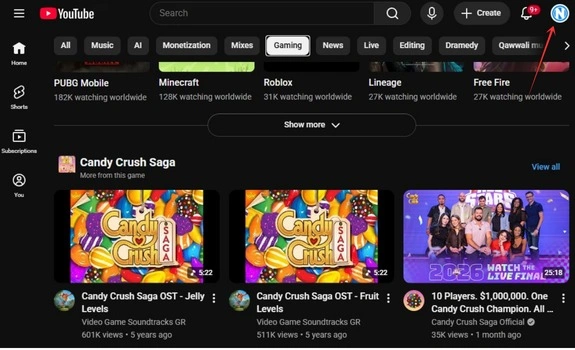
- Click your channel icon in the top right corner of YouTube.
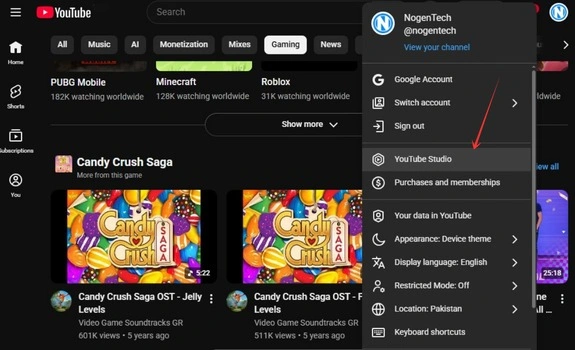
- From the menu, choose YouTube Studio.
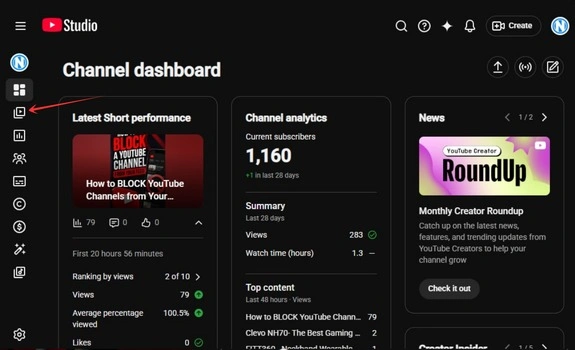
- In YouTube Studio, click the Content icon from the left sidebar.
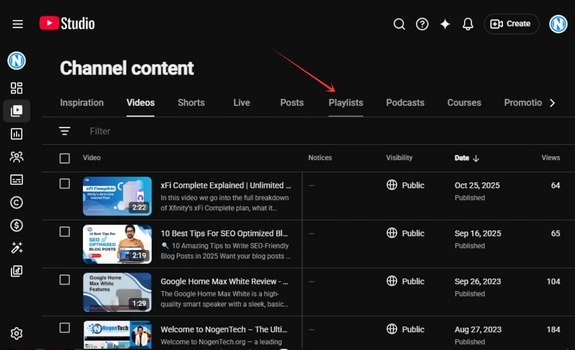
- At the top, open the Playlists section to see your playlists.
- Find the playlist you want to remove, then click the three dots icon beside it.
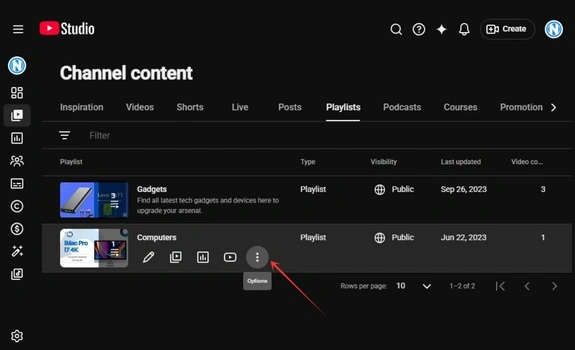
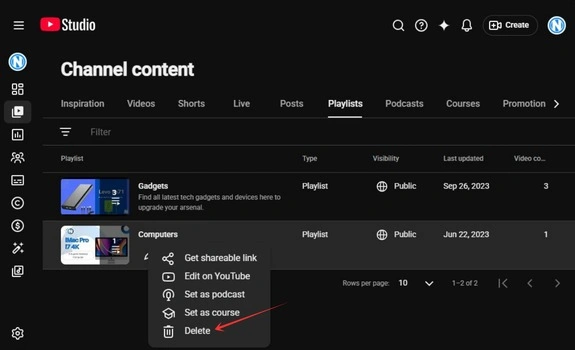
- Tap on the Delete option
- Confirm the deletion by selecting Delete again.
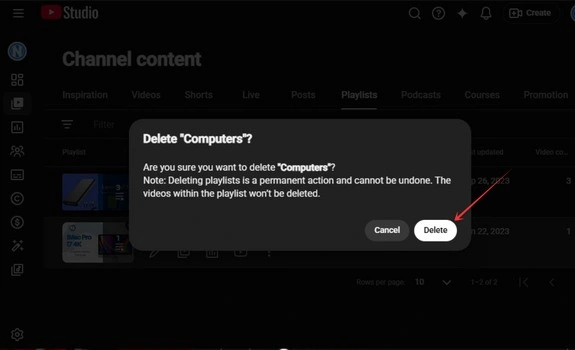
That’s all there is to it.
How Do You Delete a YouTube Playlist on Mobile?
If you’re doing this from your phone, you can delete the playlist right from the YouTube app. Let’s see how it gets done:
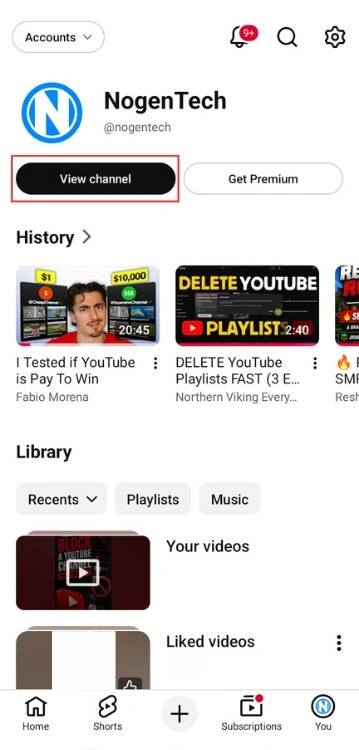
- Start by opening your profile from the bottom right corner of the YouTube app.
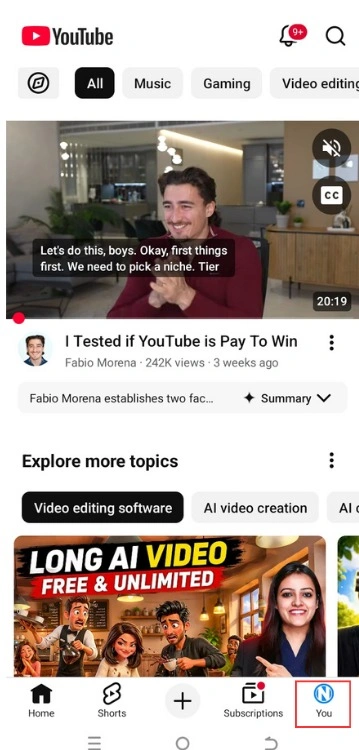
- From there, choose View channel to open your channel page.
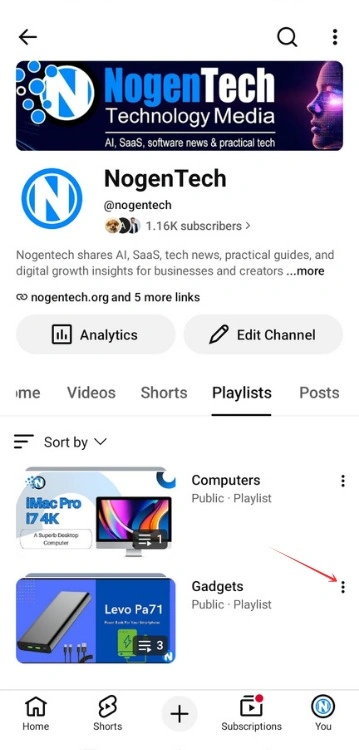
- On your channel, head to the Playlists section.

- Find the one you want to remove and tap the three-dot menu beside that playlist.
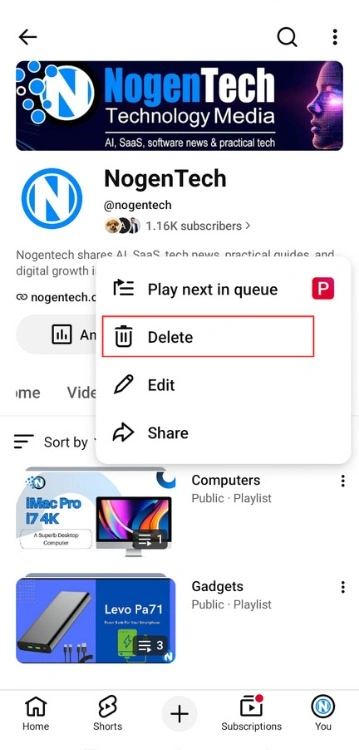
- From the menu, choose Delete to remove the playlist.
- YouTube will ask you to confirm, so confirm the deletion to finish.
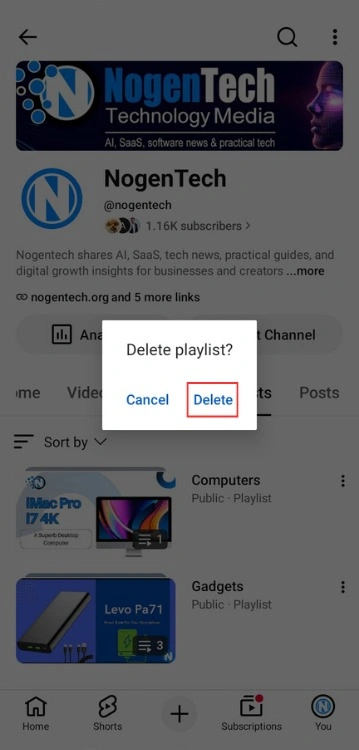
And just like that, the old playlist is out of the way.
Need to See the Steps in Action?
Still not sure where to find the option for deleting a YouTube Playlist? This quick walkthrough shows exactly where to go and what to select.
Some Questions You May Have About Deleting a YouTube Playlist
What happens when you delete a YouTube playlist?
The playlist is removed from your channel and won’t appear in your playlists anymore. The videos themselves stay on YouTube.
Can you delete a playlist you didn’t create?
No. You can only delete playlists you created. If it’s someone else’s playlist, you can remove it from your own library, but the original playlist stays intact.
Can you recover a deleted YouTube playlist?
Not through YouTube. Once you delete a playlist, there’s no normal restore option, so make sure you really want to remove it before confirming.
What’s the difference between deleting and removing a playlist?
Deleting removes a playlist you created. Removing simply takes a playlist out of your library, which is what you’d do with a playlist you didn’t create.
Can I delete the Watch Later playlist?
No. Watch Later is a built-in YouTube playlist and can’t be deleted. You can remove videos from it, but the playlist itself stays there.
Will people be notified if I delete a playlist?
YouTube doesn’t send a notification when you delete a playlist. If someone had access to it, they simply won’t be able to access that playlist anymore.