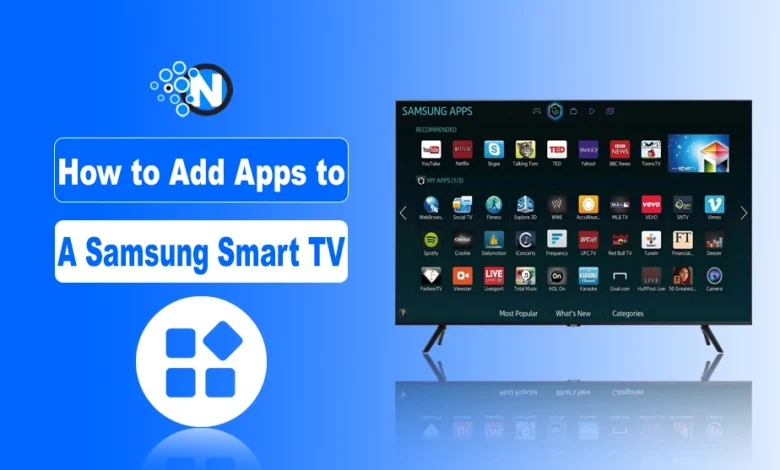
Samsung Smart TVs offer an extensive range of apps, from streaming services like Netflix and YouTube to games and utility applications. While in some devices, they may come pre-installed, you have to install them in others if they are not available.
Some apps come pre-installed, but many need to be added manually. If you’re unsure how to add apps to a Samsung Smart TV, don’t worry, I’ve got you covered.
I have also been using a Samsung TV because of its brilliant display and exceptional features. That’s why I know how you can access your desired apps and stream your favorite movie or sports action on it.
Just follow the steps mentioned in this blog post and start adding desired apps to your home screen.
Samsung Smart TV App Store (Smart Hub)
Samsung uses its own app marketplace called Smart Hub. This is where you can browse, download, and manage all your apps.
Before you start, make sure:
- Your TV is connected to the internet
- You’re signed in to your Samsung account (if required)
- Smart Hub is properly set up
Once these basics are in place, you’re ready to install apps
How to Add Apps to a Samsung Smart TV?
Below, I have provided a complete step by step guide to help you learn how to add apps to a Samsung Smart TV. You only have to understand these details and implement them properly to get the desired outcomes.
Step 1: Turn on Your Samsung Smart TV
Before you begin, turn on your TV and ensure it is properly set up. Make sure your TV remote is working, and if needed, you should replace the batteries.
Step 2: Connect to the Internet
A stable internet connection is necessary to download and install apps. You have to follow these steps to connect your Samsung Smart TV to the internet:
For a Wi-Fi Connection
- Press the Home button on your remote.
- Navigate to Settings (gear icon).
- Select General and then go to Network.
- Click on open Network Settings.
- Choose Wireless and select your Wi-Fi network.
- Enter your Wi-Fi password and press OK.
For a Wired Connection (Ethernet)
- Connect an Ethernet cable from your router to the TV’s LAN port.
- Go to Settings and then General.
- Next, choose the Network and find Open Network Settings.
- Select Wired to establish the connection.
Step 3: Open the Smart Hub
Smart Hub is Samsung’s app store and home for all entertainment content.
- Press the Home button on your remote.
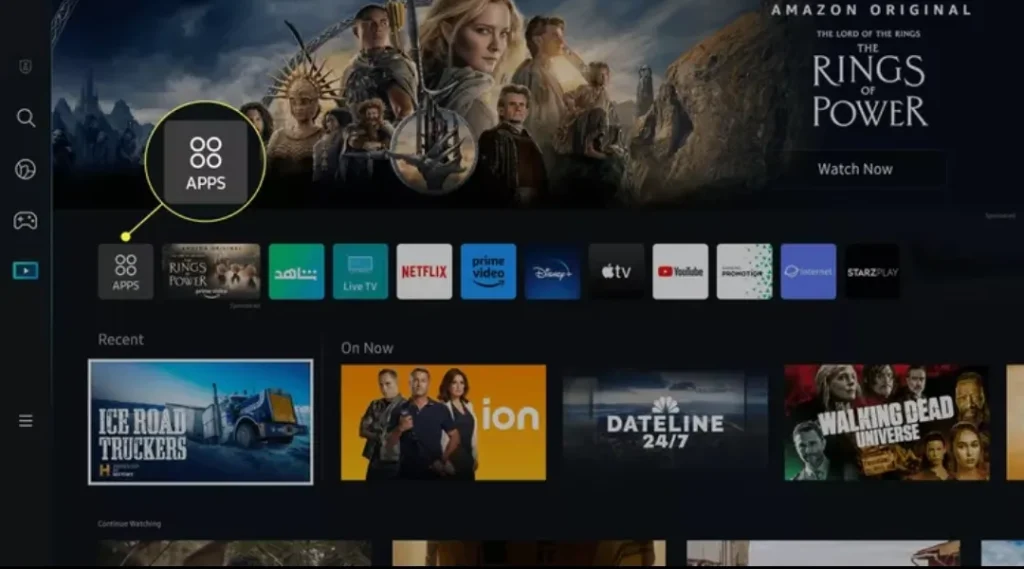
- Navigate to Apps (this may look like a grid icon).
- Press Enter to open the Smart Hub.
Step 4: Search for an App
Now it’s time to find the app you want.
- Click on the Search icon (magnifying glass).
- Type the name of the app using the on-screen keyboard.
- Press Enter or select the app from the search results.
Step 5: Download and Install the App
Once you find your app:
- Select it
- Click Install
- Wait for the download to finish
- Press Open to launch it
That’s it, you’ve successfully added an app.
Step 6: Add the App to the Home Screen (Optional)
If you want quicker access, you can pin apps to your home screen.
- Go to Apps > Downloaded Apps
- Highlight the app
- Press the Down button
- Select Add to Home
This makes your favorite apps easier to access anytime.
Troubleshooting Common Issues
Sometimes things don’t go as planned. Here’s how to fix common problems.
Issue 1: App Not Installing
- Check your internet connection.
- Ensure your TV has enough storage space.
- Restart your TV and try again.
Issue 2: App Not Available in Your Region
Some apps are region-locked. Consequently, you will not be able to install and use them on your Samsung TV while staying in the same region. To avoid these issues, you should use a VPN or change your Samsung account region.
Issue 3: Smart Hub Not Working
- Restart your TV.
- Perform a Smart Hub Reset via Settings.
Final Thoughts
These are the details about how to add apps to Samsung TV as I have explained a complete step by step procedure in this guide. Now, you have to understand and implement these steps properly to make sure you can get access to these apps. Adding apps to your Smart TVs is a simple process with Smart Hub.
Whether you’re downloading a streaming app, a game, or a utility tool, the procedure is quite simple and smooth. If you run into any issues, use the troubleshooting steps to resolve them. Happy streaming!
Frequently Asked Questions (FAQs)
1. Can I Install Google Play Store on a Samsung Smart TV?
No, Samsung Smart TVs use Tizen OS, which does not support Google Play Store. You must use the Samsung Smart Hub to download apps.
2. How Do I Delete an App?
Firstly, go to Apps and then select the you want to remove. Now, click Delete and confirm.
3. Can I Add Apps to an Older Samsung TV?
Older Samsung TVs may have limited app support. You may need a streaming device like Amazon Fire Stick, Roku, or Chromecast.
4. Why Are Some Apps Missing?
Apps may not be available due to regional restrictions or firmware compatibility. Try updating your TV’s firmware.