Does Coaxial Cable Internet Still Work in 2026? Speed, Setup & Fixes

Why does your home internet still lag despite high-speed service from ISPs in the US?
Most homeowners in the US blame the WiFi or router, but the real issue is often the cable connection feeding your home network.
Small faults in that hidden wiring can quietly reduce speed and stability. Whether you are streaming, gaming, video calling, or scrolling, a coaxial cable is likely making it stable behind the scenes.
This Coaxial cable guide explains what a homeowner needs to know: what the cable is made of, how it delivers internet, which type to use, and how to troubleshoot when things go wrong, in a simple and easy way, no technical degree required.
What Is a Coaxial Cable?
A coaxial cable is a shielded transmission cable that carries high-frequency signals, including internet data, cable television, and radio communication, with low signal loss and strong resistance to electromagnetic interference.
The term coaxial defines its structure: a central conductor and surrounding shielding layers share the same axis. This concentric design isolates the signal from external interference and maintains consistent signal quality over long distances.
What Is Inside a Coaxial Cable?
Cut a coaxial cable open and you will find four engineered layers working together to keep your home internet signal clean from the wall to your modem.
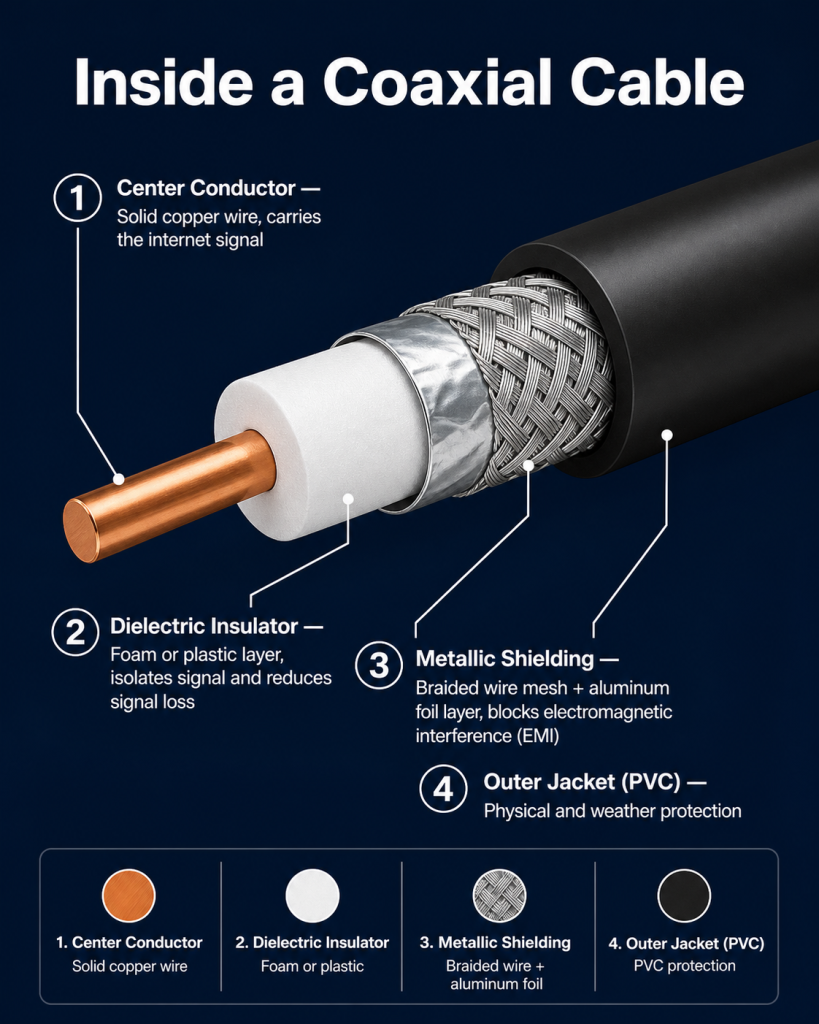
coaxial cable showing all four internal layers in a cutaway style.| Layer | Name | Job |
| 1 | Center Conductor | Carries the signal |
| 2 | Dielectric Insulator | Isolates and protects the signal |
| 3 | Metallic Shielding | Blocks electromagnetic interference |
| 4 | Outer Jacket | Physical and weather protection |
How Does a Coaxial Cable Deliver Internet to Your Home?
Internet delivery over coaxial cable is not a simple point-to-point connection. It involves a layered infrastructure where fiber and coaxial cable each play a distinct role, coordinated through the DOCSIS standard managed by CableLabs.
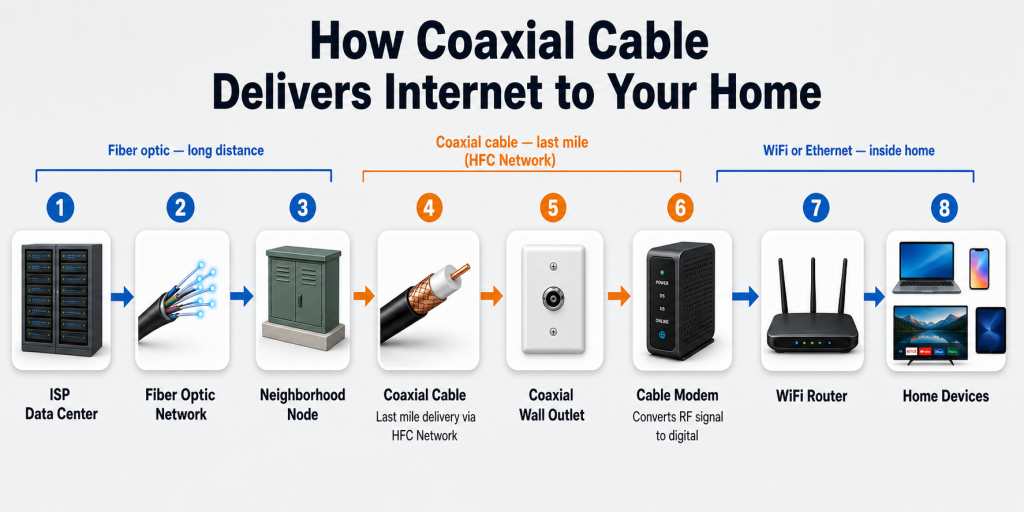
Step 1: The HFC Network Carries the Signal to Your Neighborhood
Your internet starts miles away at your ISP‘s data center. Fiber optic cables carry the signal most of the way, right up to a local distribution point in your neighborhood called a node.
This combined system is called the Hybrid Fiber-Coaxial (HFC) network. Fiber handles the long distance; coaxial cable handles the final stretch into your home.
Step 2: Coaxial Cable Runs From the Node to Your Wall
From the node, the signal switches from fiber to coaxial cable, running along utility poles or underground and entering your home through a coaxial wall outlet. It travels as Radio Frequency (RF) signals at specific frequency bands measured in MHz and GHz.
Step 3: One Cable Carries Internet and TV Simultaneously
A single coaxial cable carries both internet and TV at the same time by assigning each service a different frequency band, the same principle as different radio stations sharing the airwaves without interfering with each other.
| Service | Frequency Band |
| Cable TV channels | 54 MHz – 550 MHz |
| Internet (downstream) | 108 MHz – 1002 MHz |
| Internet (upstream) | 5 MHz – 42 MHz |
Your modem tunes into its frequency band; your cable box tunes into its own. Neither interferes with the other.
After this, there is the final step that I also explained to you while explaining how home internet works: the RF signal from the coaxial cable gets into your cable modem, which converts it into a digital internet signal that the router then broadcasts your devices can use.
Complete signal path: ISP Data Center → Fiber Network → Neighborhood Node → Coaxial Cable → Wall Outlet → Modem → Router → Your Devices
Types of Coaxial Cables: Which Are Used in Homes
Not every coaxial cable is built for home internet. Here are the three types you will encounter, and a clear verdict on each.
1: RG6: The Modern Standard
RG6 is the correct cable for home internet. It has a thicker center conductor, better shielding (dual or quad shield), and lower signal loss at the high frequencies modern cable internet requires.
All new home installations should use RG6. For runs near electrical wiring, choose RG6 Quad Shield for maximum interference protection.
2: RG59: The Legacy Cable
RG59 was the standard before RG6 took over. If your home was wired before the early 2000s, it may still be inside your walls.
Its thinner conductor and weaker shielding cannot reliably handle modern cable internet frequencies. It remains acceptable for short security camera runs, but if RG59 is feeding your modem, replacing it with RG6 will improve performance.
3: RG11: For Long-Distance Runs
RG11 is the heavy-duty option for cable runs exceeding 150 feet, such as running a cable from the street to a large home or a detached outbuilding.
It is stiffer, harder to route through walls, and more expensive than RG6. Most homeowners will never need it.
| Type | Best Use | Max Length | Verdict |
| RG6 | Internet & cable TV | 150 ft | Best — use this |
| RG59 | Legacy setups, CCTV | 75 ft | Avoid for internet |
| RG11 | Long-distance runs | 300 ft | Niche use only |
What Is DOCSIS? Its Role In Your Internet Speed
DOCSIS (Data Over Cable Service Interface Specification) is the standard that controls how your modem and ISP communicate over a coaxial cable. It defines data transmission, speed limits, and spectrum efficiency, directly determining your internet performance.
Without DOCSIS, no data can flow regardless of cable quality. The standard is developed and maintained by CableLabs.
DOCSIS Versions and What They Mean for Your Home
Each version of DOCSIS brought faster speeds and better efficiency over the same coaxial infrastructure already in homes.
| DOCSIS Version | Max Download | Max Upload | Status |
| DOCSIS 3.0 | Up to 1 Gbps | ~100–200 Mbps | Older; still common |
| DOCSIS 3.1 | Up to 10 Gbps* | Up to 1 Gbps | Current standard |
| DOCSIS 4.0 | 10+ Gbps* | Up to 6 Gbps | Emerging; limited availability |
Theoretical maximums. Real-world speeds depend on your ISP plan and network conditions.
DOCSIS 3.0 is still found in older homes and budget modems. It handles basic streaming and browsing but has limited upload speeds. DOCSIS 3.1 is the current standard for most homes, it supports gigabit plans, 4K streaming, gaming, and heavy remote work without issue.
DOCSIS 4.0 is the emerging standard, retail DOCSIS 4.0 modems have not yet widely reached store shelves. Its biggest advantage is dramatically improved upload speeds, enabling symmetrical multi-gigabit connections over the same coaxial HFC network infrastructure.
How to Check Which DOCSIS Version Your Modem Supports
- Modem label: Check the model number on the bottom and search it online.
- Admin panel: Open a browser, go to 192.168.100.1, and look under device information.
- ISP account portal: Your connected modem and its specs are usually listed under equipment settings.
If you are on DOCSIS 3.0 with a gigabit plan, upgrading to a DOCSIS 3.1 modem will make a real difference. If you are renting a modem from your ISP, switching to your own DOCSIS 3.1 modem typically saves $10–$15 per month in rental fees.
Types of Coaxial Cable Connectors Every Homeowner Should Know
Even a perfect RG6 cable will underperform with a bad connector. Connector quality directly affects signal integrity.
The F-Type Connector
The F-type connector is the US standard for home cable internet and TV, the silver, threaded connector you screw onto your modem, wall outlet, and splitter. It is used by all major US ISPs (Xfinity, Spectrum, Cox) and is designed for 75 Ohm coaxial systems.
Compression connectors create a watertight, airtight seal, the professional standard for all indoor and outdoor installations. Always use compression connectors for any permanent home setup. Crimp connectors will eventually loosen or admit moisture, especially outdoors.
Common Connector Mistakes
| Mistake | Effect |
| Loose F-connector | Signal loss, intermittent drops |
| Exposed center conductor | Signal leakage and interference |
| Crimp connector used outdoors | Moisture damage and failure |
| Corroded outdoor connector | Severe signal degradation |
Physically inspect all coaxial connectors, especially outdoor ones, every one to two years. A corroded or loose connector is one of the most overlooked causes of slow or unstable home internet.
Signal Loss and Attenuation: Why Cable Length Affects Your Speed
Attenuation is the gradual weakening of a signal as it travels through a coaxial cable. Longer cable runs and higher frequencies both increase signal loss, reducing strength at your modem.
Signal loss is measured in decibels (dB). RG6 cable loses about 1.5 dB per 100 ft at 100 MHz, rising to ~4.5 dB at 1 GHz. A total loss of up to 3.5 dB is acceptable; beyond that, performance degradation begins.
How Splitters Add Up
Every splitter divides the signal, and each division costs you strength.
| Splitter Type | Signal Loss Per Port |
| 2-way splitter | ~3.5 dB |
| 3-way splitter | ~5.5 dB |
| 4-way splitter | ~7.0 dB |
Use a maximum of one 2-way splitter. Never daisy-chain multiple splitters, cumulative loss will cause drops and slow speeds.
When to Use a Signal Amplifier
If your setup requires long cable runs or more than one splitter, a signal amplifier can offset the loss. Use one when your cable run exceeds 150 feet, when your modem’s admin panel shows low signal strength, or when frequent drops coincide with long or complex cable runs.
Note that amplifiers boost noise as well as signal, only deploy one when genuinely needed, and match it to your frequency range.
Coaxial Cable vs. Fiber vs. Ethernet
These three cable types are not interchangeable, they each serve a different role in your home network.
Coaxial vs. Ethernet
Coaxial and Ethernet cables are not competitors; they do different jobs. Coaxial brings the internet into your home as RF signals.
Ethernet distributes that internet inside your home as digital electrical signals. You need both, coaxial for the ISP-to-modem connection, Ethernet for the modem/router-to-device connection.
Coaxial vs. Fiber Optic
| Feature | Coaxial Cable | Fiber Optic |
| Signal type | Electrical RF (copper) | Light pulses (glass/plastic) |
| Max download | Up to 10 Gbps (DOCSIS 3.1) | 10 Gbps+ |
| Upload speed | Asymmetrical (lower upload) | Symmetrical (equal up/down) |
| Latency | Moderate | Very low |
| Availability | Very wide (most US homes) | Limited (expanding) |
| Infrastructure | Already installed | Requires new build |
| Future-proofing | Strong (DOCSIS 4.0) | Very high |
Fiber wins on upload speeds, latency, and long-term ceiling. Coaxial wins on availability, it already reaches the vast majority of American homes.
For most households, DOCSIS 3.1 coaxial delivers more than enough internet speed for streaming, gaming, and remote work. DOCSIS 4.0, developed by CableLabs, is designed to close the gap with fiber by enabling symmetrical multi-gigabit speeds over the existing HFC network.
MoCA Technology: Use Your Existing Coaxial Cables as a Home Network Backbone
Most homeowners do not realize that the coaxial cables already in their walls can do more than deliver internet and TV.
MoCA, Multimedia over Coax Alliance, is a technology that lets you send high-speed internet signals through existing coaxial wiring to create a fast, wired network connection in any room with a coaxial outlet. No new wiring required.
How MoCA Works
You connect a MoCA adapter to a coaxial wall outlet and link it to your router via Ethernet. A second adapter connects to a coaxial outlet in another room and links to a device or access point there.
The two adapters communicate through your existing coaxial wiring and configure each other automatically.
MoCA 2.0 vs. MoCA 2.5
| Feature | MoCA 2.0 | MoCA 2.5 |
| Max speed | Up to 1 Gbps | Up to 2.5 Gbps |
| Real-world speed | ~500 Mbps | ~1.5 Gbps |
| Latency | ~1 ms | ~1 ms |
| Best for | Standard home networking | Gigabit internet plans |
If you have a gigabit internet plan, use MoCA 2.5 adapters to avoid creating a bottleneck.
Who Benefits Most From MoCA
- Gamers: Ultra-low latency (~1 ms) with no WiFi interference especially useful if your current setup falls short of the speeds needed for online gaming.
- Remote workers: Stable, consistent connection for video calls; particularly relevant if you depend on a coaxial-based plan for working from home.
- Homes with WiFi dead zones: Every coaxial outlet becomes a potential wired network point, often more cost-effective than a mesh WiFi system
How to Set Up MoCA (Step-by-Step)
- Install a MoCA POE (Point-of-Entry) filter at your home’s main coaxial entry point, this keeps MoCA signals inside your home and prevents interference with your ISP’s incoming signal. This step is mandatory.
- Connect Adapter 1 to the coaxial outlet near your router.
- Link Adapter 1 to your router via a short Ethernet cable.
- Connect Adapter 2 to the coaxial outlet in your target room.
- Link Adapter 2 to your device or access point via Ethernet.
- Both adapters find each other automatically, no configuration required.
How to Install Coaxial Cable for Home Internet
Installing or replacing coaxial cable is a straightforward DIY task. Doing it correctly prevents signal loss, interference, and future troubleshooting headaches.
What You Need
- RG6 quad shield coaxial cable (75 Ohm)
- F-type compression connectors
- Compression tool
- Coaxial cable stripper and cutter
- 2-way splitter if connecting multiple devices
- MoCA POE filter if using MoCA adapters
- Signal amplifier (only if run exceeds 150 ft or multiple splits required)
For simple jobs, pre-made RG6 cables with factory-installed compression connectors save time. Only buy raw cable and connectors for custom-length runs.
Installation Steps
- Plan your route: Measure the distance from the wall outlet to your modem. Keep the run under 150 feet with RG6.
- Strip the cable: Use a coaxial stripper to expose the center conductor and shielding without nicking the conductor.
- Attach compression connectors: Slide on the F-type connector and compress it firmly with the compression tool. Repeat on both ends.
- Connect to the wall outlet: Hand-tighten, then give a quarter turn with a wrench.
- Connect to the modem: Run the cable to the “Cable In” or “Coaxial In” port on your modem.
- Connect modem to router: Use a short Ethernet cable from modem to router.
- Activate with your ISP: Use your ISP’s app or call to provision the modem if needed.
- Test the connection: Run a speed test at speedtest.net and log into your modem’s admin panel at 192.168.100.1 to verify signal strength.
Outdoor Installation Rules
- Use outdoor-rated RG6 with UV-resistant, weatherproof jacket for any exterior runs.
- Install a grounding block where the cable enters the house to protect against lightning surges.
- Use weatherproof compression connectors on all outdoor connections.
- Seal the entry point with silicone or a weatherproof grommet to prevent water intrusion.
If the coaxial cable runs from a utility pole or underground junction, contact your ISP before modifying it.
How to Test Your Coaxial Cable Signal
A failing coaxial cable rarely causes a completely dead connection. It more often shows up as slow speeds, random drops, or pixelated TV, problems most homeowners incorrectly blame on their ISP.
Method 1: Modem Admin Panel (No Tools Needed)
Open a browser, go to 192.168.100.1, log in, and look for Signal Levels or Status.
| Measurement | Acceptable Range | Problem Range |
| Downstream power | −7 to +7 dBmV | Below −10 or above +10 |
| Upstream power | +38 to +48 dBmV | Above +51 dBmV |
| Signal-to-Noise Ratio | 33 dB or higher | Below 30 dB |
Low downstream power = run too long or too many splitters. High downstream power = ISP may need to adjust signal at the node.
Method 2: Handheld Coaxial Signal Meter
A coaxial signal meter ($20–$50) measures actual signal strength in dBmV at any outlet. Unscrew the cable from the outlet, connect the meter directly to the wall jack, and read the level.
Good signal: −7 to +7 dBmV with consistent readings across all outlets. Compare readings between outlets to find weak points in your line.
Method 3: ISP Diagnostic Tools
Most major ISPs offer remote signal testing via their apps:
- Xfinity — Xfinity App → My Account → Troubleshoot → Run Diagnostics
- Spectrum — My Spectrum App → Services → Troubleshoot
- Cox — Cox App → Support → Fix an Issue → Run Test
ISP diagnostics check signal strength at your modem, power levels, and error rates, and identify whether the problem is inside your home or on their network. Always run this before calling customer support.
Common Coaxial Cable Problems and How to Fix Them
Most home internet problems trace back to the coaxial cable or its connectors, not the ISP. Knowing how to identify and fix these issues can save hours of frustration and an unnecessary technician visit.
| Problem | Most Likely Cause | Fix |
| Slow internet speed | Too many splitters, old RG59, loose connector, outdated modem | Remove splitters, replace with RG6, tighten connectors, upgrade to DOCSIS 3.1 |
| No internet signal | Loose connector, cable damage, ISP outage | Tighten all connectors, inspect cable run, check ISP outage map |
| Intermittent drops | Corroded outdoor connector, moisture, damaged jacket | Replace outdoor connectors with weatherproof compression type, reseal |
| Signal interference | Poor shielding, cable near electrical wiring | Reroute cable, upgrade to RG6 quad shield, replace cheap splitters |
| Weak signal in far rooms | Long runs, daisy-chained splitters | Add amplifier, use single multi-port splitter, consider MoCA |
| Drops after rain | Outdoor connector failure, moisture ingress | Weatherproof compression connector + self-amalgamating tape |
Is Coaxial Cable Internet Still Worth It in 2026?
Yes, coaxial cable internet is still worth using in 2026 for most households.
If your provider supports DOCSIS 3.1, coaxial delivers reliable gigabit speeds for streaming, gaming, remote work, and smart devices. Fiber providers like Comcast (Xfinity), Charter Communications (Spectrum), and Cox Communications continue upgrading their HFC networks, with some ISPs such as Spectrum known for maintaining no data caps, with CableLabs advancing DOCSIS 4.0 for multi-gig speeds.
Decision rule:
- Choose fiber if it is available and priced reasonably → better upload speeds and lower latency
- Choose coaxial (DOCSIS 3.1/4.0) if fiber is unavailable → still fast, stable, and cost-effective
For most homes, a properly installed coaxial connection remains a practical and future-ready internet solution.