How to Delete Gemini Apps Activity (2026 Guide)
Go to myactivity.google.com/product/gemini, click Delete, pick All time (or a custom range), and confirm. To stop new chats from being saved, turn off Keep Activity on the same page.

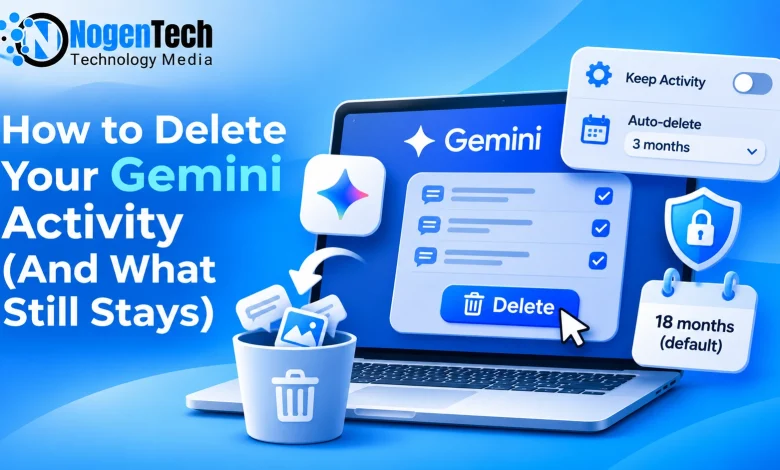
Every prompt you’ve typed into Gemini (the late-night questions, the work drafts, the photo you uploaded) is probably sitting in your Google Account right now. By default, Google keeps it for 18 months.
- The good news: you can wipe it in under a minute.
- The less-known part: hitting “Delete” doesn’t remove everything.
And now you will explore both, so you know exactly what’s gone and what isn’t. One quick note on names. Google renamed the on/off switch to Keep Activity, but your saved chats still show up under Gemini Apps Activity.
Same thing: two labels, so don’t let it throw you.
How to Delete Gemini Apps Activity, Step by Step
Pick your device. The options are the same everywhere; only the route to the Activity page changes.
On a Computer (Fastest one worked for me)
- Open gemini.google.com and sign in.
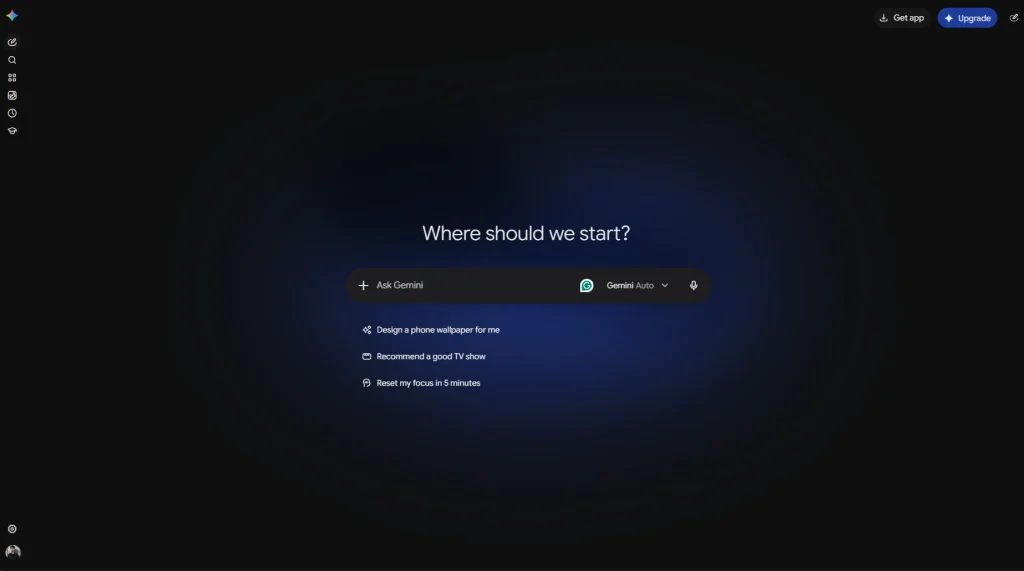
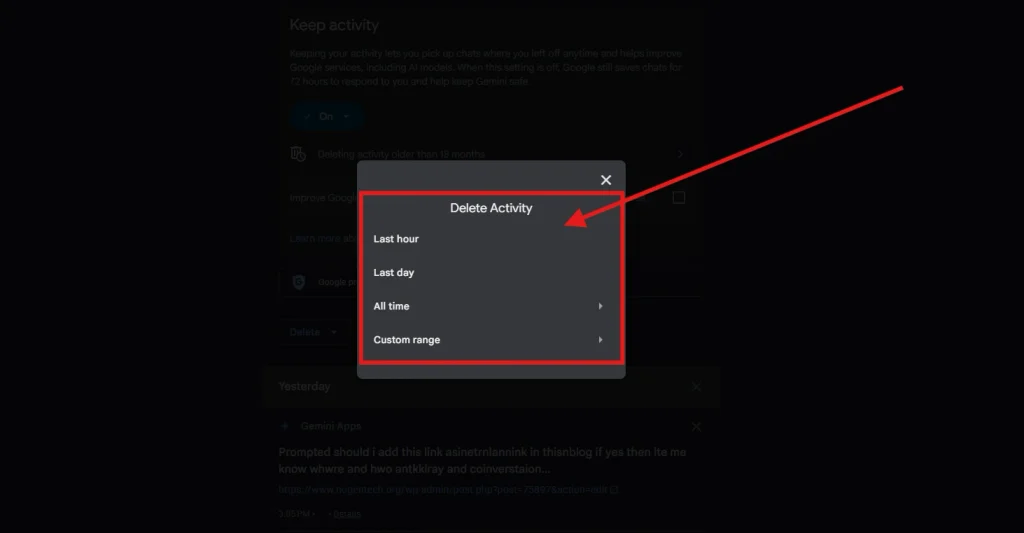
- Click Settings & help (bottom left), then Activity. Or skip ahead and go straight to myactivity.google.com/product/gemini. Then click Delete above your activity list. Probably blue colored.
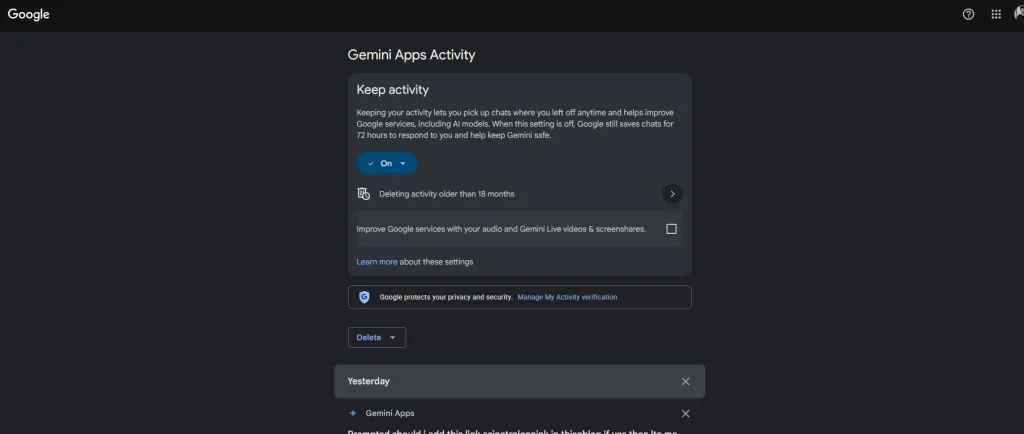
- Choose Last hour, Last day, All time, or Custom range. Confirm. Done.
On Android
- Open the Gemini app.
- Tap your profile picture (top right).
- Tap Gemini Apps Activity (on some versions it just says Activity).
- Tap Delete, choose a time range, and confirm.
On iPhone or iPad
- Open the Gemini app (or the Google app, if that’s where you use Gemini).
- Tap your profile picture.
- Tap Gemini Apps Activity.
- Tap Delete, choose a time range, and confirm.
In a hurry on mobile? Just open myactivity.google.com/product/gemini in Safari or Chrome. It works exactly like the desktop version
Delete one Chat, a Whole Day, or Everything
You don’t have to nuke your whole history. On the Activity page, you can:
- Delete a single chat: Click the X (“Delete activity item”) next to it. Handy for that one embarrassing question.
- Delete a whole day: Click the delete icon next to that date.
- Delete everything: Use Delete → All time.
How to Turn off Gemini Apps Activity (and Set Auto-Delete)
Deleting cleans up the past. These two settings control what happens next.
- Turn it off completely: On the Activity page, switch Keep Activity off. New chats won’t be saved to your account, and they won’t be used to improve Google’s AI with the help of human reviewers.
- The trade-off: Some features stop working, though. With Keep Activity off, only a handful of connected apps keep working, including Device assistance, Gemini Notebook, Google Messages, Phone, and WhatsApp. Your Gems stay saved, but your chats with them don’t.
- Or set auto-delete instead: If you like having your history around but don’t want it forever, click the auto-delete option near the top of the page and pick one:
| Auto-delete setting | Good for |
|---|---|
| 3 months | Privacy-first users who still want recent chats |
| 18 months (default) | Most people, if they never touch the setting |
| 36 months | Heavy users who search old chats |
| Don’t auto-delete | Only if you really want everything kept |
Our pick: 3 months. You keep recent context and lose the long paper trail.
What Google Still Keeps After You Hit "Delete"
This is the part most guides skip, and it’s the part that matters most. Deleting your activity clears what you can see. Behind the scenes, three things work differently.
- Chats a human already reviewed stay for up to 3 years. Google has human reviewers (including trained outside contractors) read a small slice of Gemini chats to improve its AI. Those chats are disconnected from your account first. But if one of yours was picked, deleting your activity won’t delete it. Google keeps reviewed chats for up to three years.
- “Off” still means 72 hours. With Keep Activity off, or in a Temporary Chat, Google still holds your conversation for up to 72 hours. It uses that window to respond to you and to guard against system failures. These chats never show up in your activity, so you can’t delete them early, but they expire on their own.
- Feedback has its own clock. Click thumbs up or down, and Google takes the feedback plus the last 24 hours of that chat. If someone reviews it, it’s kept for up to three years too.
Bonus: connected apps are separate. If Gemini pulled info from Gmail, Drive, or another connected app, that data follows the connected app’s own rules. Disconnecting an app doesn’t delete your Gemini activity, and deleting your Gemini activity doesn’t touch the app.
The practical rule: the delete button is great for cleanup, but it isn’t a time machine. The only real protection is not typing sensitive stuff in the first place. Think passwords, medical details, client data, or anything you’d hate a stranger to read. Google’s own privacy notice says the same thing.
What does Gemini Apps Activity Actually Save?
More than most people expect. When Keep Activity is on (and it’s on by default for anyone 18+), Google stores:
- Your prompts and Gemini’s replies, the full back-and-forth
- Files and images you shared in a chat
- Feedback you gave, like a thumbs up or down
- A general location, based on your IP address, device, or the home/work address in your Google Account
That last one surprises people. The good news is that Google says precise location is never stored in your activity. It gets blurred down to a general area.
All of this lives in your Google Account, next to your Search and YouTube history, inside Google My Activity. If you’ve never looked there, it’s worth a peek.
Use Temporary Chat for One-off Private Questions
Don’t want to turn history off for good? Use Temporary Chat instead. It’s Gemini’s version of incognito mode.
- It isn’t saved to your Gemini Apps Activity.
- It isn’t used to train Google’s AI models.
- It’s still held for up to 72 hours (see above), then it’s gone.
It’s the sweet spot: your normal history stays useful, and the sensitive stuff never sticks.
What if I am Using Gemini With a Work or School Account?
Then the rules may not be yours to set. On Google Workspace accounts, your admin controls Gemini activity settings. You may not be able to change auto-delete, and you might not even see how long chats are kept. If privacy matters for a specific chat, ask your IT team, or keep personal questions on a personal account.
What People Want More Answers For
Does deleting Gemini history delete my Google Search history?
No. Gemini Apps Activity is separate from Web & App Activity, so Search, YouTube, and Maps history each need their own cleanup.
Can Google still see my deleted Gemini chats?
Deleted chats vanish from your account right away, and Google then starts removing them from its systems. The exception is any chat a human already reviewed. That copy is kept for up to three years, disconnected from your account.
Is my Gemini activity used to train AI?
With Keep Activity on, a sample of chats may be reviewed by humans to improve Google’s AI. Turn Keep Activity off, or use Temporary Chat, to keep future chats out of that.
Will turning off Keep Activity break Gemini?
Gemini itself keeps working. You lose your chat history, chats with Gems, and most connected apps, except Device assistance, Gemini Notebook, Messages, Phone, and WhatsApp.