How to Clear Cookies in Chrome Without Deleting Everything
You can clear cookies in Chrome without losing your browsing history or saved passwords. This guide shows you how to delete cookies on PC and Android, or remove them from just one website.


You can clear cookies in Chrome without deleting your browsing history, saved passwords, or other data. Just select Cookies and other site data in Chrome’s Delete browsing data settings and leave the other options unchecked.
Cookies are small pieces of data websites save in Chrome to remember things like your login session and preferences. Clearing them can help fix login loops, broken pages, or websites that simply aren’t behaving normally. Unlike deleting your whole Google My Activity, clearing Chrome cookies only affects the relevant browser data.
The good news is you don’t have to wipe everything. Here’s how to clear cookies in Chrome whether you’re on PC or Android.
Method for Clearing Cookies in Chrome on PC
If you want to clear Chrome cookies on a Windows PC or Mac:
- Open Google Chrome. Click the three dots in the upper-right corner and select Delete browsing data.
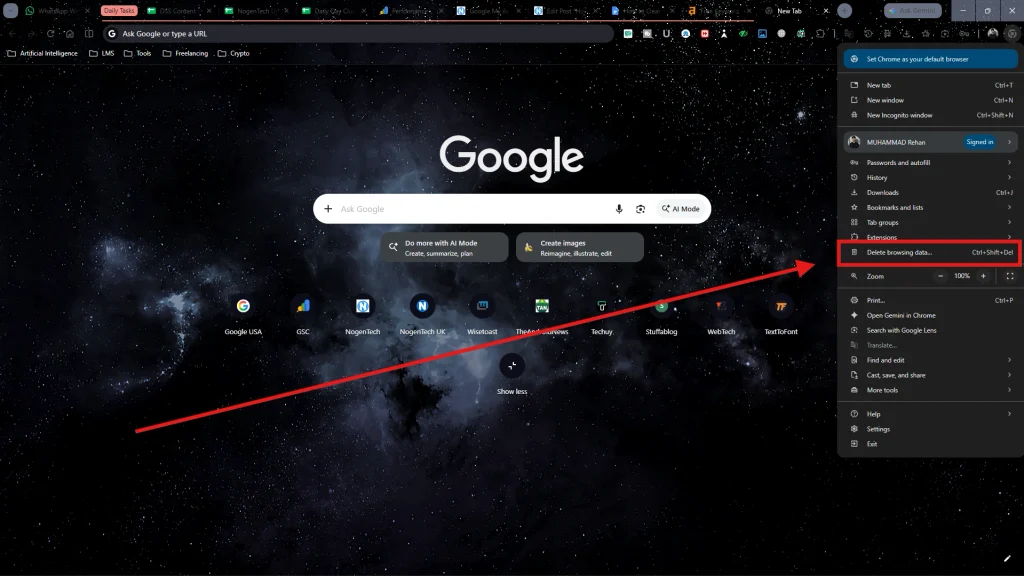
- Choose a Time range, then select Cookies and other site data. Uncheck anything you want to keep. Click Delete data.
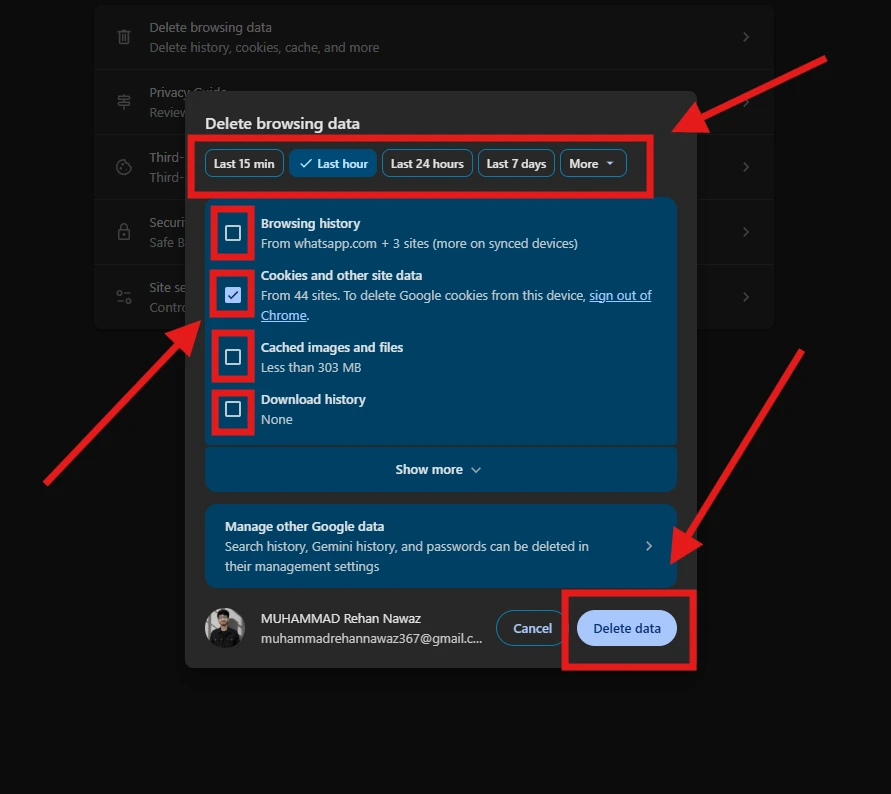
Choose All time if you want to remove all stored cookies. Otherwise, select a shorter time range to remove only recent data.
Quick tip: On Windows, press Ctrl + Shift + Delete to open the browsing-data controls directly.
The same method is used when you have to clear cookies on Android; there can be interface changes that can make things slightly different.
How to Clear Cookies in Chrome on Android
On Android:
- Open the Chrome app.
- Tap the three dots.
- Select Delete browsing data.
- Open More options.
- Select Cookies and site data.
- Choose your time range.
- Tap Delete data.
If just one website is causing problems, open that site and use its Page info → Cookies and site data controls instead. Again, try the single-site option first when there’s no reason to clear everything.
How to Clear Cookies for One Site in Chrome
This is the option you’d try first for a problem limited to one website.
Open the website in Chrome, click the site information icon next to the address bar, open its Cookies and site data controls, and remove the stored site data.

You can also manage individual sites through Chrome’s privacy settings. The advantage is simple: you reset the problematic website without clearing cookies from everything else.
Should You Clear All Cookies?
Not necessarily.
Cookies keep you signed in to websites and remember certain preferences, so deleting all of them can mean signing back into sites and setting some preferences again.
If only one website is causing trouble, clear its cookies first instead of wiping everything. For example, if one site keeps putting you into a login loop, there’s no reason to sign yourself out of a bunch of unrelated websites too.
Cookies vs. Cache: What's the Difference?
Cookies and cache aren’t the same thing.
Cookies help websites remember information about your session and preferences. Cache stores copies of website resources, such as images and other files, to help pages load faster.
If a website has login or preference-related problems, clearing its cookies may help. If a page looks outdated or isn’t loading correctly, clearing the cache can also be useful.
Sometimes clearing both makes sense, but you don’t need to delete both every time Chrome acts up.
What Happens When You Clear Cookies in Chrome?
Clearing cookies removes site data stored in Chrome. Depending on the website, that can:
- Sign you out of your account.
- Remove saved site preferences.
- Reset certain website settings.
- Help resolve problems caused by outdated or corrupted site data.
It doesn’t automatically mean deleting your browsing history, saved passwords, autofill information, or every cached file. Chrome treats these as separate browsing-data categories.
That’s why we recommend checking what’s selected before clicking Delete data instead of blindly clearing everything.