For me, being an iPhone user, privacy means a lot. And I am sure everyone has the same preferences and searches for “how can you hide apps on iPhone?” or “how to hide apps on iPhone without deleting them”.
Considering this, Apple has integrated a lot more features into iPhone OS to help manage privacy and distractions.
While tools like iPhone Focus Mode let you customize home screens and hide entire app pages, hiding individual apps is another great way to deliver a more secure environment. But most people do not know how to do that.
Firstly, I also didn’t know about this feature, and that’s why I was hesitant whenever someone asked me for my phone. But now, as I have done it several times, I am fully utilizing its potential. And in this guide, I have mentioned the step-by-step details on how to hide an app on an iPhone.
How to Hide Apps on iPhone? Hands-on Process with Screenshots
Start creating Verdict in seconds, and convert more of your visitors into leads.
- Go to the home screen of your iPhone.
- Choose one of your secret apps for iPhone that you want to hide. Like, here I am going to hide Facebook.
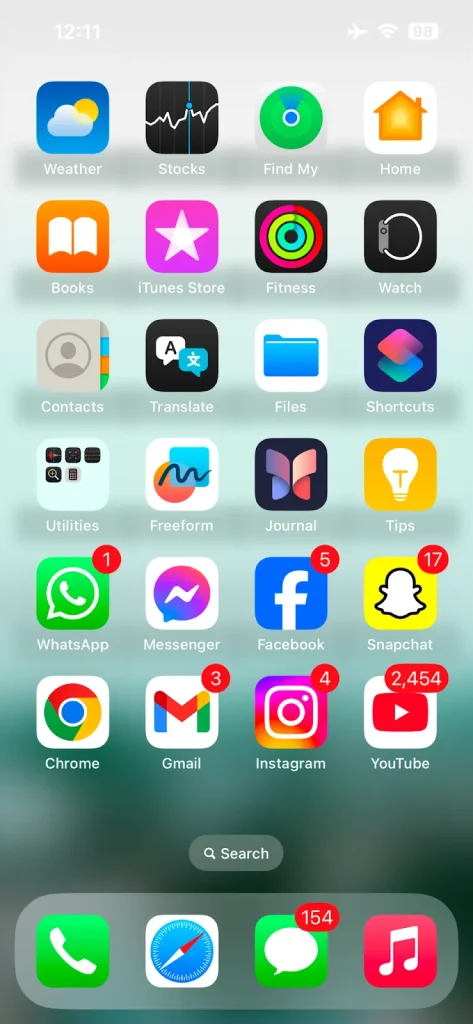
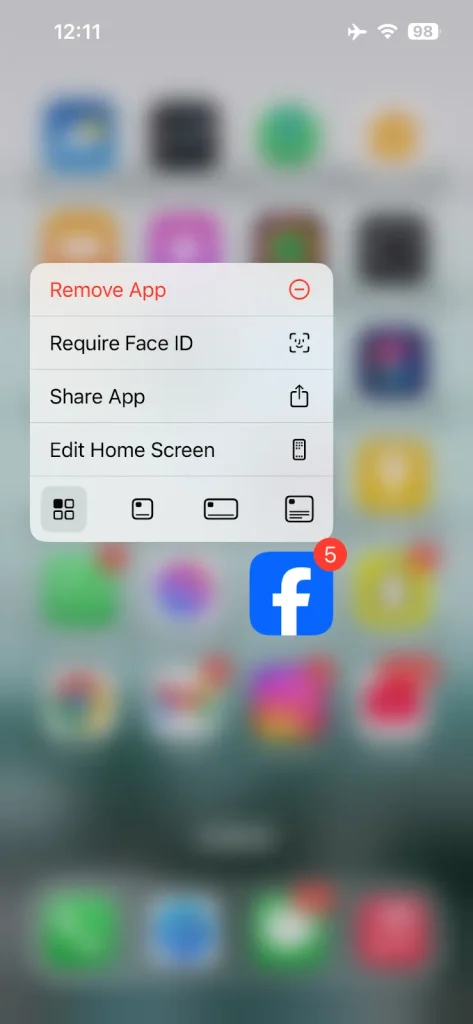
- Click on the app icon until a pop-up appears on the screen.
- Select the “Require Face ID” option.
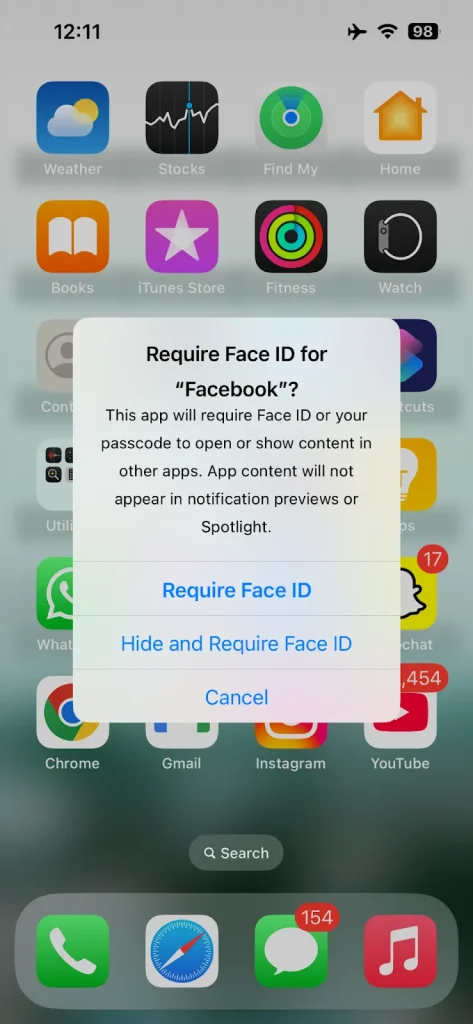
- Now, choose the “Hide and Require Face ID” option.
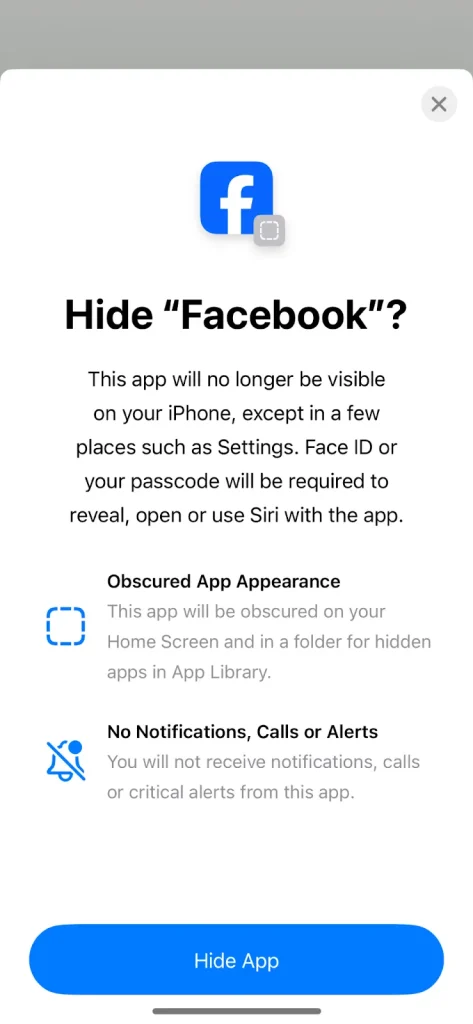
- On the next slide, you have to select the Hide App option.
- Choose Face ID or Passcode as your security tool for accessing the hidden apps.
Following these steps can help you learn how to hide apps on an iPhone. Check the homepage to see if the app is concealed.
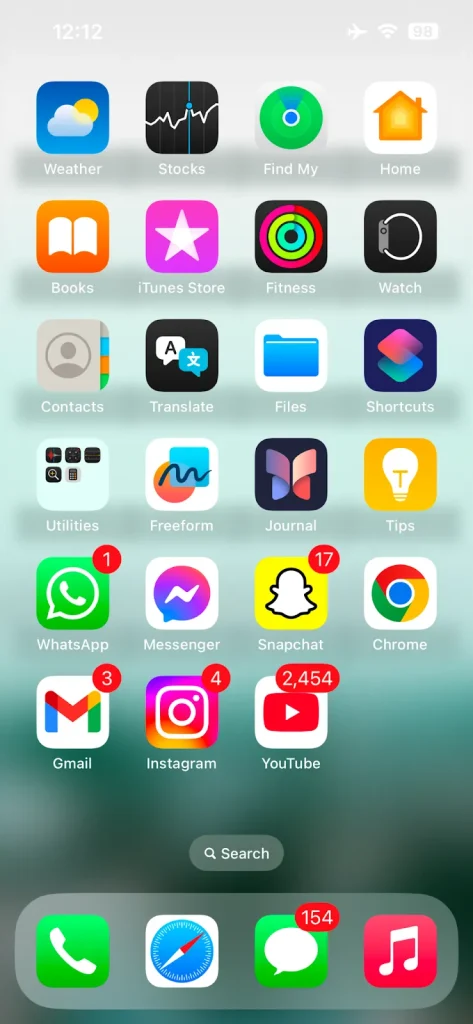
No matter if you currently own an old iOS mobile iPhone 11, iPhone 12 mini, and iPhone 12 Pro Max, or have a new generation model, like iPhone 14 Pro Max, iPhone 15, iPhone 15 Plus, iPhone 15 Pro Max, or iPhone 16 Pro, this feature is available on all.
By the way, after hiding the app, there is also a possibility that you get confused about how to get it back, as I did. But don’t worry, I am still here. After hiding that app, if you want it back, here is another complete guide on how you can get that hidden app back by following simple steps.
My Conclusive Opinion on Hiding Unnecessary Apps on iPhone
Start creating Verdict in seconds, and convert more of your visitors into leads.
These are the details about hiding apps on an iPhone. In this way, you will not have to worry anymore about the privacy of your data and applications, even when someone has access to your smartphone.
The only thing to take care of is that you should understand and implement the steps mentioned in this guide properly. Along with managing the apps you keep on your iPhone, it is also worth keeping clearing unnecessary storage, especially if your device starts feeling cluttered.
In this way, you can avoid unwanted challenges in your journey to learn how to hide apps on an iPhone and pocket the maximum advantages possible. Just go on hiding your apps and start enjoying a more secure mobile experience.