Have you ever hidden an app on your iPhone and then struggled to find it again?
I ran into the same thing as I mentioned in my guide on hiding an app on iPhone. My Facebook app wasn’t deleted, but it had disappeared from the usual places because it was moved to the Hidden folder in the App Library.
The good thing is that you don’t need to reinstall the app or change any complicated settings. You can unhide it directly from the App Library in just a few taps.
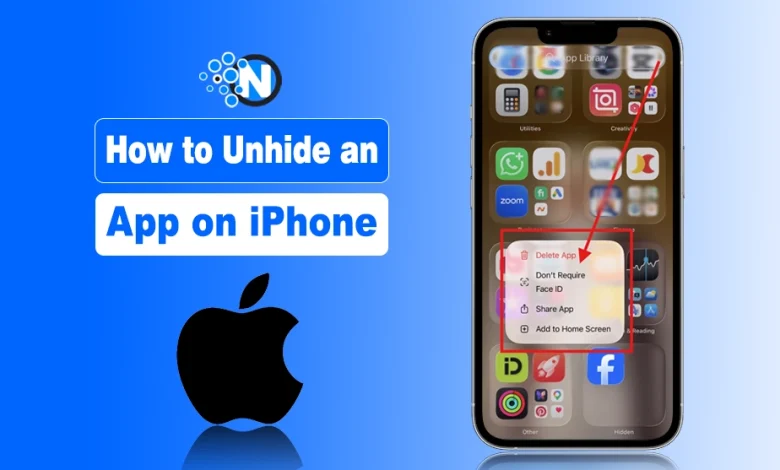
Now let’s see the step-by-step process of how you can unhide your app on an iPhone. This will be the exact method I followed, with screenshots so you will know exactly where to go.
How to Unhide an App on iPhone?
If you have hidden an app using the iPhone’s Hide App feature, you can bring it back from the Hidden folder. Here’s how I did it.
Open the App Library
First, go to your iPhone’s Home Screen and swipe left past all your Home Screen pages. Keep swiping until you reach the App Library.
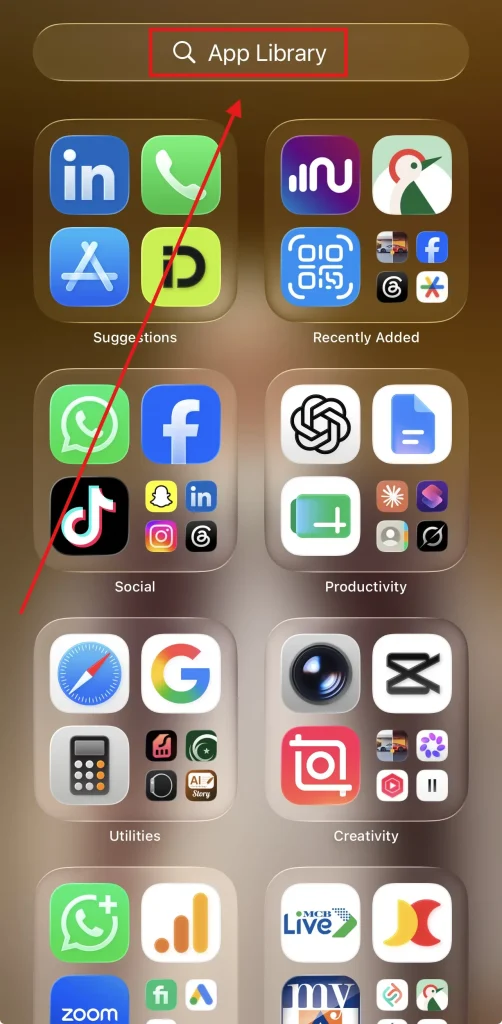
The App Library automatically organizes your apps into different categories, and you’ll also see a search field at the top that you can use to find apps. Once you reach the App Library, you can move on to the Hidden folder.
Open the Hidden Folder
In the App Library, scroll down and tap Hidden. Authenticate with Face ID, Touch ID, or your passcode to open the folder.
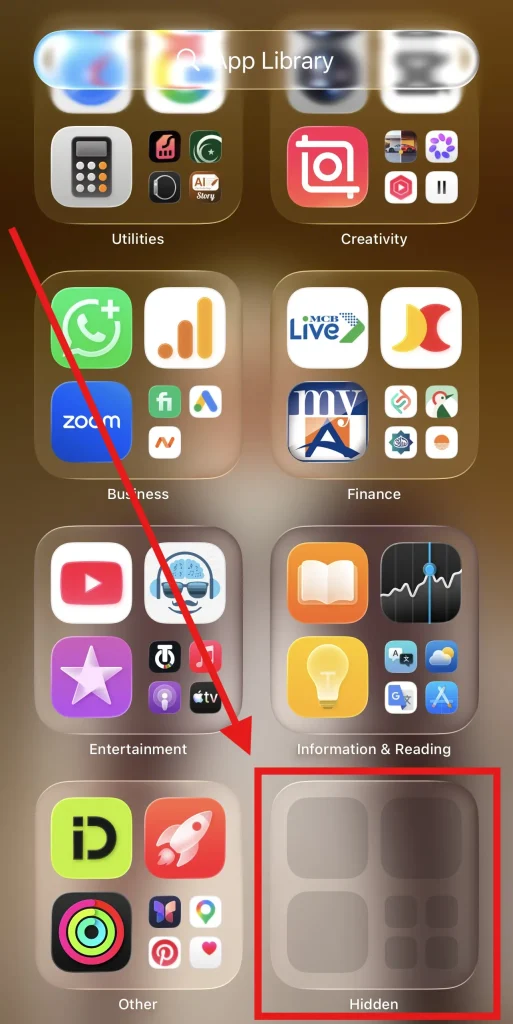
Find the App You Want to Unhide
Choose the app you want to restore. In my case, obviously, my Facebook was hidden only, so I found it there.
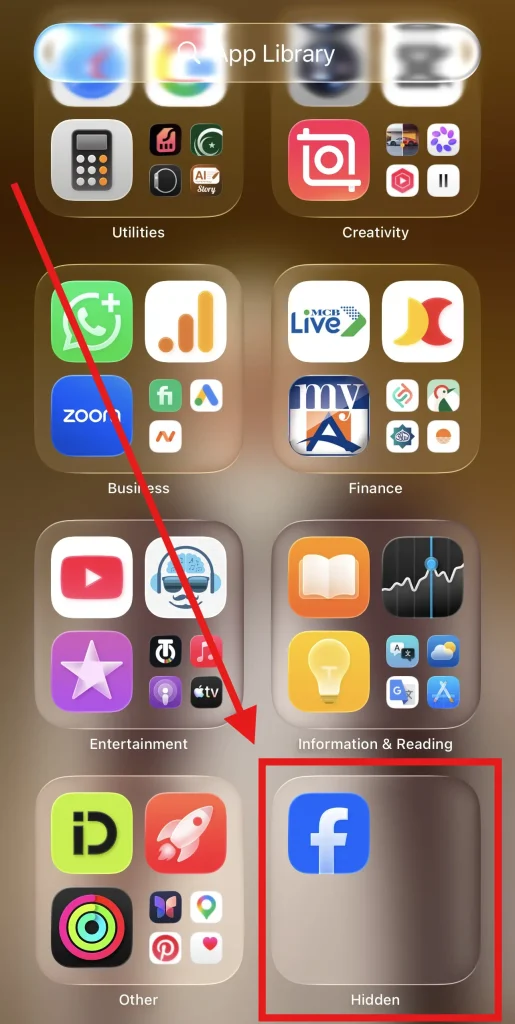
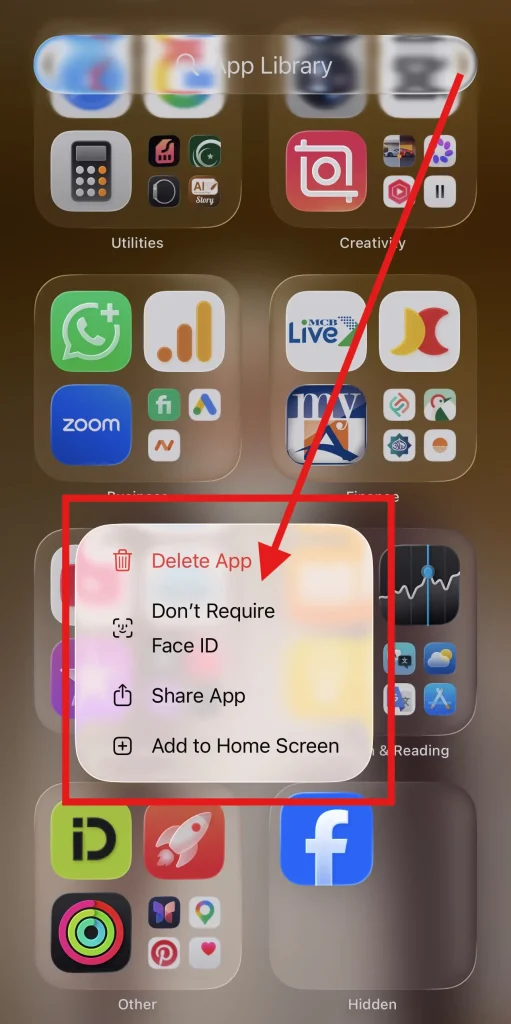
Press and hold the app icon to open its options.
Tap “Don’t Require Face ID”
From the menu, tap Don’t Require Face ID, then authenticate if your iPhone asks you to.
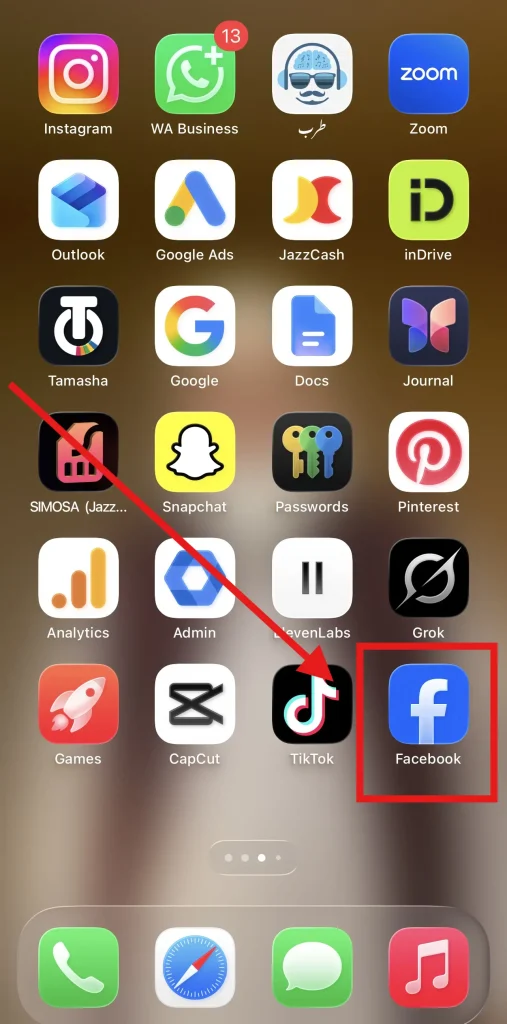
The app is no longer hidden.
Check Your Home Screen
Go back to your Home Screen, and you should see the app there again. In my case, Facebook was back on the Home Screen and ready to use.
By the way, if you’re using hidden apps mainly for privacy, you may also want to check essential iPhone privacy settings for a few other ways to keep your device private.
Can't Find the App After Unhiding It? Don't Worry, Here’s What to Do
If you still can’t see an app where you expect it, there’s a chance you didn’t actually hide the app.
Sometimes an app is simply removed from the Home Screen while remaining installed on the iPhone. In that case, you can find it in the App Library and add it back to the Home Screen.
To do that, open the App Library, find the app, press and hold its icon, and choose Add to Home Screen.
If you hid an entire Home Screen page instead, you’ll need to make that page visible again through the Home Screen editing options.
So, before assuming the app has disappeared, it’s worth checking the App Library first.
Frequently Asked Questions About Unhiding an iPhone App
Can I Unhide an App Without Face ID?
Yes. If your iPhone uses Touch ID or a passcode instead of Face ID, you can use the authentication method available on your device when prompted.
Why Can’t I Find the Hidden Folder on My iPhone?
The Hidden folder is used for apps that you have actually hidden. If you only remove an app from your Home Screen, it won’t appear in the Hidden folder.
Instead, you can find it in the App Library and add it back to your Home Screen.
Does This Work on iOS 26?
Yes. The same basic process works on current iPhone software, including iOS 26. You can access the Hidden folder from the App Library, authenticate, and choose Don’t Require Face ID to unhide the app.
Unhiding an iPhone App Is Simple: Final Thoughts
I initially thought finding a hidden app might require going through the iPhone’s settings, but the process turned out to be much simpler.
Just open the App Library, go to the Hidden folder, authenticate, press and hold the app, and tap Don’t Require Face ID.
Once you complete these steps, the app is no longer hidden, and you can use it normally again. If you only removed the app from your Home Screen, you can find it in the App Library and add it back instead.