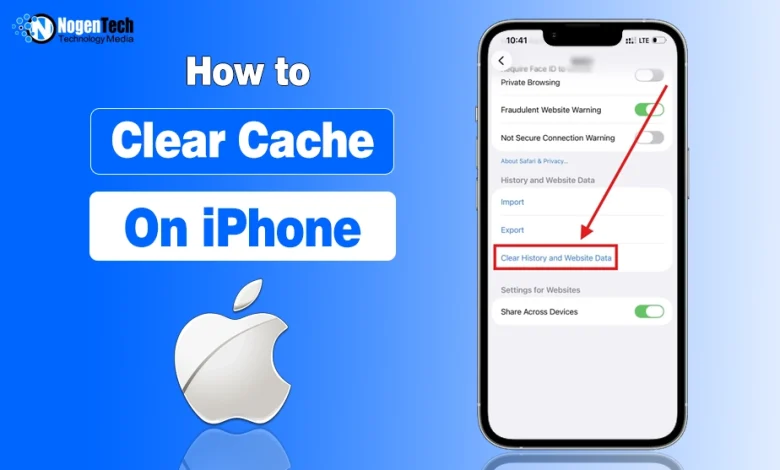
Want to clear the cache on your iPhone without deleting personal data? That was my main concern too.
After years of using iPhones, occasional slowdowns haven’t made me want to remove my personal files.
But clearing cache serves a different, practical purpose. Temporary website files, cookies, and stored data build up over time, sometimes causing site glitches or retaining outdated tracking information.
Clearing this data can refresh how web pages load and sign you out of some active sessions without touching your photos, messages, or apps.
In this guide, I’ll explain how I clear cache, what actually gets removed, and what stays safe on your device.
How to Clear Cache on iPhone? The Way I Do It in Seconds
I usually start with Safari because iPhone gives me a direct way to clear its stored website data.
Just to set expectations upfront: there isn’t one magic “clear cache” button for your entire iPhone.
Because of that, I’ve discussed the method first for Safari, and then we’ll jump into individual apps for a cache cleanup.
1. Clear Safari Cache on Your iPhone
Clearing Safari’s cache will remove temporary website files, browsing history, and cookies, which are sent with every request, according to MDN, and may degrade performance.
Importantly, it can also sign you out of some websites and reset certain site preferences.
So here is exactly what you need to do:
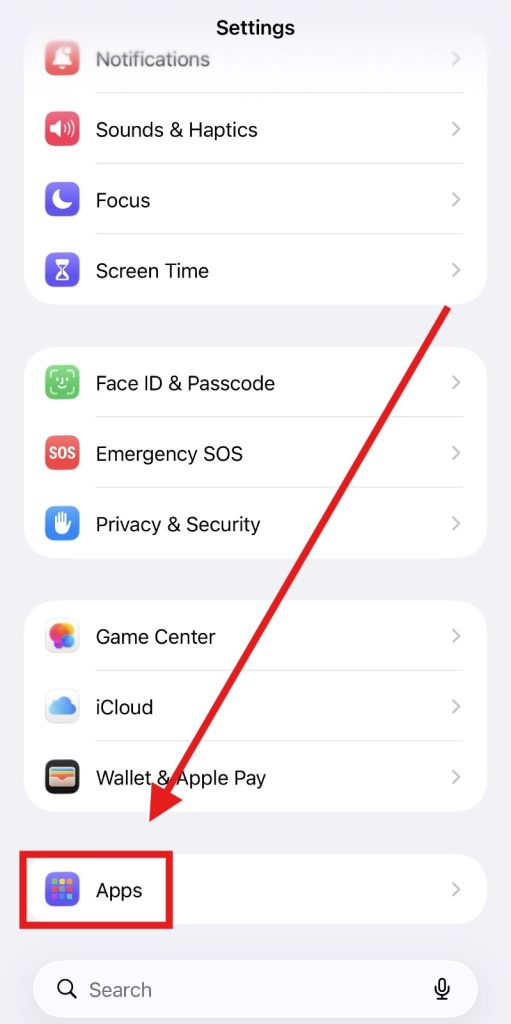
- Open Settings and go to Apps.
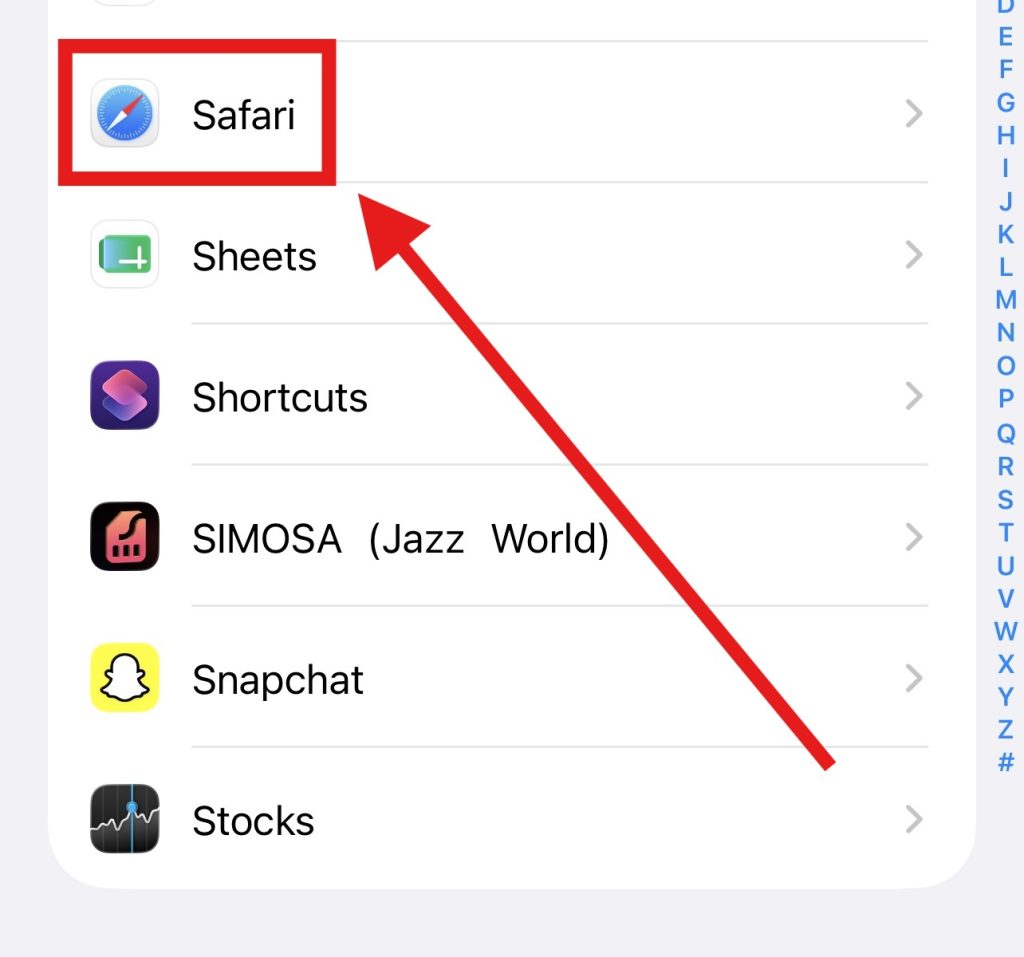
- Select Safari from the app list.
- Tap Clear History and Website Data.
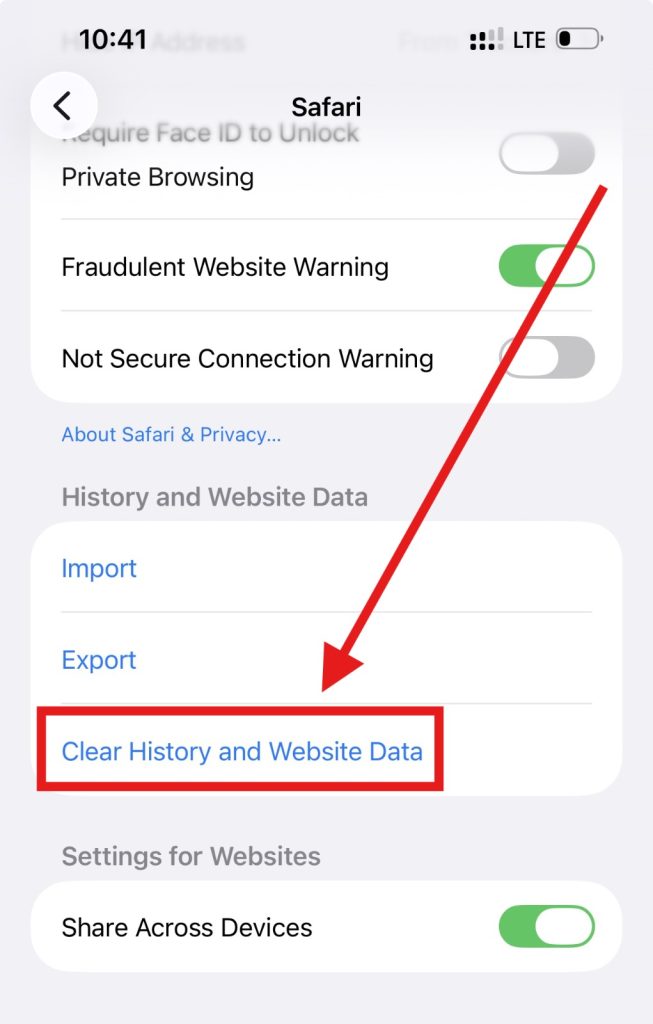
- Choose the timeframe you want to clear (like Last hour or All history).
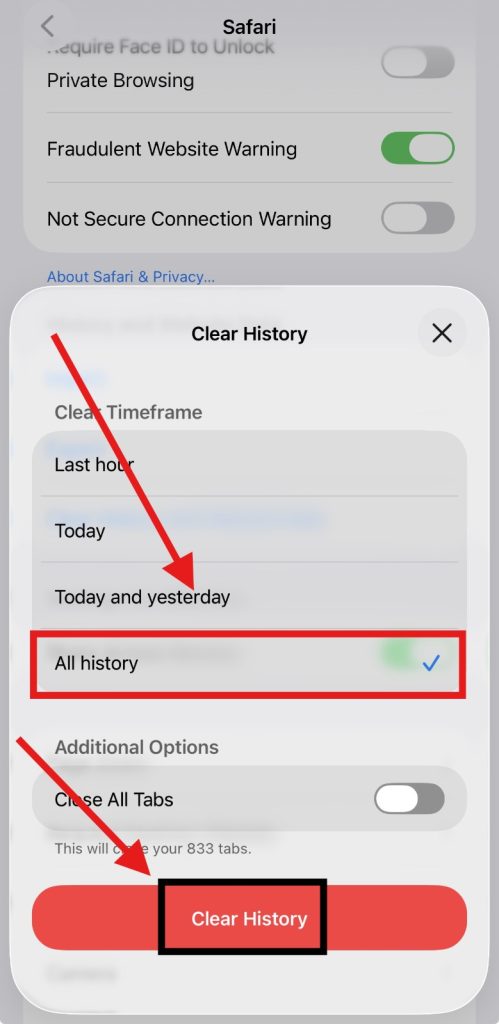
- Tap Clear History to confirm, and you’re all set!
Your saved passwords, bookmarks, and actual downloaded files stay completely safe; only the temporary download list in Safari gets cleared.
However, if you use iCloud, this will also wipe your Safari browsing history across all other devices signed into the same Apple Account.
2. Clear Cache From a Specific iPhone App
Unlike Safari, iPhone doesn’t give every app the same cache-clearing option. Some apps provide their own setting for clearing cached data, while others don’t.
Clear Cache From Chrome on Your iPhone
If Safari isn’t your main browser, Chrome is the next place to check.
Unlike the Safari method above, I can clear Chrome’s cached data directly from within the app. Here’s what you need to do:
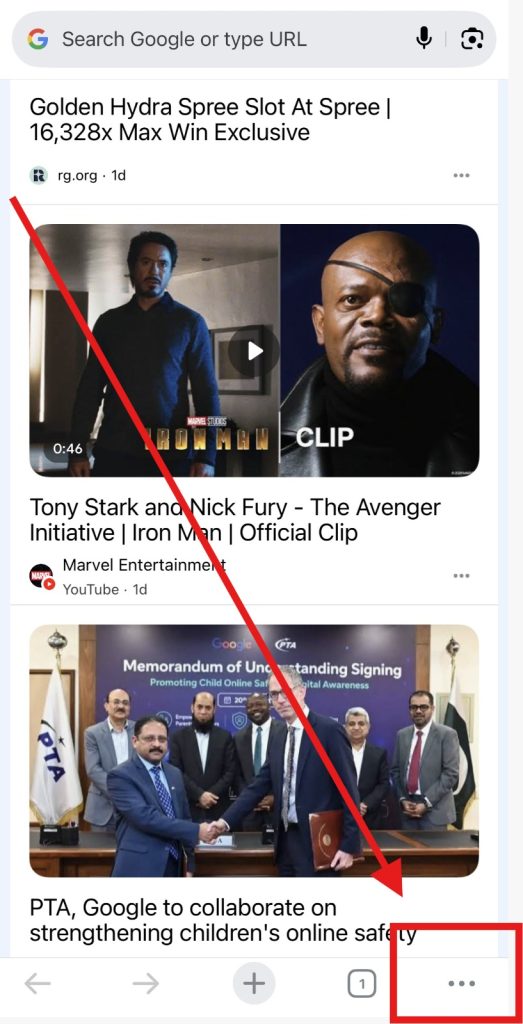
- Open Chrome on your iPhone and tap the three-dot menu.
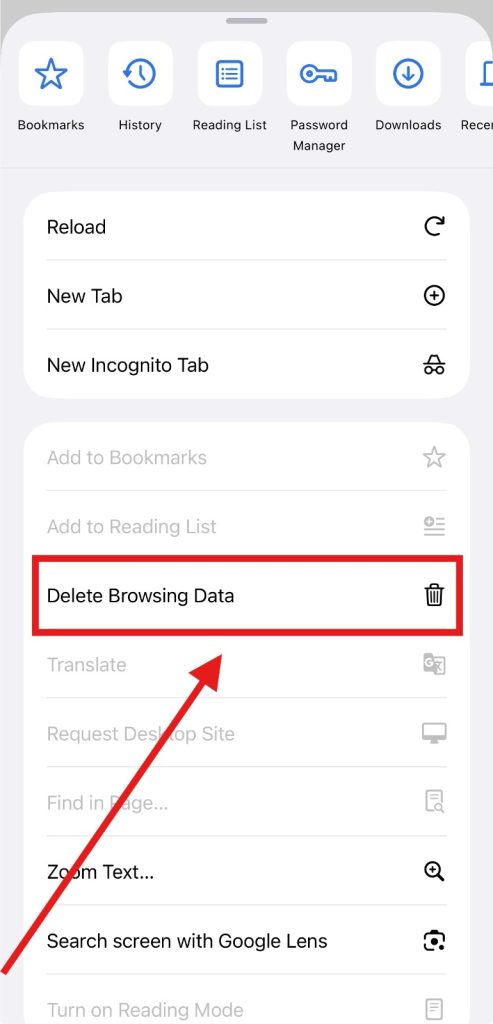
- Scroll down and select Delete Browsing Data.
- Choose the Time Range you want.
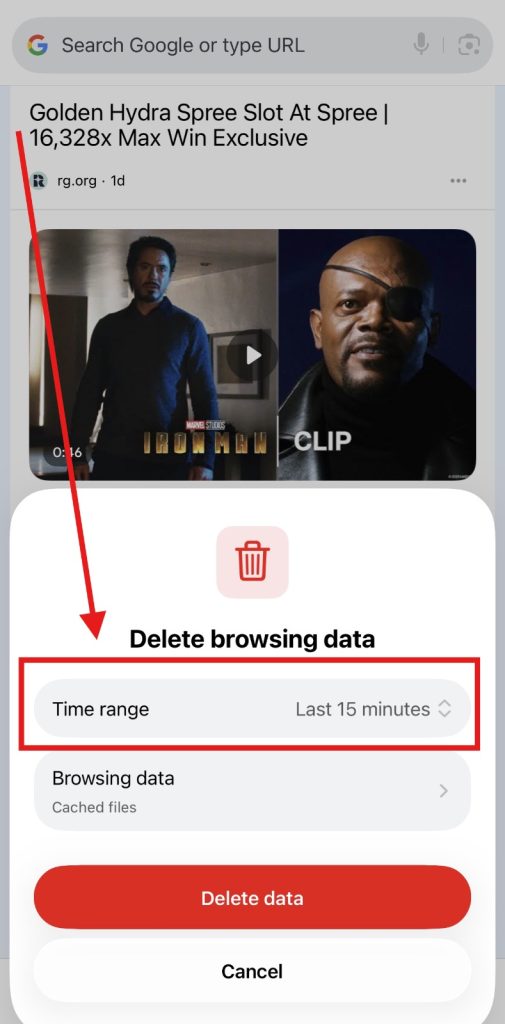
- Select Cached Images and Files under the Browsing Data label.
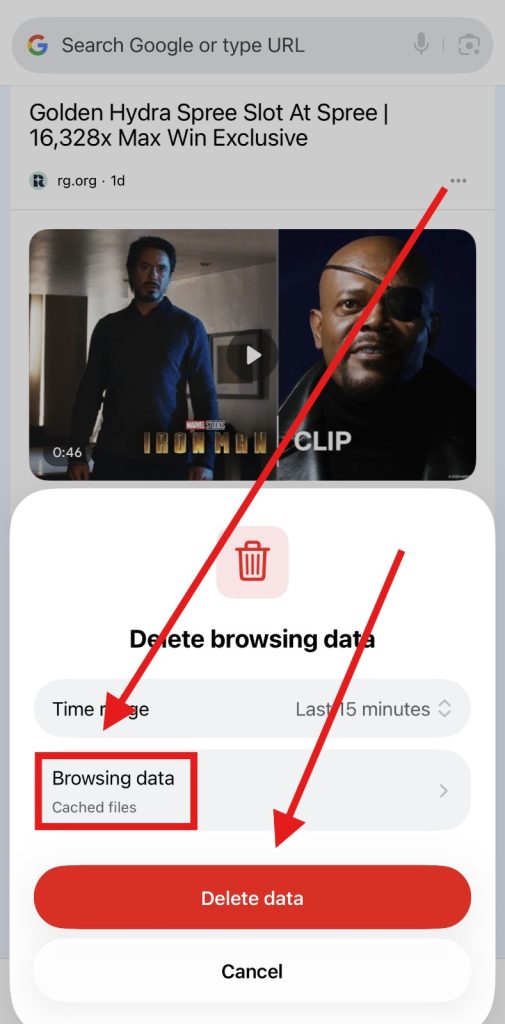
- Tap Delete Browsing Data and confirm.
I usually leave Cookies and Site Data unchecked under the Browsing Data label, unless I specifically want to sign out of websites or reset their saved preferences.
Clear Cache From Instagram on Your iPhone
I also want to check Instagram because it can build up a noticeable amount of temporary data through regular use.
Unlike Chrome, Instagram handles cached data differently on iPhone, so there isn’t a straightforward Clear Cache button inside the app.
This is also how many other iPhone apps work, which is why Instagram is a useful example before I move on.
Now let’s see how to do it:
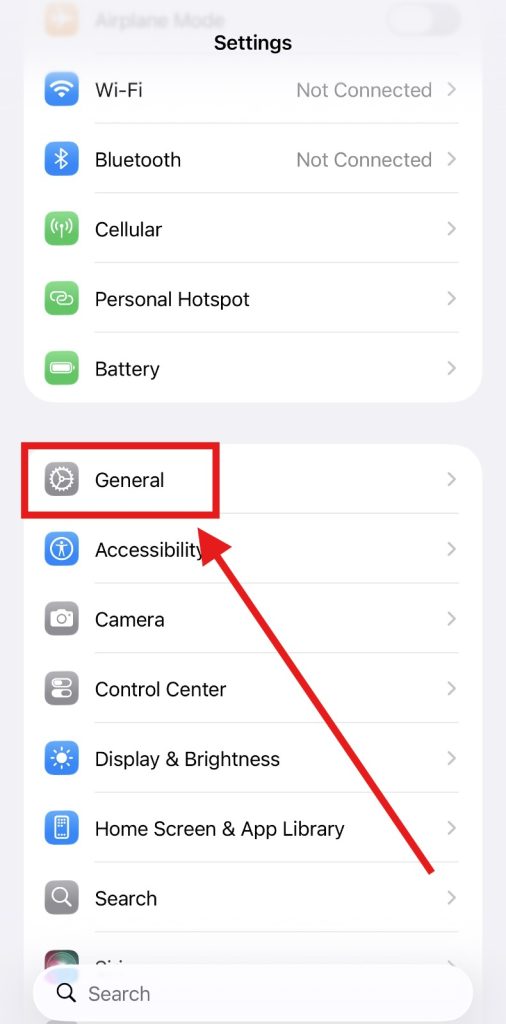
- Open Settings and go to General.
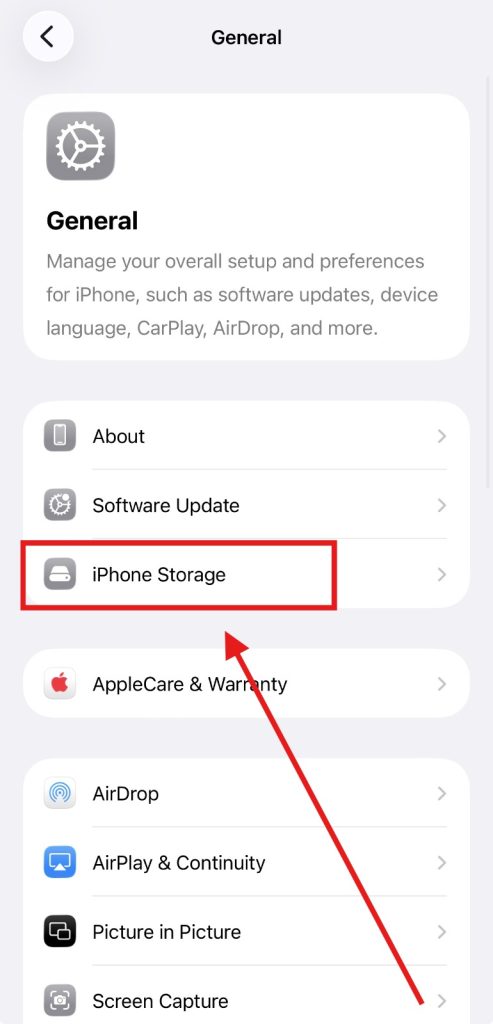
- Select iPhone Storage.
- Find and tap Instagram.
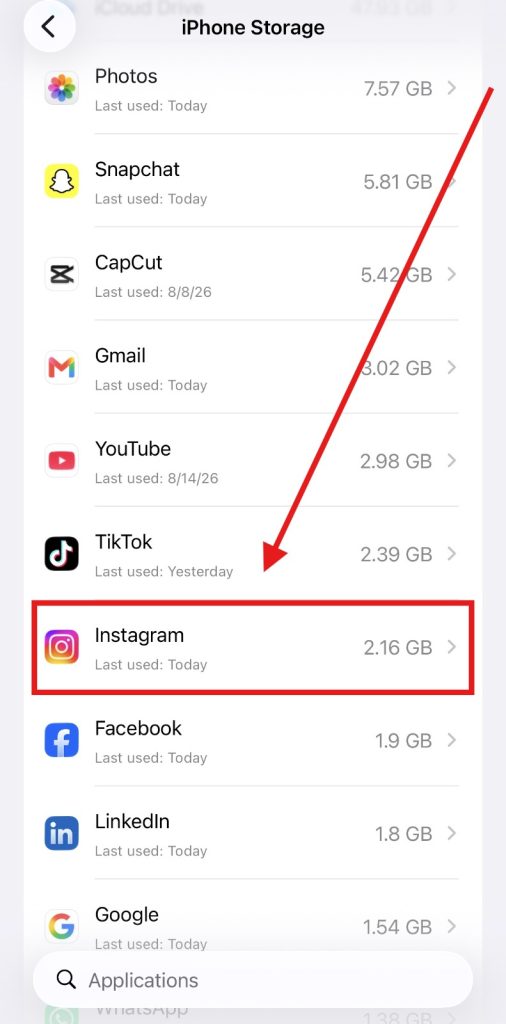
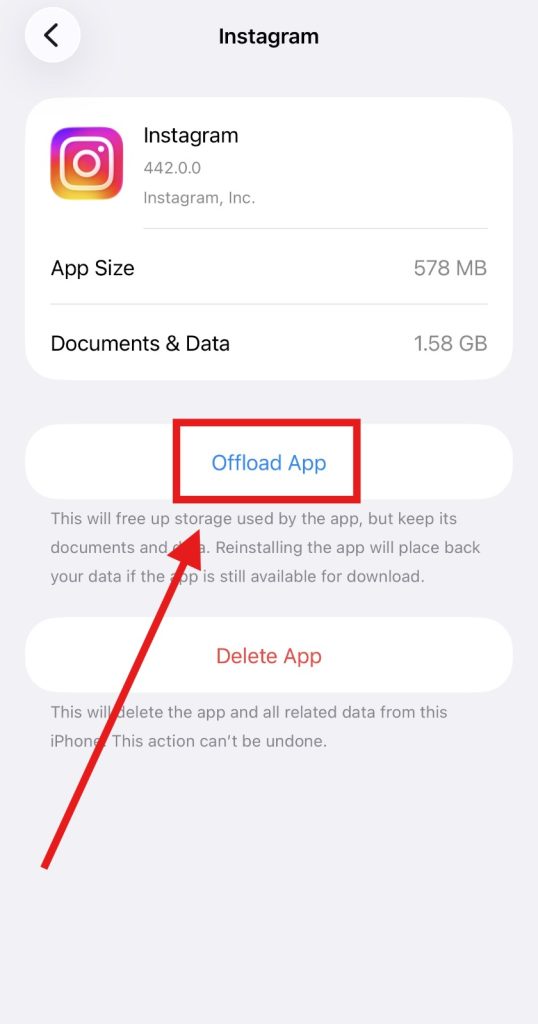
- Choose Offload App to remove the app while keeping its documents and data.
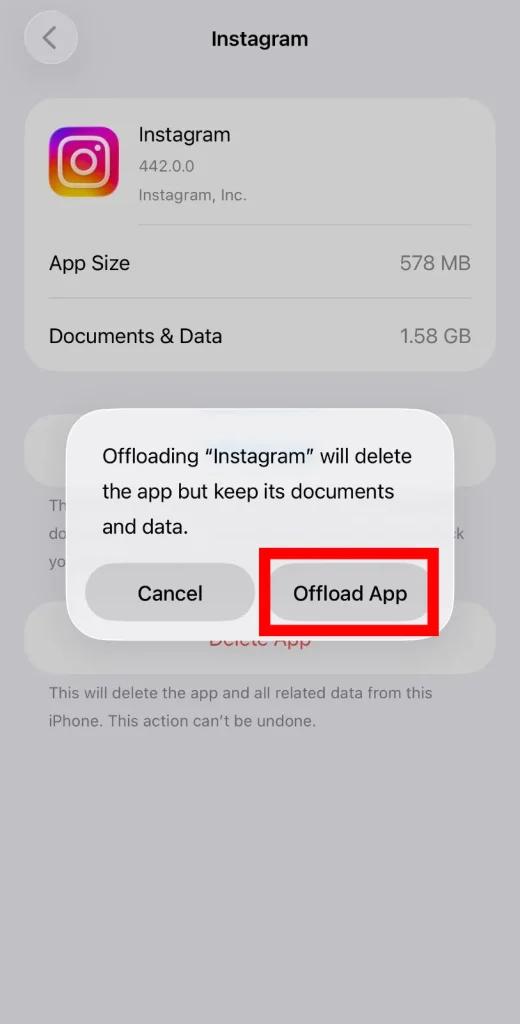
- Confirm offloading the Instagram app.
After offloading, the app icon remains on your Home Screen with a small cloud symbol. Tap it to reinstall the app while keeping its saved documents and data.
This method also works for apps that you’ve hidden on your iPhone, so offloading a hidden app can remove its cached app data while keeping its saved documents and data.
What I Check on My iPhone After Clearing Cache
Once I’ve cleared the data I want to remove, I don’t do much else. I simply check whether the website or app that was causing trouble is working normally again.
- Check the website or app: Make sure pages load and behave normally, as clearing cache can help ensure you’re seeing the latest version of a webpage, rather than a cached one.
- Check your sign-ins: Some websites may require you to sign in again after clearing cookies.
- Check iPhone Storage: If freeing up space was part of your goal, go to Settings > General > iPhone Storage and see whether the cleanup made a meaningful difference, or I need to delete data you no longer need, like old wallpapers from your iPhone.
If everything works normally and your personal files are still where they should be, the cleanup is done.
Want to see a simple visual guide? Watch our quick video for a simple step-by-step guide to clearing cache on your iPhone.
What Else to Know About Clearing iPhone Cache?
Does clearing iPhone cache delete saved passwords?
No. Clearing Safari cache and website data does not remove saved passwords, bookmarks, or AutoFill information.
Why is my iPhone storage still full after clearing cache?
Cache may use only a small amount of space. Check Settings > General > iPhone Storage to find what’s actually taking up space.
How often should I clear the cache on my iPhone?
There is no fixed schedule. Clear it when websites start acting strangely, stored website data becomes unnecessary, or you want to reset certain site information.
Does clearing cache make an iPhone faster?
Not necessarily. It can fix some website or app issues, but clearing cache is not a guaranteed performance boost.
Can I clear cache without losing my Safari browsing history?
Yes. Safari lets you remove website data separately, so you can clear cached site data without necessarily deleting your browsing history.