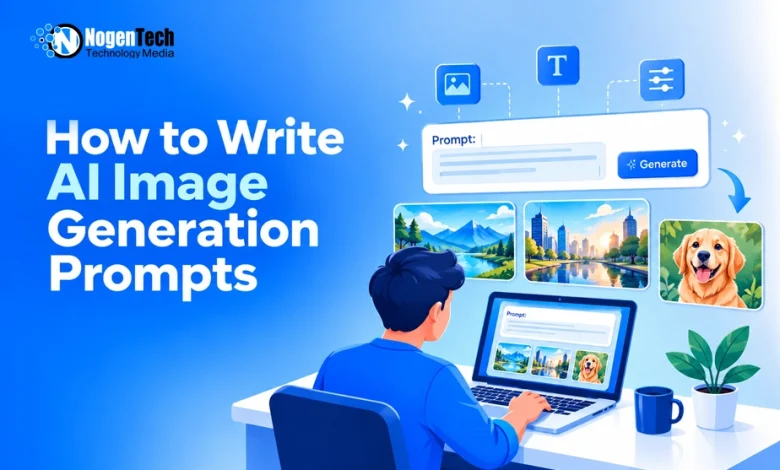
Writing an AI image prompt is easy, but getting the image you want depends on how clearly you describe it. A vague prompt can produce the wrong background, lighting, or style, even when the subject is correct. So, you need to include the required details without making your prompt unnecessarily long.
Move ahead and get a clear, straightforward process for writing effective AI image prompts, with examples and simple ways to improve your results.
How to Write Effective AI Image Generation Prompts
An effective prompt describes the subject, its surroundings, visual style, lighting, and composition. You don’t need every detail for every image, but the following five steps will help you write more precise prompts.
1. Define Your Main Subject
Start by describing exactly what you want to generate. Include important details such as appearance, color, clothing, or activity.
- Basic prompt: A dog in a park.
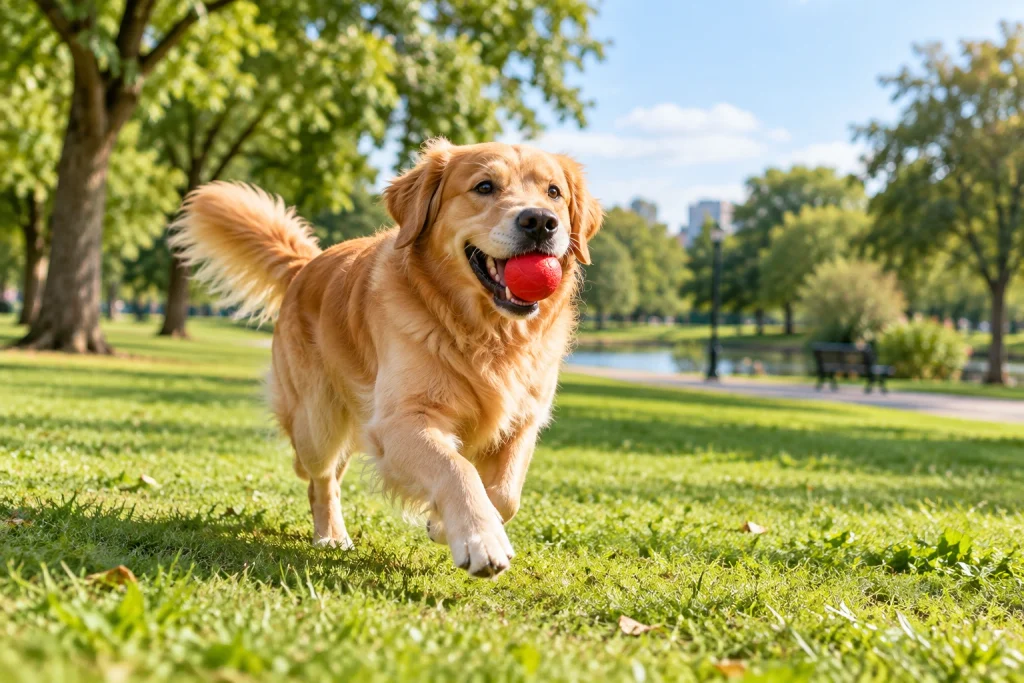
- Improved prompt: A golden retriever running across a grassy park, holding a red ball in its mouth.
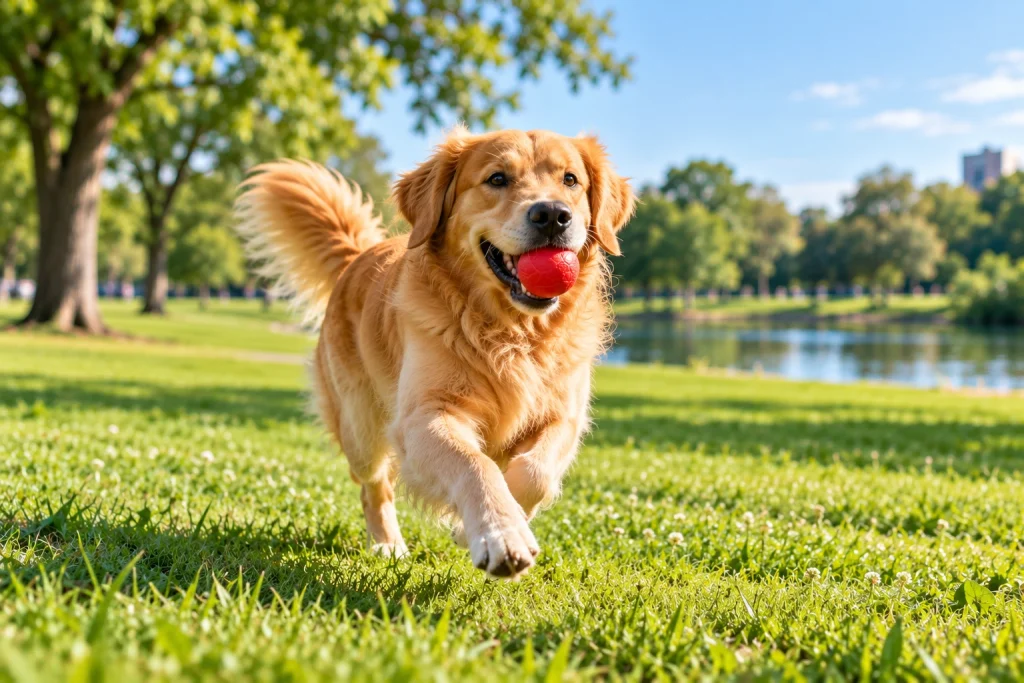
The improved prompt identifies the dog’s breed, activity, and surroundings instead of leaving those decisions to the generative AI.
2. Describe the Background and Setting
Specify where your subject should appear and which background elements matter. For example:
“A silver sports car parked on a winding mountain road, surrounded by pine trees, with snow-covered mountains in the distance.”
If the background isn’t important, keep it simple. For product photography, you might request a plain white background to keep attention on the product, while online graphic tools can help you make further design adjustments afterward.
3. Choose an Image Style
Tell the AI what kind of visual you want. Common styles include photorealistic photography, cinematic imagery, watercolor paintings, anime, and 3D illustrations.
For example, the same subject can produce different results depending on the style:
- Photorealistic: A realistic photograph of a wooden cabin beside a mountain lake, with natural colors and detailed textures.
- Watercolor: A watercolor painting of a wooden cabin beside a mountain lake, featuring soft pastel colors and delicate brushstrokes.
- 3D illustration: A stylized 3D illustration of a wooden cabin beside a mountain lake, with rounded shapes and vibrant colors.
4. Specify Lighting and Composition
Lighting determines how your subject is illuminated, while composition controls its placement in the image. For example:
“A close-up photograph of a steaming cup of coffee on a wooden table, with soft morning sunlight entering from the left and a blurred café background.”
You can also specify an overhead view, eye-level perspective, wide-angle shot, or centered composition. If you’re generating an image for a blog banner, follow the basics of photography composition and mention where the subject should appear, leaving enough empty space for the headline.
5. Combine Your Instructions Into One Clear Prompt
Use this formula to organize your instructions:
Subject + Action + Setting + Style + Lighting + Composition
Example:
“A golden retriever running through a grassy park, photographed in a realistic style with warm evening sunlight and a low-angle perspective.”
Include only the elements that matter to your intended image. Avoid adding unnecessary descriptions or conflicting instructions. A short, specific prompt is often more useful than a long one filled with unrelated details.
AI Image Generation Prompt Examples
Here are five examples you can copy and modify for different purposes.
| Image type | Example prompt |
|---|---|
| Product photography | A silver luxury wristwatch on a black marble surface, photographed with soft studio lighting and realistic reflections. |
| Social media | An overhead photograph of a breakfast bowl filled with strawberries, blueberries, yogurt, and granola on a wooden table, with bright natural lighting. |
| Travel | A tropical beach with white sand, turquoise water, and palm trees, photographed from an elevated viewpoint during golden hour. |
| Technology | A modern gaming desk with dual monitors, an RGB keyboard, and a black gaming chair in a dark room with blue ambient lighting. |
| Business | A spacious modern office with floor-to-ceiling windows, minimalist furniture, indoor plants, and natural daylight. |
How to Test and Improve Your AI Image Prompts
Even a detailed prompt may not produce the expected image on the first attempt. Instead of rewriting everything, identify the specific problem and adjust the relevant instruction.
You can use CapCut’s AI image generator to turn your prompts into images and experiment with different visual styles and compositions.
Here’s a practical example.
Original prompt: “A modern living room with a sofa, wooden coffee table, indoor plants, and natural daylight.”
Suppose the generated image has the correct furniture, but the room looks too dark.
Revised prompt: “A modern living room with a large sofa, wooden coffee table, and indoor plants, illuminated by bright natural sunlight entering through floor-to-ceiling windows.”
The revised prompt addresses the lighting problem without unnecessarily changing the rest of the image. Use the following table to troubleshoot other common problems.
| Problem | How to improve your prompt |
|---|---|
| Subject appears too small | Request a close-up or tighter framing. |
| Background is distracting | Specify a plain or uncluttered background. |
| Image is too dark | Request bright natural light or studio lighting. |
| Wrong artistic style | Clearly describe the desired visual style. |
| Important objects are missing | Name the objects and specify their placement. |
| Subject is positioned incorrectly | Specify left, right, or center placement. |
| Image doesn’t fit the intended layout | Select the appropriate aspect ratio and describe the framing. |
Change one important detail at a time and compare the results. If you need to preserve the appearance of a particular character or product, consider using a reference image in a tool that supports it.
Common AI Image Prompt Mistakes to Avoid
- Vague descriptions: Replace general instructions like “a beautiful landscape” with specific details about the location, scenery, and lighting.
- Conflicting instructions: Avoid combining incompatible styles or descriptions unless you’re deliberately experimenting.
- Ignoring image dimensions: Choose the appropriate aspect ratio before generating images for blog banners, social media posts, or thumbnails. For website images, also follow Google’s image optimization guidelines to maintain image quality and improve loading performance.
- Adding unnecessary details: Focus on the visual elements that matter rather than making your prompt longer.
- Regenerating without identifying the problem: Review each result and change the instruction responsible for the unwanted detail.