
To use a VPN safely for streaming and browsing, choose a trusted provider, connect to a suitable server, enable essential security features, and turn on the VPN whenever you need added privacy.
Everyone has their own opinion, but I have researched that Avast also claims that when used correctly, a VPN protects your data, reduces tracking, and helps you access content more securely. While the process is simple, the setup and usage can vary slightly between smartphones and computers.
How to Use a VPN on Smartphones?
Using a VPN on a smartphone is simple, and the process is similar on both Android and iOS devices. Here’s the step-by-step process I’ve used myself to set up and use a VPN on a phone:
1 – Choose a Reliable VPN
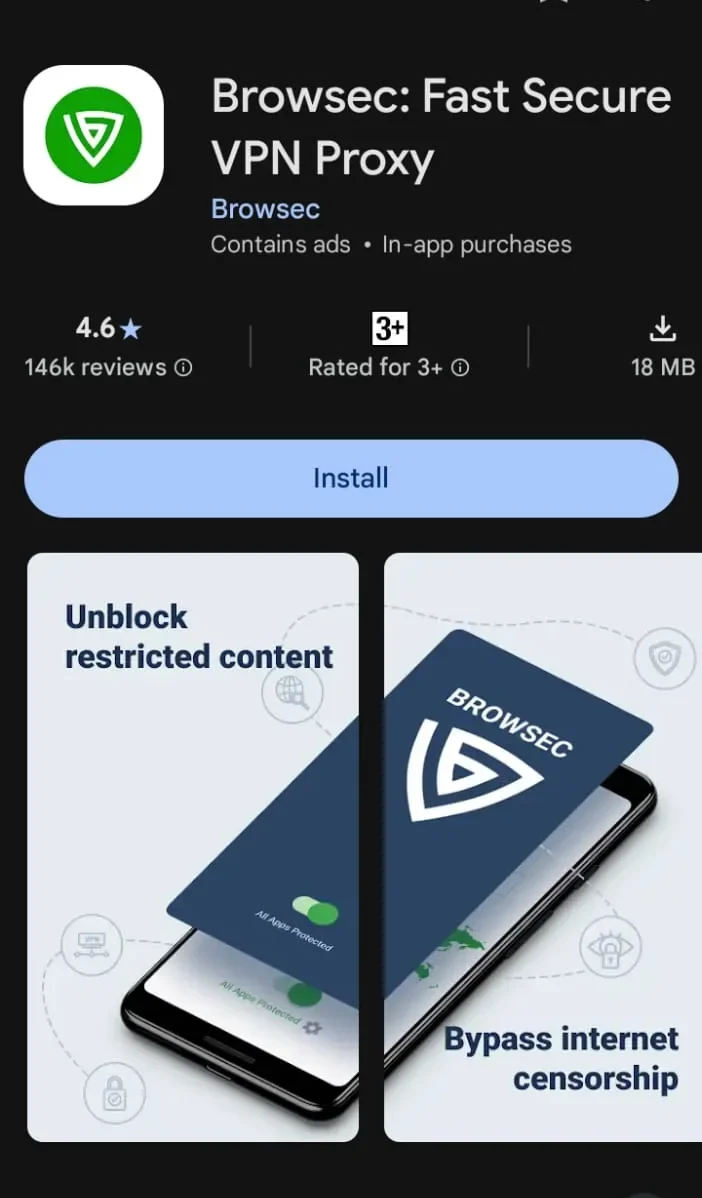
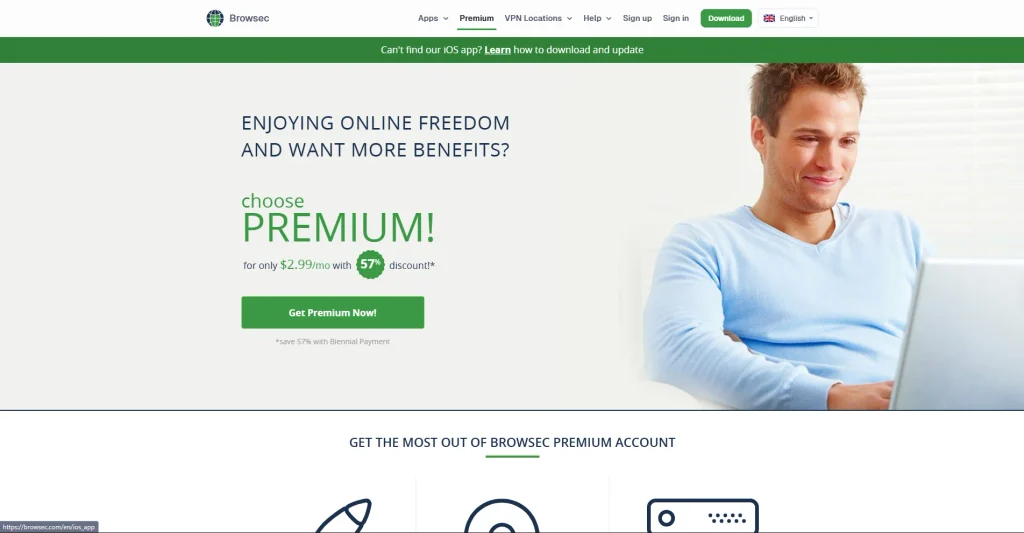
Start by choosing a reliable VPN provider with good reviews, strong privacy features, and a clear data policy. Popular options include ExpressVPN, TurboVPN, and Browsec. For this guide, I’ll use Browsec as an example.
2 – Create Your Account and Configure the Settings
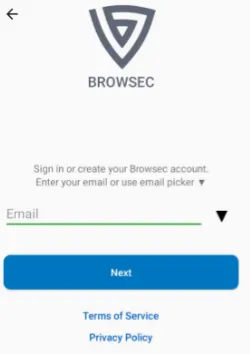
Some VPNs require an account, while others, like Browsec, offer free servers without one. If required, sign up using your email and password and complete email verification.
Before connecting, check the VPN’s settings and customize them according to your needs. Depending on the app, you may be able to change the encryption protocol, enable a kill switch, or turn on automatic connection at startup.
A kill switch, for example, can disconnect your Internet if the VPN connection unexpectedly drops.
3 – Choose the Server
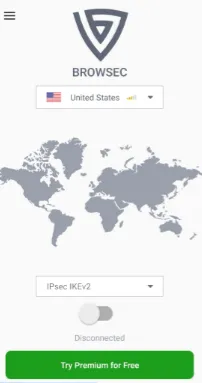
Select a server based on your location and browsing needs. If you need access to content available in a particular region, choose a server there.
For regular browsing, a server close to your actual location is usually a better choice because it can reduce latency and provide faster performance.
4 – Purchase the Premium Subscription (Optional)
If you need more servers, locations, or premium features, consider upgrading to a paid plan. Choose a subscription that fits your needs and budget, then add your preferred payment method.
How to Use a VPN on a Laptop or PC?
Using a VPN on a laptop or PC is just as simple. You can either install a dedicated VPN desktop app or use a VPN browser extension on browsers like Google Chrome, Opera, or Microsoft Edge. Here, I’ll use Browsec on Google Chrome as an example.
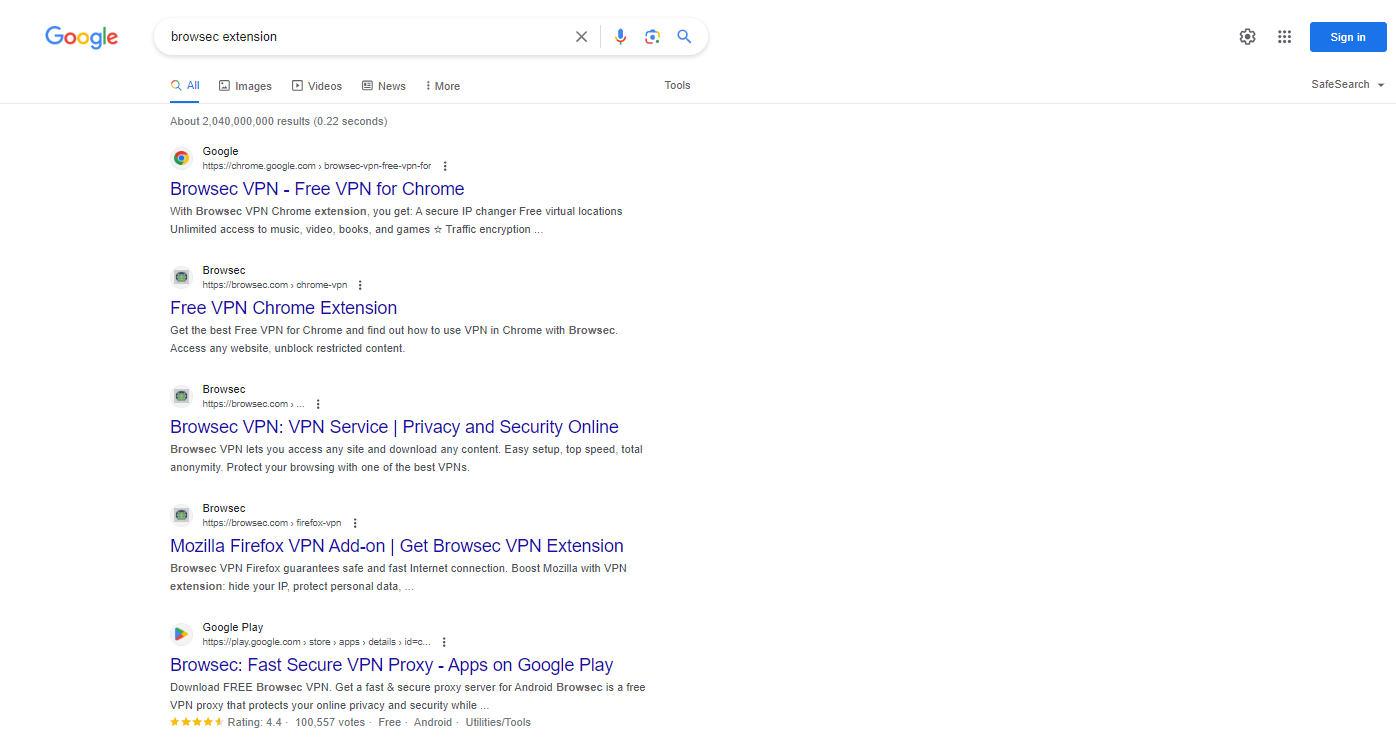
- Open Google Chrome and search for the VPN extension you want to use, or visit the browser’s official extension store. In this example, search for Browsec.
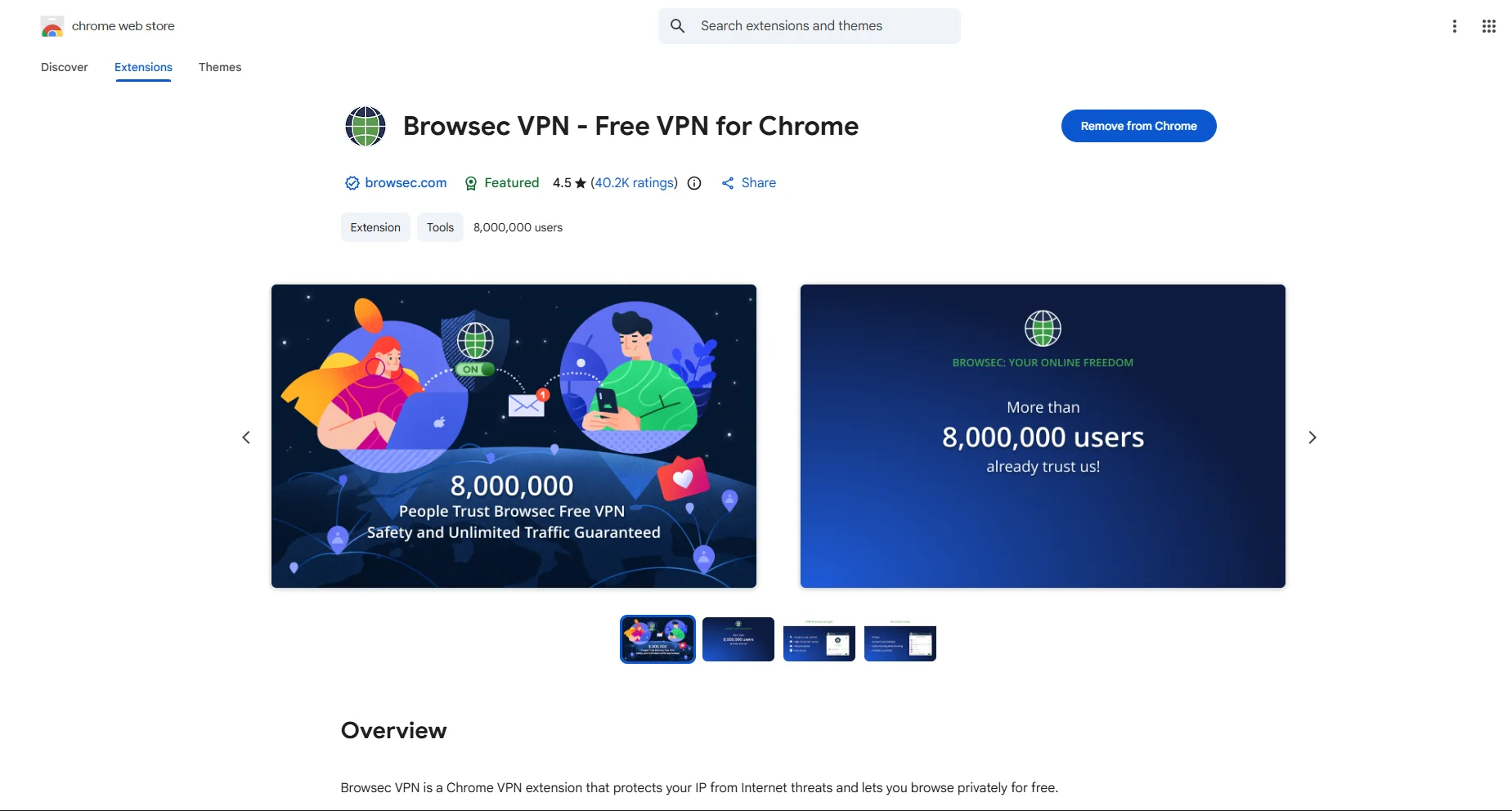
- Install the extension to your browser.
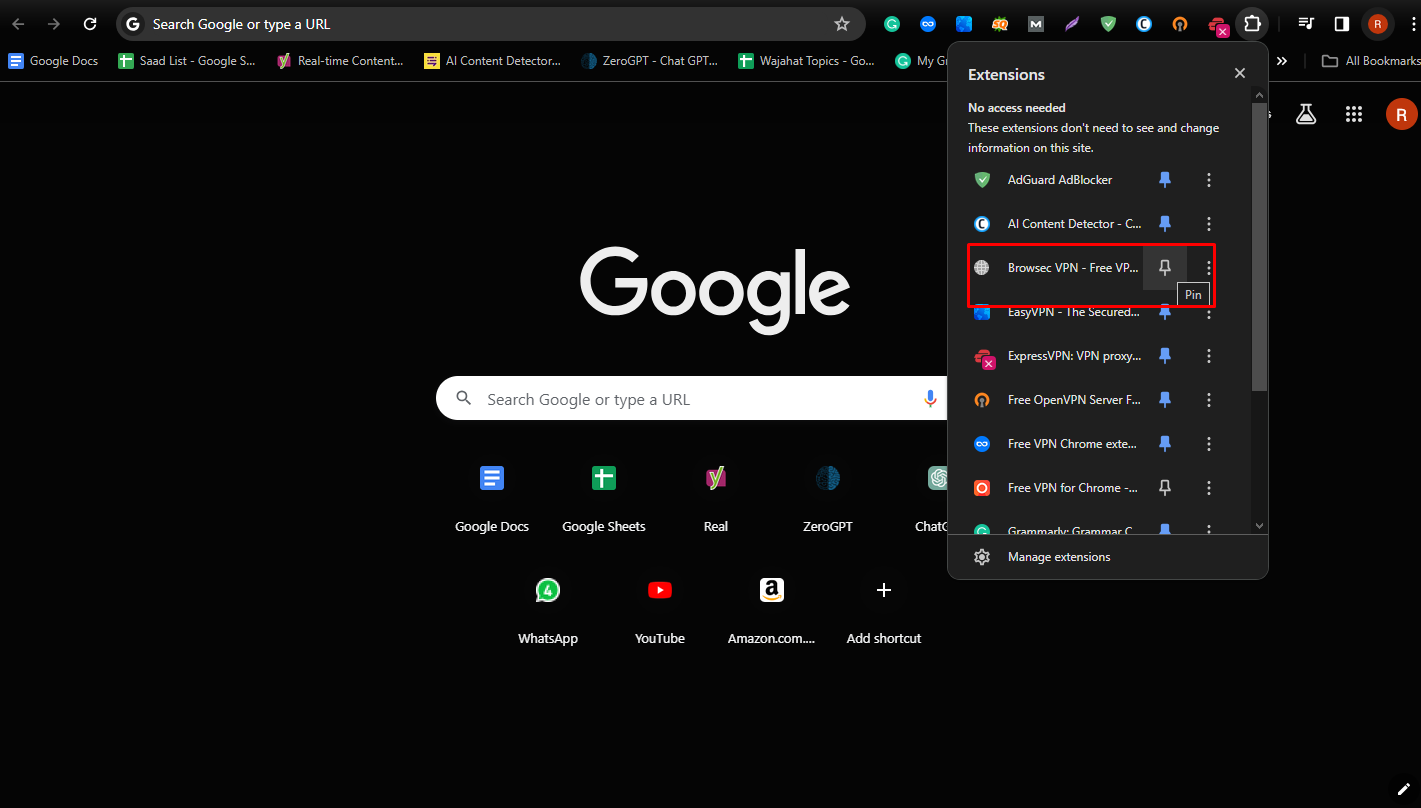
- Pin Browsec to the toolbar and click its icon. After that, simply choose a server location and connect to the VPN.
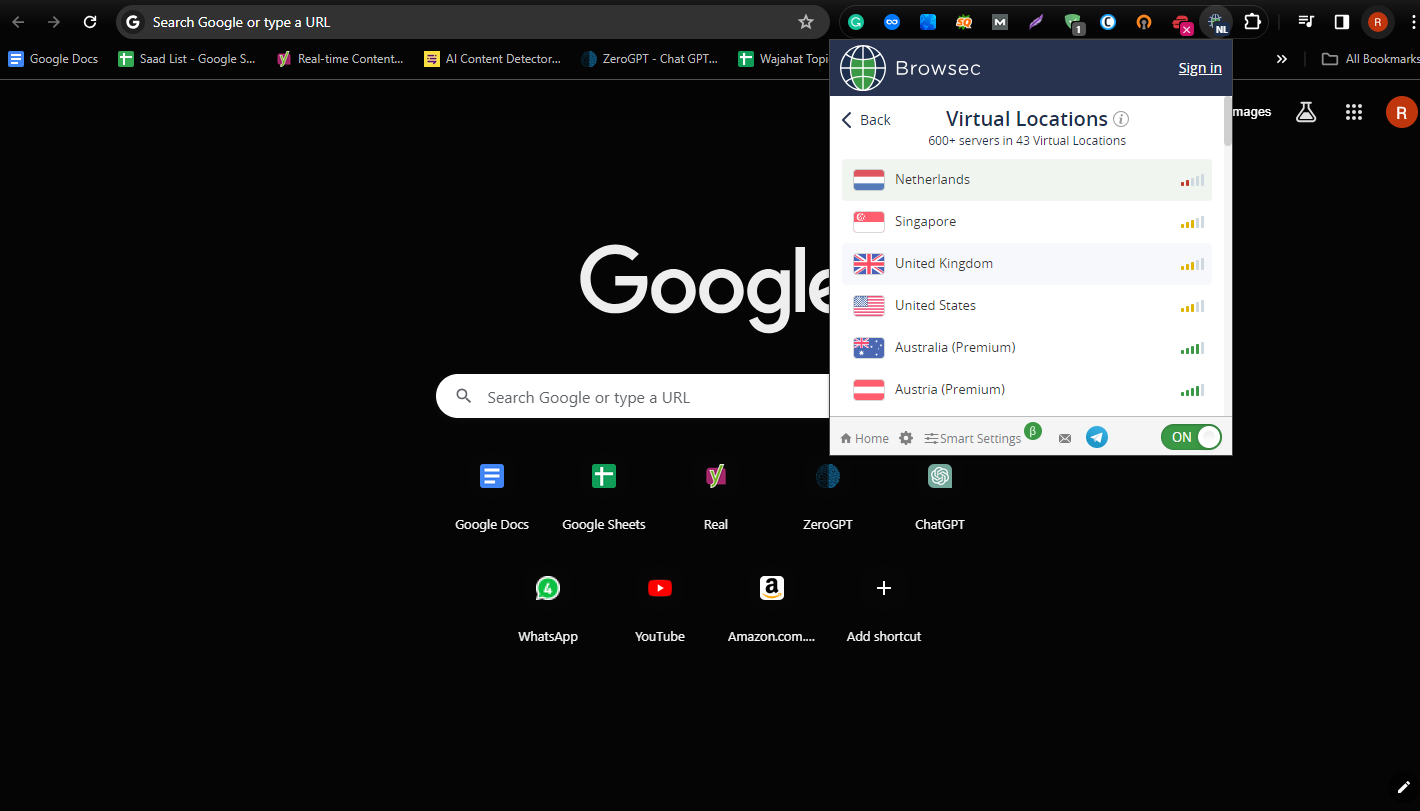
- Create an account or log in if required. You can also purchase a premium subscription if you need additional servers or features.
For better device-wide protection, use the VPN’s full desktop app. A browser extension generally protects browser traffic rather than all internet traffic from your laptop or PC.
Best Practices for Using a VPN Safely
Using a VPN is simple, but these practices can help you maintain privacy, security, and a smoother browsing experience:
- Choose a trusted VPN provider with strong encryption and a clear privacy policy.
- Enable the kill switch to protect your data if the VPN connection drops.
- Avoid unknown VPNs that lack clear privacy and data-handling policies.
- Connect to nearby servers for better speed and lower latency.
- Keep your VPN app updated to access the latest security improvements.
- Use a VPN on public Wi-Fi to add protection to your connection.
For additional online privacy and security guidance, you can also refer to resources from the Federal Trade Commission (FTC).
Frequently Asked Questions
Does a VPN slow down internet speed?
A slight drop in speed can happen due to encryption. However, using a nearby server usually keeps the connection fast and stable.
Is it safe to use a free VPN?
Free VPNs may have limitations and weaker privacy policies. Some may log your data or show ads, so choosing a reliable provider is important.
When should I turn on a VPN?
It’s best to use a VPN when browsing on public Wi-Fi, accessing sensitive data, or trying to view region-restricted content.
Can a VPN hide my online activity completely?
A VPN improves privacy by masking your IP address and encrypting data, but it does not make you completely anonymous online.



Nice post. I learn something totally new and challenging on websites
Great information shared.. really enjoyed reading this post thank you author for sharing this post .. appreciated