So after missing a few episodes, I had to figure this out the hard way. When I first started using YouTube TV, I honestly thought recording would work like a traditional DVR, but I kept losing track of my shows and missing the moments I actually wanted to watch.
That’s when I realized how the real system works; YouTube TV DVR automatically saves everything to the cloud, so storage isn’t something you ever think about.
And if something doesn’t play properly, quick fixes like checking common videos not playing issues or adjusting settings in your YouTube dashboard usually sort it out fast.
Now let’s break it down step by step so you can start recording on YouTube TV without missing anything again.
What is DVR on YouTube TV?
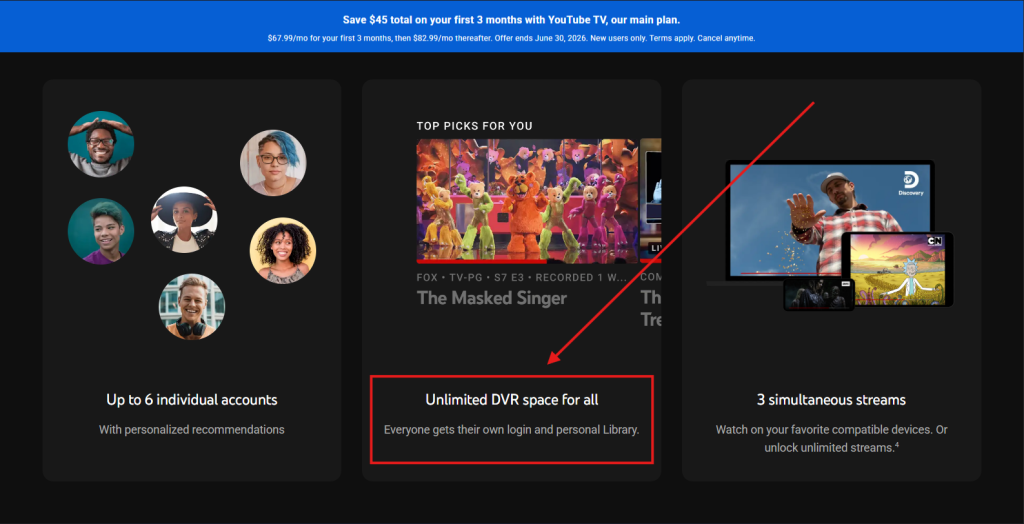
YouTube TV offers unlimited cloud DVR storage, allowing you to record as many programs as you like without worrying about storage limits.
It is the best option to set up your personal video library to stream movies, TV shows and series anytime you want. However, recordings are only available for up to 9 months before they are automatically deleted.
It lets you watch and record live TV from YouTube TV’s 100+ channels and is available on devices, including Android, iPhone, Roku, Apple TV, Xbox One, some Smart TVs, and more.
Note: Downloading for offline viewing requires the optional 4K Plus add-on and a compatible mobile device.
How to Record a Show on YouTube TV Using DVR
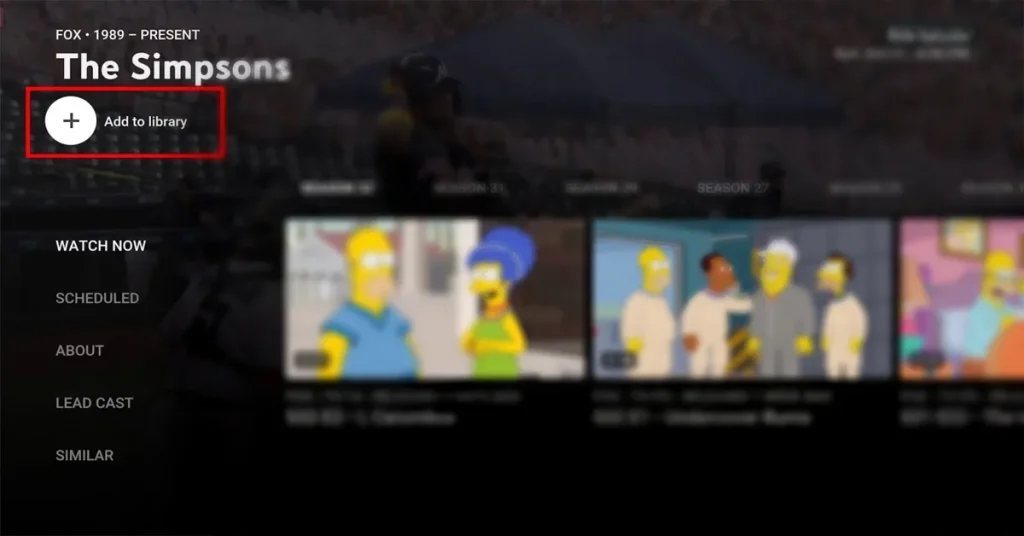
Recording on YouTube TV is straightforward. Click “Add to Library” next to the show or movie you want, and YouTube TV automatically saves it.
If you want to plan ahead, open the live guide and tap the “+” icon on any upcoming program. This adds it directly to your Library, so YouTube TV records it when it airs.
You can do the same on the mobile app, just tap the “+” icon beside any listing, and it will be added for recording instantly. Here is the step-by-step process on how you can proceed with all this:
1. Open YouTube TV and Sign in
- Launch YouTube TV on your preferred device (Smart TV, web browser, or mobile app).
- Sign in with your Google account linked to your subscription.

2. Find the Show
- Go to the search bar and find your favorite show. After finding your desired content, select it by tapping on it.
3. Add to DVR List
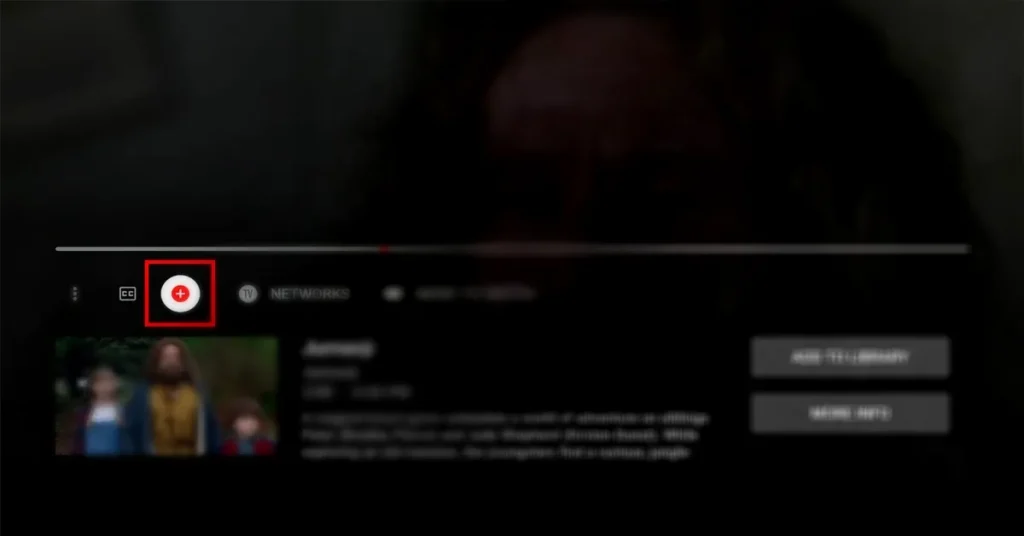
- Click the “+” icon (or “Add to Library”) to schedule recordings.
- YouTube TV automatically records current and upcoming airings of the show or movie.
4. Access Your Library
- Once recorded, your content is saved under the “Library” tab.
- From here, you can stream your recordings anytime, on any connected device.
How to Record on YouTube TV Live
How to record on YouTube TV while watching a live event is a common question YouTube TV users ask. Here are some steps to follow for recording a live on YouTube TV:
- Go to the Live TV section: Open the Live tab to see the current TV guide.
- Select the show: Tap or click on the program you want to watch to start the live stream.
- Click the “+” icon: While watching, pause the video or press the Down button on your remote to reveal the player controls. After that, click the “+” icon (labeled Add to Library) to start recording.
Tips and Tricks to Use YouTube TV DVR
While recording is straightforward, there are some useful features and limitations to know:
- Unlimited recordings: Unlike traditional DVRs, you don’t need to worry about space.
- Family sharing: Up to six household accounts can access the DVR. Each member gets a personalized library.
- Cross-device access: Watch recordings on phones, tablets, desktops, Smart TVs, or streaming devices like Roku and Chromecast.
- Pause and rewind live TV: Apart from recording, you can pause or rewind live shows in real time.
However, keep these things in mind:
- Recordings expire after 9 months.
- You can’t skip adding only one episode; once added, all airings of a series will be recorded.
- Content playback may still include ads depending on licensing restrictions.
<strong>Record on YouTube TV Without Missing Anything</strong>
Now that you understand how recording works on YouTube TV, you can easily save any show or movie with just a click and watch it whenever you want. The YouTube TV DVR removes storage worries by saving everything in your cloud library.
From live sports streaming to your favorite series, everything stays accessible anytime. Once you get used to it, missing episodes is no longer a problem; you’re always in control of what you watch and when you watch it.
People Also Ask
People
Does YouTube TV have a DVR?
Yes. YouTube TV includes unlimited cloud DVR storage for all subscribers at no extra cost.
How long do recordings stay on YouTube TV?
Recordings are automatically stored for up to 9 months before being deleted.
How do I record something that’s live on YouTube TV?
Simply go to the Live TV guide, select the program, and tap the “+” icon to start recording immediately.
Can I skip ads in my YouTube TV recordings?
Sometimes. For certain on-demand content, ads may remain. However, in many DVR recordings, you can fast-forward past ads.
Can I delete recordings on YouTube TV?
Yes. Go to your Library, select the program, and remove it by deselecting the check mark.
Can you record on YouTube TV?
Yes, you can record on YouTube TV.
YouTube TV includes a cloud DVR. You just add a show, movie, or event to your Library, and YouTube TV will automatically record all upcoming airings.