Most of the time, you don’t think about your Lenovo warranty until something goes wrong with your laptop or PC.
The good thing is that checking your warranty status is pretty simple. You can use Lenovo’s official Warranty Lookup tool to check your coverage with your device’s serial number. And if you can’t find the serial number, Lenovo also lets you detect your PC automatically using Lenovo Service Bridge.
By the way, talking about myself to give you live examples, I asked my younger brother for his Lenovo ThinkPad laptop to give you a live demo. Doing this, I will also check whether it has any warranty or if I have to buy him a new one when he asks.
You will get a clear step-by-step process to check your Lenovo warranty status, whether you have the serial number with you or not.
How Do You Check Your Lenovo Warranty Online?
Start creating Verdict in seconds, and convert more of your visitors into leads.
The easiest way to check a Lenovo warranty is through Lenovo’s Warranty Lookup tool. You can enter your device’s serial number manually or use Lenovo’s Detect My Device option to identify the PC automatically.
Lenovo currently provides both options through its support system.
Find Your Lenovo Serial Number First
The first thing you need is your Lenovo device’s serial number. On a laptop, you’ll usually find it on the label attached to the bottom of the device or behind the battery.
Here, as I am showing you, I have removed the battery to check it out, and you just have to simply look for the S/N or Serial Number near the barcode.
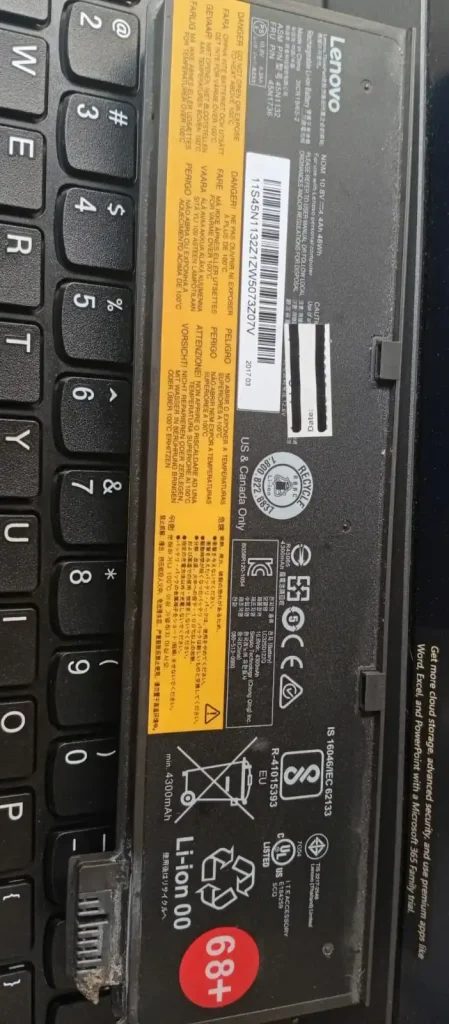
The serial number is the easiest way to perform a Lenovo warranty check by serial number, so make sure you enter it exactly as it appears on the device.
If you can’t find the number on the Lenovo laptop, Lenovo also provides a Help me find my product/serial number option on its support pages. You may also be able to find the serial number through Lenovo software or your device firmware.
Once you have it, you can move on to the actual warranty check.
Open Lenovo Warranty Lookup
Go to Lenovo’s official support website and open Warranty Lookup. You’ll see a page with a Search By Serial Number field.
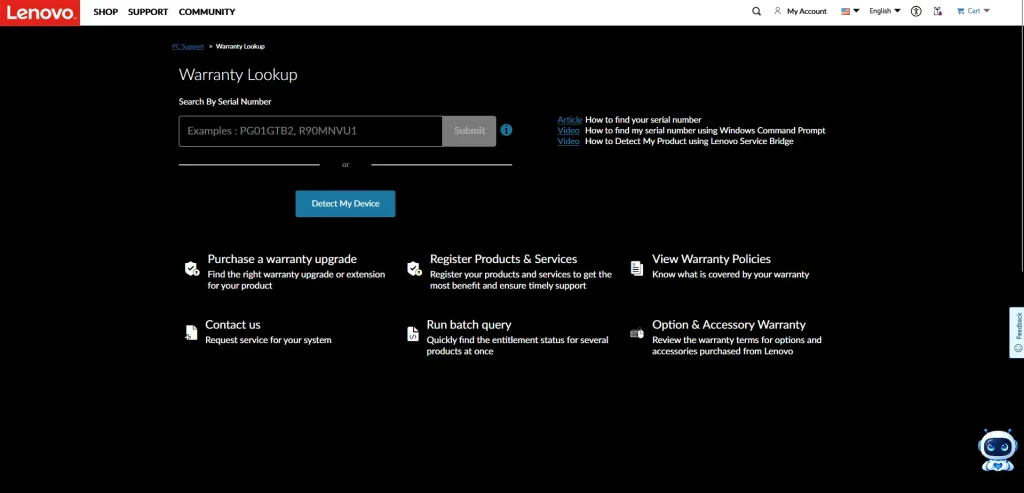
Enter your Lenovo serial number into the box and click Submit.
That’s all you need to do for the main Lenovo warranty check. Lenovo uses the serial number to identify your device and load the warranty information associated with it. The current Lenovo support interface also provides a Detect My Device option below the serial number search field.
Check Your Lenovo Warranty Status
After you submit the serial number, Lenovo opens the support page for your specific device.
This is where you can check the information that matters, including your warranty status, current service and support status, and the coverage available for the device.
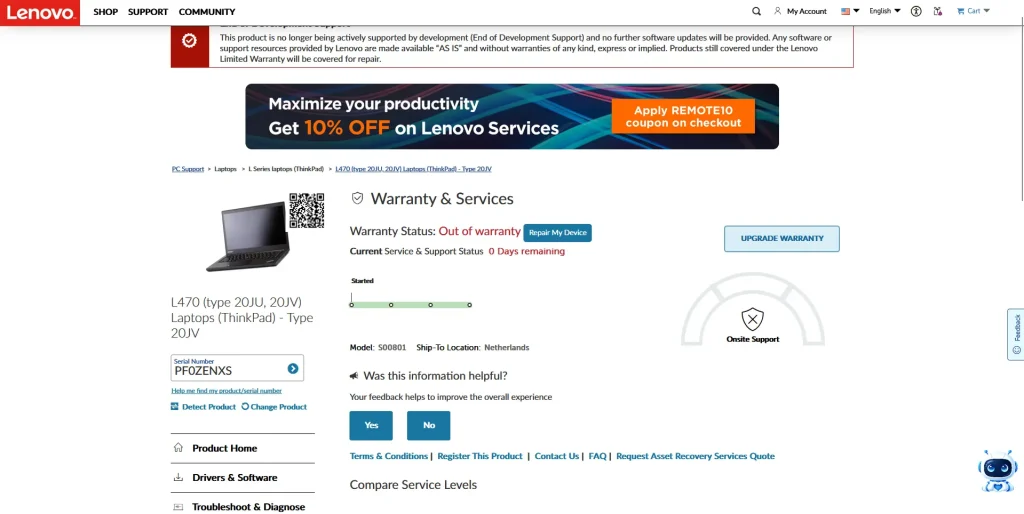
For example, sadly, the warranty check is saying that my pocket is going to get some air while buying a new one, as this one has no remaining warranty.
What If You Can’t Find Your Lenovo Serial Number?
Start creating Verdict in seconds, and convert more of your visitors into leads.
You don’t have to spend half an hour searching for a faded label.
Lenovo provides a Detect My Device option that can identify your PC automatically. Lenovo’s current support documentation says that PC detection uses Lenovo Service Bridge (LSB).
How to Use Lenovo Service Bridge to Detect Your Device
On the Lenovo Warranty Lookup page, click Detect My Device instead of entering the serial number manually. Lenovo may then ask you to open or install Lenovo Service Bridge.
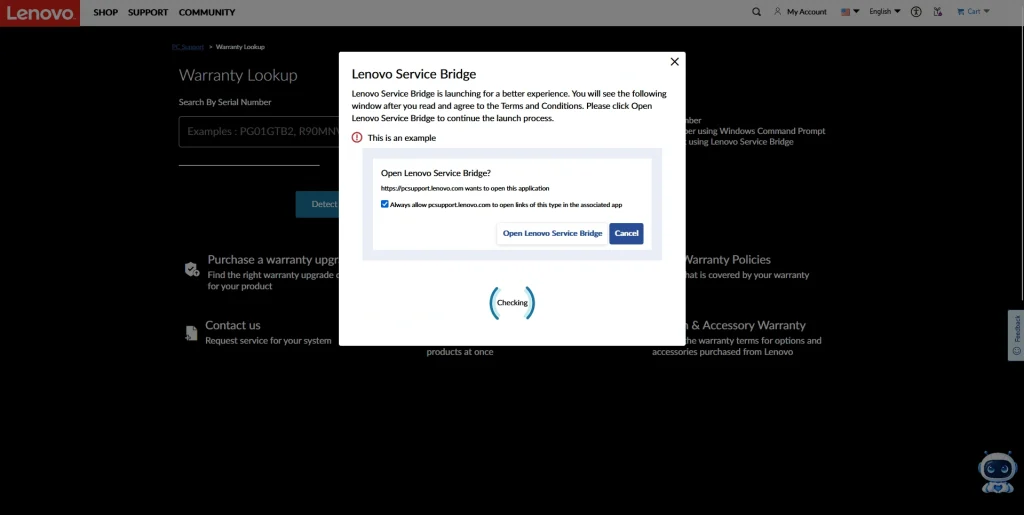
If you don’t already have LSB installed, download and install it when prompted.
Once it is set up, allow Lenovo Service Bridge to open from the Lenovo support page. It automatically detects the computer and identifies its product information, including the serial number. Lenovo specifically documents Service Bridge as a way to automatically detect the system and serial number.
After Lenovo identifies the device, you can view the warranty information for that PC without having to type the serial number yourself.
This is especially useful when checking the Lenovo Laptop Warranty without entering the serial number, as the label is difficult to read and is missing.
Final Thoughts: Checking Your Lenovo Warranty Is Simple
Start creating Verdict in seconds, and convert more of your visitors into leads.
After doing this myself, I will say the same thing that I said to you in the beginning: A Lenovo warranty check doesn’t have to be complicated.
Simply open Lenovo’s Warranty Lookup page, enter the number, and click Submit. However, if you can’t find the serial number, use Detect My Device and install Lenovo Service Bridge when prompted. It can identify the PC automatically and save you from hunting for the serial number.
Whether you have a ThinkPad like mine, an IdeaPad, a Legion, or another supported Lenovo device, the basic process is the same: identify the device, open Warranty Lookup, and check its warranty status.