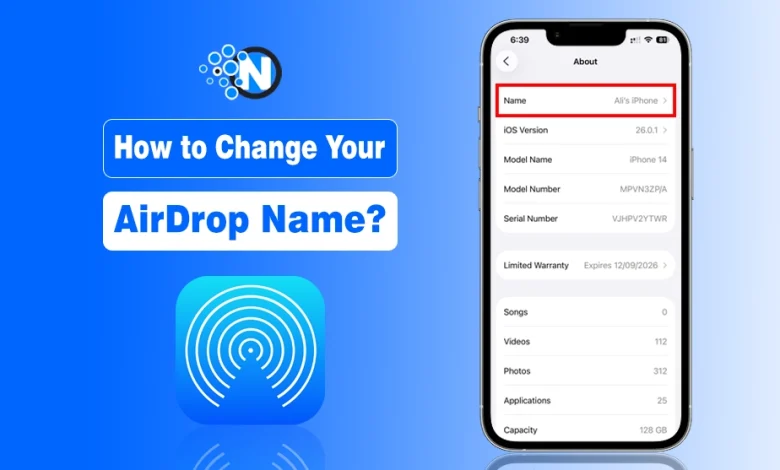
AirDrop is an incredibly convenient feature for sharing files, photos, and documents between Apple devices. However, one detail many people overlook is that your AirDrop name is actually your device name.
It means that when someone nearby wants to share a file with you, they see whatever name your device currently has. Sometimes, that default name might be your first name and last initial, or simply a generic “iPhone” or “MacBook.”
If you want to personalize your AirDrop experience or maintain some privacy, changing your AirDrop name is essential. In this guide, I will tell you how to change your AirDrop name for iPhone, iPad, and Mac devices, as well as some tips for choosing the right name.
What are AirDrop Names and Device Names?
AirDrop name is not separate from your device name. AirDrop automatically uses your device name to identify you to other Apple devices nearby.
For example, if your iPhone is named “iPhone,” people in your vicinity will see that generic name. Similarly, if your MacBook is named “John’s MacBook Pro,” that’s exactly what will appear to others.
It means that changing your AirDrop name is essentially the same as renaming your device. Once you change your iPhone name, it will automatically update your AirDrop identity.
How to Change Your AirDrop Name on iPhone or iPad?
Changing the AirDrop name on an iPhone or iPad is simple, and it only takes a few steps. Here is how you do it:
- Open Settings: First, open the Settings app on your device. It is the main hub for all device settings, so anything related to personalization, privacy, and connectivity will be here.

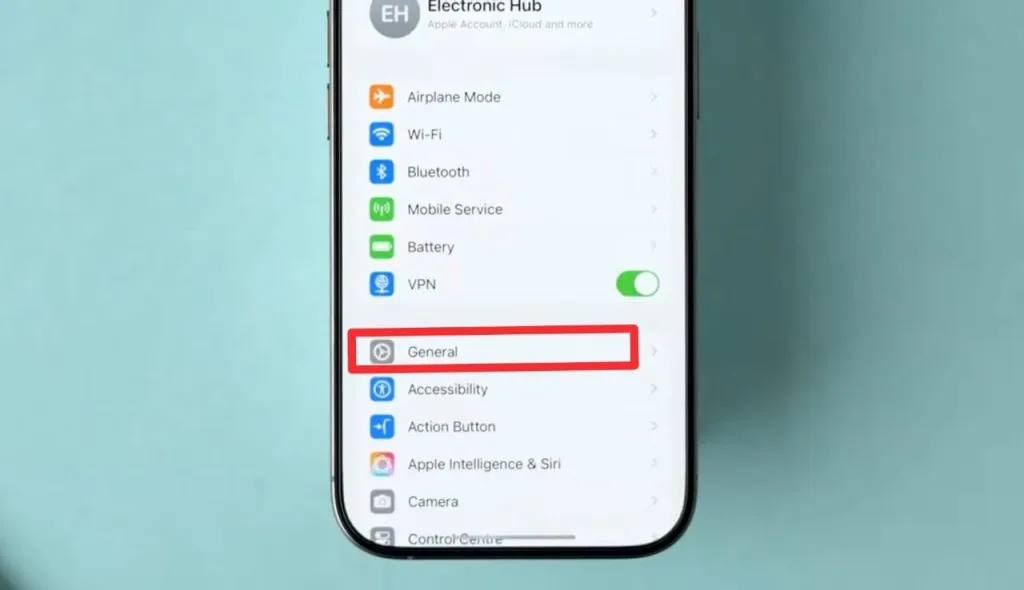
- Go to General Settings: Once you are in Settings, scroll down and tap on “General.” This section contains all general device settings, including About, Software Update, and more.
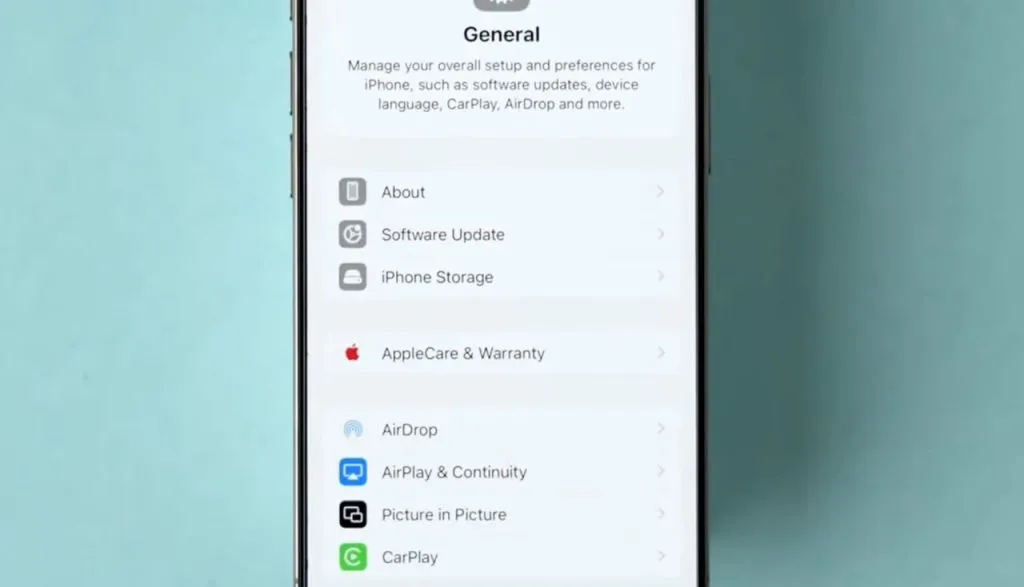
- Tap About: Under the General menu, you will see an option called “About.” Tap on it. It will show you detailed information about your device, including the model name, software version, serial number, and the current device name.
- Change the Name: At the top of the About page, you will see “Name.” Tap on this field. Here, you can enter the new name you want for your device.
This name will now be your AirDrop name as well. For instance, you can change it from “iPhone” to “Lone Wolf Alpha’s iPhone” or any other name you prefer. After typing the new name, tap “Done” on the keyboard.
How to Change Your AirDrop Name on Mac?
Renaming your AirDrop name on MacBook or iMac is just as straightforward, but the steps are slightly different from iOS devices.
- Open System Settings: On your Mac, click the Apple icon in the top-left corner of the screen and select “System Settings” or “System Preferences,” depending on your macOS version.
- Go to General or Sharing: In the settings window, look for “General” and then select “About,” or directly go to “Sharing.” The device name can typically be changed from either of these sections, but “Sharing” is often the most straightforward.
- Change the Computer Name: In the Sharing settings, you will see a field called “Computer Name.” It is the name your Mac uses for AirDrop, local networks, and other sharing services. Simply click on the field, type the new name you want, and press Enter.
- Confirm the Change: Once you change the computer name, your AirDrop name is automatically updated. You can test this by opening AirDrop in Finder and checking how your device appears to others.
Tips to Choose the Right AirDrop Name
When it comes to choosing an AirDrop name, you have several options. You can be personal, professional, or completely anonymous depending on your needs.
- Personal Names: Using your name or nickname is the most common approach. It makes it easy for friends and family to identify your device when sharing files.
- Descriptive Names: If you share files with colleagues often, consider a name like “Marketing MacBook” or “iPhone 15 Pro Max for files.” It helps others know which device is suitable for sharing certain files.
- Anonymous Names: If you want to maintain privacy in public spaces, you can use something generic or abstract like “Device A” or “Alpha’s iPhone 16 Pro.” It ensures no one knows your identity from just the device name.
- Fun or Creative Names: Some people enjoy giving their devices humorous or unique names. For example, “Flying Pigeon” or “Dragon iPad.” As a result, it will add a personal touch and can be a fun conversation starter.
Other Suggestions for AirDrop Naming
While changing your device name is the main step, there are additional tips to consider:
- Keep it Short: Long names may be truncated when displayed on other devices, so try to keep your AirDrop name concise.
- Avoid Special Characters: Some special characters may not display properly on all devices. Stick with letters, numbers, and basic symbols.
- Update Regularly: If your device usage changes, consider updating the AirDrop name accordingly. For example, if you switch jobs or start using a new device frequently, updating the name can prevent confusion.
Final Thoughts
Changing your AirDrop name is a simple yet effective way to personalize your Apple device and improve your file-sharing experience. Whether you want to display your full name, maintain anonymity, or add a touch of creativity, updating the device name is the key.
On iPhone and iPad, you change it through Settings > General > About, and on a Mac, it’s done via System Settings or Sharing. When you follow these steps and keep a few tips in mind, you can ensure that your AirDrop name is exactly how you want it to appear.