My PC was consuming more internet data than I was using, and I had no idea why.
Last week, I had to rely on my mobile hotspot because I was traveling for business and Wi-Fi wasn’t always available.
Since my work mostly involved browsing websites and writing articles, I expected my data to last for several days. Instead, it was almost gone by the end of the first evening.
That started affecting my work, so I decided to figure out what was happening. After checking into Windows settings and testing different fixes, I discovered that several background processes were quietly using my internet connection.
Some tactics didn’t work, and some noticeably reduced my data usage.
Now, moving on, I will share the methods that actually worked for me, along with screenshots, so you can easily reduce internet data usage on your Windows PC.
Why Is My PC Using So Much Internet Data?
Basically, a Windows PC uses internet data for many background activities at once, including:
- Windows Updates
- Cloud storage synchronization
- App updates
- Browser downloads
- Video streaming
- Online gaming
- Antivirus updates
- Background applications
So this ultimately uses a lot of data that you may not even use yourself.
Simple Ways to Reduce Data Usage on Your PC
Before explaining each method, here’s a quick checklist of them all. If you already know some, you can try them first without reading everything below:
1. Set Your Internet Connection as Metered
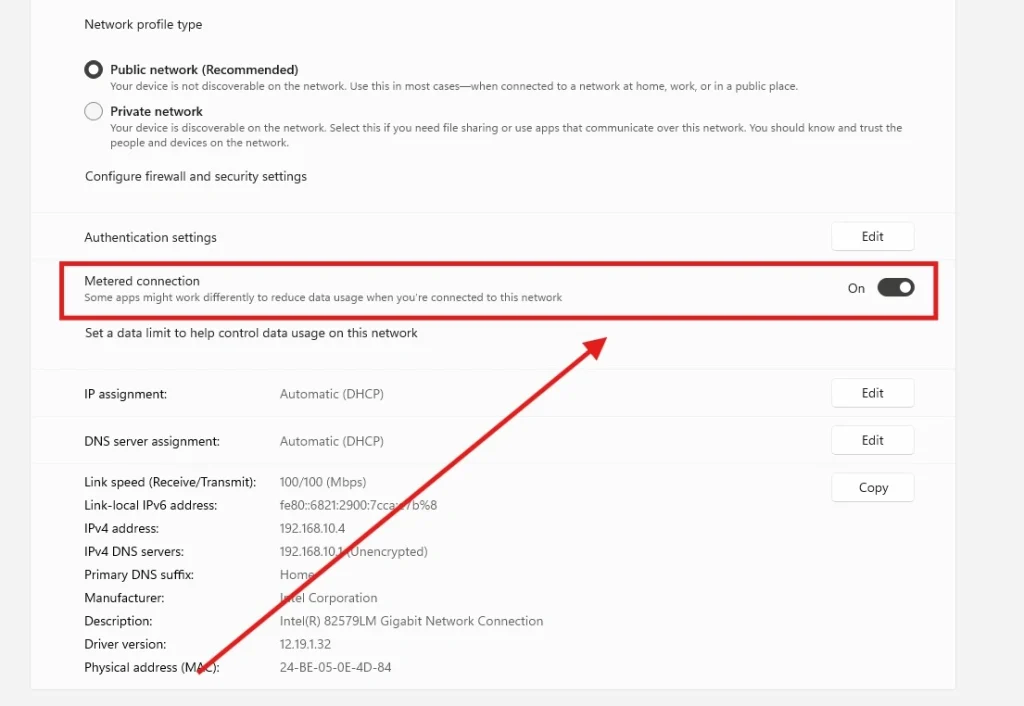
A metered connection tells Windows to reduce background data usage automatically.
How to Enable It
- Open Settings.
- Go to Network & Internet.
- Select your Wi-Fi or Ethernet connection.
- Turn on Metered Connection.
Benefits
- Delays non-essential Windows updates
- Reduces background downloads
- Limits Microsoft Store app updates
2. Monitor Data Usage
Windows provides built-in tools to see which apps consume the most data.
Steps
- Open Settings.
- Navigate to Network & Internet > Advanced Settings > Data Usage.
- Review data consumption by application.
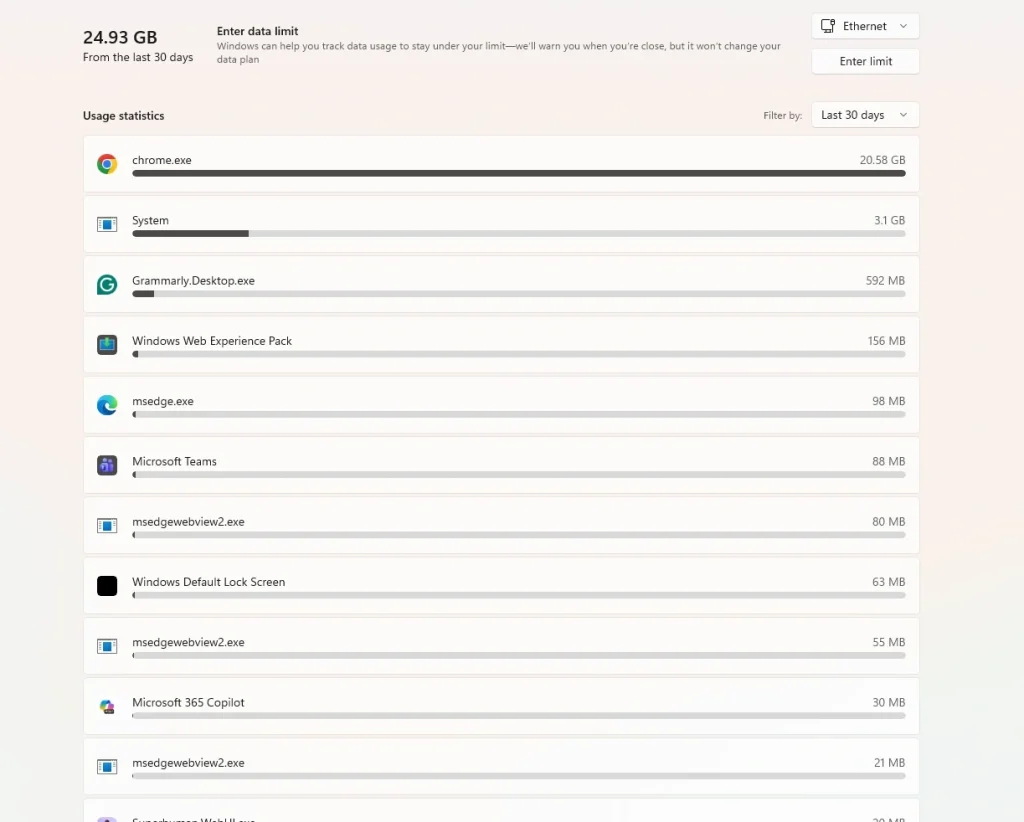
This helps identify apps that are using excessive bandwidth.
3. Disable Background Apps
Many apps continue using the internet even when you’re not actively using them.
To Disable
- Open Settings.
- Go to Startup Apps.
- Disable background permissions where available.
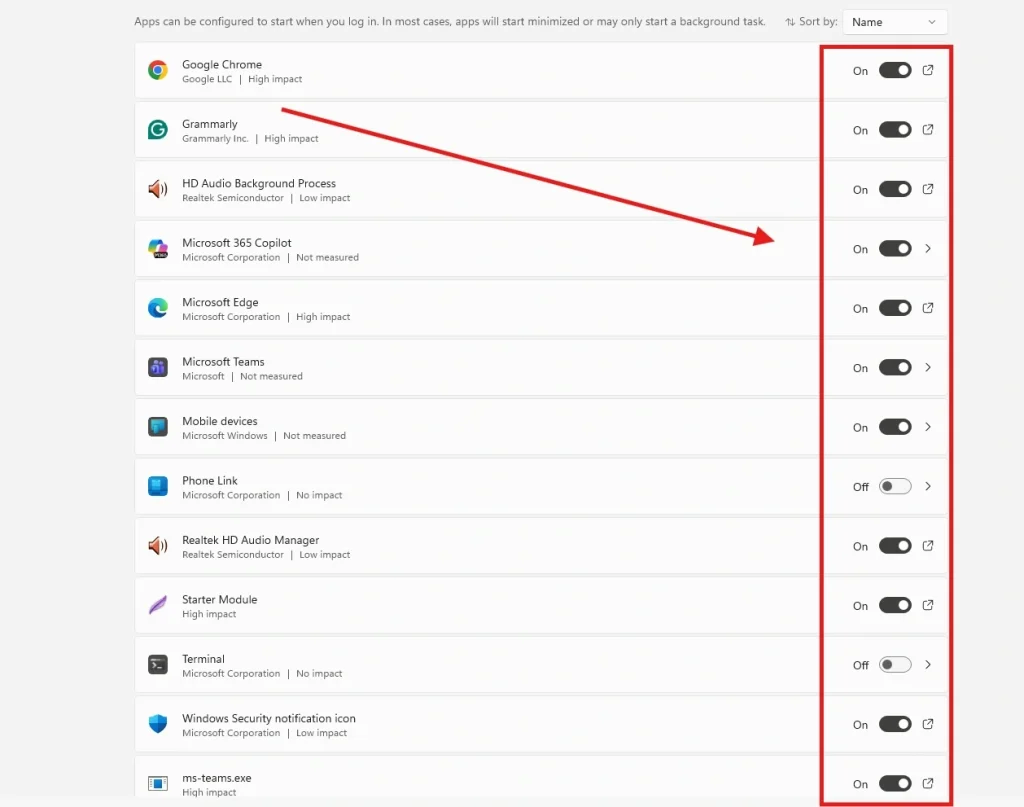
This can significantly reduce daily data usage.
4. Pause Windows Updates
Windows updates can consume several gigabytes. To pause updates:
- Open Settings > Windows Update
- Click Pause Updates
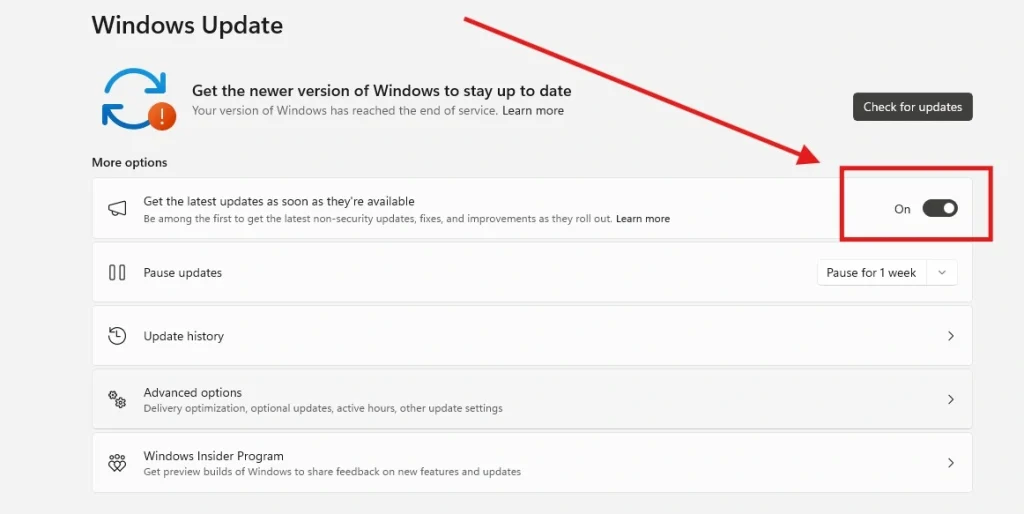
Remember to install updates later when connected to unlimited Wi-Fi.
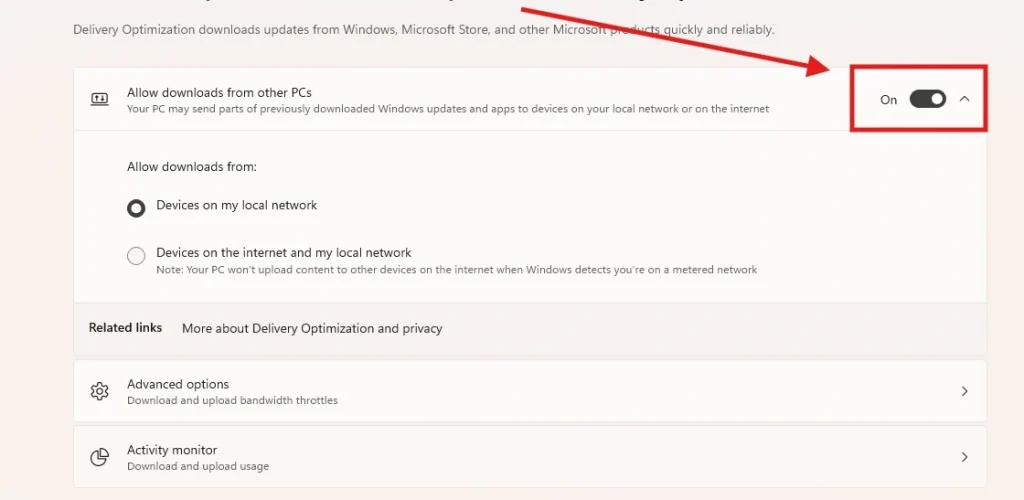
5. Limit Delivery Optimization
Windows shares downloaded updates with other PCs over the internet.
Disable It
- Open Windows Update.
- Select Advanced Options.
- Open Delivery Optimization.
- Turn it off.
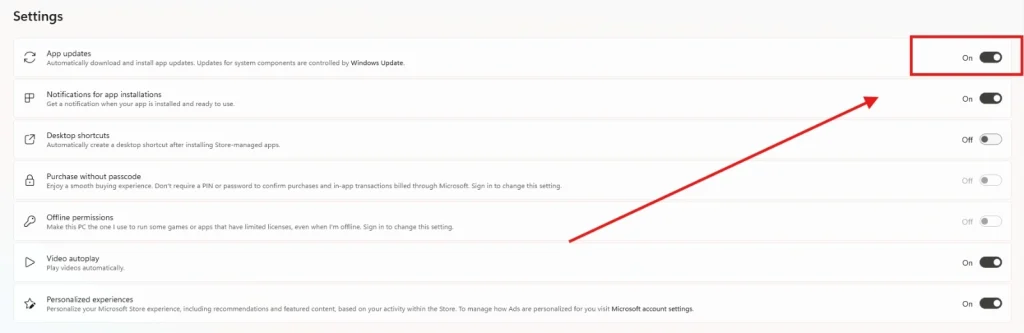
6. Disable Automatic App Updates
Microsoft Store apps update automatically.
Steps
- Open Microsoft Store.
- Click your profile.
- Go to Settings.
- Disable App Updates.
7. Reduce Cloud Sync Activity
Services like OneDrive, Google Drive, and Dropbox constantly upload and download files.
Tips
- Pause syncing while using limited data.
- Sync only selected folders.
- Disable automatic photo uploads.
8. Stream Videos at Lower Quality
Streaming HD and 4K videos consumes large amounts of bandwidth. You must approximate data usage:
| Video Quality | Data Per Hour |
| 480p | 700 MB |
| 720p | 1.5 GB |
| 1080p | 3 GB |
| 4K | 7 GB+ |
Choosing 480p or 720p can save several gigabytes each week.
9. Disable Auto-Play on Streaming Platforms
Many streaming services automatically play the next video. Turn off Auto-Play on:
- YouTube
- Netflix
- Disney+
- Prime Video

This prevents unnecessary streaming.
10. Use Data Saver in Your Browser
Modern browsers include bandwidth-saving features. Some common examples you may have heard of include:
- Memory Saver
- Sleeping Tabs
- Lite extensions
- Ad blockers
Blocking ads can also reduce data consumption because many advertisements automatically load videos and large images.
11. Install a Data Monitoring Tool
Lastly, if you want more detailed statistics, use tools like:
- GlassWire
- NetBalancer
- NetWorx
These applications provide:
- Real-time bandwidth monitoring
- Daily usage reports
- Alerts for excessive data consumption
- Per-app network usage
Common Mistakes That Increase Data Usage
Now, other than these methods to save data usage, don’t forget to avoid these common mistakes that can quickly consume your monthly data allowance:
- Leaving cloud syncing enabled even when you don’t need it.
- Streaming videos in 4K or Full HD on a limited data plan.
- Ignoring Windows Update settings, allowing updates to download automatically.
- Keeping multiple browser tabs open, especially those that refresh in the background.
- Enabling automatic app and game updates without checking your connection.
- Downloading large files or software over a mobile hotspot instead of Wi-Fi.
Avoiding these habits can make a noticeable difference, especially if you rely on a limited broadband plan or a mobile hotspot.
Frequently Asked Questions About Data Usage
How can I check which app uses the most internet data?
Go to Settings > Network & Internet > Data Usage to view data consumption by each application.
Does a metered connection reduce data usage?
Yes. A metered connection limits background downloads, pauses certain updates, and reduces unnecessary internet activity.
Does Windows Update consume a lot of data?
Yes. Major Windows updates can use several gigabytes of internet data, especially feature updates.
Which browser uses the least internet data?
Browsers with built-in efficiency features, such as Microsoft Edge and Google Chrome, can reduce data usage when combined with ad blockers and tab-sleeping features.
Does streaming in lower quality save internet data?
Absolutely. Watching videos in 480p instead of 1080p or 4K can reduce data usage by several gigabytes over time.
Final Thoughts on Saving Data from Getting Used on Unnecessary System Settings
Managing internet data usage on a Windows PC is easier; people just panic without any reason.
A few small changes, such as using a metered connection, limiting background apps, and controlling Windows Updates, can save a surprising amount of bandwidth over time.
If you often rely on a mobile hotspot or have a limited internet plan, I highly recommend applying these tweaks I explained above.
They take only a few minutes to set up but can help you avoid unnecessary data consumption while keeping your PC running smoothly.