Google AI Overviews can appear above search results, which may be frustrating if you prefer to browse websites and choose sources yourself.
There is currently no universal setting to permanently disable the feature. However, you can use a few practical workarounds to hide or bypass these summaries and get a cleaner search experience.
This guide explains the simplest options for Android and PC, including how to access regular web results without the AI-generated summary.
2 Simple Methods to Turn Off Google AI Overview on Android & PC
The methods below can help you reduce or remove AI-generated summaries from your search, whether you are using an Android phone or a PC.
Method 1: Use the Web Filter
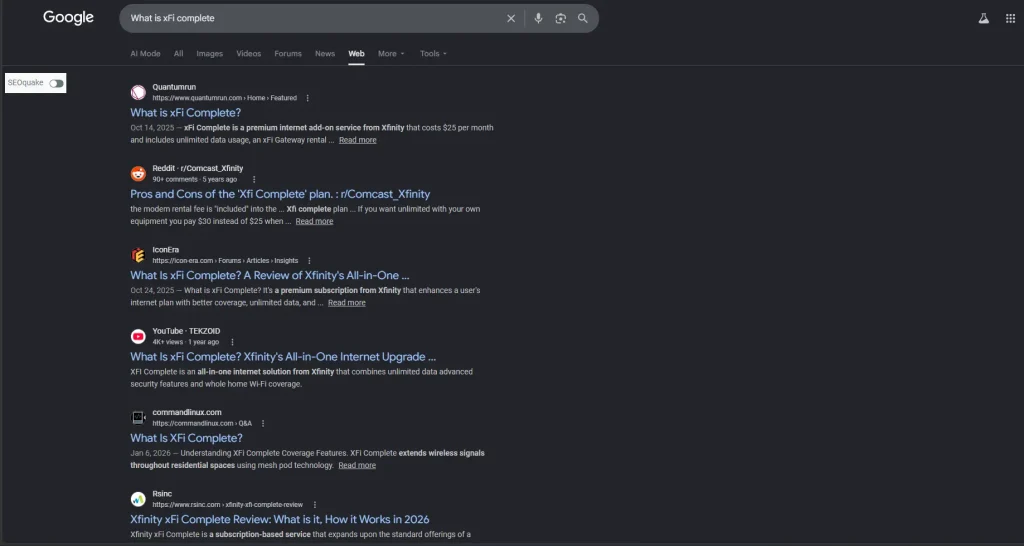
The Web filter is the easiest way to hide the Google AI Overview and view traditional search results only.
- Open the Google app or Chrome browser.
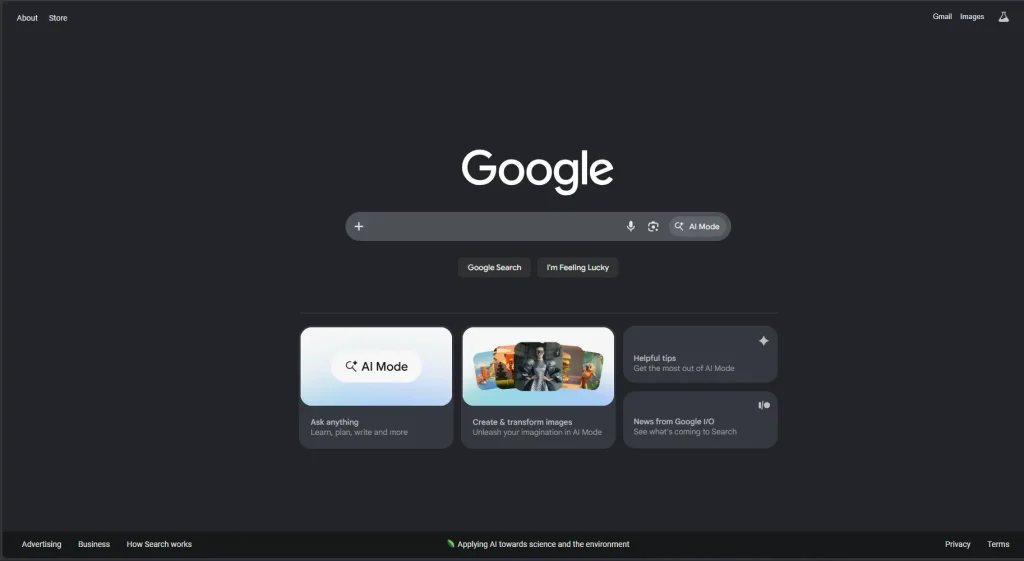
- Search for anything on Google.
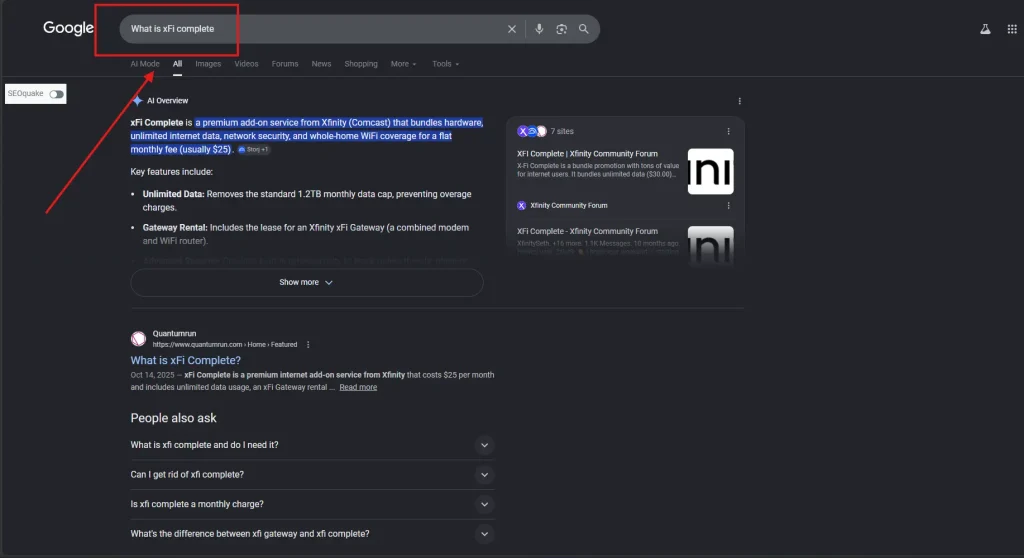
- Click on the More section and then the Web option.
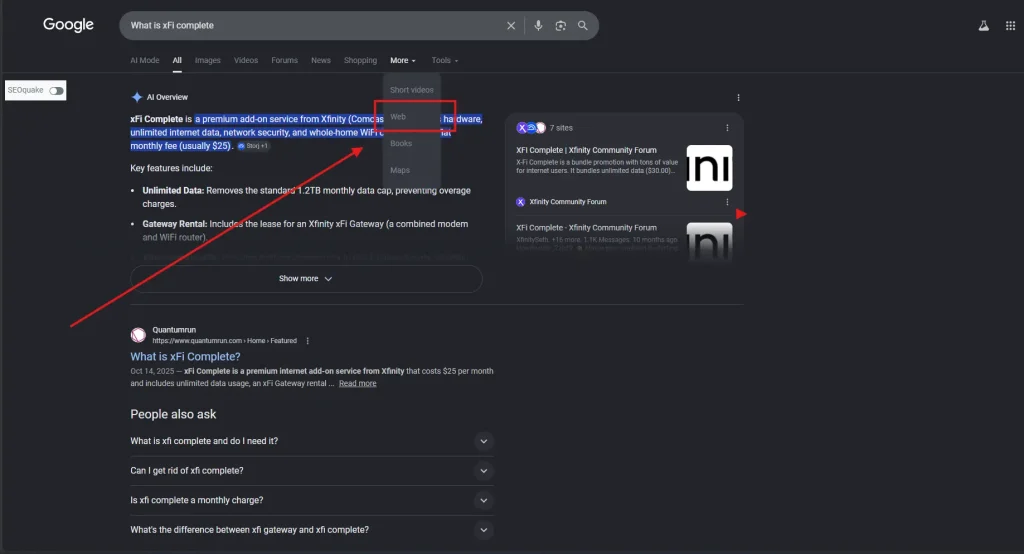
- Web appearance except AI overviews.
Method 2: Use “-ai” in Google Search
You can also reduce AI-generated summaries by using a simple search modifier.
Steps
- Open Google Search.
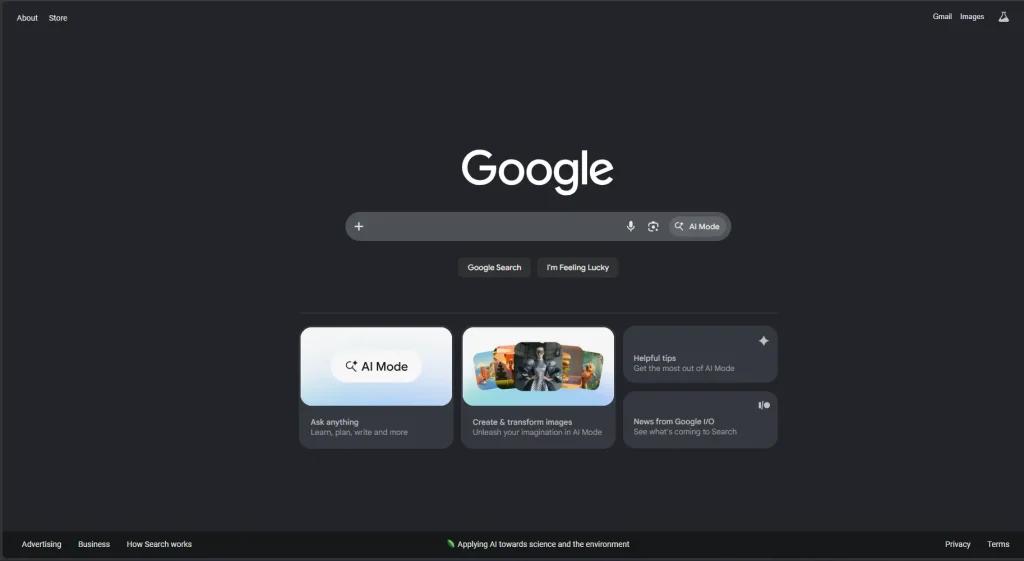
- Type your search query normally.
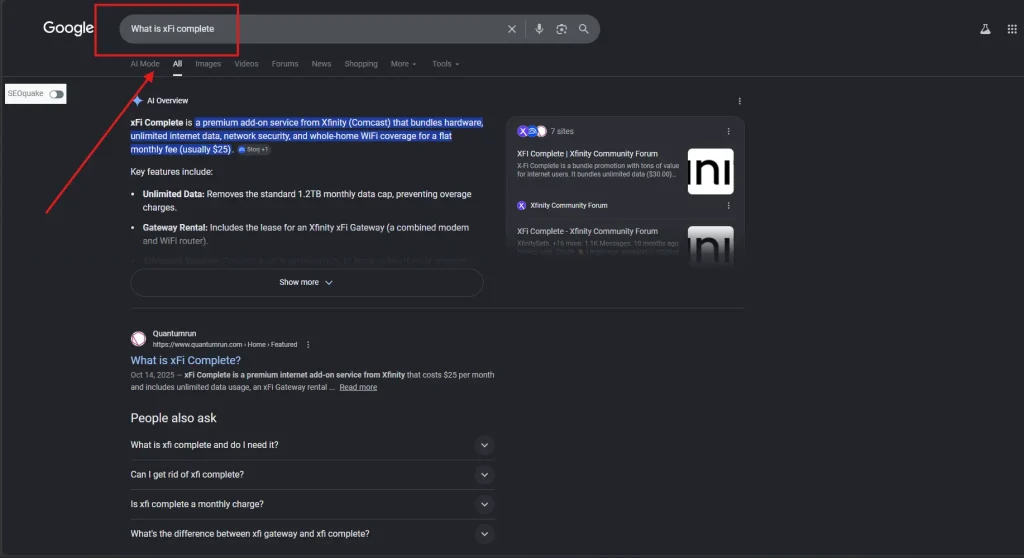
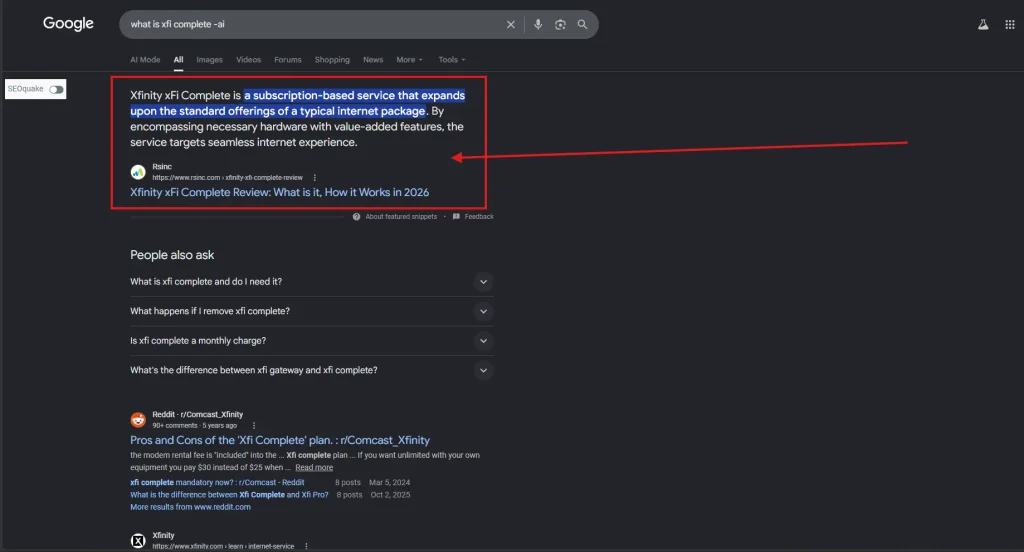
- Add
-aiAt the end of the query, such as “What is xFi Complete -ai“. This will remove the Google AI overviews from your SERP.
Reasons Why You May Want to Turn Off Google AI Overview?
Google AI Overview can help users get quick answers in Google Search, but many people still prefer traditional results because AI-generated summaries may be incomplete or inaccurate, so they turn it off.
Below are some common reasons why users want to disable Google AI Overview on Android and PC.
- Accuracy concerns: Google AI summaries can sometimes show incomplete or misleading information, especially for technical or complex topics.
- Less control over search results: Many users prefer browsing websites directly instead of relying on AI-generated answers in Google Search. If you want to tweak other search preferences alongside disabling AI, you may also consider turning off SafeSearch on Google for unfiltered results.
- Distraction in search results: AI Overview often appears above organic results and can make the search page feel cluttered.
- Privacy concerns: Some users prefer limiting Artificial Intelligence personalization and data usage while searching online.
- Difficulty accessing original sources: AI summaries may reduce visibility for the actual websites users want to explore.
What People Also Get Interested in Knowing About Google AI Overview Turn Off
Can You Completely Turn Off Google AI Overview?
No, Google does not currently provide a universal option to permanently disable AI Overview for all users. However, you can reduce AI-generated summaries using the Web tab or search modifiers.
Does the Web Tab Remove Google AI Overview?
Yes, selecting the Web tab in Google Search usually removes AI Overview and shows traditional website links only.
Can I Disable Google AI Overview on iPhone?
Yes, iPhone users can reduce Google AI Overview by using the Web tab in Safari or Chrome during searches.
Is Google AI Overview Available in Every Country?
No, Google gradually releases AI Overview features in different countries and regions, so availability may vary.
Does Google AI Overview Affect Organic Search Results?
Yes, AI-generated summaries often appear above traditional organic search results, which can reduce visibility for websites and original sources.
Final Thoughts on Disabling Google AI Overviews from Your Setup
Google AI Overview can help users get quick answers in Google Search, but many people still prefer traditional web results for better accuracy and control.
In my opinion, Google AI is useful for basic queries, but it should not replace original websites and organic search results completely.
Simple methods like using the Web tab or adding -ai to searches can reduce AI-generated summaries on Android and PC, helping you restore a cleaner and more familiar Google Search experience.