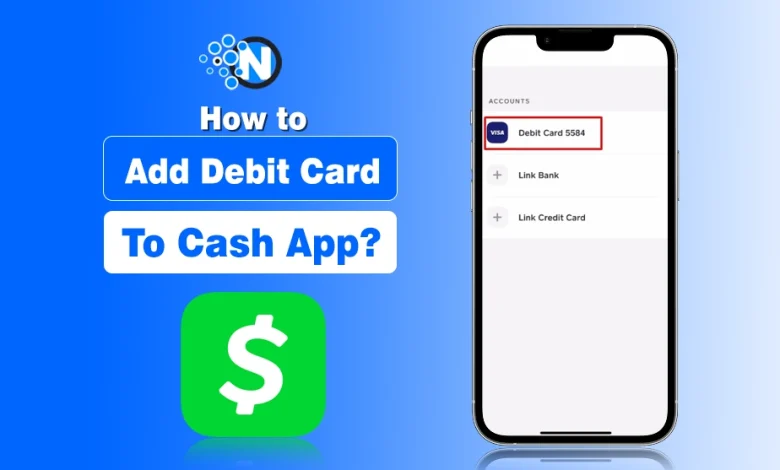
Cash App has certain requirements that should be met if you want to use it properly. One of them is adding a debit card, as it is crucial when you want to add cash to the Cash App. However, if you don’t know how to add debit card to Cash App, this guide is for you.
Also, adding a debit card is necessary to link a bank account to the Cash App. The process is really not difficult when you know the right way.
That’s why I am going to provide complete step by step details here so you won’t get stuck at any point. Just stick to this guide and I am damn sure it will be worth it for you.
How to Add Debit Card to Cash App?
- Open the Cash App on your smartphones.
- Click on the profile picture option present in the top right corner.

- Now, you will access the account options.

- Scroll to find the Linked Banks. Tap on it.
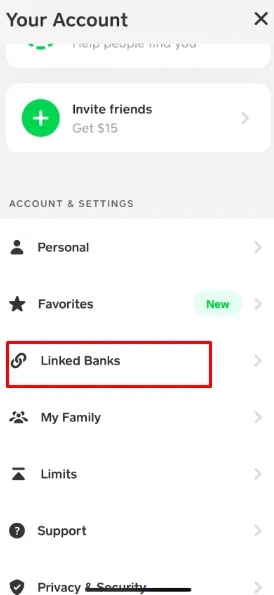
- Now, choose the Debit Card option.
- Add your details like debit card number, billing zip code, CVV, and expiration date.
When you follow these steps, you will ultimately be able to add a debit card. And when you maintain a good transaction history, you can unlock borrow option on Cash App.
How to Add Another Debit Card to Cash App?
You cannot add another debit card to Cash App when you already have one because it allows adding only one debit card at a time.
However, you do not need to delete your Cash App account to add a new debit card. Just unlink the first one to add another debit card.
How To Add Prepaid Debit Card To Cash App?
Go to Linked Banks in Cash App, tap Link Debit Card, and enter your prepaid card details if the card is supported. Cash App accepts many Visa, Mastercard, Discover, and American Express prepaid debit cards. But some Store-specific gift cards, temporary virtual prepaid cards, government benefit cards, and payroll or reloadable cards are not supported.
How to Add Bank Account to Cash App?
I have mentioned earlier that adding debit card details lets you link your bank account to this money app. So now, if you also want to have your hands on how to add bank account to Cash App, move to the steps below as I have covered the details.
- Open the Cash App, tap the profile picture, and choose the Linked Banks option again.
- Now, you have to select the Link Bank option on the new window.
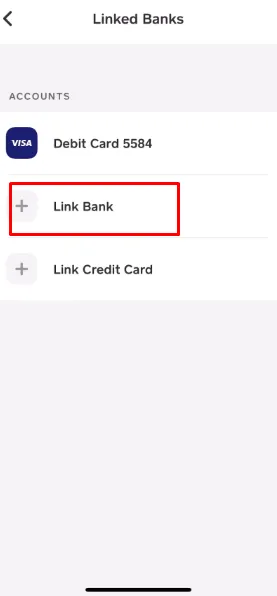
- Tap the Continue button.
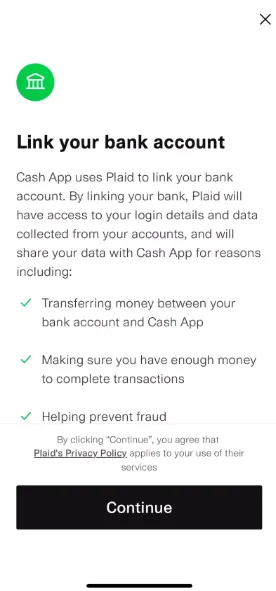
- Follow the prompts to add bank account to Cash App.
All the transactions you will make after adding the bank and debit card will be added to your account. And if you are thinking of managing and deleting it, you should check the surprising facts on how to delete Cash App history.
Final Thoughts
These are the details on how to add debit card to Cash App. I have explained all the steps that you need to follow to get this process completed. Adding a debit card also lets you link your bank account, which you can use to send and receive money from Cash App.
While Cash App offers you some controls, like you can block and unblock someone on Cash App, this debit card linking makes it easier to perform transactions and operate it. Just install this app and take your financial journey to an advanced level.
People Also Ask
How to add debit card to Cash App without bank account?
Simply go to Linked Banks, choose Debit Card option, and enter the details to add debit card to Cash App without bank account.
How to add bank to Cash App without debit card?
You cannot add bank account to Cash App without card, as it is the policy of the app to ensure transparent transactions.
How to add debit card to Cash App on Android?
Launch Cash App on your Android device, navigate to Linked Banks, select Link Debit Card, and follow the prompts to connect your debit card.
Can I link any bank account to add cash to Cash App?
Yes. You can add bank account and debit card details to add cash to Cash App.
How to add new debit card to Cash App?
Unlink the old debit card, and then you will be allowed to enter the details of the new debit card to Cash App.
How to add debit card to Cash App on iPhone?
Open Cash App on your iPhone, go to Linked Banks, tap Link Debit Card, and enter your card details to add it.