How to Choose a Free, Open-Source Finder Alternative for Mac
Choose a free, open-source Finder alternative for Mac by comparing macOS compatibility, dual-pane navigation, search tools, file management features, and how well each app handles your daily tasks.

Moving files between project folders should not require constantly rearranging windows. Finding an old invoice should not involve opening every folder that might contain it. If these tasks keep interrupting your work, a different file manager may help.
To choose a free, open-source Finder alternative, start with the task you want to improve. Check whether the app supports your Mac, handles your everyday files reliably, and makes that task easier. Dual panes, clearer folder sizes, and useful search filters matter more than a long feature list you rarely use.
Check Whether Finder Already Solves the Problem
Before installing another app, look at the Finder features you already have. Finder supports tabs, tags, and options for searching either your current folder or your Mac. Apple’s guide to Finder settings explains how to adjust these options.
If your main frustration is too many windows, tabs may be enough. If files belong to several projects, tags can help you organize them without creating extra copies.
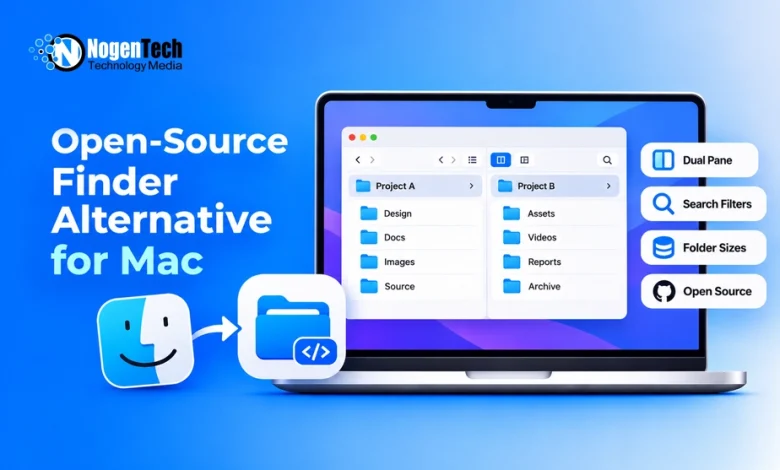
An alternative becomes worth considering when you regularly need a different workflow, such as keeping source and destination folders visible together or inspecting storage usage while browsing.
Write down one recurring problem before comparing apps. “I need to sort client deliverables between two folders” is a more useful starting point than “I want more features.”
Match the Features to Your Actual Work
Use your daily tasks to decide which capabilities deserve attention.
| Your everyday problem | Feature to look for | What to check |
| Moving files between folders takes too much switching | Dual-pane navigation | Whether source and destination stay clearly visible |
| Finding older documents takes too long | Search filters | Whether you can narrow results by name, type, date, or size |
| You cannot easily identify large folders | Folder sizes or a disk-usage view | Whether the information updates and covers the folders you use |
| Renaming batches of files feels risky | Rename preview | Whether you can inspect the proposed names before applying changes |
| Copying files creates confusing conflicts | Clear conflict handling | Whether the app explains what it will replace, skip, or keep |
Do not assume that two apps offering “advanced search” work the same way. Searching filenames is different from searching inside documents, while metadata viewer tools can help you inspect additional file details. Likewise, browsing a cloud folder does not necessarily mean every file is downloaded and available offline.
These distinctions are more useful than broad promises about productivity.
Where Strata Files Fits
One option to consider is Strata Files, a free, open-source file manager for macOS. Its official repository lists an MIT license, dual-pane navigation, indexed search, live folder sizes, and a disk-usage view.
Those features make it relevant if your main problem involves organizing files between folders or understanding where storage space is going. The repository also documents keyboard navigation and batch renaming.
Check compatibility before downloading: the published requirements currently specify an Apple Silicon Mac running macOS 26. An Intel Mac or an older macOS installation therefore would not meet those stated requirements.
The project recommends Full Disk Access for broader searching and folder measurement. Review that permission request against the folders you actually need the app to access.
These are documented capabilities, rather than results from hands-on testing. Use them to decide whether the app deserves a trial with your own workflow.
Check What “Free” and “Open Source” Mean
Free describes the cost. Open source describes the availability of the code under a license that allows specified uses, modifications, and redistribution.
When evaluating a project, check:
- The license: Look for an actual license file, rather than relying only on a marketing description.
- The download: Confirm whether a ready-to-install app is available or whether you must build it yourself.
- Feature restrictions: Check whether the capability you need requires payment.
- Maintenance: Read release notes and recent issue discussions for compatibility problems and fixes.
A public repository gives you more information to inspect, but it does not automatically prove that an app has been independently audited or will remain actively maintained. Pay attention to how the project handles reported problems.
Test the App With a Small Sample Folder
Before using a new file manager for important work, create a temporary folder containing copies of a few documents, images, and subfolders. If you regularly work with screenshots, include a few images captured using snipping tools for Mac to see how the app handles image files.
Try the actions you perform most often:
- Find a file whose name you only partly remember.
- Copy files between two folders.
- Rename a small group and check the results.
- Copy a file into a folder containing another file with the same name.
- Delete a test file and check how recovery works.
The conflict test is especially useful. You should understand what “replace,” “skip,” or “keep both” will do before making a choice.
If you work from an external drive or a synced folder, include that location in your trial. A tool that feels convenient with local documents may behave differently in your usual setup.
Keep Local File Management Separate From Server Access
Organizing files on your Mac and accessing files on a remote server are different requirements.
If your actual goal is working with remote storage through Finder, our guide to FTP access on Mac with CloudMounter covers that workflow. For a Finder alternative, first establish whether you need local organization, remote connections, or both.
Similarly, anyone managing a Windows computer alongside a Mac should evaluate file managers for Windows separately. Platform support and available features should be checked for each machine.
Choose Based on One Noticeable Improvement
After your trial, repeat the task that originally frustrated you. Can you complete it with less window switching? Are search results easier to narrow? Can you tell where files will go before moving them?
If the improvement is clear and the app supports your setup, you have a practical reason to keep using it. If Finder already handles your routine comfortably, there is no need to change just because another app offers more options.