How to Delete YouTube History Whether It’s One Video or Everything
On a computer, go to myactivity.google.com, click YouTube History, then Manage history. Click the X next to any video to remove it, or click Delete to clear a time range. On a TV, go to Settings → Clear watch history.

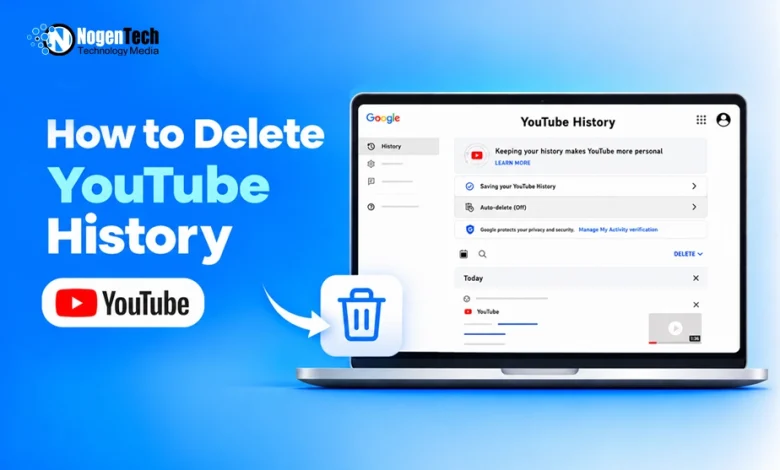
YouTube lets you delete a single video from your history, clear activity from a specific time period, or remove everything through Google My Activity. The changes apply across devices signed in to the same Google Account.
But there’s one catch: deleting your YouTube history can also affect recommendations, especially when the entire history is cleared. So, choosing what to remove matters.
Here’s how to do both on a computer, phone, or TV:
How to Delete YouTube History on Every Device
Your history is tied to your Google Account, so deleting it on one device clears it everywhere you’re signed in.
On a Computer
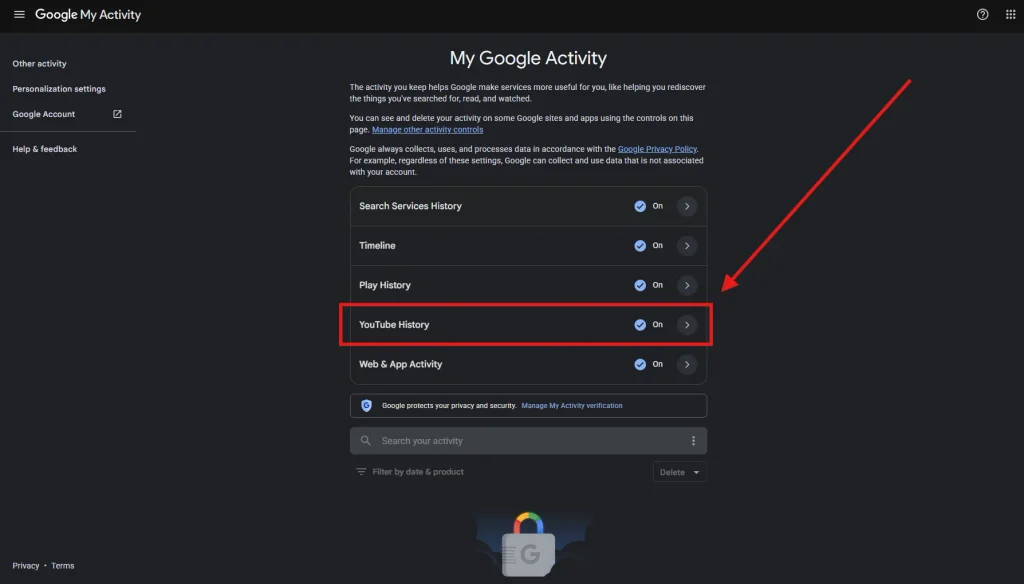
- Go to myactivity.google.com and sign in. Click YouTube History.
- Then Manage history.
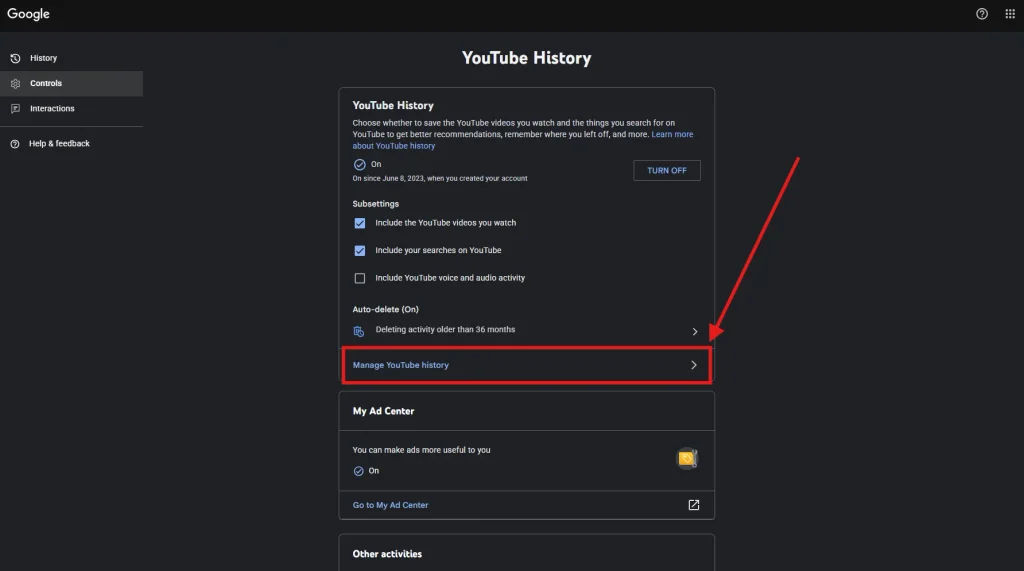
- To remove one video or search, click the X next to it.
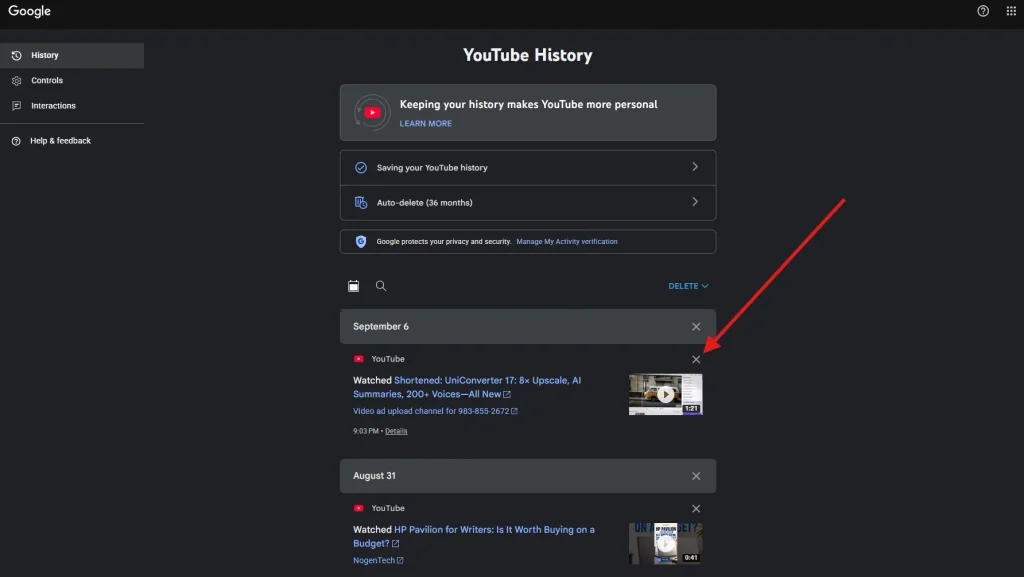
- To remove a batch, click Delete and pick today, a custom range, or all time. Confirm.
Prefer doing it on YouTube itself? Open the menu (three lines, top left), choose History, and use Clear all watch history, or hover over a video and click the X.
On Android
- Open the YouTube app and tap your profile picture.
- Go to Settings → Manage all history.
- Tap the delete icon next to a single item, or tap Delete to clear a time range.
To remove one video fast: tap the three dots next to it in your History list and choose the remove option.
On iPhone or iPad
- Open the YouTube app and tap your profile picture (the You tab).
- Tap View all next to History to see what you’ve watched.
- Tap the three dots next to a video to remove it.
- For bigger cleanups, go to Settings → Manage all history and use Delete.
On a Smart TV or Game Console
- Open YouTube and go to Settings in the left-hand menu.
- Select Clear watch history, then confirm.
Pausing works the same way: Settings → Pause watch history. The change applies to every device on your account.
Just want to delete searches?
In Manage all history, open the Controls tab and uncheck Include your searches on YouTube to stop saving them. Then remove old searches one by one with the X, so your watch history stays put.
Set YouTube History to Auto-delete
Google also lets you automatically delete saved activity after a selected period, so you don’t have to clear your YouTube history manually every time.
- Go to myactivity.google.com and click YouTube History.
- Click Manage history, then Auto-delete.
- Pick 3 months, 18 months, or 36 months, then click Next and Confirm.
At 3 months, YouTube still has plenty of recent viewing to recommend good stuff, and you don’t carry years of history around.
Delete, Pause, or Auto-delete: Which One Do You Actually Need?
YouTube gives you three tools, and they affect how the YouTube algorithm shapes your feed in different ways. Pick before you click.
| Option | What it does | Effect on recommendations | Best for |
| Delete specific videos | Removes only the videos you choose | Those videos stop shaping your feed; everything else stays | Fixing a feed that went off the rails |
| Delete a time range / all | Clears watch and search history for that period | Your feed starts over and feels generic for a while | A fresh start, or a privacy cleanup |
| Pause (turn off) history | Stops saving new watches and searches | New viewing doesn’t affect your feed; with little history, the home feed can disappear | Shared devices, private viewing |
| Auto-delete (3, 18, or 36 months) | Deletes older history on a schedule | Recent viewing keeps your feed sharp | Most people, set-and-forget privacy |
Our take: for most people, the winning combo is auto-delete at 3 months plus deleting the odd bad video when your feed gets weird. You can also block unwanted YouTube channels from recommendations without clearing your history. Full wipes and pausing are heavier tools than they look.
Paused Your History and Now YouTube's Homepage is Blank?
You didn’t break anything. This is on purpose.
Since August 2023, YouTube has turned off home feed recommendations for people who have watch history off and little or no past history.
This shows how strongly AI recommendation engines depend on viewing activity to personalize content. You still get the search bar, your subscriptions, and the side menu. But the main page of suggested videos just… isn’t there.
That catches a lot of people off guard, especially right after a full wipe plus a pause. To get your feed back:
- Turn watch history back on (History → Turn on watch history, or the Controls tab in My Activity).
- Watch a handful of videos you genuinely like.
- Set auto-delete to 3 months if privacy was the reason you paused in the first place.
If you’d rather keep history off, that’s fine too. Just use Subscriptions as your home base. Some people actually like the distraction-free YouTube.
Shared device? Use Incognito Instead of Deleting Later
If your kids, partner, or roommate use your YouTube account, deleting after the fact gets old fast. A few smarter options:
- Incognito mode (mobile app): Tap your profile picture and turn on Incognito. Nothing you watch or search is saved to your history.
- Pause on the TV only when needed: Pausing applies across your whole account, so turn it back on afterward or your phone’s feed suffers too.
- Give kids their own space: A supervised account or YouTube Kids keeps their cartoons out of your recommendations entirely.
FAQs
Does deleting YouTube history delete it on all my devices?
Yes. Your history lives in your Google Account, so deleting it on your phone clears it on your laptop and TV too, as long as you’re signed in to the same account.
Can I see what I watched after deleting it?
No. Once you delete it, it’s gone from your history. Google doesn’t offer an undo.