Still opening different websites every time you need to convert a PNG to WebP?
I used to do the same whenever I had an image that needed to be uploaded to a website to boost web-loading speed. The process wasn’t difficult, but going through online converters again and again started to get annoying.
A graphic designer colleague of mine noticed this while I was working and suggested a Chrome extension called Save Image As Type. Honestly, using it felt like a relief.
But I tend to experiment with any tool I’m introduced to, so I started testing it myself. While doing that, I found two simple ways to convert PNG to WebP without repeatedly switching between converter websites.
Next, I’ll show you both methods being implemented on my own picture: one using ChatGPT and another directly in your browser without using a third-party website.
How to Convert PNG to WebP Using ChatGPT and a Chrome Extension
For the first method, you’ll need your PNG image, ChatGPT, and the Save Image As Type Chrome extension.
The extension adds format options to Chrome’s right-click menu and currently supports saving images as WebP, PNG, JPG, and other formats.
I used my photo for this example so you can see exactly where the options appear.

Paste Your PNG Image Into ChatGPT
Start by copying the PNG image you want to convert and pasting it into a ChatGPT conversation.
You don’t need to ask ChatGPT to edit or change the image, and your data isn’t uploaded to ChatGPT servers. The purpose here is simply to get the image into the chat so you can open it in your browser.
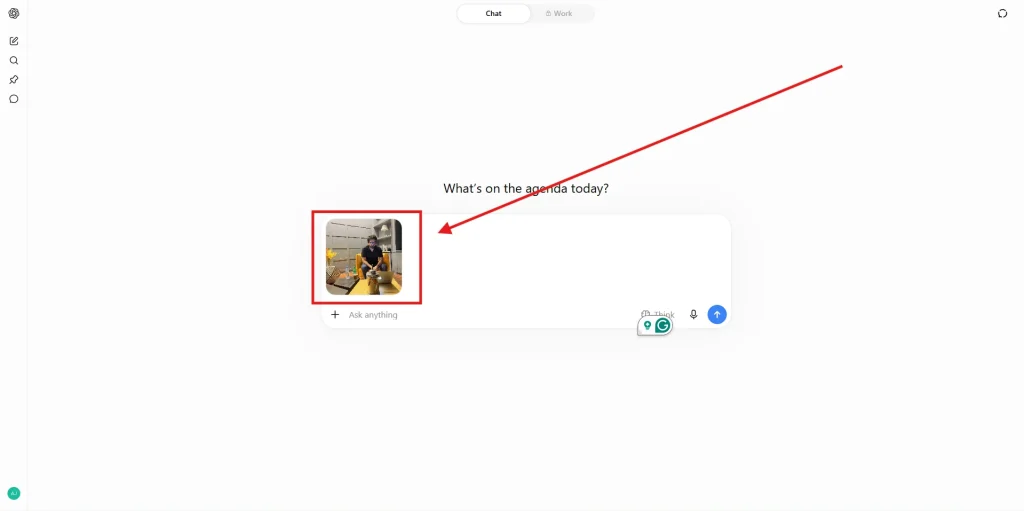
Once the image appears in the conversation, you can move on to the next step.
Install the Save Image As Type Chrome Extension
Open the Chrome Web Store and install the Save Image As Type extension.
The extension adds image-format options to Chrome’s context menu, allowing you to choose a format such as WebP when saving an image.
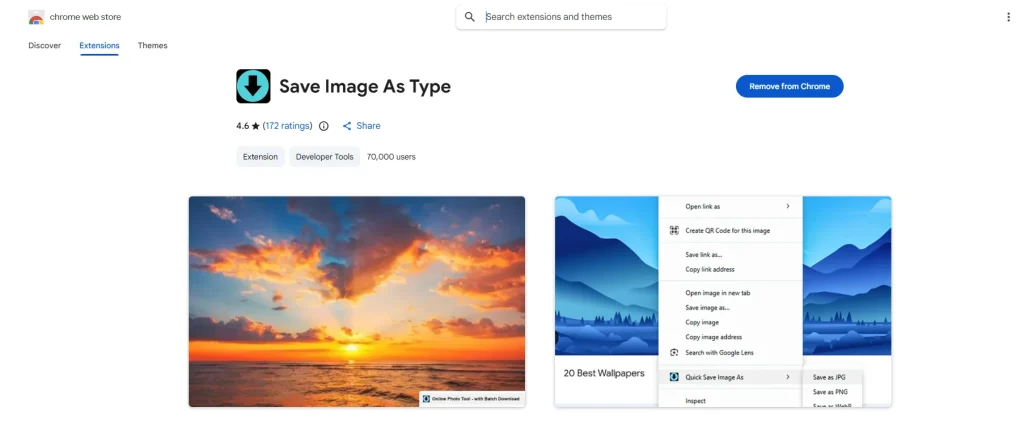
After installing it, you don’t need to open a separate converter or configure a complicated setting. The option appears when you right-click a supported image.
Open the Image in ChatGPT and Start the Conversion
Go back to the ChatGPT conversation where you pasted your PNG.
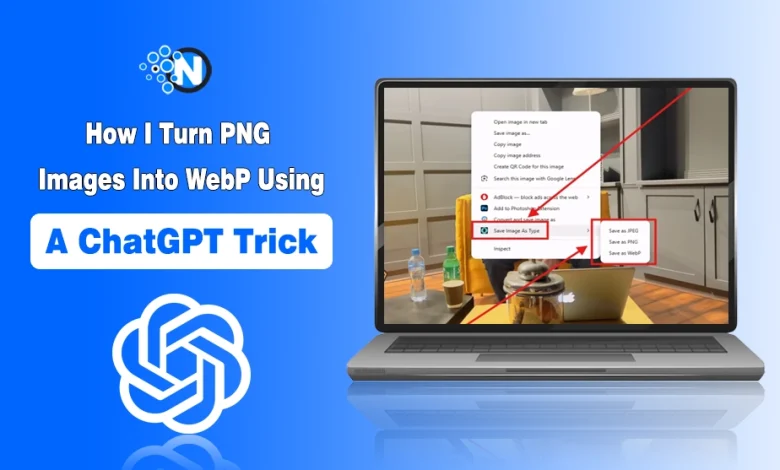
Left-click the image to open it. This gives you the image in a larger view, where you can use Chrome’s normal image context menu. After that, right-click the opened image.
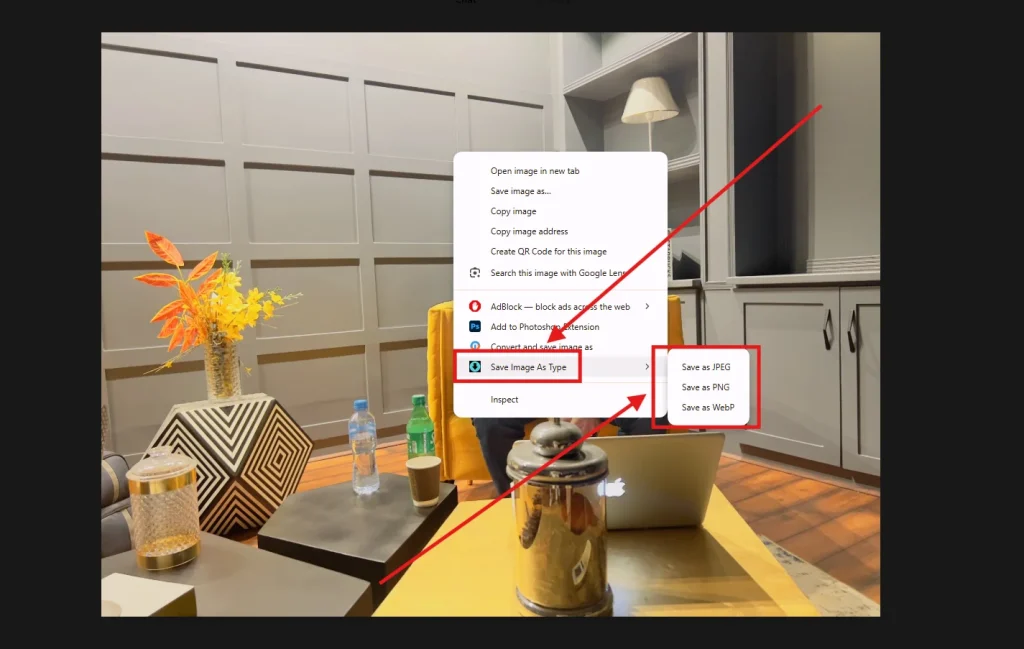
You should see Save Image As Type in the context menu. Move your cursor over it, and a submenu will appear with different image formats.
Chrome will then save the converted image to your computer.
That’s all you need to do. There is no need to upload the PNG to another conversion website, wait for a conversion page to process it, and then download the result.
How to Convert PNG to WebP Directly in Your Browser
The ChatGPT method is useful when the image is already in your conversation, but you don’t actually need ChatGPT for the conversion itself.
If the PNG is already saved on your computer, you can open it directly in a browser and use the same extension.
This is also the method I’d use if ChatGPT stopped allowing me to upload more images during a session.
Open the PNG Image in Chrome
Find the PNG image on your computer and open it with a browser such as Chrome. On Windows, you can right-click the image, choose Open with, and select Google Chrome.
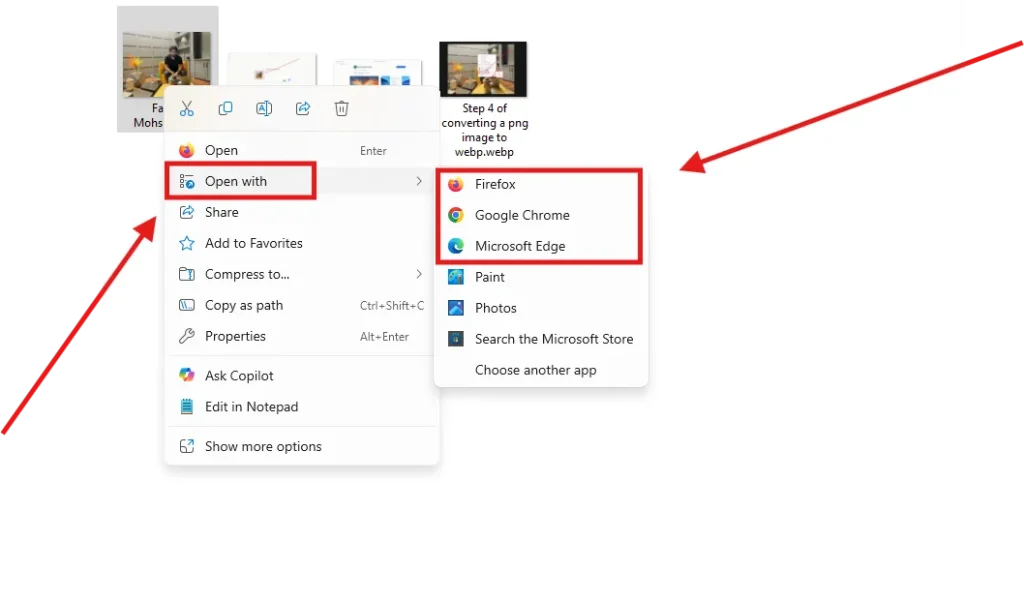
The image should then open in a Chrome tab.
Right-Click the Image
Once the PNG is open in Chrome, right-click anywhere on the image. Look for Save Image As Type in the context menu.
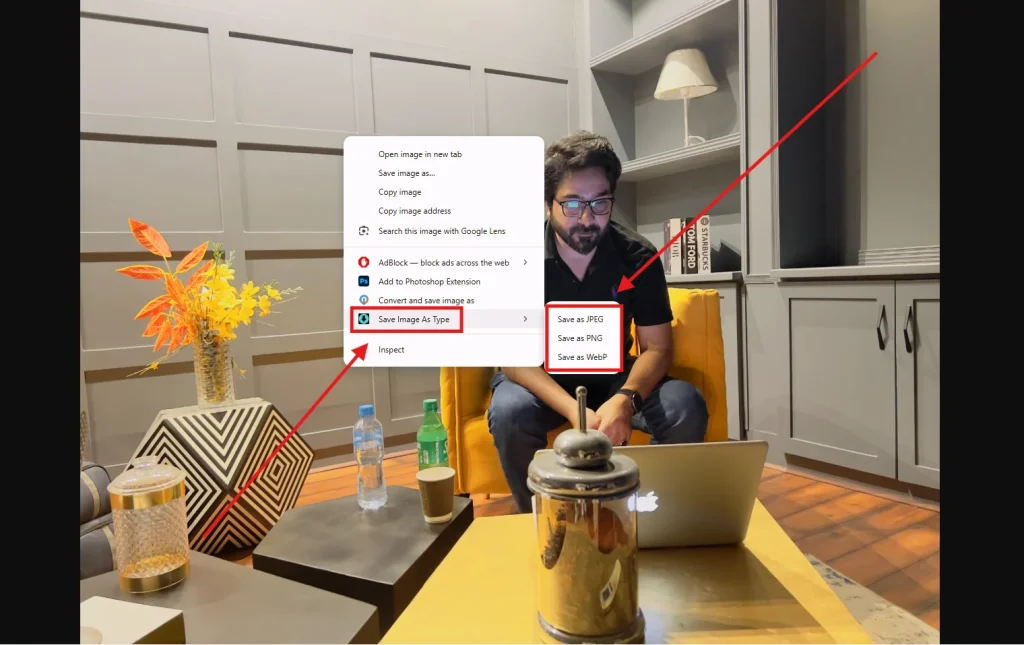
Move over that option to open the available formats. From the submenu, select Save as WebP. Chrome will convert the image and save the WebP version to your computer.
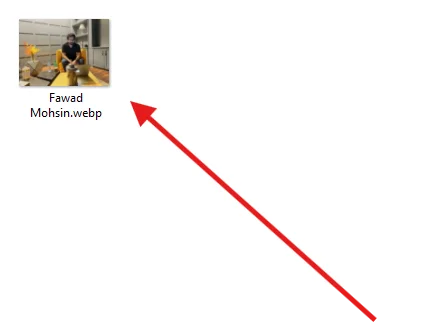
You now have a .webp version of your original PNG that you can upload to your website.
Which PNG-to-WebP Method Should You Use?
Both methods do the same basic job, so the choice mainly depends on where your PNG image is located.
If the image is already in a ChatGPT conversation, the first method is convenient because you can open the image there and convert it without first saving another copy to your computer.
If the PNG is already saved on your computer, skip ChatGPT and use the second method. Open the image directly in Chrome, right-click it, and save it as WebP.
I prefer the second method when the image is already on my computer because there are fewer steps involved.
Does Converting PNG to WebP Reduce Image Quality?
It can, depending on how the image is converted and the settings used.
For ordinary website images, WebP can provide a smaller file while maintaining good visual quality. But if the image contains fine details, text, or transparency that you want to preserve carefully, it’s worth checking the converted file.
I’d also recommend keeping the original PNG until you’ve checked the WebP version. That way, you can always convert it again if the result isn’t what you expected.
WebP also supports transparency, so converting a PNG does not automatically mean that a transparent background has to be removed.
Frequently Asked Questions Users Usually Ask More About WebP Format
Can I Convert PNG to WebP for Free?
Yes, you can use the Chrome extension to convert supported images to WebP from the browser. However, the current Chrome Web Store listing notes that free usage limits may apply to some users, with continued unlimited use potentially requiring a paid upgrade.
Can I Convert PNG to WebP Without an Online Converter?
Yes. The Chrome extension adds the conversion option directly to Chrome’s right-click menu, so you don’t need to upload the image to a separate online converter.
Can I Convert PNG to WebP in Chrome?
Yes. After installing a suitable image-format extension, you can right-click a supported image in Chrome and choose the WebP option from the extension’s menu.
Does WebP Support Transparent Backgrounds?
Yes. WebP supports transparency, which makes it suitable for many PNG images that use transparent backgrounds.
Can I Use the Converted WebP Image on My Website?
Yes. Once the WebP file has been downloaded, you can upload it through your website’s media manager or CMS just like other supported image files. Before publishing, it’s a good idea to check that the image displays correctly.
Final Thoughts: Converting PNG to WebP Doesn't Have to Be Complicated
When I first looked at the usual PNG-to-WebP conversion process, most methods involved opening an online converter, uploading the image, waiting for it to process, and downloading the result.
The Chrome extension method is much simpler if you only need to convert an image occasionally.
With Save Image As Type installed, you can right-click a supported image, choose the format you want, and download it directly from Chrome.
Just remember to check the converted WebP before uploading it to your website, especially if the original PNG contains transparency, text, or other details where image quality matters.