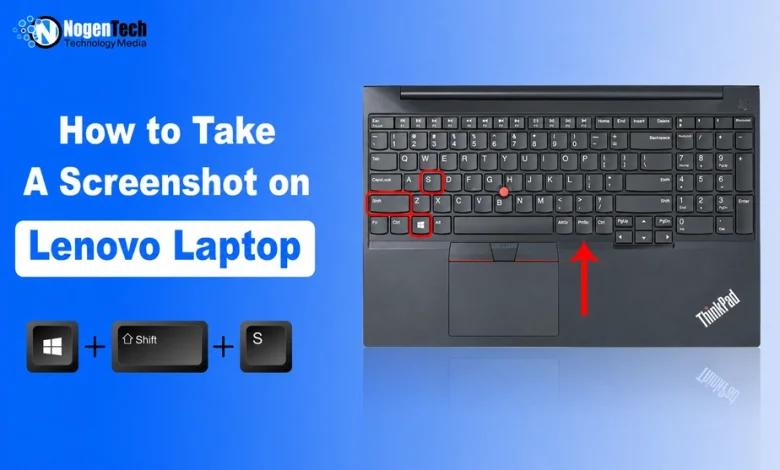
Need to take a screenshot on your Lenovo laptop? One key can capture the whole screen.
If you need to capture a specific window, select an area, or have more control over the screenshot, Windows also gives you other shortcuts and built-in tools.
I use these options on my Lenovo ThinkPad E15 Gen 2, which I also tested in my Lenovo vs HP laptop comparison, so neither you nor I need to install a third-party app just for screenshots.
You can simply choose the method that fits what you want to capture.
Five Simple Ways to Capture Your Lenovo Screen
1. Use PrtScn to Capture the Full Screen
If you want a quick copy of everything visible on your screen, just press PrtScn on your keyboard.
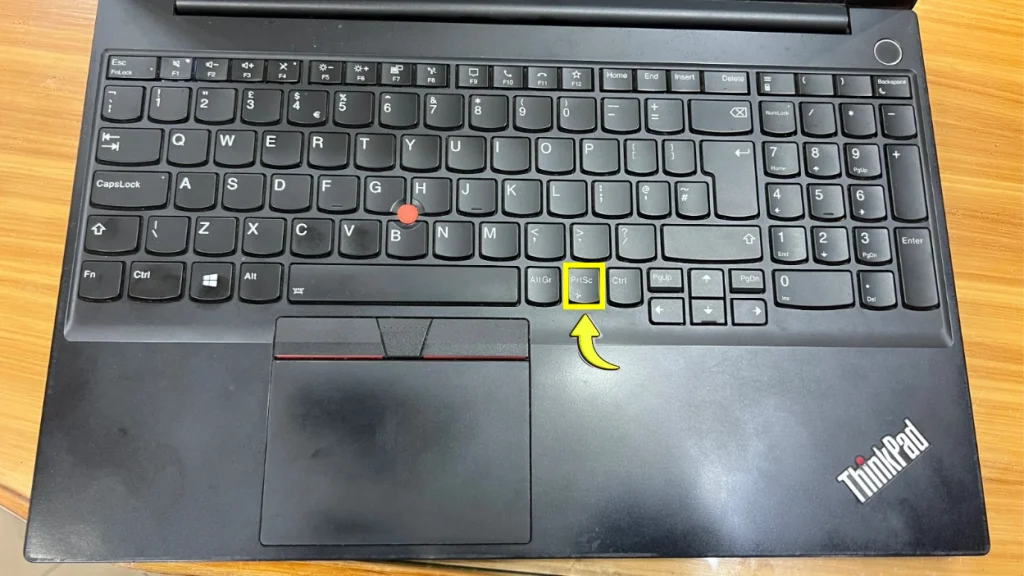
The screenshot is now taken and automatically copied to your clipboard. You can paste it anywhere you want, like a document, WhatsApp, or to someone, etc.
We’ve also made a short video showing how to take a screenshot on Lenovo using the PrtScn key. Watch the quick tutorial here:
Note: On some Lenovo keyboards, you may need to press Fn + PrtScn because the Print Screen function shares a key with another function. Lenovo’s support documentation explains how the Print Screen function works on its keyboards.
2. Use Windows + PrtScn to Save It Automatically
If you want Windows to save the screenshot for you, press Windows + PrtScn. Windows saves the image automatically in the Pictures > Screenshots folder on your laptop.
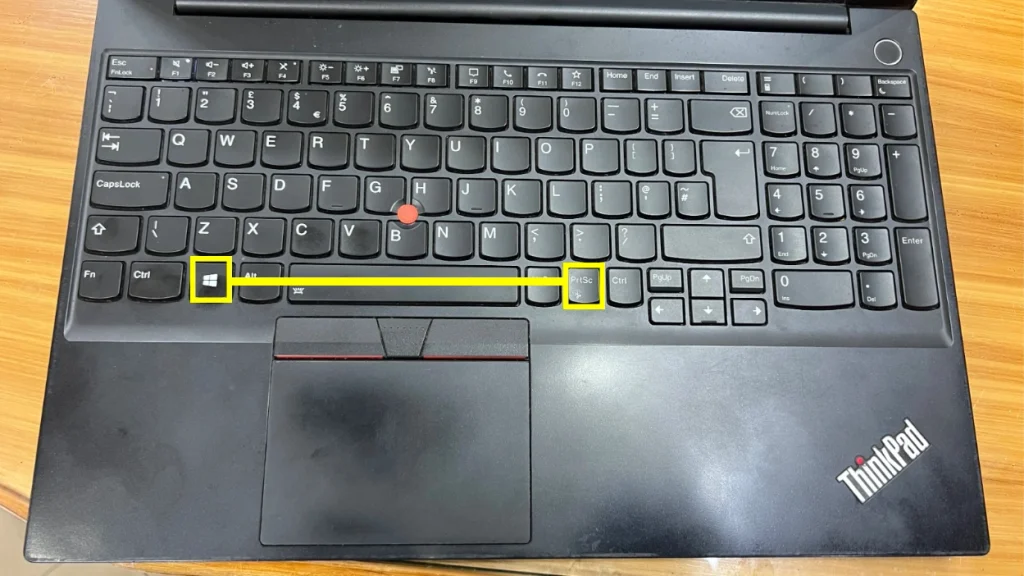
I prefer this when I know I’ll need the screenshot later because there is no extra pasting or saving step.
3. Use Alt + PrtScn for One Window
You don’t always need a screenshot of your entire desktop. To capture only the window without including the taskbar, you just press Alt + PrtScn.
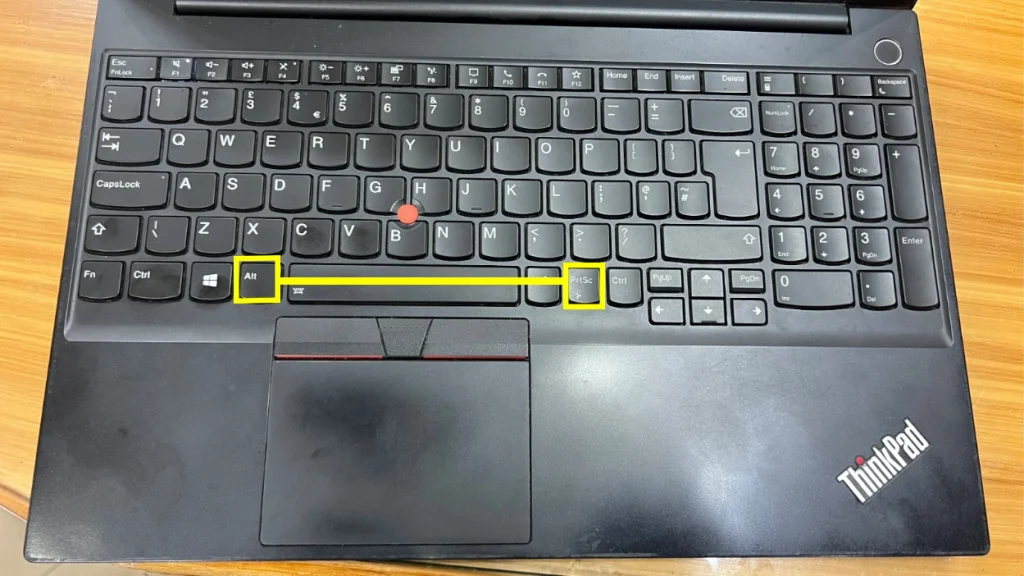
Then paste it with Ctrl + V into Paint, Word, or another compatible app and save it manually from there.
4. Use Windows + Shift + S for Part of the Screen
When I only need a specific section, this is usually my go-to method. It’s a double-duty thing that I sometimes use for the entire screen as well as a part of the screen.
Press Windows + Shift + S, and the screen will dim. You can then select the area you want to capture.
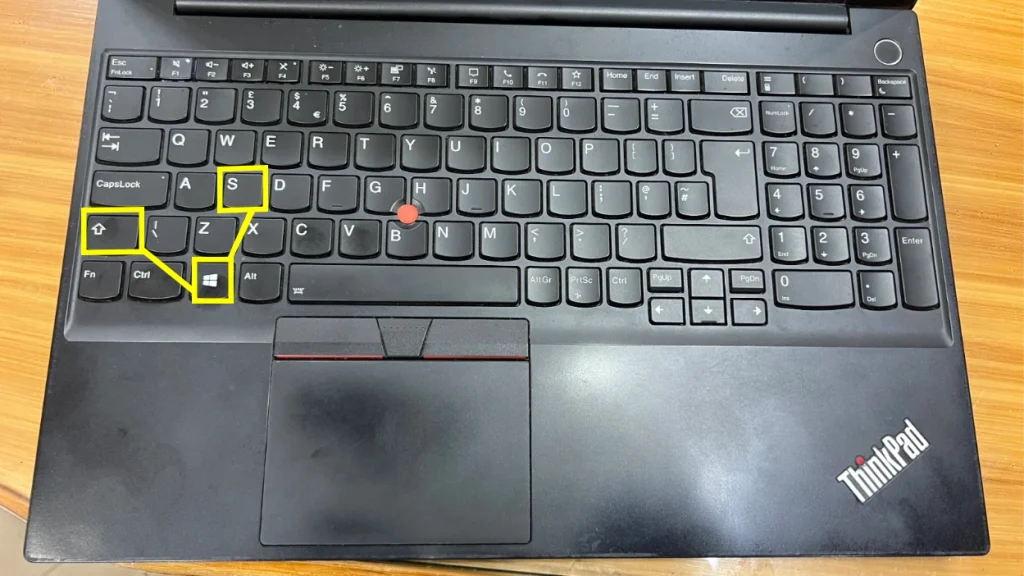
Windows copies the screenshot to your clipboard, so you can paste it directly into another app.
5. Use Snipping Tool for More Control
For screenshots that need a little more control, I use the Windows Snipping Tool.
- Open Snipping Tool from the Windows Start menu and click New.
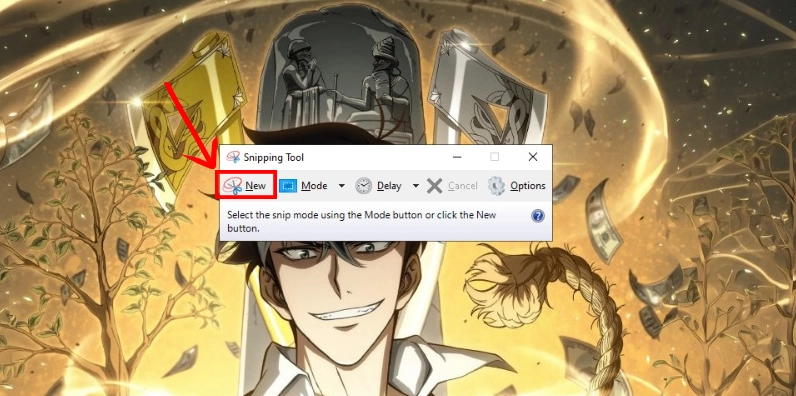
- Select the area you want to capture, and it will take the screenshot.
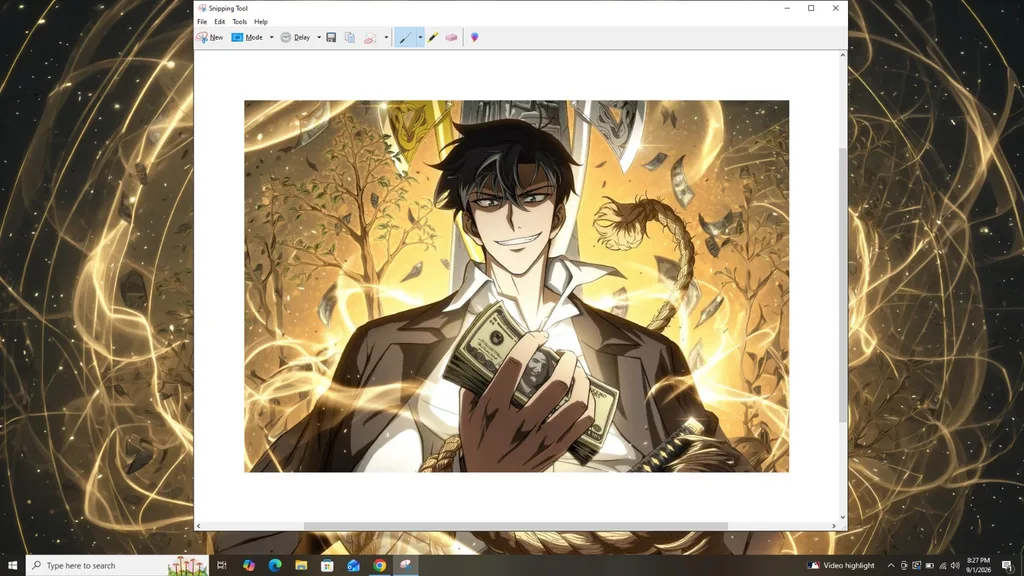
- Edit and save the screenshot.
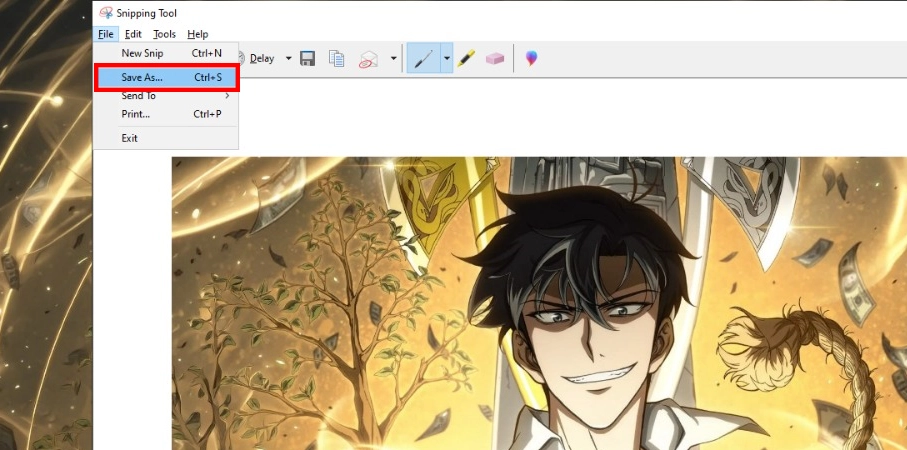
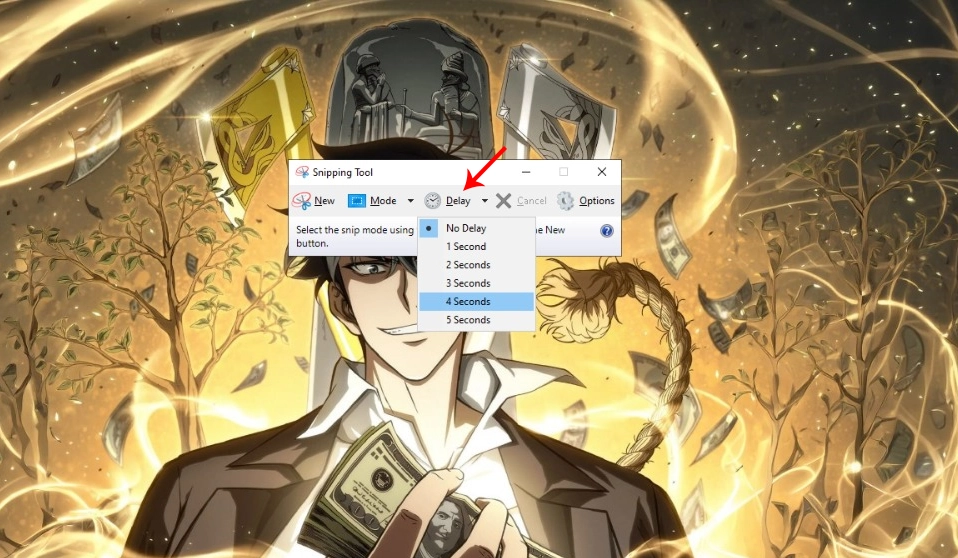
Windows 11 and newer versions offer more editing and customization options than Windows 10. The tool also supports delayed screenshots, so you can set a short timer, open the menu or screen you want, and then capture it.
These methods also work if you want to take a screenshot on an HP or Dell laptop as well.
Which Lenovo Screenshot Method Should You Use?
| What you want | Best method |
| Copy the full screen quickly | PrtScn |
| Save the full screen automatically | Windows + PrtScn |
| Capture one window | Alt + PrtScn |
| Capture a specific area | Windows + Shift + S |
| Edit or delay a screenshot | Snipping Tool |
What If Your Screenshot Key Does Not Work?
If PrtScn isn’t working, try these quick checks:
- Try Fn + PrtScn if your Lenovo uses a shared function key.
- Try Windows + Shift + S to see if other screenshot options work.
- Restart your laptop and try the key again.
- Check whether the key works for any other function assigned to it.
If it still doesn’t work, it may be a keyboard issue. You can check your Lenovo laptop warranty to see if it’s covered and eligible for repair or support.