Control Panel Won’t Remove an App? How to Force Uninstall with IObit Uninstaller 16
If the Control Panel won't remove a program, IObit Uninstaller 16 lets you use Force Uninstall+ to remove stubborn apps and clean up leftover files and registry entries.

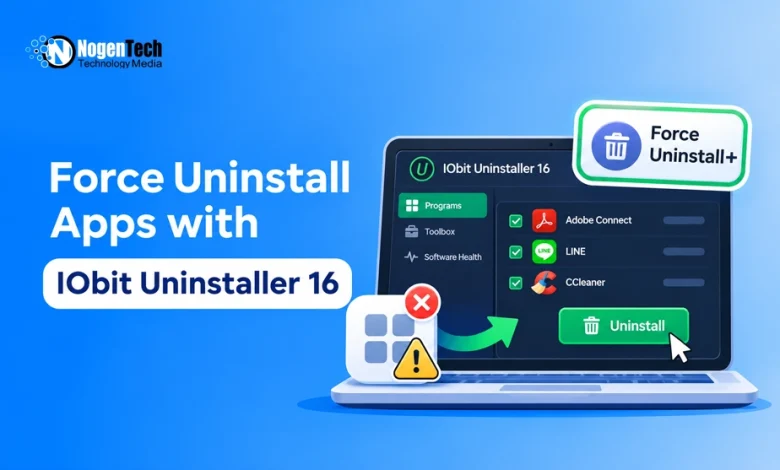
Sometimes, Windows Control Panel fails to uninstall a program, leaving the app installed, consuming storage, or running background processes. This usually happens because of damaged uninstall files, incomplete updates, or software conflicts.
IObit Uninstaller 16 offers several ways to handle these problems, including batch removal, Force Uninstall+, Stubborn Program Remover, and leftover cleanup.
Here’s how these features work and what to consider when removing stubborn Windows programs.
Why Control Panel Gives Up on Some Apps
Control Panel typically relies on the uninstaller provided by the app’s developer. If that uninstaller is missing, damaged, or blocked by a running process, removal may fail. Broken registry entries and incomplete updates can also cause problems.
Even successful uninstalls may leave behind folders, registry entries, and cache files. A dedicated Windows uninstaller can help identify and remove these leftovers as part of regular computer maintenance.
First Look at IObit Uninstaller 16
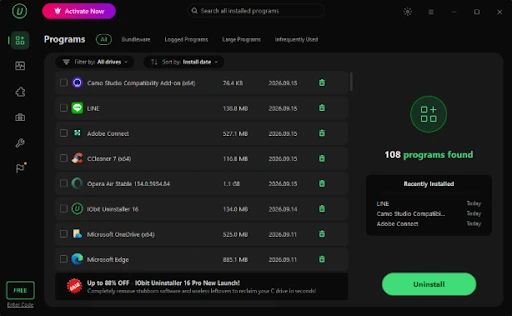
The free edition of IObit Uninstaller 16 provides a Programs tab displaying installed applications, their sizes, and installation dates.
When installing utilities, choosing trusted software download platforms can also help reduce the risk of unwanted bundled applications.
In the supplied example, the dashboard listed 108 installed programs, with a Recently Installed section for identifying newer applications.
Useful filters include:
- Bundleware: Identify bundled applications.
- Large Programs: Find software consuming significant storage.
- Infrequently Used: Locate applications that are rarely opened.
These filters make it easier to identify unused applications and remove digital clutter without reviewing every installed program individually.
Step-by-Step Guide: How to Force Uninstall with IObit Uninstaller 16
Step 1: Try the Standard Removal First
Start with the regular uninstall option in IObit Uninstaller before using more aggressive removal tools.
In the example, three programs were selected:
- Adobe Connect
- LINE
- CCleaner
The right panel displayed 3 selected programs totaling 831.6 MB. Batch uninstall allowed the programs to be processed without starting a separate removal for each one.
After clicking Uninstall, the removal window processed the selected applications.
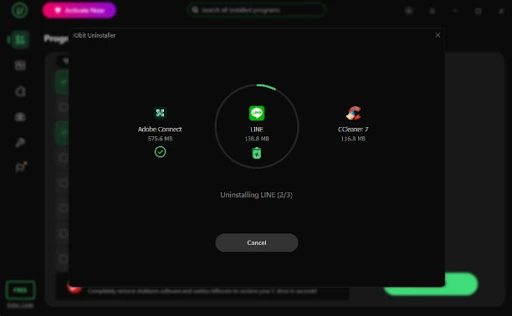
The summary screen reported:
- 2 programs removed
- 5 registry entries identified
- 831.6 MB of associated files reported
These figures reflect the example removal session rather than guaranteed results for every user.
Microsoft recommends using the built-in Windows uninstall options through Settings, the Start menu, or Control Panel before exploring alternative removal methods.
Step 2: Use Force Uninstall+ When Nothing Else Works
If standard removal fails, open the Toolbox in IObit Uninstaller 16.
The Toolbox includes several utilities:
- Force Uninstall+
- Install Monitor
- Software Updater
- File Shredder
- Windows Updates Uninstall
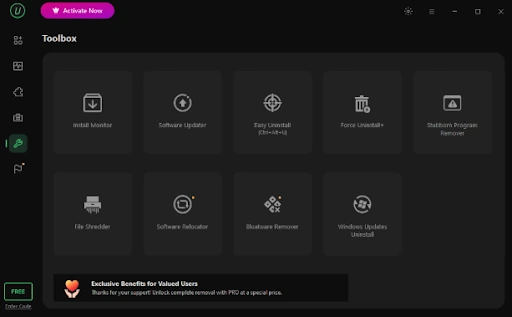
According to the official IObit Uninstaller user manual, Force Uninstall+ can remove programs affected by missing uninstall registry information or errors in their built-in uninstallers.
Force Uninstall+ is designed for programs that cannot be removed normally because of missing uninstall information or errors in their built-in uninstallers.
To use it:
- Open Toolbox and select Force Uninstall+.
- Browse to the affected program’s main file or installation folder, or drag it into the tool.
- Confirm that the selected location belongs to the correct application.
- Follow the removal prompts to identify and remove the program and related leftovers.
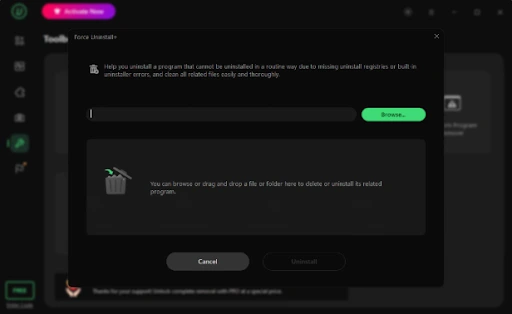
Important: Close the application completely, including any system tray processes, before attempting removal. Creating a Windows restore point beforehand is also recommended because forced removal can affect program files and registry entries.
Step 3: Check the Stubborn Program Remover
Another Toolbox feature is Stubborn Program Remover, which provides a searchable database of applications known to resist standard removal.
The supplied example displayed:
- 38 entries in the official remover list
- 4,083 supported titles in the larger database
- Limited database access in the free edition
The larger database was presented as a PRO feature in this example.
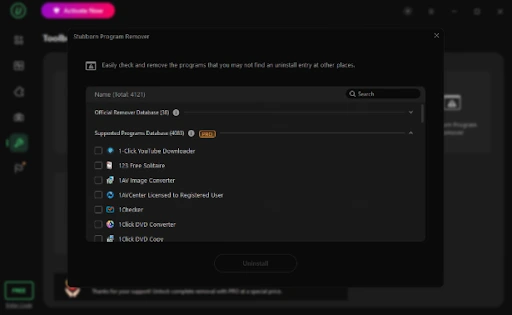
This tool is worth checking when the affected program appears in its supported database.
Step 4: Clean Up with Software Health
After removing the unwanted applications, Software Health can scan for remaining issues and unnecessary files. In the example, the scan identified 116 issues, including:
- 110 redundant files
- 1 uninstallation leftover
- Additional issues in other categories
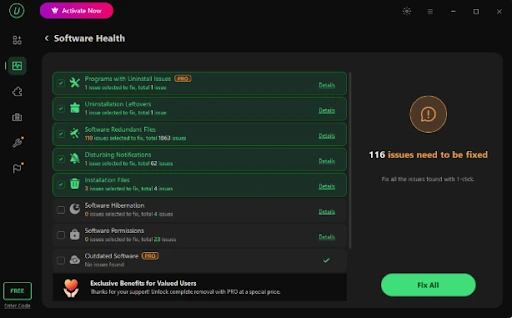
Using Fix All reportedly resolved 114 issues. Some checks, including certain uninstall-related functions, were marked as PRO features, leaving a small number unresolved in the free edition.
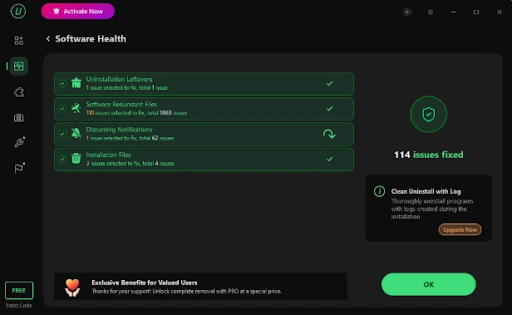
Review detected items before applying fixes, particularly when registry changes or file removal are involved.
What to Consider Before Force Uninstalling a Program
A few precautions can make the process safer and more manageable.
- Start with standard removal: Use the regular uninstall option before Force Uninstall+.
- Check selected programs: Review application names and sizes before confirming batch removal.
- Create a restore point: Keep a recovery option available before forced removal.
- Review leftover files: Avoid deleting shared folders or registry entries without checking their purpose.
- Understand Free vs. PRO limitations: Some advanced cleanup functions and database features may require the paid edition.
These steps help reduce the risk of accidentally removing important files or affecting other applications.