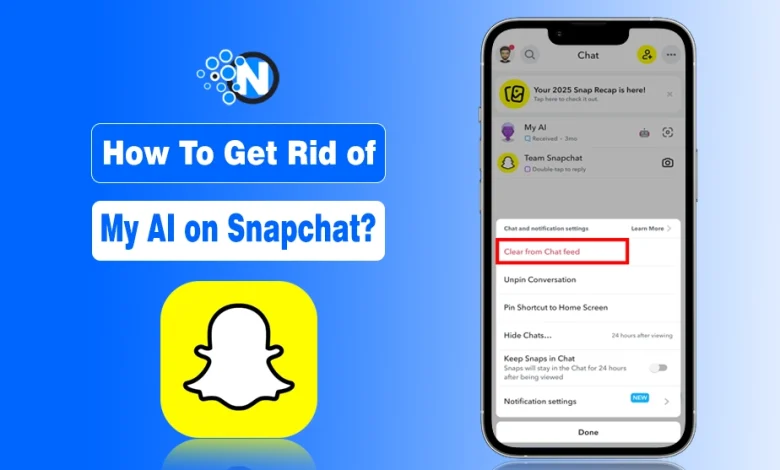
Want to remove My AI from your Snapchat feed? While you can’t delete Snapchat’s My AI entirely, you can hide it from your chat list. Long-press My AI, go to Chat Settings, and press Clear from Chat Feed.
In 2026, Snapchat finally made it easier for everyone, whether on standard plans or having Snapchat Premium, to hide the chatbot from their feed.
While you cannot “uninstall” the feature entirely from the app’s code, you can remove it from your sight and wipe the data it has collected.
How to Get Rid of My AI on Snapchat in 2026?
There could be various concerns behind your removing My AI from your chat list, like:
- You want it gone from your list entirely (Clear Chat Feed)
- You just want it to stop being pinned at the top (Unpinning)
- Privacy concerns (Clearing My AI data/Unlinking location)
Whatever the reason is, the detailed steps are below for getting rid of My AI on Snapchat through different methods:
1. Remove My AI from Your Chat Feed (Fastest Way)
In the 2026 UI, the “Clear from Chat Feed” option on Snapchat is now the universal way to hide the bot.
- Open Snapchat.
- Swipe right to your Chat Screen.
- Long-press on “My AI” (or tap and hold).
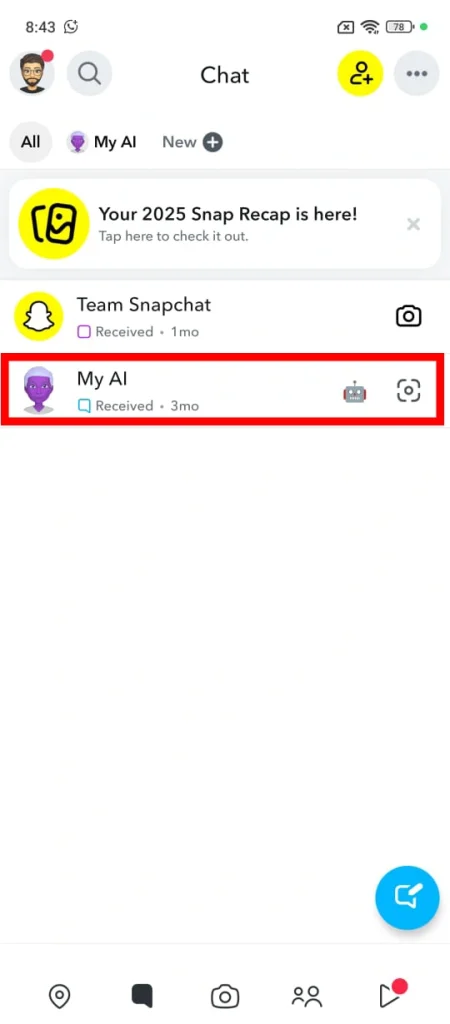
- Select Chat and Notification Settings from the pop-up menu.
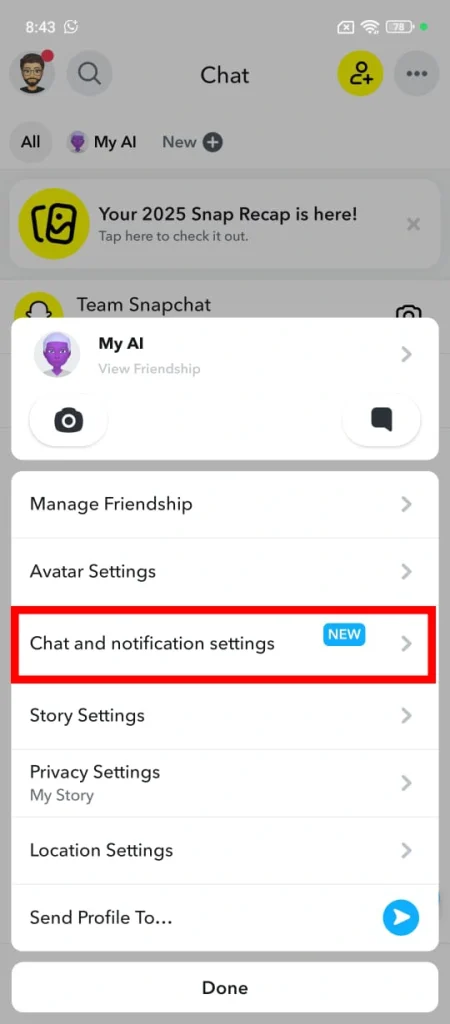
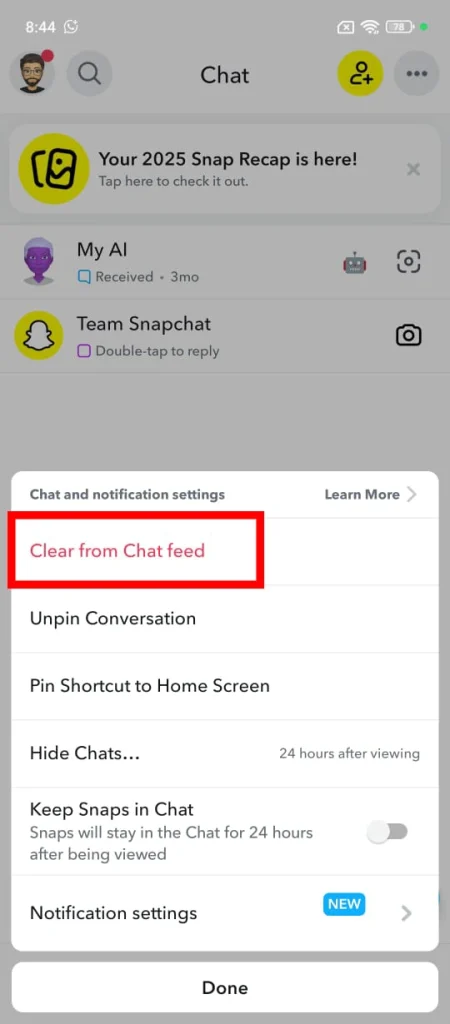
- Tap Clear from Chat Feed.
- Confirm by tapping Clear.
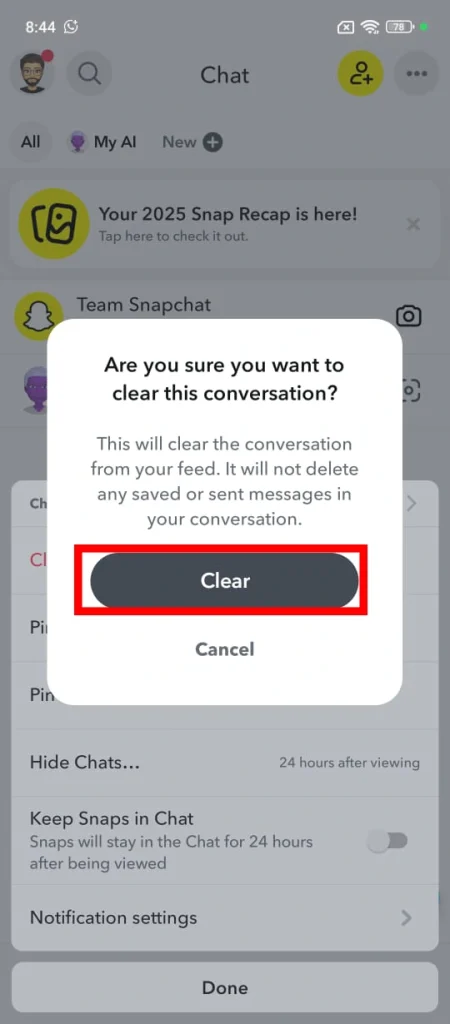
Result: The bot will instantly disappear from your conversation list. It will only reappear if you manually search for “My AI” and send it a new message.
2. Unpin My AI (Keep the chat, lose the “Top” spot)
If you don’t mind the My AI bot on the chat list of your Snapchat profile but hate that it’s always stuck at the top of your friends list, follow these steps:
- Long-press the My AI chat in your feed.
- Select Chat and Notification Settings.
- Tap Unpin Conversation.
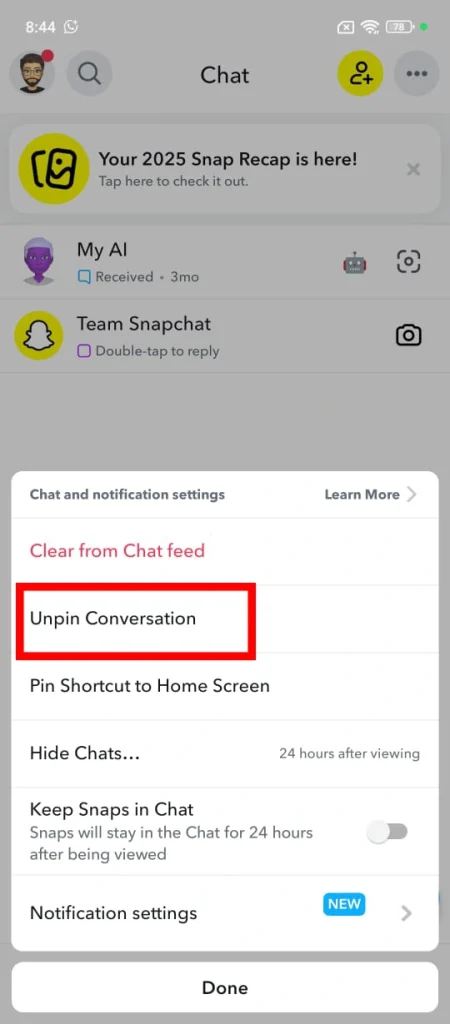
Result: My AI will now move down the list like a normal friend, organized by the most recent message received.
3. Delete Your My AI Data (Privacy Step)
Simply hiding the My AI doesn’t delete the information the AI has learned about you. To wipe the slate clean:
- Tap your Bitmoji/Profile icon (top-left).
- Tap the Settings (Gear icon) in the top-right.
- Scroll down to Privacy Controls of snapchat (iOS) or Account Actions (Android).
- Select Delete My AI Data.
- Confirm the deletion.
Pro Tip: This removes your past interactions and location history from the AI’s memory, but it may take up to 30 days to fully process on Snapchat’s servers.
Is it Necessary to have Snapchat+ to Remove My AI on Snapchat?
No, you don’t specifically need Snapchat+ for removing My AI on Snapchat in 2026.
In the earlier version of Snapchat, the option to unpin or remove My AI was limited to Snapchat+ users, who had to get the paid version for their account. For standard Snapchat users, there was no option to get rid of Snapchat, except for avoiding it or muting the Chat.
However, Snapchat updated its features, which now allow even standard Snapchat users with free accounts to unpin My AI on Snapchat.
How to Access My AI on Snapchat After Removing it?
If you accidentally deactivated My AI but would like to bring it back to Snapchat for a short period, here is how you can do it.
- Open the Snapchat application.
- Swipe right to open the Chat Feed.
- Click on the pencil icon to start a new chat.
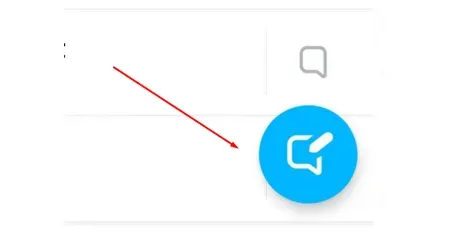
- From your contact list, select My AI and start chatting with it.
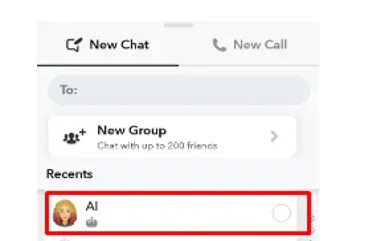
- My AI will again appear in your chat feed.
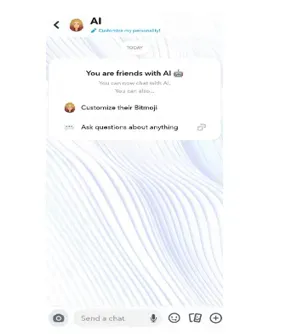
- You can also access the search bar in Snapchat to access My AI.
- Simply type ‘My AI’ in the search bar, and it will show Snapchat’s AI right away.
Final Thoughts
Getting rid of My AI on Snapchat in 2026 is about reclaiming your digital space. Whether you are a free user or a Snapchat Plus subscriber, you no longer have to tolerate a pinned chatbot cluttering your feed.
When you use the “Clear from Chat Feed” and “Delete My AI Data” features, you can effectively hide the bot and protect your privacy. While Snapchat continues to integrate AI into its core experience, these simple manual overrides put the control back in your hands.
Keep this guide bookmarked for the next time any app update resets your preferences!
People Also Ask
Is it possible to completely get rid of My AI from Snapchat?
No. It is not possible to permanently delete My AI from Snapchat. It is a built-in feature and you have to get along with it. However, unpinning it or deleting the chat is possible. It is discussed above.
Can I stop My AI from viewing my stories?
Yes. You can block My AI from watching your stories. This thing can be done through privacy settings. A complete process has already. Make sure to follow it.
Is my personal information safe with My AI?
Yes. Your personal information is safe with My AI according to Snapchat’s privacy policies. Regardless of this, we recommend not sharing any sensitive information with the bot.
Can this bot be removed from chat by reinstalling the application?
No. This AI chatbot isn’t going to go even after you reinstall the application. The only option for you is the methods we’ve discussed above.
Can I report the chat I have with My AI?
Yes. You can report the chat you have with My Ai. This option is useful when the bot isn’t responding properly.