How I Checked My Lenovo Laptop’s Battery Health
Chrome acting weird or a website won’t load properly? Its true that clearing the right cookies can fix it fast and this does not even require wiping passwords, history, or everything else.

A Lenovo laptop looks completely fine until its battery starts giving you a hard time. And when that happens, checking its battery health can tell you how much life it actually has left.
That’s what happened with my brother’s Lenovo laptop. He told me the battery was draining faster than usual, and that instantly reminded me of something.
Back in August, I used the same laptop to show you guys how I did a Lenovo warranty check. Bad news: the warranty had expired. I told you guys, but not him; I knew he’d hit me with, “Let’s just get a new laptop then.” Yeah, my wallet wasn’t ready for that.
So before this turns into a new-laptop situation, I’m checking the battery health myself. Stick around, and check yours too you don’t want an unexpected expense hitting your wallet later.
First Method Using Lenovo Vantage (Easiest One for Me)
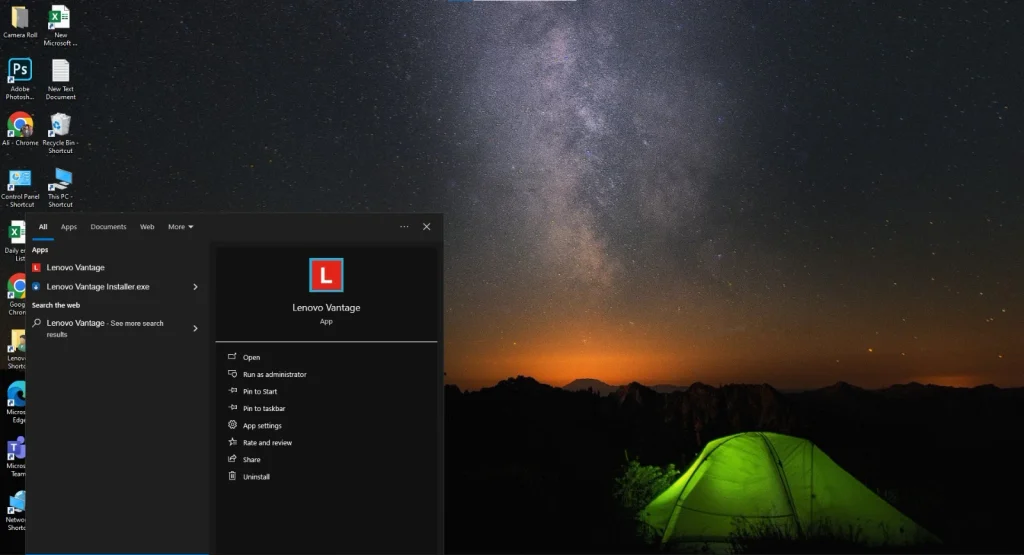
The first method I’d suggest, and Lenovo also officially tells you to do, is using Lenovo Vantage. You might already have it installed, but if not, just install it. I didn’t have it either, so I installed it, and it worked perfectly for me.
- Open Lenovo Vantage. I couldn’t remember where mine was, so I just searched for it from the taskbar.
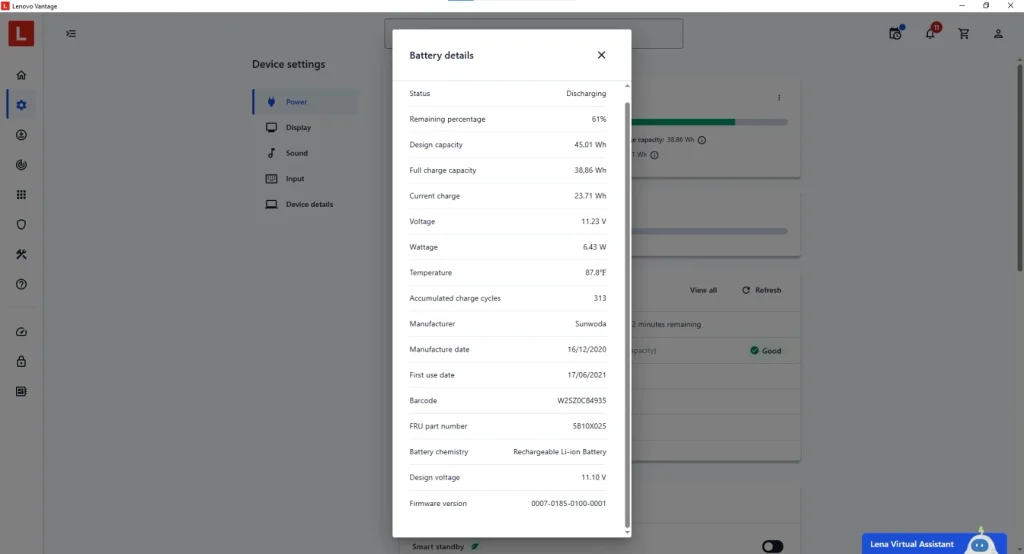
- Go to Device Settings > Power, and you’ll see your battery temperature, health status, capacity, and other details.
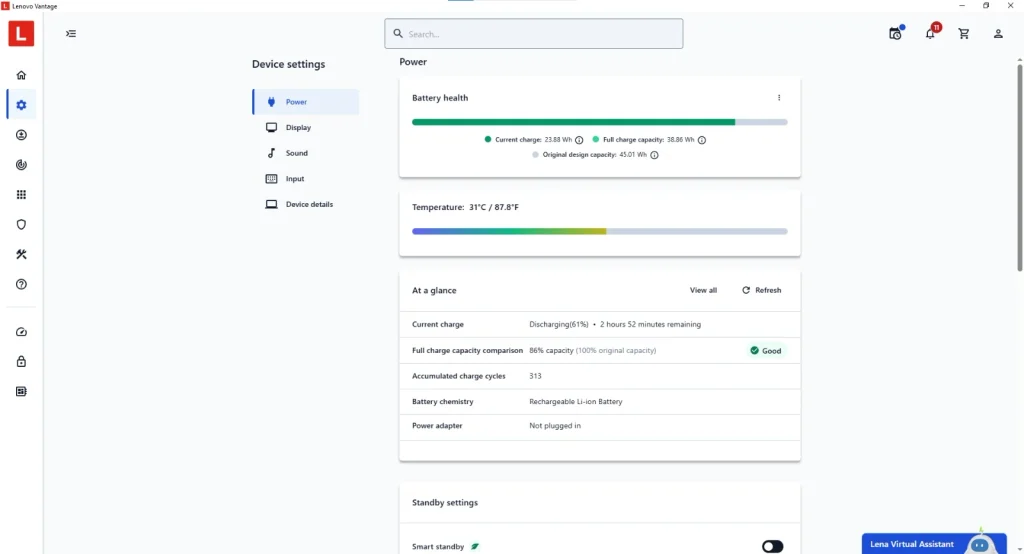
- For the full picture, click View All under the “At a Glance” section.
And that’s it. However, one thing I discovered while doing this was the Battery Gauge Reset. Scroll down to the charging section, and you’ll find it there.
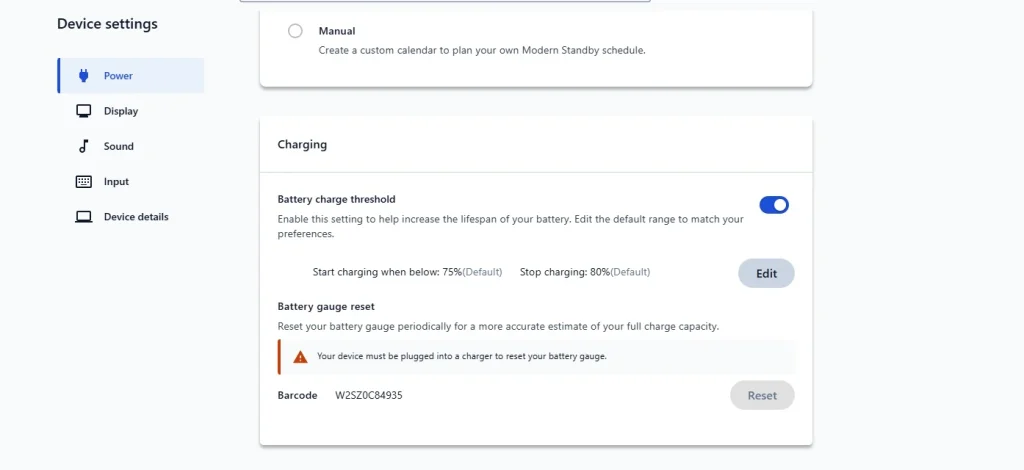
Lenovo says using this feature periodically can help improve the battery’s lifespan. I had no clue about this either, so I’ve just enabled it myself. Let’s see if it actually helps.
Bro, I was actually a little relieved when I checked mine. The full charge capacity is 38.86Wh, while the original design capacity is 45.01Wh, so that leaves me with around 86% battery health.
And that’s not bad at all. Usually, once it drops below 80%, that’s when the battery starts showing its age. Mine is still above that, so thankfully, things aren’t looking as bad as I thought.
Second Method Using Command Prompt (Felt Some Tricky 😅)
Okay, I’ll be real with you the first method was way easier. With this one, halfway through I was like, “Bro, what am I even doing?” But if Lenovo Vantage doesn’t work for you, this method can save the day.
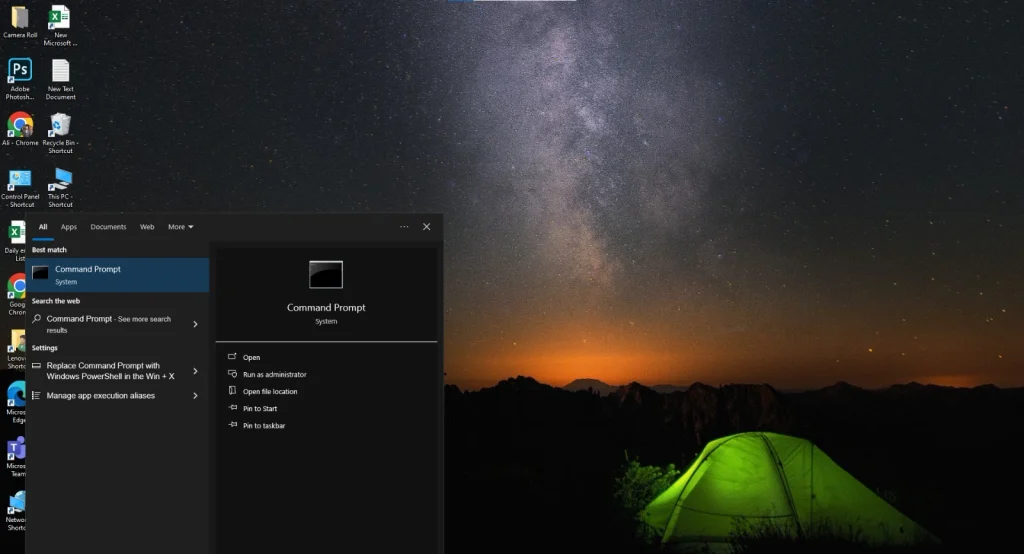
- Search for Command Prompt from the taskbar, right-click it, and select Run as administrator.
- Then type: “powercfg /batteryreport”
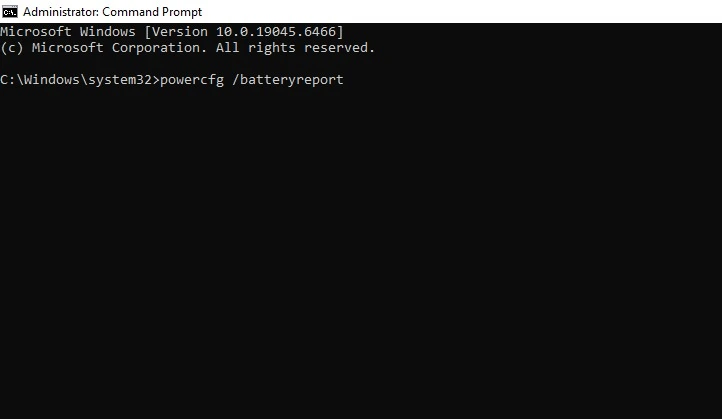
- Hit Enter, and it’ll give you the location of an HTML battery report, probably somewhere on your C drive.
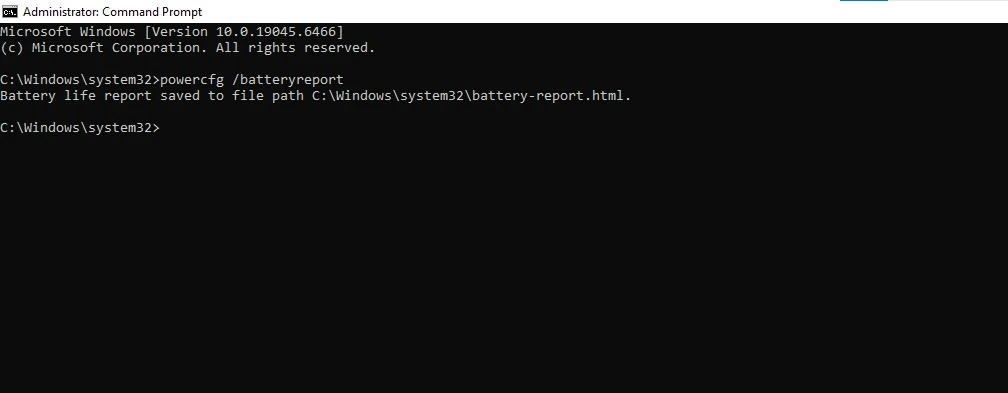
- Do some hard work and open that location in File Explorer, find the file, and open it in your browser.
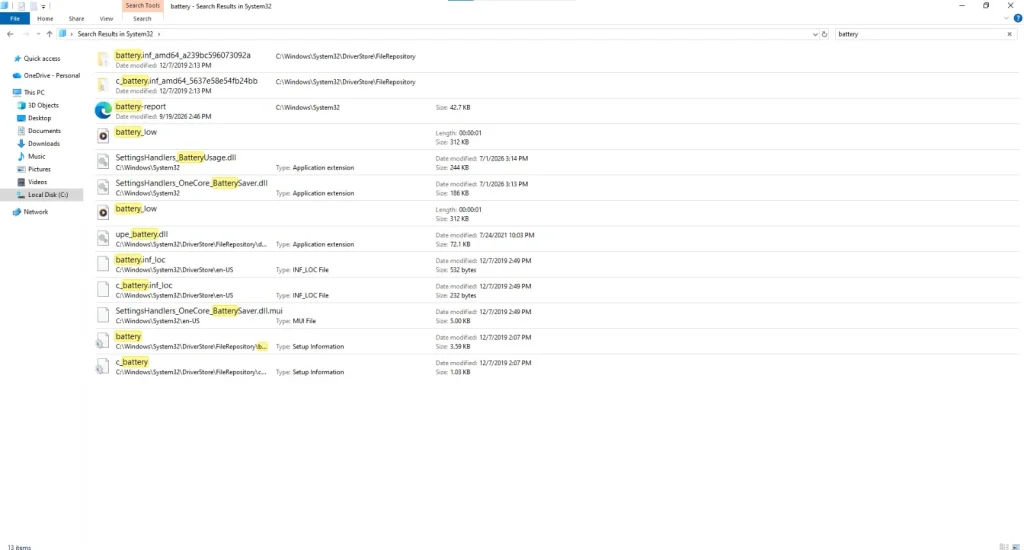
- You’ll get all the battery details there.
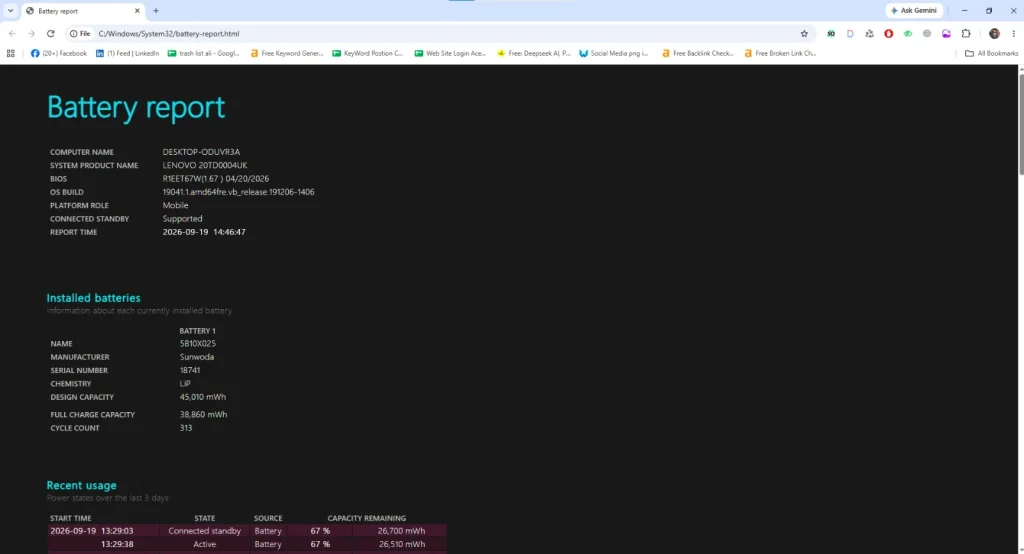
Yeah, it takes a little digging, but when nothing else works, you take what you can get. I actually found this method on ASUS’s website and then saw something similar in Microsoft’s guide, so I gave it a shot. Surprisingly, it worked perfectly fine on my Lenovo too.
Either way, my brother’s battery is still doing okay, so thankfully, we can squeeze a few more days out of this laptop.
Third and Last Method I Used: Third-Party Tool
Let’s be fair, the Command Prompt report is probably more trustworthy than any third-party tool. But there’s a reason I tried this one.
Whenever I take a laptop in for repairs, I’ve noticed the guy uses a tool called BatteryInfoView to check battery health. So I thought, if repair guys actually use it, why not give it a shot myself?
- BatteryInfoView is provided by Nir Sofer on the official NirSoft website.
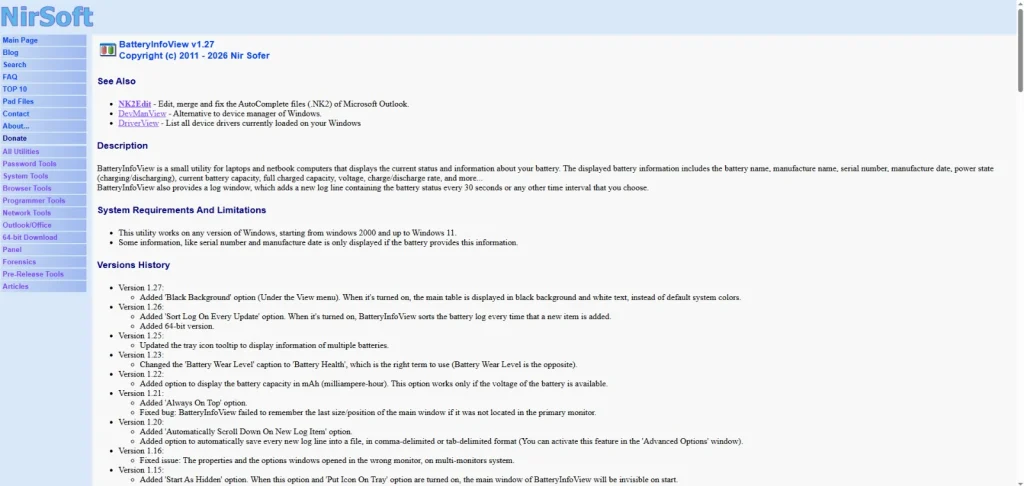
- Just open the site, scroll down, and you’ll find the download option for your OS.
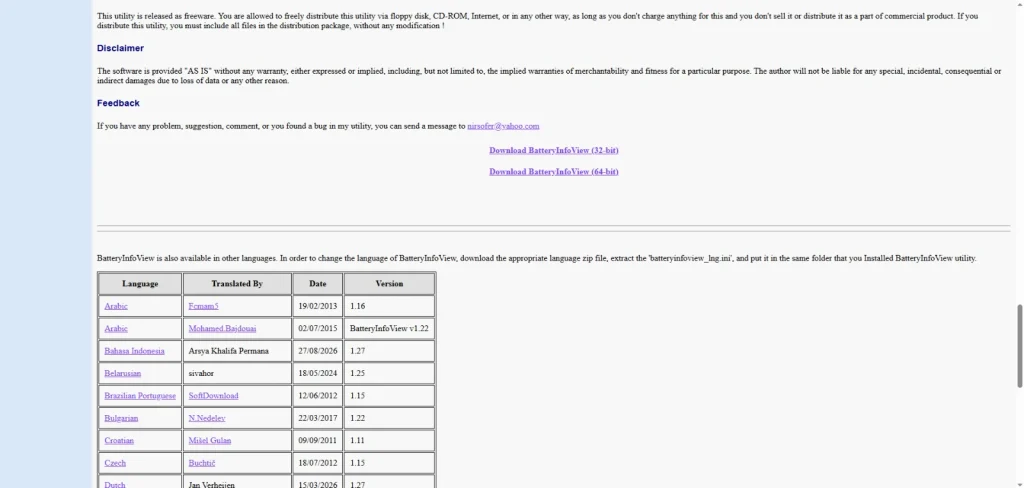
- It downloads as a ZIP file, and there’s really nothing complicated here. Open it, find the application file, right-click it, and hit Run.
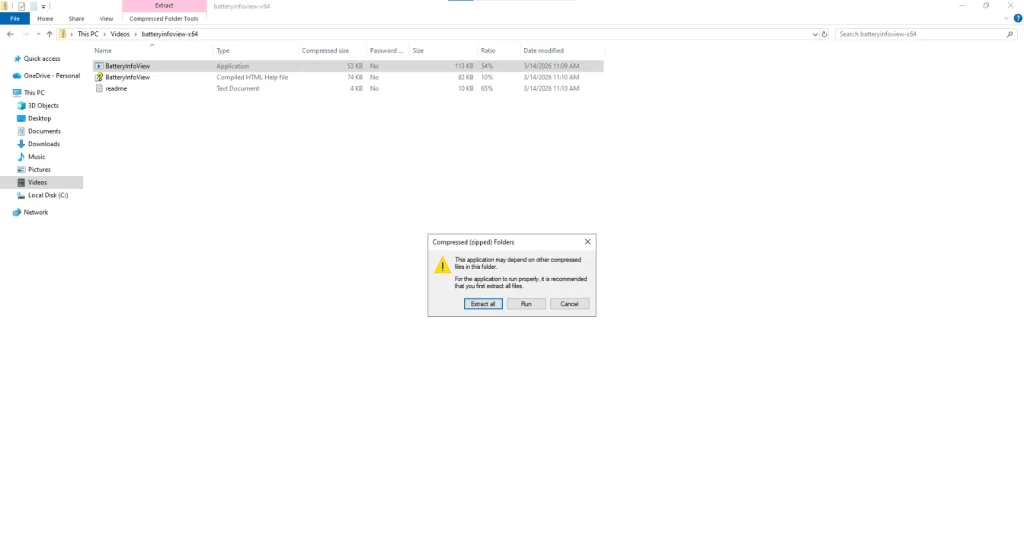
- Your battery details should pop up right away.
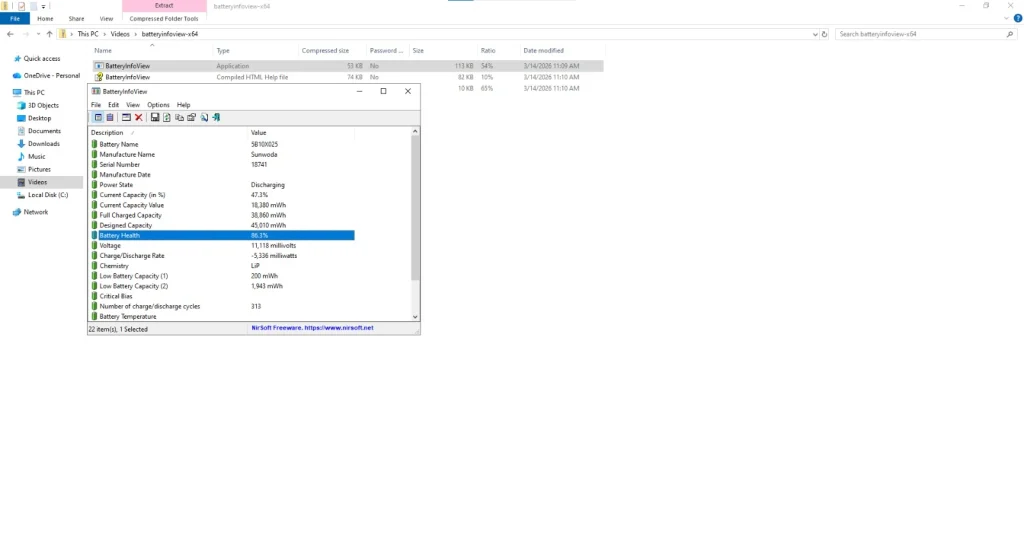
Luckily, it showed almost the same battery health as the other methods. So yeah, I’m done checking it over and over. The battery is fine, my brother’s laptop can keep going, and my wallet gets to survive another day.
After all this, here’s a quick video showing the process: