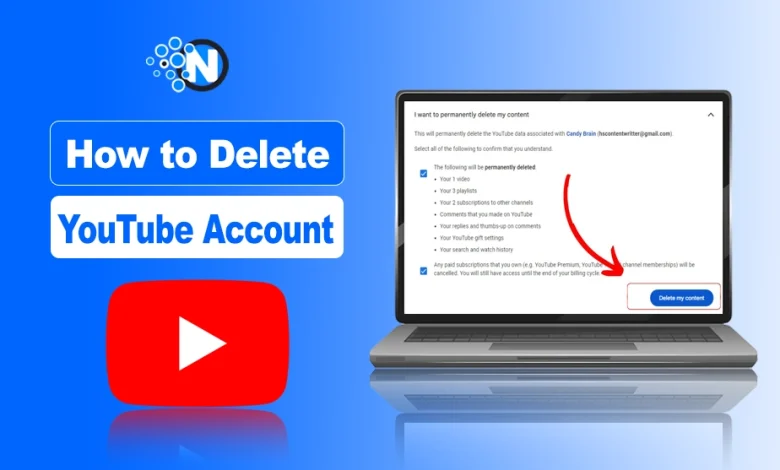
Deleting a YouTube account permanently removes your channel from your Google account, including all videos, comments, playlists, and subscribers.
YouTube doesn’t let you delete an account separately from Google; you can only deactivate or hide your channel while keeping your Google account active.
I once realized my old YouTube channel no longer served a purpose. It was full of outdated videos, random uploads, and inactive subscribers. Like many, I wanted a fresh start and more control over my online presence.
If you’re in the same situation, deleting your YouTube channel can help simplify your online life, stop content creation, or protect your privacy.
Here, I will give you a step-by-step method on exactly how to delete a YouTube account safely on PC, Android, or iPhone.
Steps to Delete a YouTube Account on PC
Start creating Verdict in seconds, and convert more of your visitors into leads.
Follow these steps on your PC to permanently delete your YouTube channel from your account.
- First of all, open YouTube on your browser and head to your profile in the upper right corner
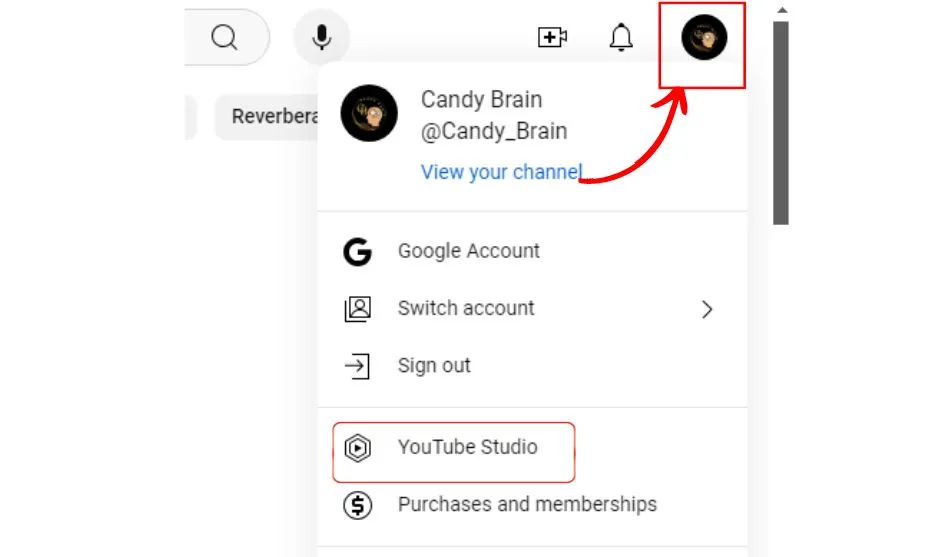
- After that, click on YouTube Studio to open the studio settings.
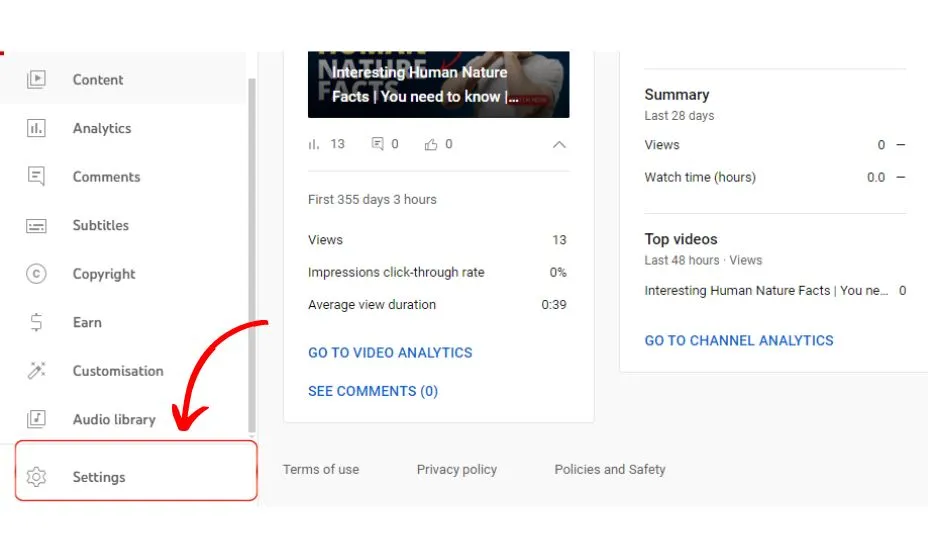
- From settings, choose Channel and then tap on Advanced Settings
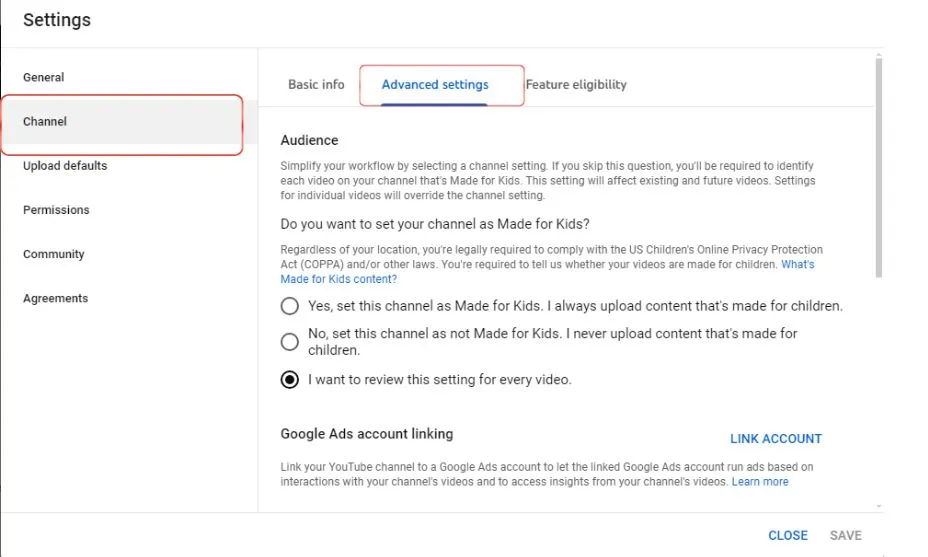
- Scroll Down and Click on “Remove YouTube Content”
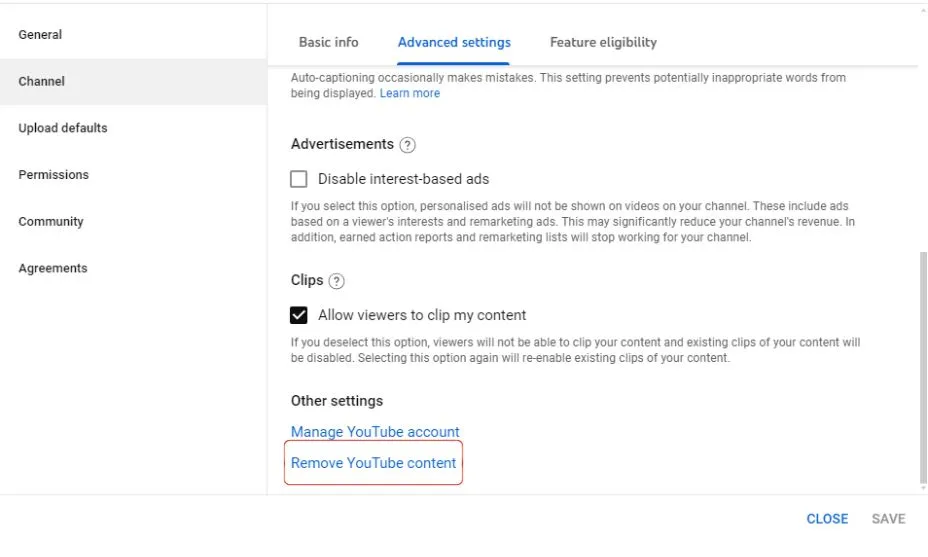
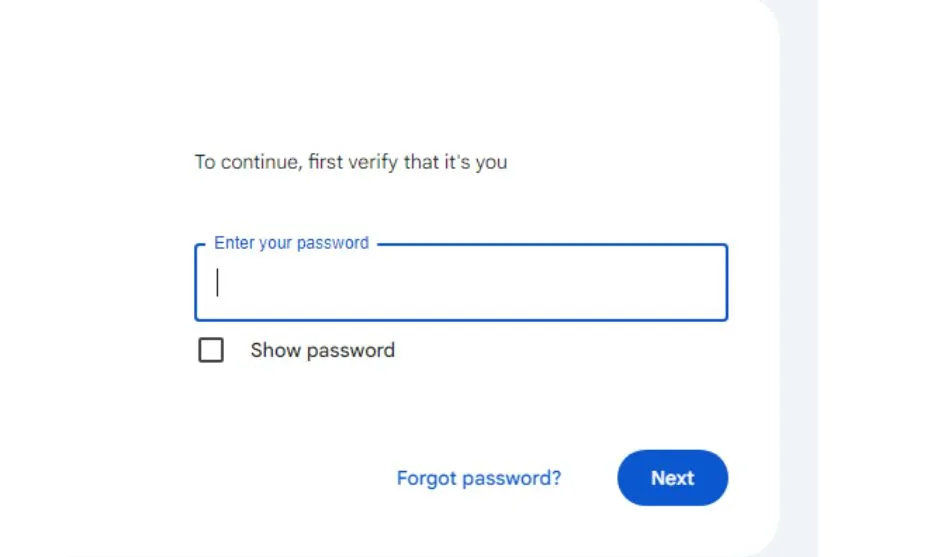
- A new Tab will open, and you will be prompted to enter the Password for security.
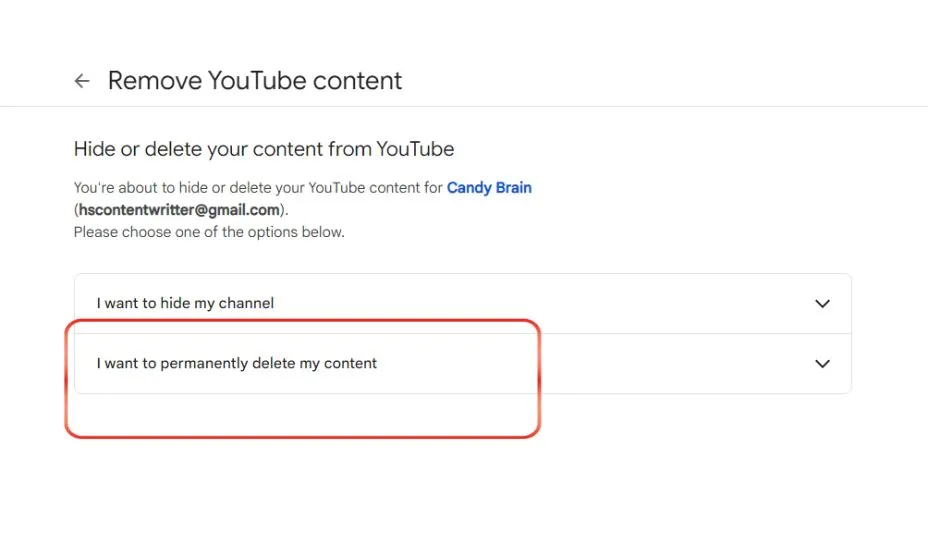
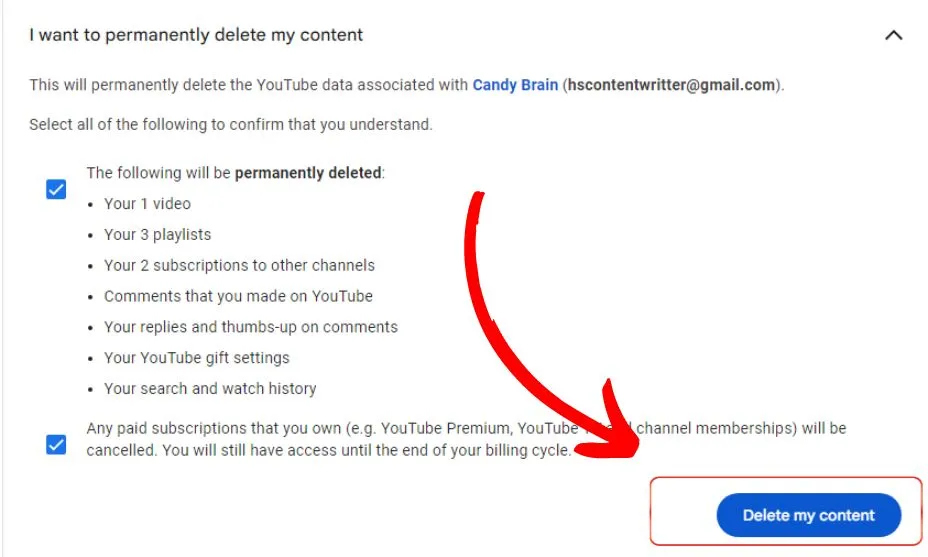
- Here, click on “I want to permanently delete my content”
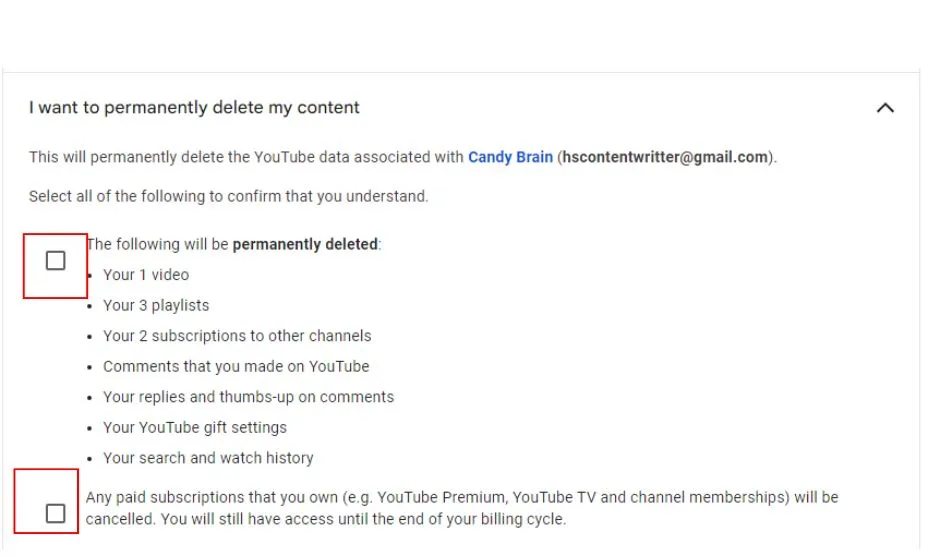
- Now, click all the boxes to ensure you are willing to delete your account
- At the end, click on “Delete My Content” to confirm and delete the YouTube channel.
How to Delete a YouTube Account on Android
Start creating Verdict in seconds, and convert more of your visitors into leads.
You can delete your YouTube channel on mobile, but you must have a YouTube Studio app or a login. Here is how you can delete it on your smartphone:
- Open a Gmail Account on your Android, linked to your YouTube channel.
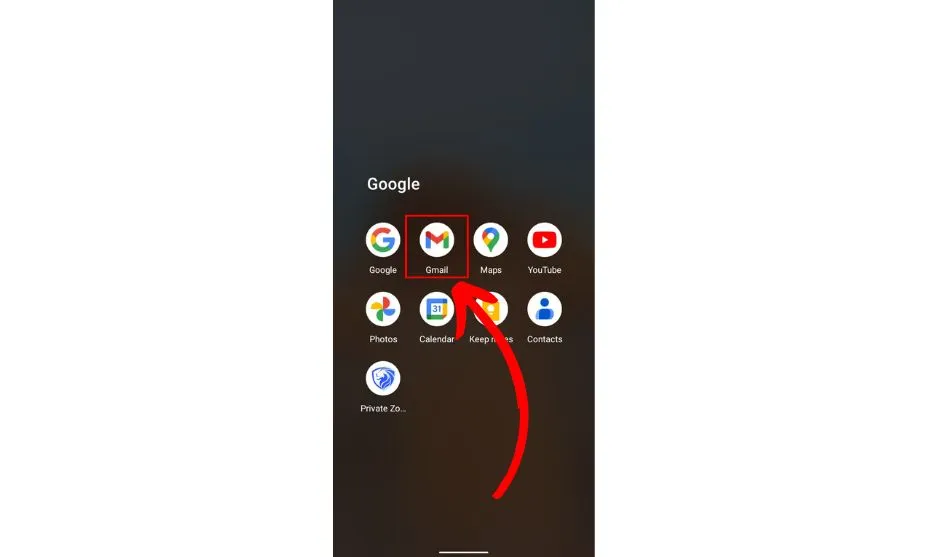
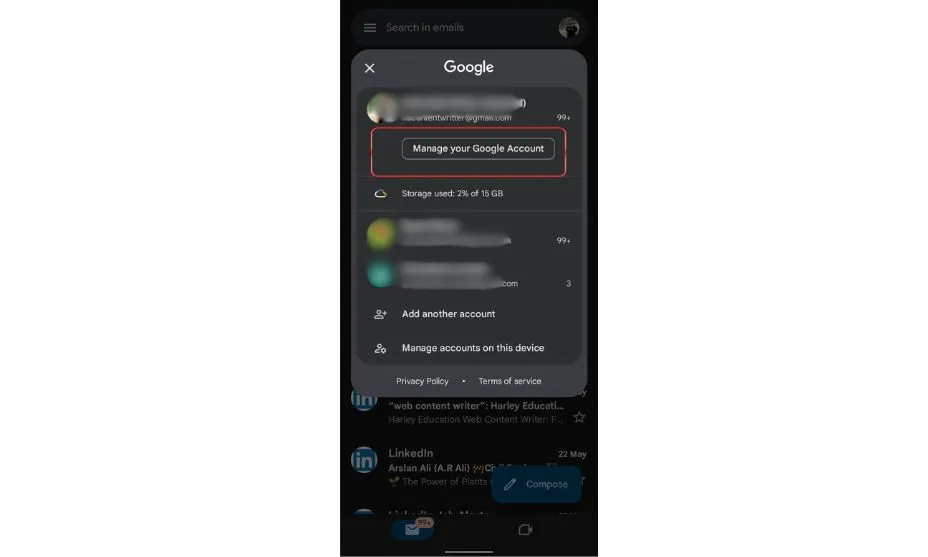
- Click on the Profile icon and then click ” Manage Your Google Account”.
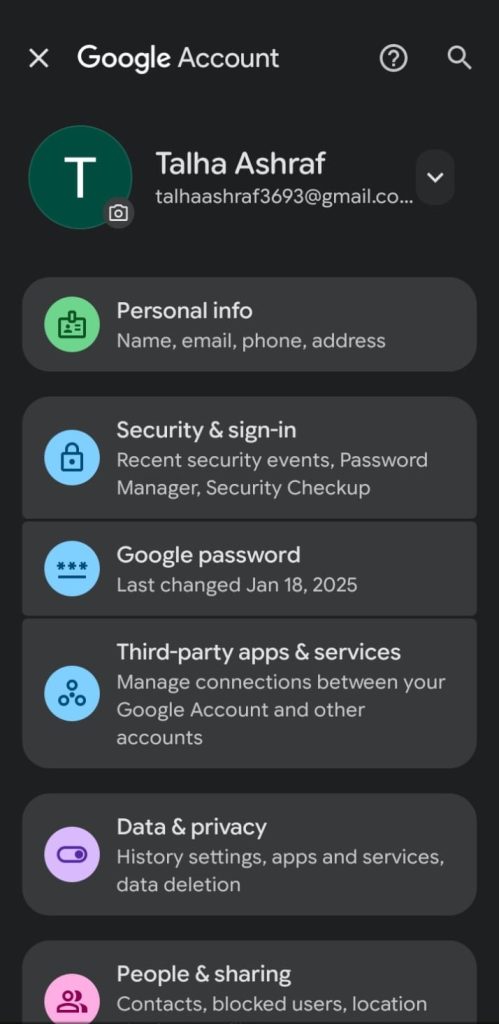
- Choose Data and Privacy and scroll to the bottom.
- Click on “Delete Google service”
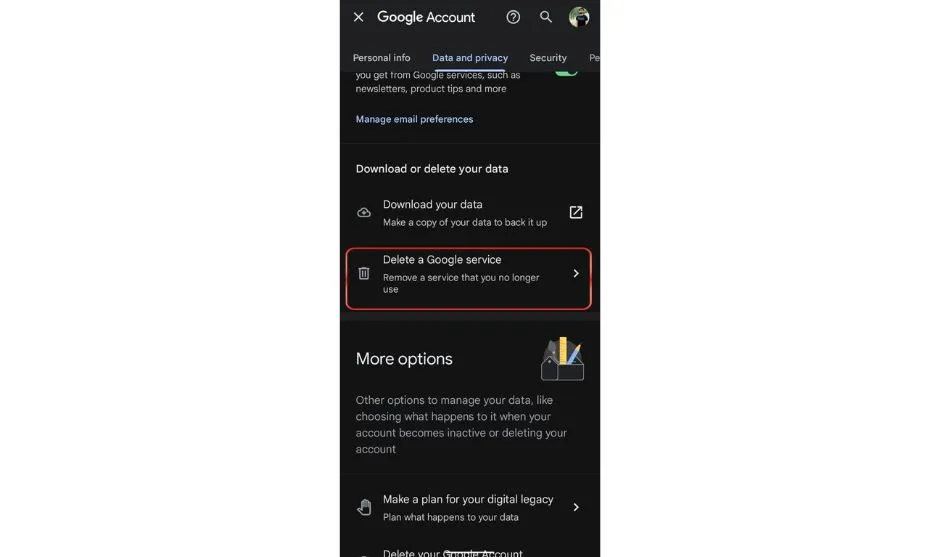
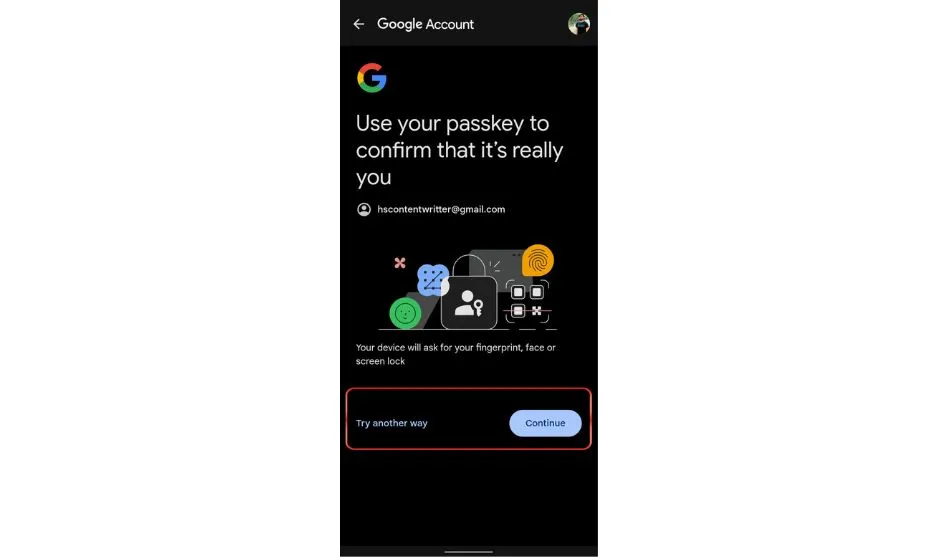
- Provide your password, fingerprint, or other security feature to “Continue”
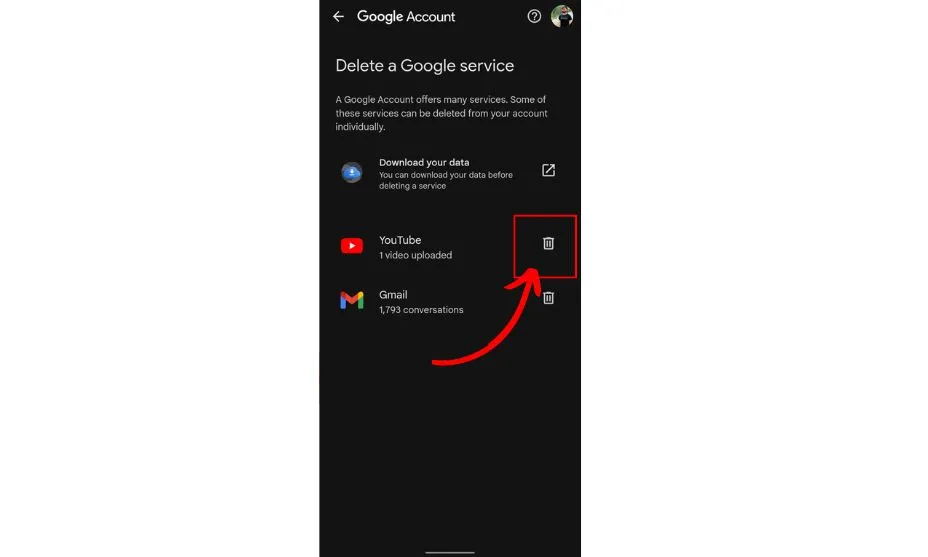
- Here you will find three options:
- Download your data (In case you want to download your data before deleting your YouTube account)
- YouTube
- Gmail
- Click on the bin icon on the right side of YouTube.
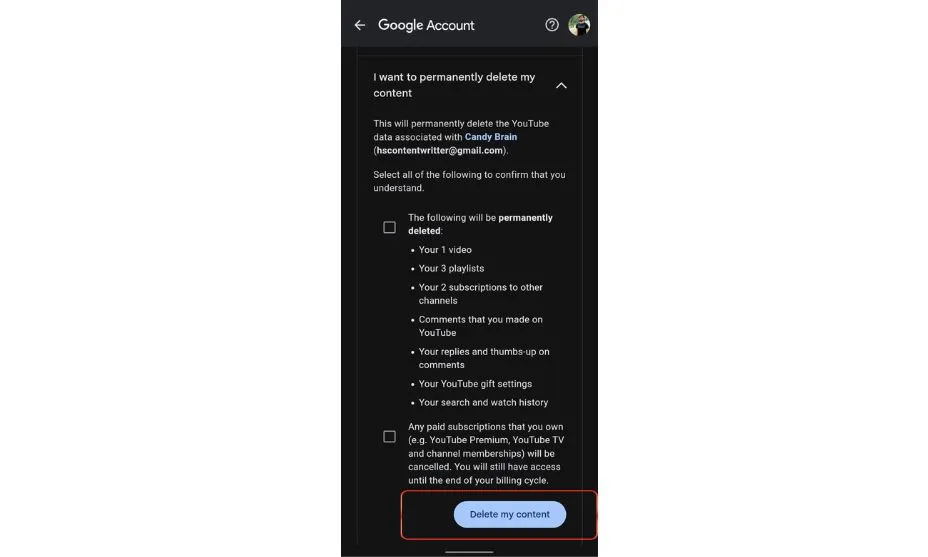
- Now choose “I want to permanently delete my content” and fill in the Boxes.
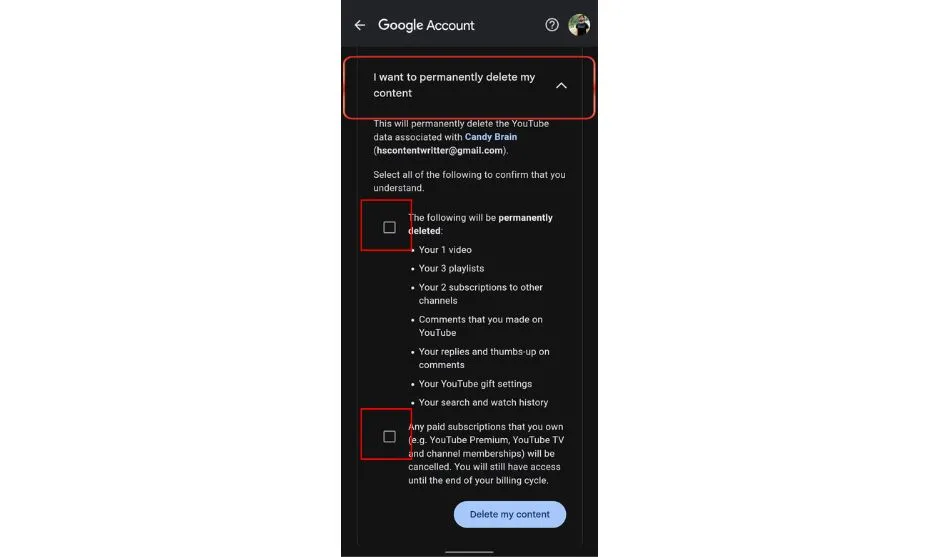
- Lastly, click on “Delete My Content” to confirm the deletion of your YouTube account.
This was the whole process to delete a YouTube account. However, if you want to just hide the YouTube account for some time rather than deleting it, then there is also an option for this.
Repeat the whole process mentioned above, and at the end, choose “I want to hide my channel” instead of “I want to permanently delete my content”
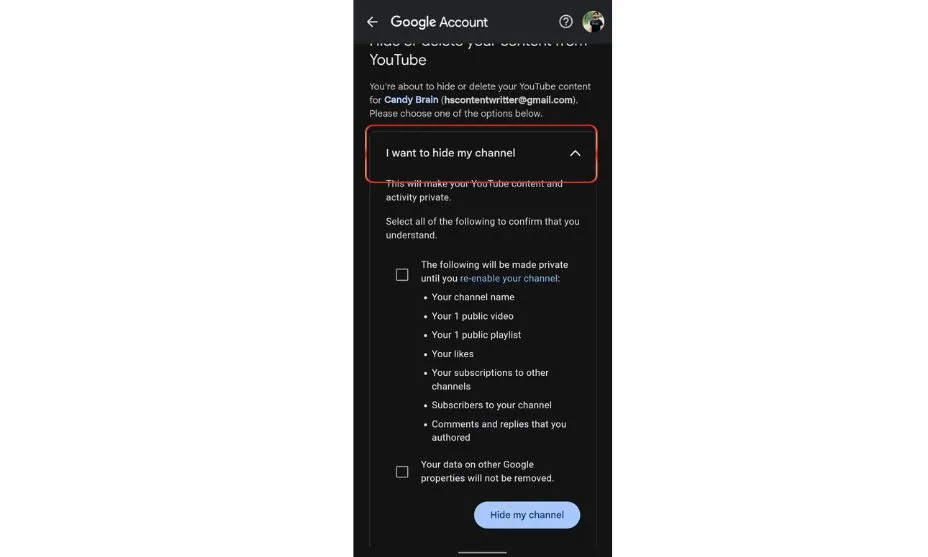
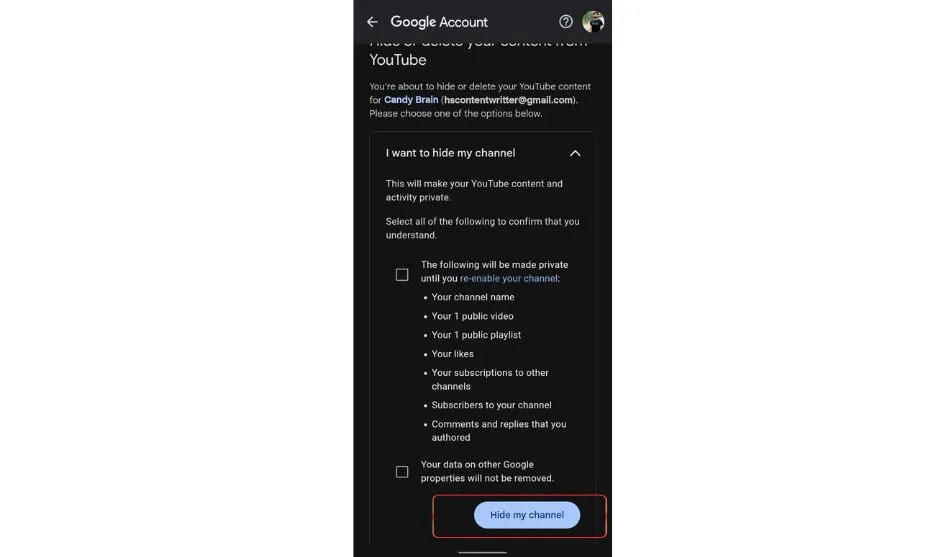
- Fill the box and click on “Hide My channel.”
People Also Ask
Start creating Verdict in seconds, and convert more of your visitors into leads.
What happens when I delete my YouTube account?
When you delete your YouTube account, all your videos, comments, playlists, and subscriptions will be permanently removed.
Can I recover my YouTube account after deleting it?
No, you cannot recover your account after you have deleted it permanently.
Will deleting my YouTube account delete my Google account?
No, when you delete your YouTube channel, it does not affect the Google account. However, your Google account, Gmail, and Google Drive will remain active.
Can I delete specific videos without deleting my whole account?
Yes, you can delete any video from your YouTube channel if you don’t want to delete your account.
How to delete a YouTube account on an iPhone
Open the YouTube app on your iPhone and tap your profile picture:
Tap Google Account > Data & privacy > Apps and services > Advanced settings > Delete channel.
Choose “I want to permanently delete my content”, check the boxes, and confirm
How do I delete a YouTube account
- Go to myaccount.google.com on your PC
- Sign in with the Google account linked to your YouTube.
- Click Data & privacy in the left menu.
- Scroll down to “Download or delete your data” and select “Delete a Google service.”
- You may be asked to sign in again.
- Click the trash bin icon next to YouTube.
- Choose “I want to permanently delete my content”, check the boxes, and confirm by entering your email.
At the End, Manage Your YouTube Your Way
Start creating Verdict in seconds, and convert more of your visitors into leads.
You must manage your YouTube by deciding whether to delete or hide your channel. I have covered every step on PC, Android, and iPhone, from removing videos, playlists, and comments to securing your Google account.
From personal experience, taking control of my YouTube presence helped me simplify my online life, protect my privacy, and have a safer browsing experience.
Remember, you can also download your data or hide your channel temporarily before making permanent changes.