Low-quality footage is still a problem for creators. A clip shot in poor lighting or compressed during upload can lose detail fast. Many AI video enhancers now try to fix that in a few clicks.
Vmake is one such tool built around this idea, combining enhancement with UGC-style video creation in one browser-based platform.
The question is simple. Does it actually deliver usable results, or is it just another layer of automation wrapped in marketing? This review looks at how Vmake performs across its enhancement and UGC video tools.
What Vmake Actually Is
Vmake is a web-based AI video tool used to upscale video quality up to 4K and generate UGC marketing ads. It removes the need for installing heavy editing software and keeps everything inside a simple online interface.
Users upload a file, pick a tool, and let the system handle the processing in the cloud.
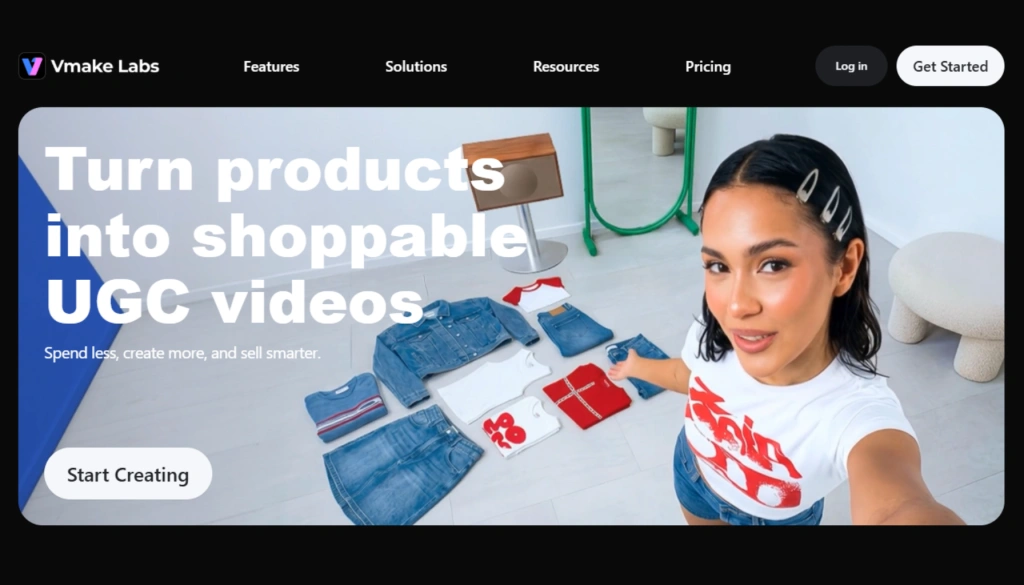
Vmake’s two headline features are:
- free video enhancer that upscales footage to 2K or 4K
- UGC video generator that produces shoppable content from a product image
We will discuss each of these features in detail below. The platform is especially popular among marketers, SMEs (small businesses), and UGC creators who deal with frequent content updates.
Rather than wasting their time on manual editing tasks, they prefer Vmake to quickly edit and enhance their existing video material. Or produce new UGC videos to use in advertisements.
Vmake AI Video Enhancer: What is it & How it Works?
Vmake AI free Video Enhancer is a web-based, cloud-powered tool designed to improve video quality automatically without requiring heavy software installations. It processes video quality upgrades using three direct steps:
- Frame Analysis: It scans the video frame by frame to identify compression noise, blur, and artifacts.
- Generative Rebuild: Its AI 4K+ mode uses deep generative processing to physically recreate missing textures, skin grain, and fine details rather than just stretching pixels.
- Targeted Resolution Scaling: It automatically clears mosaic blockiness and sharpens blurry edges to upscale the final footage up to 2K or 4K resolution.

Its common use cases include:
- Upscaling blurry clips
- Reducing noise in low-light footage
- Improving clarity in compressed social media videos
- Sharpening faces and objects in short clips
The output, however, depends on the input quality. Clean footage gives more stable results. Heavy compression leads to mixed recovery results.
AI 4K+ Mode: What Makes It Different
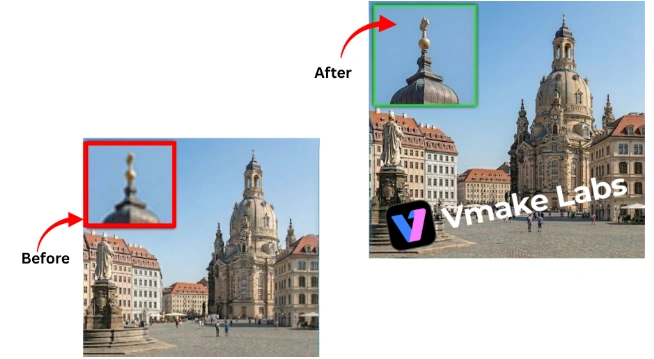
Standard enhancers in the market improve clarity, but Vmake’s AI 4K+ sits in a different category. This mode does not just enlarge the frame.
It rebuilds visual detail using deeper generative processing. This matters most when the source video has lost texture, edge definition, or fine patterns through compression.
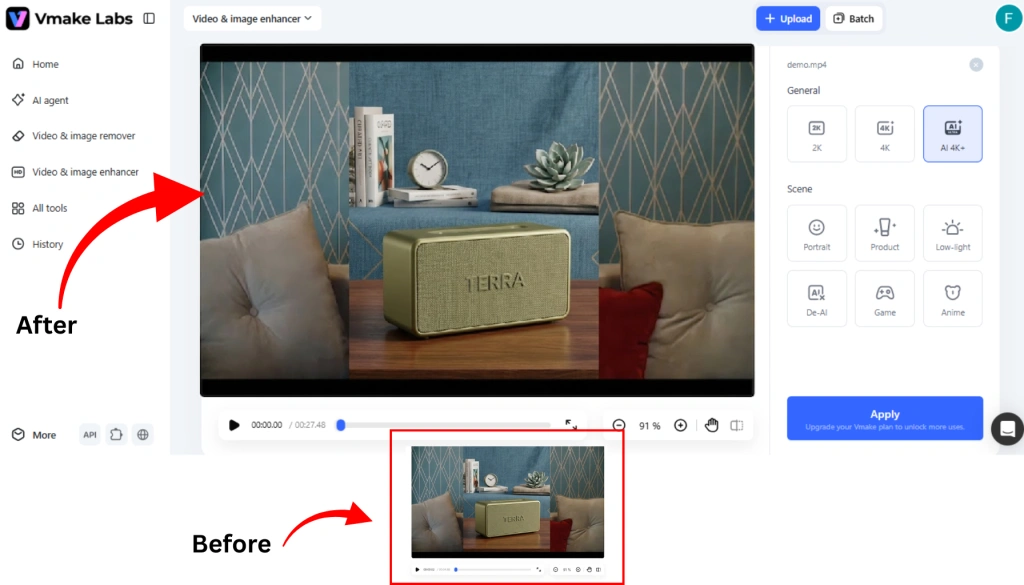
With AI 4K+, Vmake analyzes motion, lighting, and object structure across frames. It then fills in missing detail in a way that aims to look natural rather than simply sharper.
Product labels, fabric texture, and facial features tend to benefit the most, while fast motion scenes can still show some inconsistencies.
Five specific capabilities sit inside the AI 4K+ tier, and they’re worth understanding individually before deciding if the upgrade makes sense for your workflow.
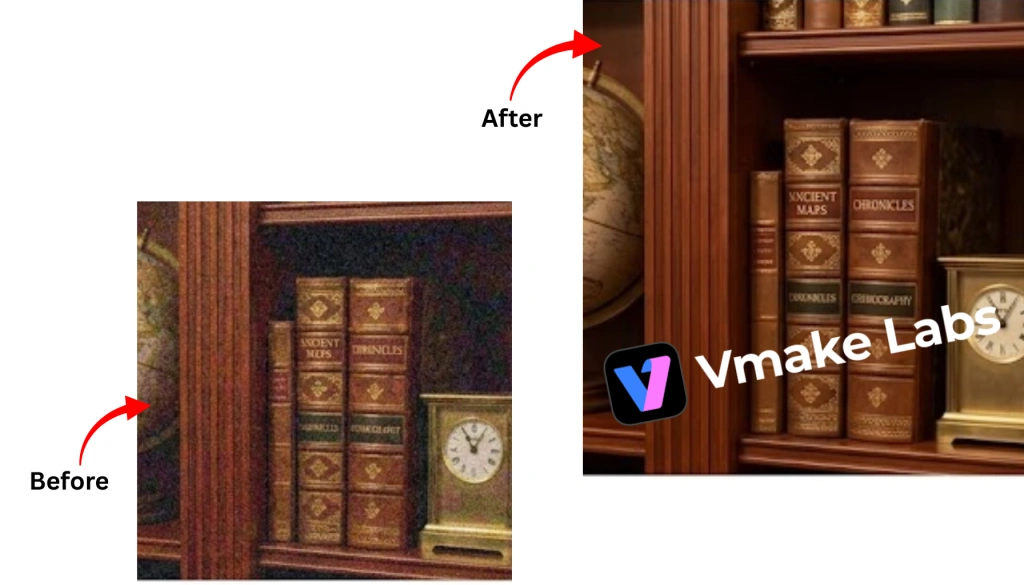
1. Artifact Cleanup and Control
During our review, this one showed its value immediately on compressed footage. Clips that had been uploaded to Instagram and re-downloaded came back with visible mosaic blockiness and dirty edges around high-contrast areas.
After running them through AI 4K+, the ringing and noise were largely gone. The compression cycle problem is real, and this mode handles it better than we expected.
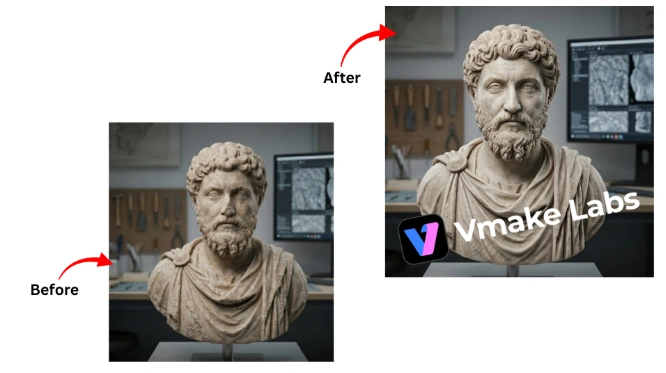
2. Generative Detail Rebuild
The difference between this and standard sharpening becomes obvious on faces. Sharpening just cranks contrast at edges. Generative Detail Rebuild actually fills in texture, skin grain, fabric weave, the kind of detail that compression strips out entirely.
On a mid-quality talking-head clip, the result looked closer to the original recording than the compressed version we fed in. It does not always get it right on complex backgrounds, but on faces and clothing it holds up well.
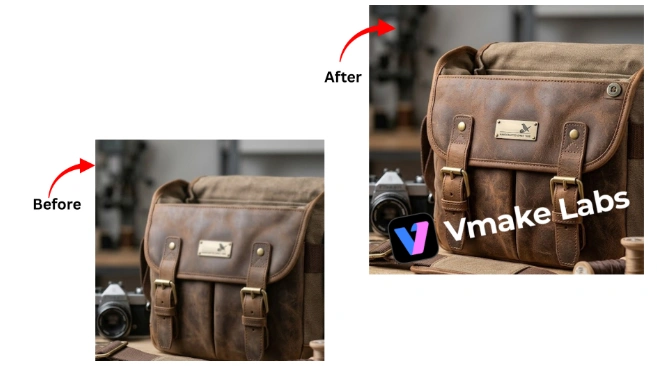
3. Smart Texture Recovery
Product footage is where this one earns its place. We tested it on clips featuring leather goods and packaged products with small label text, and the difference on material surfaces was clear.
Fabric texture came back looking intentional rather than smoothed over, and the fine print on packaging became legible in a way it was not before processing. For ecommerce content specifically, this is the sub-feature that justifies the tier.
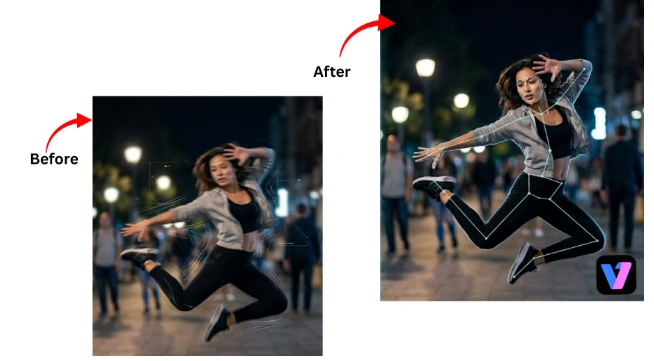
4. Semantic Motion Repair
This is the one to manage expectations around. The scene-understanding model does clean up motion blur on faces and hands, which are genuinely the hardest areas in fast-moving footage. Edge clarity during movement improved noticeably on the clips we tested.
5. High-Ratio Stable Upscaling
Aggressive upscaling usually results in typical issues: distorted backgrounds, shimmering edges, and details that work well when viewed at 1080p resolution but fail to hold up on the larger screen.
This feature helped maintain structural consistency in the frame when zoomed further in. In the large screen test, backgrounds stayed consistent, while edge creep was negligible.
Vmake UGC Video Generator: What is it & How it Works?
The Vmake UGC Video Generator is an automated marketing tool designed to convert product details or images into short, social-style User Generated Content (UGC) video ads without manual editing. It works through three specialized modes:
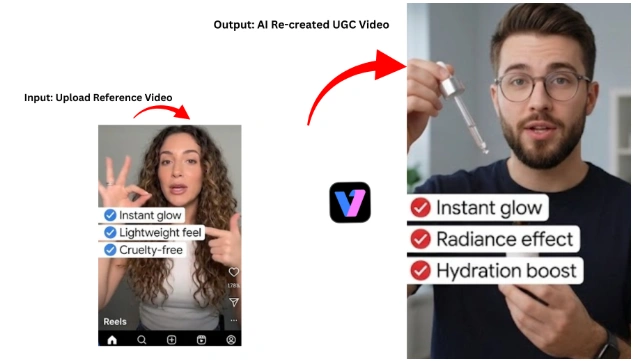
- Recreate Video: Clones the structural layout and format of a provided viral reference video using your own product data.
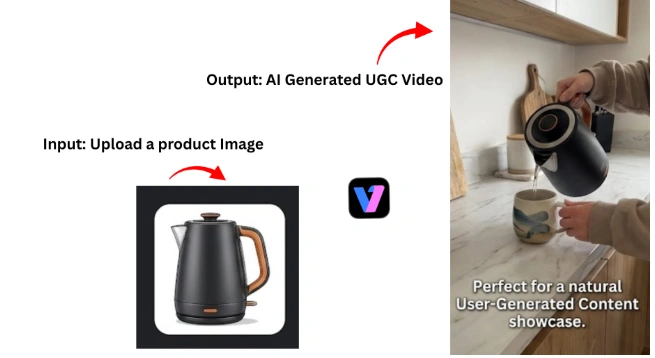
- Product Showcase: Converts a single product photo into an organic, handheld video that maintains accurate product consistency.
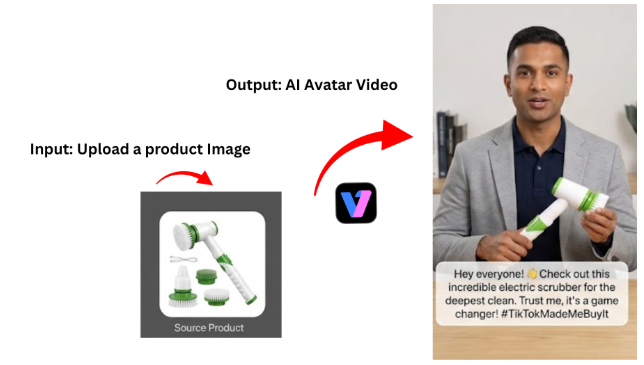
- AI Avatar Video: Transforms product images into spokesperson videos by overlaying a digital talking presenter to build consumer trust.
This part of the tool is aimed more at selling than editing. It is built for ad creatives rather than film-level production. The UGC side of Vmake separates into three distinct modes. Let’s have a look at each:
1. Product Showcase
Product Showcase takes a product image and produces a UGC-style video with a more natural, handheld feel. The output avoids the overly polished look that typically signals AI production to a viewer. Product consistency across frames is solid: colors, textures, and key details stay accurate throughout.
2. AI Avatar Video
AI Avatar Video generates a spokesperson video from a product image. You get a talking presenter without hiring talent or setting up a shoot. It suits affiliate content and TikTok product pages where a human voice builds trust faster than text.
3. Recreate Video
Recreate Video lets you upload a reference video and clone its structure for your own product. If a particular format is performing well on Reels or Shorts, you can feed it into Vmake and get a version rebuilt around your own listing.
The form-based input system is genuinely helpful. Rather than writing prompts, you fill out structured fields. This lowers the floor for first-time users considerably and produces more consistent outputs than open-ended prompting typically does.
People Also Ask
Log in to your account on the Vmake official website, go to Account Settings or Subscription, and follow the prompts to confirm your cancellation. If signed up via mobile, manage this through your device’s Apple App Store or Google Play Store subscription settings.
No, premium credits and active features remain available until the end of your current billing cycle, but payments are typically non-refundable upon cancellation.
Yes, the cloud-powered platform allows for batch processing, meaning you can upload and queue multiple video assets at once to save time during high-volume workflows.
The Vmake app is the mobile-friendly version of the platform available for iOS and Android devices, allowing users to access AI-powered video enhancement and automated marketing tools directly from their smartphones.
Drop your compressed or low-resolution file directly into the web interface dashboard, select your preferred mode (such as AI 4K+ Mode), and click process to automatically analyze, upscale, and download your finished video.
Final Thoughts: The Reality of Scaling Content with Vmake
Vmake does what it claims for the audience it was designed for. The video enhancer handles compressed and low-resolution footage well enough to make older content publishable again.
The UGC generator is a legitimate time-saver for ecommerce brands that need ad creative at volume. Neither tool is perfect, but both are functional and fast.
The credit model is the main thing to evaluate before committing. Light users will find it fair. High-frequency workflows will need to run the numbers against the plan cost before scaling up.