MacBook Pro 2017 Review: Is It Still Worth Buying in 2026?
The MacBook Pro 2017 is still usable in 2026 for browsing, writing, website management, and other light everyday work. However, I would only buy one if it is in good condition, priced well below a used M1 MacBook Air, and intended for short-term or secondary use.


I personally used the 15-inch MacBook Pro 2017 with Touch Bar before passing it on to one of my web developers. Its Retina display, SSD performance, 16GB of memory and large trackpad worked well for my routine browsing, website management and multitasking.
This review is based on that 15-inch model. Apple also released different 13-inch versions in 2017, so their specifications and performance are not identical. Here is how my model holds up today and what I would check before buying one used.
Which MacBook Pro 2017 Did I Use?
I used the 15-inch MacBook Pro 2017 with Touch Bar, identified by Apple as MacBookPro14,3. It has a 15.4-inch Retina display, a quad-core Intel Core i7 processor, 16GB of memory, SSD storage and dedicated Radeon Pro graphics.
The combination worked smoothly for my routine browsing, website management, documents and multitasking. I also liked that the larger display provided useful working space without making the laptop feel excessively bulky.
Apple released three different MacBook Pro versions in 2017: a 15-inch Touch Bar model and two 13-inch models with different port and Touch Bar configurations. The specifications below apply to the 15-inch model I used. You can verify the model details through Apple’s official MacBook Pro identification guide.
| Specification | MacBook Pro 15-inch (2017) |
|---|---|
| Model identifier | MacBookPro14,3 |
| Finish | Silver or Space Gray |
| Display | 15.4-inch Retina IPS display |
| Resolution | 2880 × 1800 at 220 ppi |
| Processor | Quad-core 7th-generation Intel Core i7 |
| Graphics | Intel HD Graphics 630 with Radeon Pro 555 or 560 |
| Memory | 16GB 2133MHz LPDDR3 |
| Storage | 256GB or 512GB SSD; configurable up to 2TB |
| Ports | Four Thunderbolt 3 (USB-C) ports |
| Camera | 720p FaceTime HD camera |
| Wireless | 802.11ac Wi-Fi and Bluetooth 4.2 |
| Original battery rating | Up to 10 hours of wireless web use |
| Latest official macOS | macOS Ventura |
| Other features | Touch Bar, Touch ID and Force Touch trackpad |
How Does the MacBook Pro 2017 Perform Today?
The MacBook Pro 2017 still performs well enough for everyday computing, but its age becomes noticeable during demanding workloads.
Display Still Holds Up
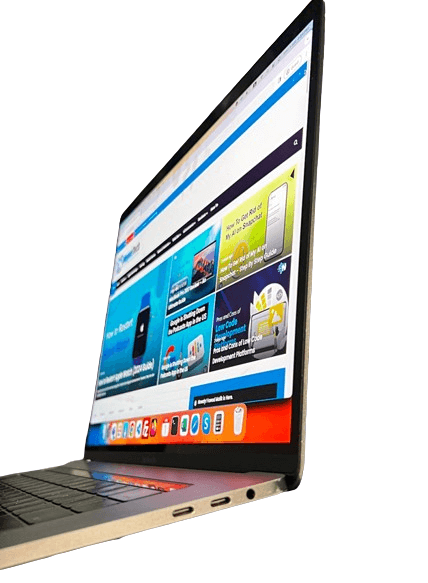
The 15.4-inch Retina display remains one of the laptop’s strongest features. Text looks sharp, colors are vibrant, and the larger screen provides enough workspace for writing, research, website management, and multitasking.
However, anyone buying a used unit should inspect the display for dead pixels, uneven brightness, image retention, and damage to the anti-reflective coating.

Everyday Performance
During my use, the laptop handled web browsing, document editing, website management, research, and multiple browser tabs without significant slowdowns. The combination of 16GB RAM and SSD storage also made switching between routine applications feel responsive.
It remains suitable for:
- Browsing and office applications
- Writing and research
- Website management
- Streaming and video calls
- Light photo editing
- Basic coding and development work
Where Its Age Becomes Noticeable
The Intel processor and Radeon graphics are now considerably behind Apple silicon. The laptop may become hot, activate its fans frequently, and lose battery power faster when performing intensive tasks. This limitation matters even more now that Apple has confirmed the end of official Intel Mac support for its newest macOS generation.
It is no longer an ideal choice for:
- Modern gaming
- Heavy 4K video editing
- Complex 3D rendering
- Large software-development workloads
- Sustained professional creative work
People who regularly perform these tasks will generally get better performance, efficiency, and long-term value from an Apple-silicon Mac.
Memory and Storage Limitations
Most 15-inch configurations include 16GB of RAM, which remains adequate for general multitasking. However, both the memory and internal SSD are built into the machine and cannot be upgraded through normal component replacement.
Storage capacity varies between used units, so buyers should verify it before purchasing. A 256GB model may feel restrictive once applications, photos, and other files are installed, whereas 512GB provides more practical room for regular use.
Pros and Cons of the MacBook Pro 2017
| Pros | Cons |
|---|---|
| Sharp Retina display still looks good for everyday work | Officially limited to macOS Ventura |
| Premium aluminum construction has aged well | Butterfly keyboard may develop reliability problems |
| 16GB RAM supports routine multitasking on the 15-inch model | Battery condition varies significantly between used units |
| SSD keeps everyday applications responsive | Adapters are required for USB-A and other older accessories |
| Four Thunderbolt 3 ports provide flexible connectivity | |
| Touch ID and a large Force Touch trackpad remain useful | |
| Can run some older Intel-based Mac applications |
By the way, these advantages and disadvantages were based on the performance of this 2017 model only. You can also read my broader look at the pros and cons of Apple MacBooks if you are still deciding whether a MacBook is right for you.
What Should You Check Before Buying a Used MacBook Pro 2017?
The MacBook Pro 2017 still looks modern because of its slim aluminum body, large trackpad, Retina display, and USB-C ports. Its condition matters more than its appearance, though. Before paying for a used unit, test the following areas carefully.
Test Every Keyboard Key
The butterfly keyboard is one of the biggest concerns with this generation. Open a text editor and press every key several times to check for missed, repeated, or sticky inputs. Pay particular attention to the space bar, Shift, Enter, and frequently used letter keys.
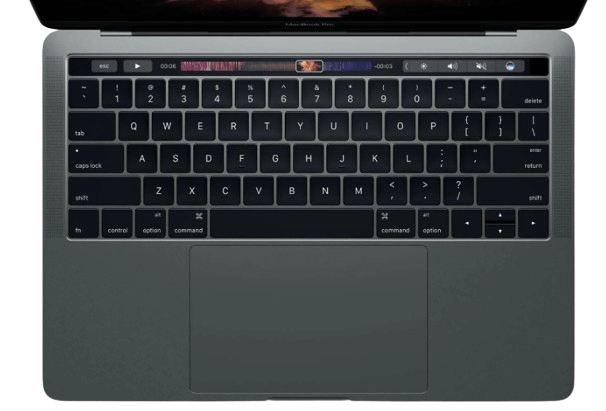
Apple previously included eligible 2017 models in its keyboard service program, but that program has ended. A faulty keyboard should therefore be treated as a possible out-of-pocket repair rather than a free fix. Apple’s service program page can be checked for the current status of repair programs.
Check Battery Health and Cycle Count
Do not rely only on how long the laptop runs during a short meeting with the seller. Open System Settings > Battery and review the battery condition. A “Service Recommended” message indicates that the battery holds less charge than it once did or is not functioning normally.
You can also hold the Option key, open the Apple menu, and select System Information > Power to find the cycle count. Apple provides official instructions for checking a Mac battery’s cycle count.
A high cycle count does not automatically make the laptop unusable, but it should lower the price because battery replacement may soon be necessary.
Inspect the Display and Body
Use solid white, black, red, green, and blue backgrounds to spot dead pixels, discoloration, or uneven lighting. Also check the screen for image retention and damage to its anti-reflective coating.
Inspect the aluminum body for dents near the ports, loose hinges, missing screws, and signs of liquid damage. Minor scratches are expected on a laptop this old, but structural damage can indicate a previous drop.
Test the Ports, Charger, and Audio
Connect the charger to every Thunderbolt 3 port because a damaged port can affect both charging and accessories. If possible, also test a USB-C drive, headphones, speakers, webcam, Wi-Fi, and Bluetooth.
The original Apple charger is preferable. An unreliable or underpowered third-party charger should be considered an additional replacement expense.
Check the Touch Bar, Touch ID, and Trackpad
If you are considering a Touch Bar model, confirm that the controls respond across the entire strip and do not flicker or disappear. Test Touch ID by adding a fingerprint and using it to unlock the laptop.
The Force Touch trackpad should click and respond evenly across its surface. A raised, stiff, or difficult-to-click trackpad can sometimes indicate a swollen battery underneath, in which case the laptop should not be purchased until it has been professionally inspected.
Listen for Heat and Fan Problems
Run a video, open several browser tabs, and use the laptop for at least 10 to 15 minutes. Some fan noise is normal for an Intel MacBook Pro under load, but constant maximum-speed fans, extreme heat, freezing, or unexpected shutdowns may point to battery, cooling, or hardware problems.
Confirm It Is Ready for a New Owner
Ask the seller to sign out of their Apple Account, remove personal files, and erase the Mac before completing the purchase. Start the machine yourself and confirm that it reaches the setup screen without requesting the previous owner’s password.
The 2017 MacBook Pro does not have Apple’s T2 security chip, so Apple’s modern Mac Activation Lock does not apply to it. Apple lists T2-equipped MacBook Pro models as those introduced from 2018 onward. Still, you should confirm that no Apple Account, administrative password, or firmware restriction prevents you from setting up and using the device.
Is the MacBook Pro 2017 Worth Buying in 2026?
The MacBook Pro 2017 is worth considering only when it is inexpensive, fully functional, and intended for light or secondary use. I would not recommend paying a premium for higher storage or minor cosmetic improvements because its aging Intel platform, repair risks, and limited software support remain the same.
What Is a Fair Price for MacBook Pro 2017 Today?
There is no single fair price because the 13-inch and 15-inch versions have different specifications. Battery condition, storage, keyboard health, and seller warranty also affect the value.
As a practical buying rule, I would consider a well-maintained 15-inch model only at around $200 to $250 or less. A 13-inch model should normally cost less. These are buying thresholds rather than fixed market values, so current listings and completed sales should still be compared before making a decision.
The price should be reduced further if the laptop has:
- A “Service Recommended” battery
- Keyboard or Touch Bar problems
- Display coating damage
- A missing or unreliable charger
- Dents, port issues, or signs of previous repairs
My Final Opinion
I had a positive experience with the 15-inch MacBook Pro 2017. Its Retina display, 16GB of memory, SSD, large trackpad, and macOS experience made it useful for my daily work. I later passed it to one of my developers, who continued using it for everyday tasks.
That experience does not make it the best MacBook to buy in 2026. It is now an aging Intel laptop with potential battery and keyboard expenses. I would buy one today only as a low-cost or temporary machine after testing it carefully.
If the asking price approaches the cost of a used M1 MacBook Air, I would choose the M1 Air instead.
Frequently Asked Questions
What is the latest macOS for the MacBook Pro 2017?
macOS Ventura is the newest version officially supported by the 2017 MacBook Pro. It does not officially support newer macOS releases, which is an important consideration for application compatibility and long-term security.
Is the MacBook Pro 2017 good for students?
It can handle research, writing, online classes, presentations, and web browsing. However, students who need a laptop for several more years should consider a used M1 MacBook Air because of its newer software support and better battery efficiency.