
AirDrop does not provide a built-in history or log that shows all the files you have sent or received. However, you can still track recent AirDrop activity indirectly using system locations like the Photos app, Files app, Downloads folder, and device logs, depending on the type of file shared.
In this guide, you will learn whether AirDrop keeps any record, where received files are saved on iPhone and Mac, and the practical ways to check past AirDrop transfers.
Where Do AirDrop Files Go on iPhone?
Start creating Verdict in seconds, and convert more of your visitors into leads.
While Apple doesn’t offer a dedicated AirDrop history on iPhone models like the 12 Mini, 12 Pro Max, 14 Pro Max, 15 Plus, and iPhone 15 Pro Max, every file you receive through AirDrop is automatically saved to a specific location based on its type, such as:
- Photos and videos are saved directly to the Photos app
- Documents, PDFs, and other files are stored in the Files app
- Some files may appear in the Downloads or On My iPhone folders
Apple does not provide any in-built option that can help you with seeing the history of files you have shared with or received from other connections. All you can do is check out the files that you have received on your device.
To do this, navigate to your device’s Files app. If you got a document on your device from someone else, it will be saved in the “Document” folder.
In a similar way, the pictures and videos go to the relevant folders. In this way, you can find out the files that you have received on your iOS devices.
<strong>Subject</strong>: ………………………………
📌 Fact: Apple doesn’t allow checking AirDrop history on iOS devices. Instead, you can check for an unfamiliar file on your device to know if someone has sent you something.
How to Use AirDrop on Your iOS Devices?
Start creating Verdict in seconds, and convert more of your visitors into leads.
Check AirDrop history on Apple devices has failed. But you can overcome the threat of checking how does AirDrop work and how you can make your side safe. Here are some simple steps on how you can use the AirDrop on your iPhone.
- Unlock your iPhone and tap on the group of controls.
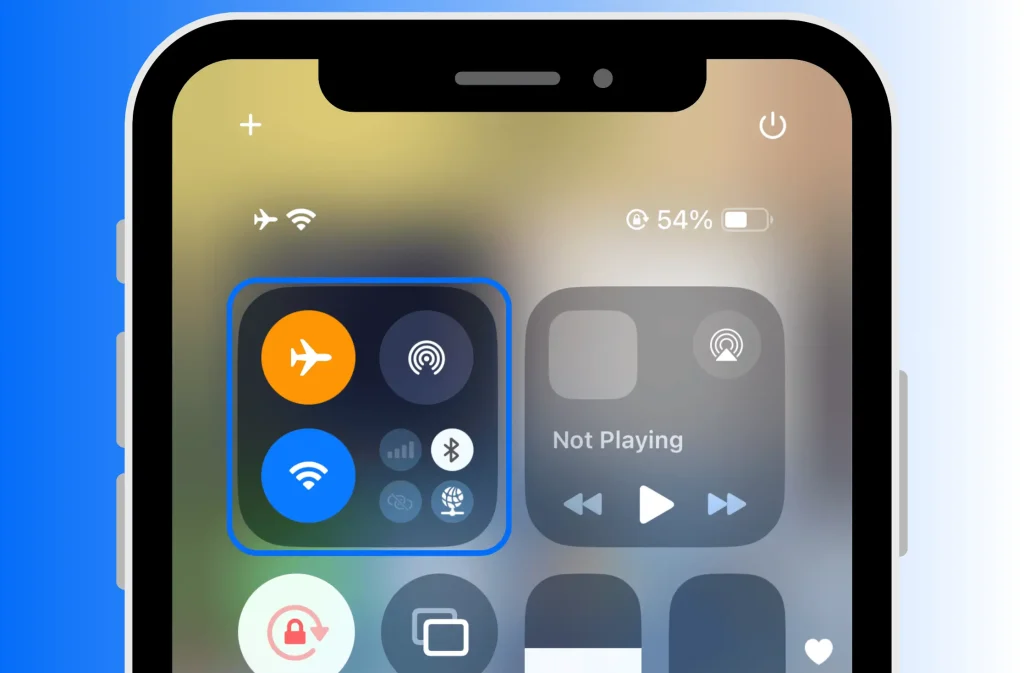
- Now, click on the AirDrop icon.

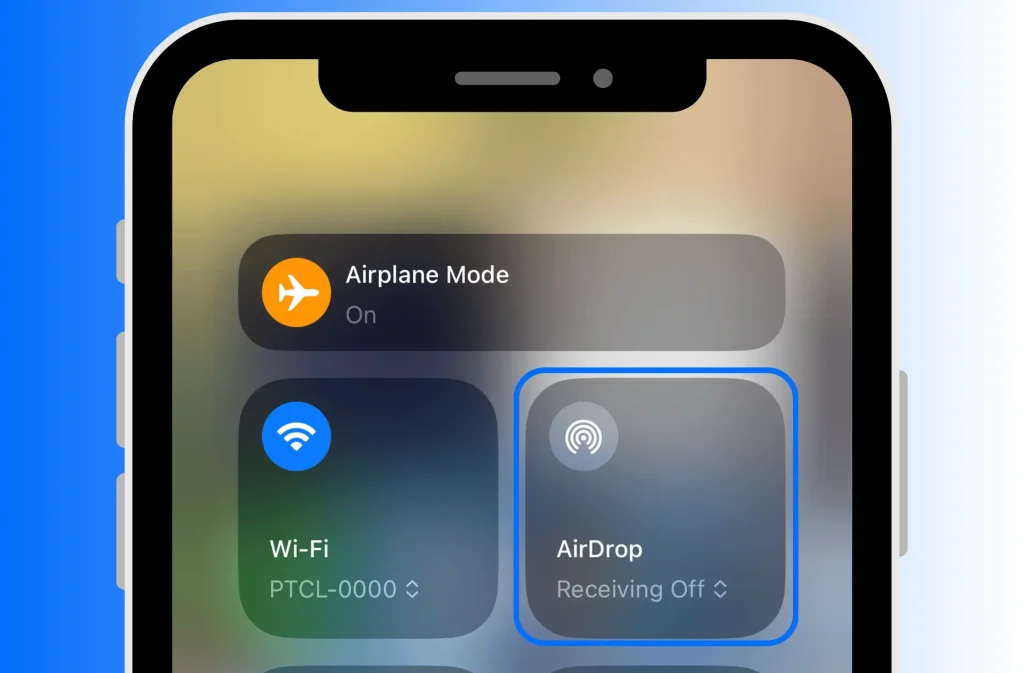
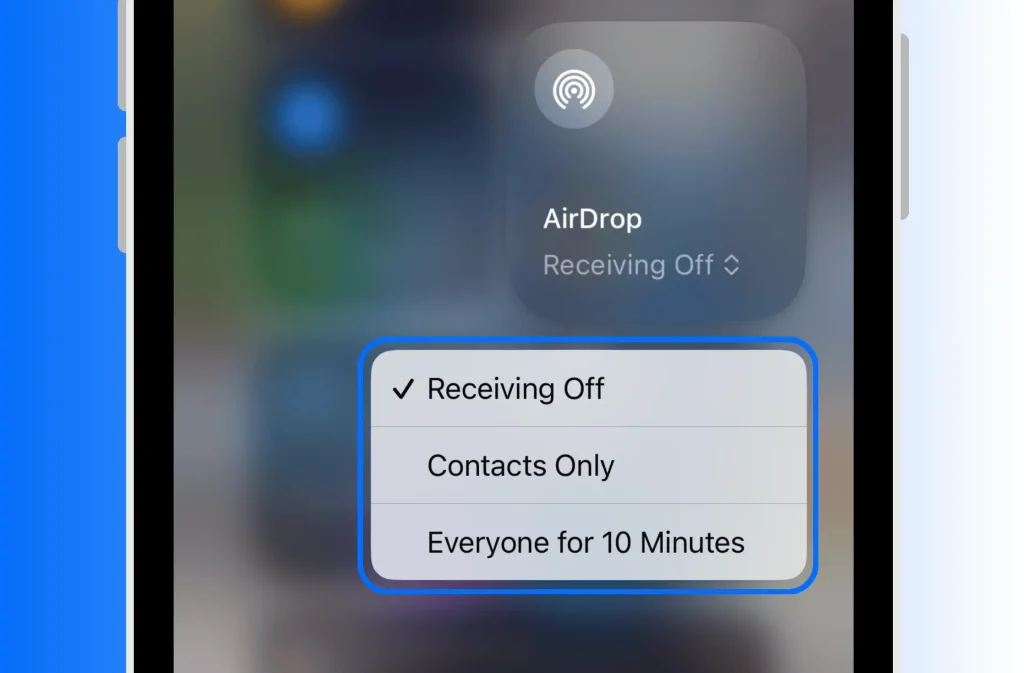
- Tap the Everyone for 10 Minutes button to allow everyone to see your device nearby.
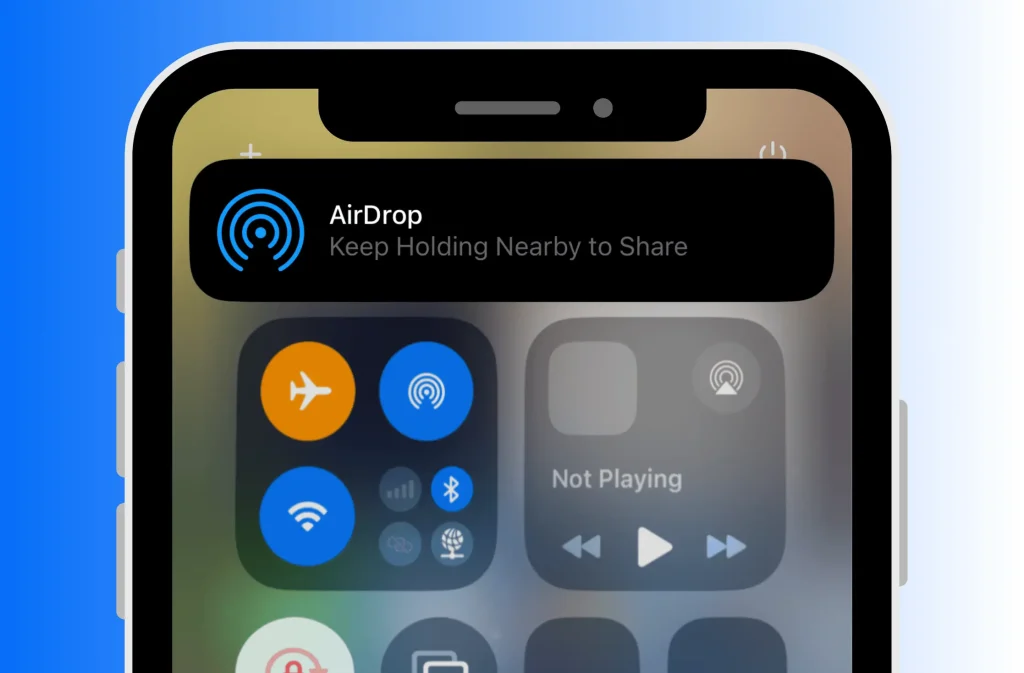
- Make a connection by taking another device near your device. (Your Device will Show Animation.)

- Now, Keep Holding Nearby to Share anything you want to, whether receive or send.
<strong>Subject</strong>: ………………………………
Pro Tips: Share files from the origin by clicking the share and tapping on the  button.
Final Thoughts
Start creating Verdict in seconds, and convert more of your visitors into leads.
AirDrop is one of the most convenient features of iOS devices, but you can’t see the AirDrop history of the files you have shared or received. The iOS doesn’t have such a built-in feature to assist you with checking your file-sharing history, which is a little inconvenient.
However, find the received files within the Files section of your iPhone to know who shared something with you. These files are saved in the relevant folders such as documents, pictures, videos, and PDFs, making them easily accessible.
People Also Ask
Start creating Verdict in seconds, and convert more of your visitors into leads.
Q1. Is there a way to see AirDrop history?
No, there is no way to see AirDrop history on iPhones to track your shared data with others.
Q2. How to delete AirDrop history?
You can’t delete AirDrop history on iPhone because there is no history of this feature at all.
Q3. Can I use Airdrop to share data with Android?
No. You can only use Airdrop to share data with iOS devices because Apple didn’t support such violation of their users’ privacy.
Q4. How to find AirDrop history?
You can’t find the history of your shared items on your iPhone because its history isn’t preserved.