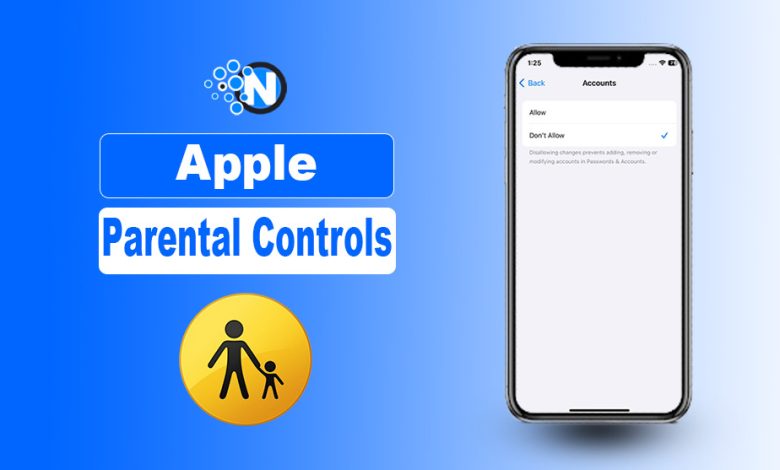
Sometimes, the most powerful security tools are the ones hiding in plain sight. Just as Wi-Fi was originally developed to manage radio wave interference rather than provide global wireless internet, Apple’s Parental Controls (Screen Time) have evolved far beyond their original purpose.
While initially designed to manage digital habits for children, these features are now a critical “manual kill-switch” for iPhone security. In an era where shoulder surfing and device theft are rising, savvy users are repurposing Content & Privacy Restrictions to hard-lock their Apple ID and passcodes.
In this guide, I will tell you how to use Apple Parental Controls as a professional-grade security layer to protect your digital identity.
What are Apple Parental Controls?
Start creating Verdict in seconds, and convert more of your visitors into leads.
Apple Parental Controls, officially integrated within the Screen Time menu, are a comprehensive suite of “Content & Privacy Restrictions” designed to manage and limit a user’s interaction with an iOS device.
While the primary intent is to shield children from age-inappropriate content and restrict screen usage, these tools have become a vital secondary defense layer for adult users.
The Modern Shift: From Parenting to Privacy
In 2026, the utility of these controls has shifted toward proactive device hardening. Beyond filtering websites, these settings allow you to:
- Lock Apple ID Settings: Prevents a thief from signed out of your iCloud or disabling “Find My” even if they have your phone’s passcode.
- Restrict Passcode Changes: Blocks the ability to modify Face ID, Touch ID, or the device passcode.
- Whitelist Web Access: Restricts the browser to only pre-approved, trusted websites, effectively neutralizing “malicious link” threats.
When you set a unique Screen Time Passcode (one that differs from your lock screen code), you create a “digital vault” that safeguards your most sensitive account configurations from both curious children and sophisticated criminals.
How Can You Make Better Use of Apple Parental Controls
Start creating Verdict in seconds, and convert more of your visitors into leads.
Security has become a main concern for individuals because of increasing cybersecurity threats and other criminal activities. Here are some of the best ways to use Apple Parental Controls.
iCloud ID Lock
Locking your iCloud ID is such a convenience for both privacy concerns and preventing children from disturbing your device. When a thief gets your smartphone, his first move will be removing your iCloud, but with a locked ID, he’ll face failure.
Avoid Password Changing
Possibly, the second move of the thief may be changing the password or resetting the face ID. Therefore, you need to stop him from changing your password so that he won’t access your privacy. Fortunately, Apple parental controls enable you to avoid changing passwords.
How to Lock iCloud on Your iPhone
Start creating Verdict in seconds, and convert more of your visitors into leads.
Here are some steps to lock your iCloud.
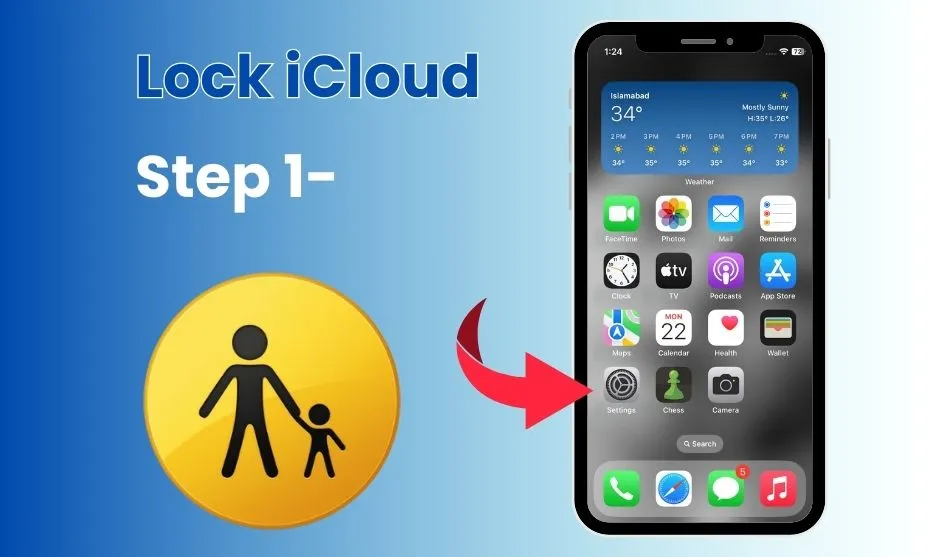
Step 1- Access Settings
Firstly, you need to access your iPhone settings to proceed with the procedure. Open the app menu and access settings.
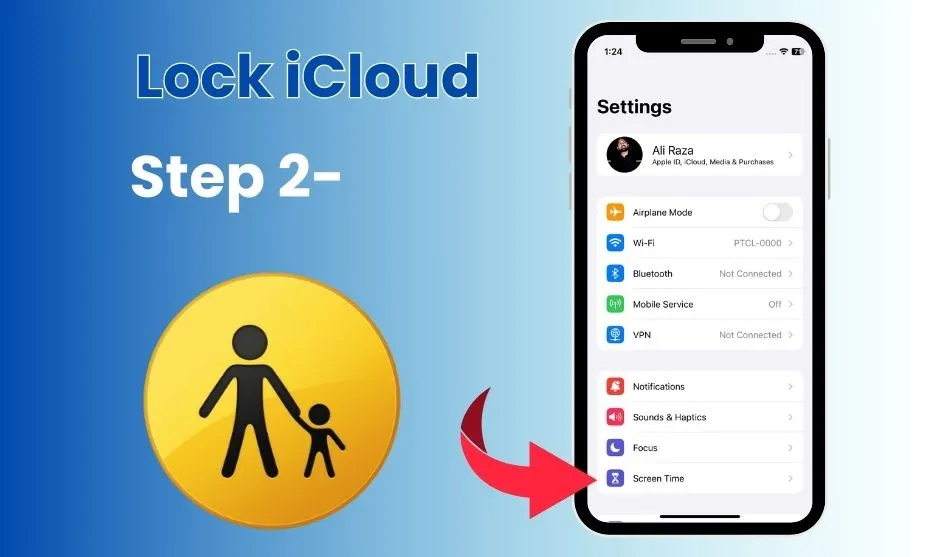
Step 2- Open Screen Time
Now, open the Screen Time feature settings on your device.
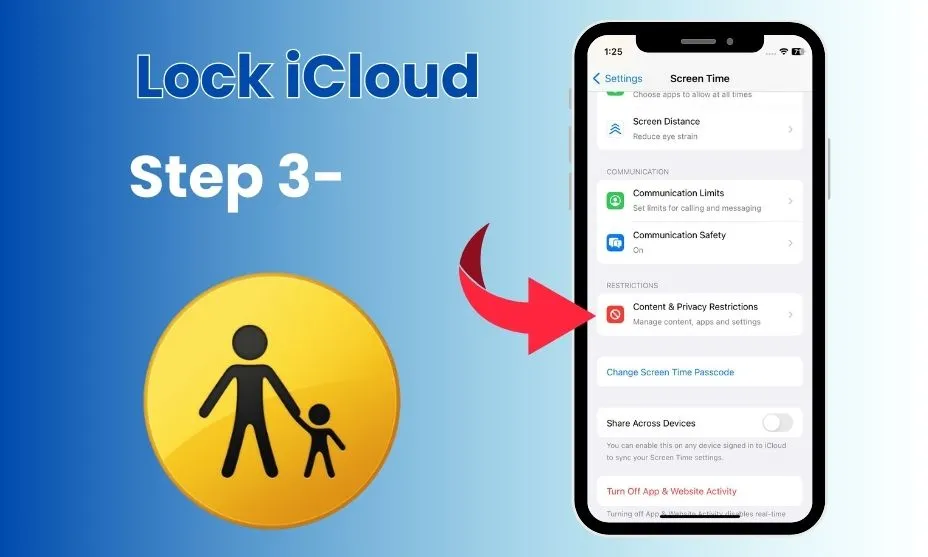
Step 3- Navigate to Content & Privacy Restrictions
The only restrictions in iOS are the content and privacy restriction model. So, you need to navigate to this model to change your iPhone settings.
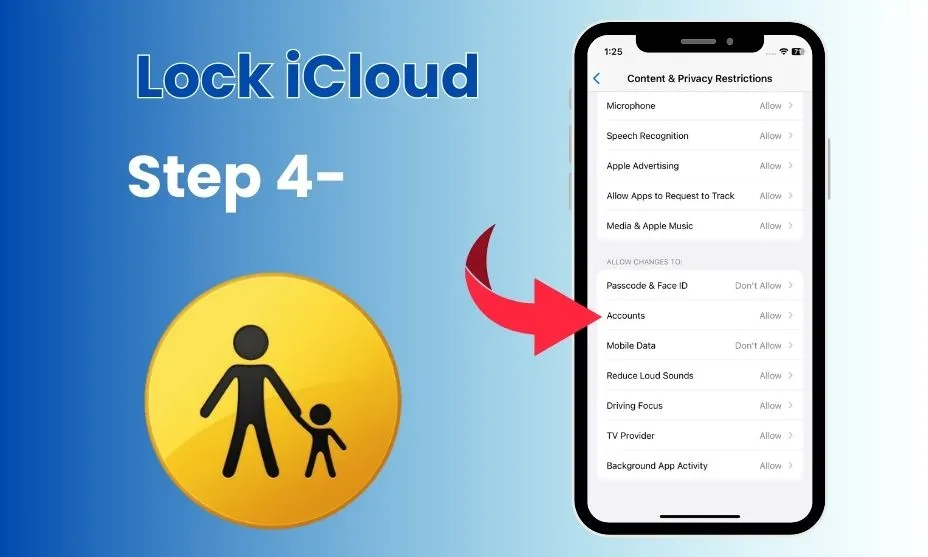
Step 4- Accounts
Scroll down and select the “Accounts” option.
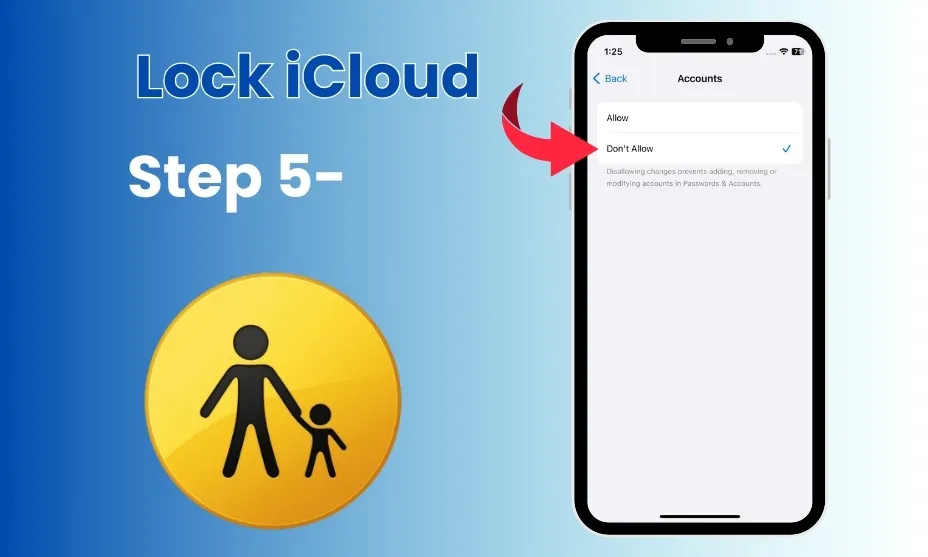
Step 5- Don’t Allow
Finally, you have to click on “Don’t Allow” to lock your iCloud ID on your iPhone. To unlock the iCloud ID, you can repeat the exact process and select “Allow” at the end.
How to Avoid Password Changing on Your iPhone
Start creating Verdict in seconds, and convert more of your visitors into leads.
Here are some simple steps to prevent changing your password to increase your device’s security.
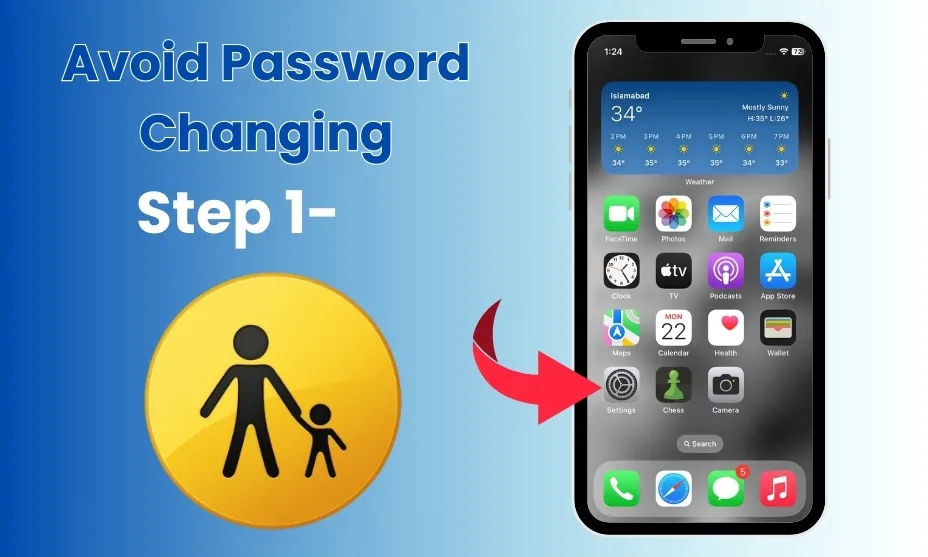
Step 1- Access Settings
Like always, access settings first to make any customizations to your device.
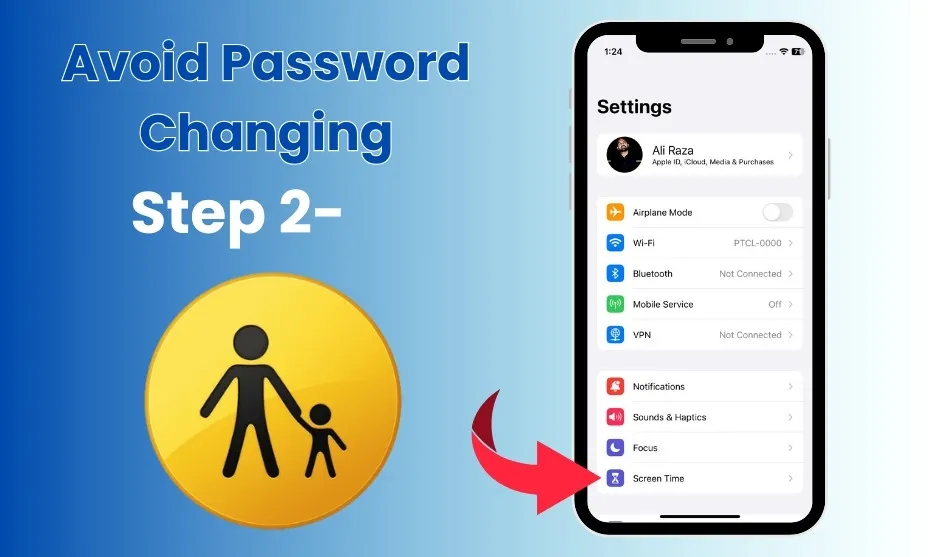
Step 2- Open Screen Time
Secondly, you need to open the screen time option to proceed with the procedure.
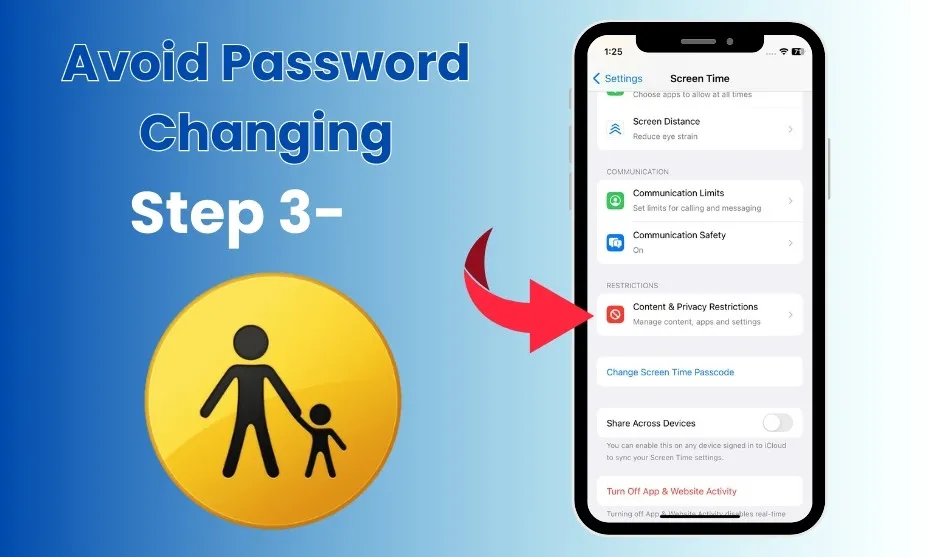
Step 3- Navigate to Content & Privacy Restrictions
Navigate to content and privacy restrictions to prevent changing your device’s password.
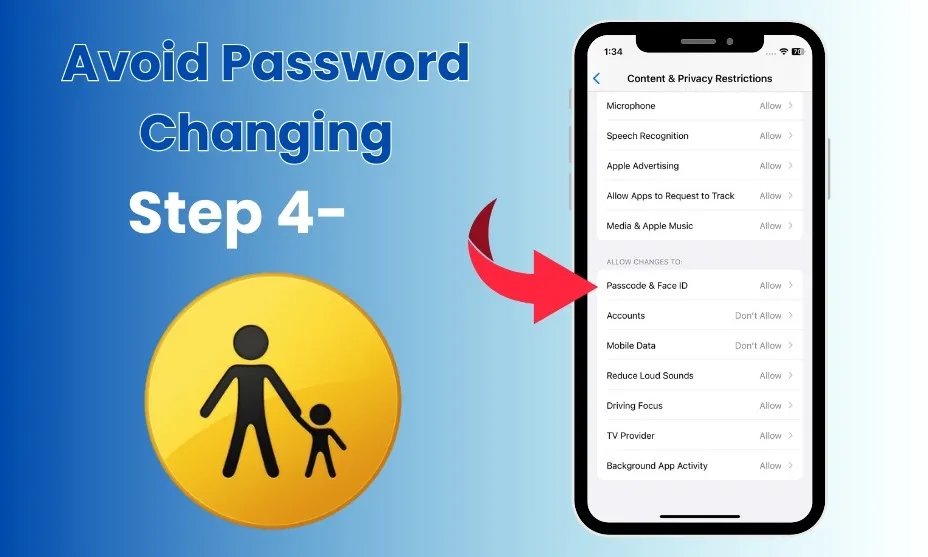
Step 4- Passcode & Face ID
Select the passcode and Face ID option to make customizations.
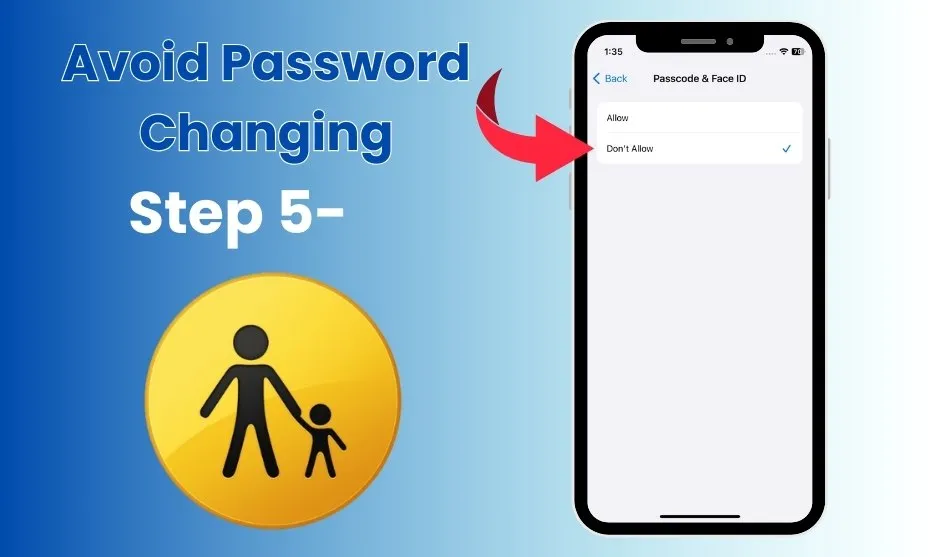
Step 5- Select Don’t Allow
Finally, you have to select “Don’t Allow” to avoid changing your password. This convenience provides users with an opportunity to enhance their device’s security.
How to Prevent WEB Search on Your iPhone
Start creating Verdict in seconds, and convert more of your visitors into leads.
Prevent WEB searches on your iPhone to prevent your children from harmful content and save them from mental issues. Here are some easy steps to enable web prevention.
Step 1- Access Settings
Really, everything is available in settings. And yes, you have to navigate to the app menu and select settings.
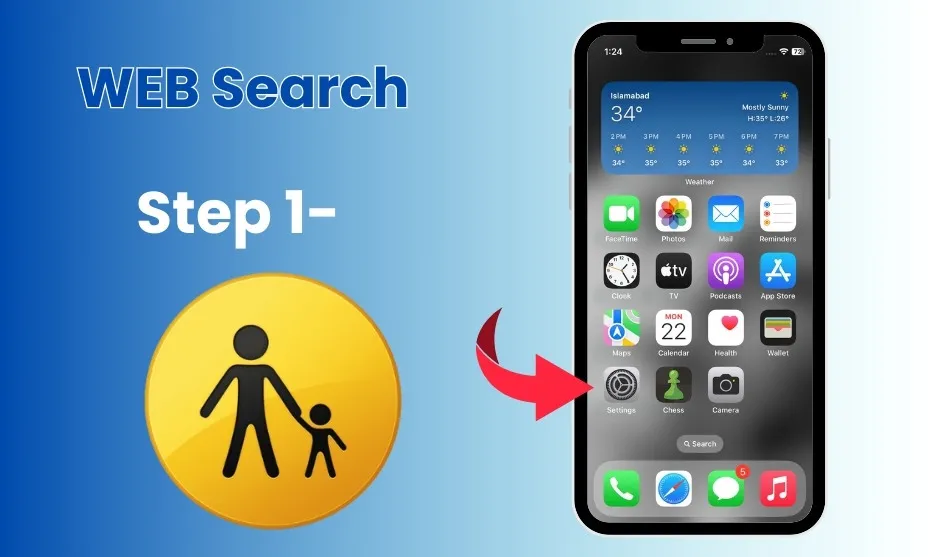
Step 2- Open Screen Time
To prevent websites, you need to open screen time like the previous steps in the additional guides.
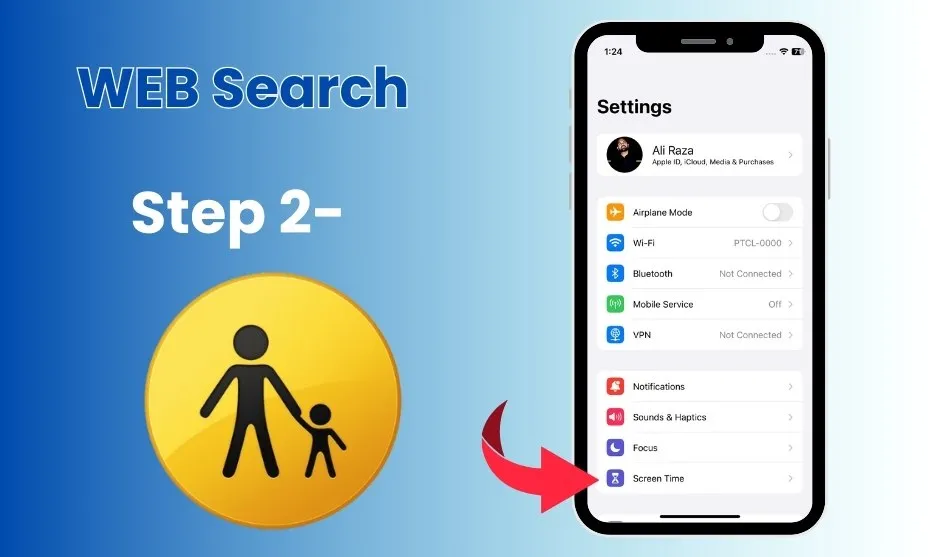
Step 3- Navigate to Content & Privacy Restrictions
Here, you need to navigate to content and privacy restrictions to proceed with the procedure.
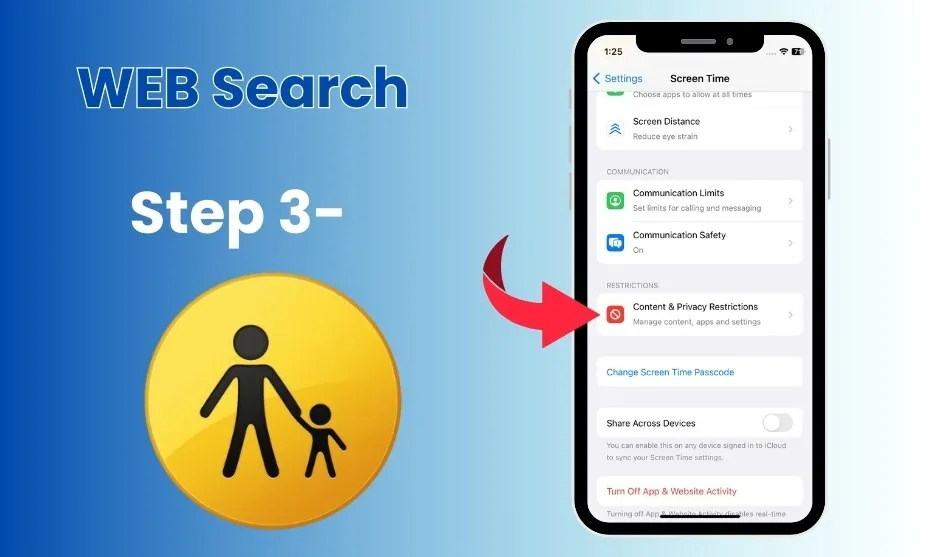
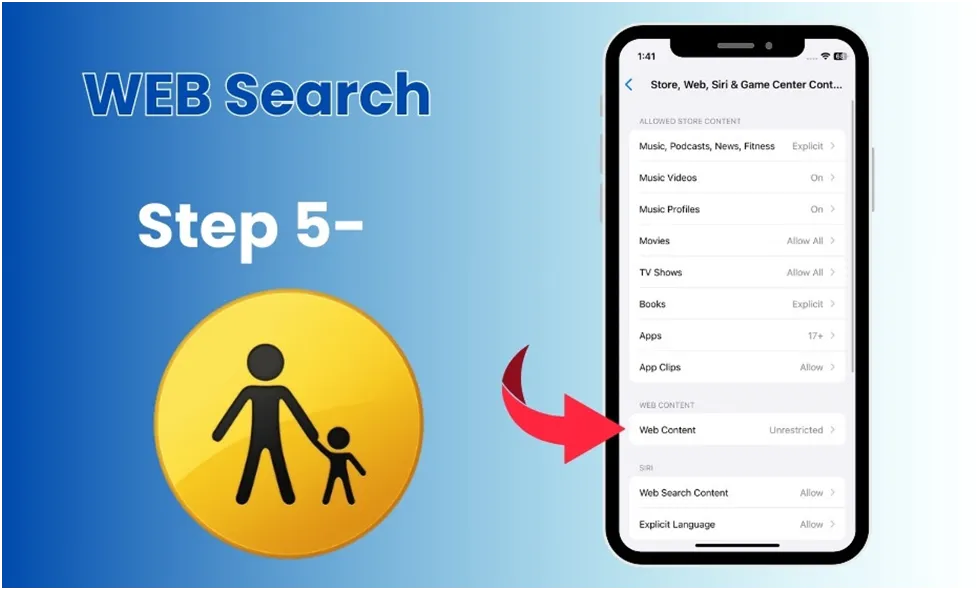
Step 4- Store, Web, Siri & Game Center Content
Furthermore, you need to navigate to the Store, Web, Siri & Game Center Content option to proceed with the procedure.
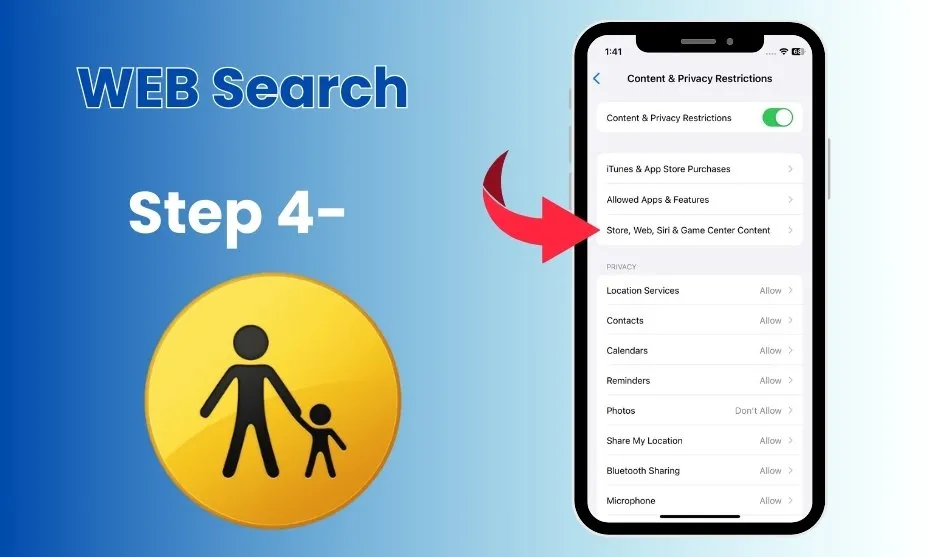
Step 5- Open WEB Content
Often, web content is harmful to children because of contains some submissive material. That material may harm human minds and cause potent mental issues. Furthermore, that is why enabling the prevention of web searches is essential for parents, just like another duty as a parent. Here, click on the web content option to enable web prevention.
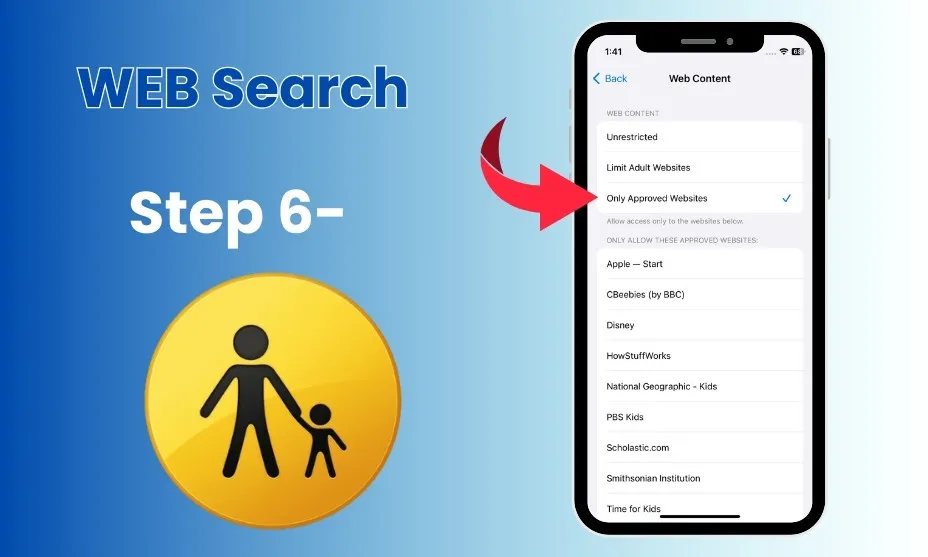
Step 6- Only Approved Websites
After that, you will get only three options from which you have to choose only approved websites.
Final Thoughts
Start creating Verdict in seconds, and convert more of your visitors into leads.
While originally designed for child safety, Apple’s Parental Controls have evolved into an indispensable anti-theft strategy. In a landscape where digital identity theft is as common as physical device theft, these Content & Privacy Restrictions provide the final line of defense for your data.
When you lock your iCloud ID and Passcode settings behind a unique Screen Time code, you effectively “freeze” your device’s identity. Even if a thief bypasses your lock screen, they are blocked from disabling Find My, signing out of your account, or changing biometric data.
In 2026, smartphones security isn’t just about a strong password. It’s about layers. Repurposing these parental tools ensures that if your iPhone leaves your hands, your digital life stays under your control.
People Also Ask
Start creating Verdict in seconds, and convert more of your visitors into leads.
Q1- How to use Apple Parental Controls?
Individuals have different perspectives on using this Apple feature. Some of them enhance their security by using this feature, and some prevent their children from making customizations.
Q2- How to hack Parental Controls Apple?
There is no way to hack this Apple feature without the intention or permission of the device owner.
Q3- How to turn off Parental Controls on Apple?
You are free to turn off this Apple feature by navigating to content & privacy restrictions and customizing options.
Q4- How to set up Parental Controls on Apple ID?
It is simple to do when you navigate to settings: Settings<Face Time<content & privacy restrictions<turn off.
Q5- How to bypass Apple Parental Controls?
You need to restart your Apple device and turn the screen time option off.