How to Share a WiFi Password (iPhone, Android & Windows)

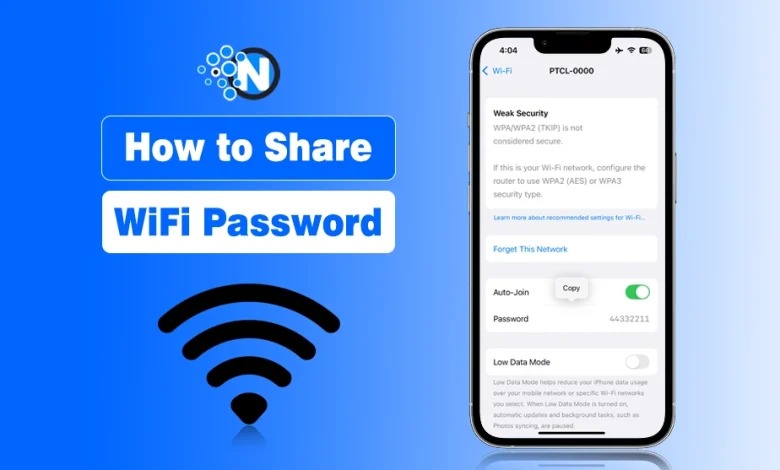
Want to share your WiFi password but don’t remember it, don’t want to type it, or need to connect a different device? You usually don’t need to look at the router or reveal the password at all.
On an iPhone, you can use Share Password for another iPhone or Mac, while a WiFi QR code makes sharing with other devices easier. Android also supports QR-based sharing, and Windows or Mac lets you access saved WiFi credentials when needed.
Below, I’ll show you how to share a WiFi password from iPhone, Android, and Windows so you can choose the quickest way to share your WiFi.
How to Share WiFi Password on iPhone?
If you’re already connected to WiFi on your iPhone, you can easily share it with another iPhone by following these simple steps.
- Click the Settings app.
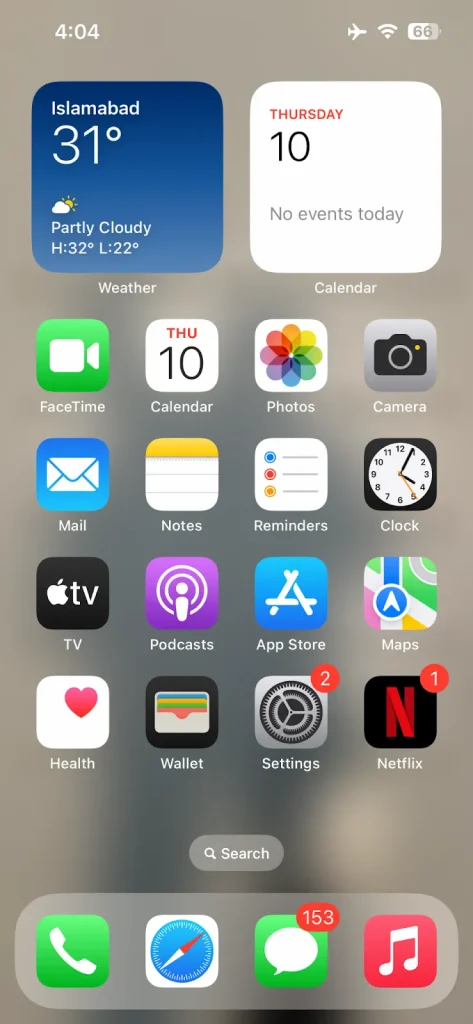
- Go to the WiFi option.
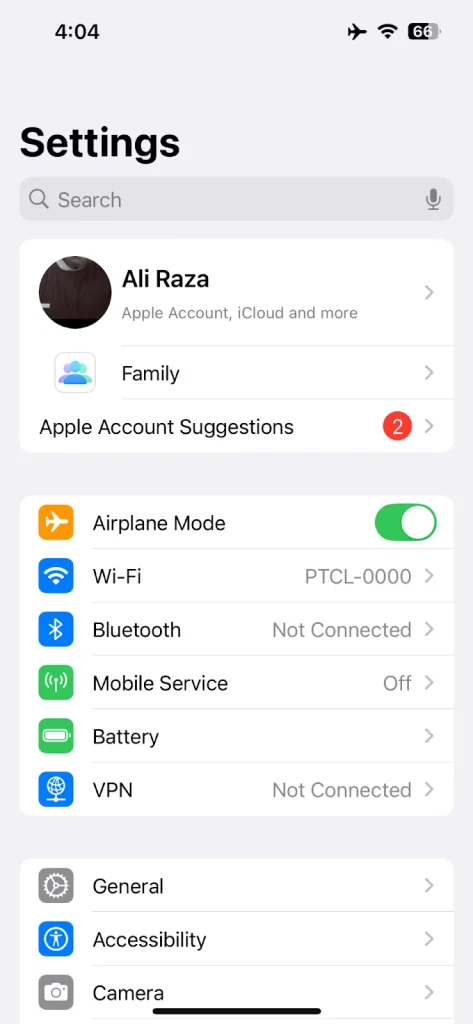
- Find the network connected to your mobile and click it.
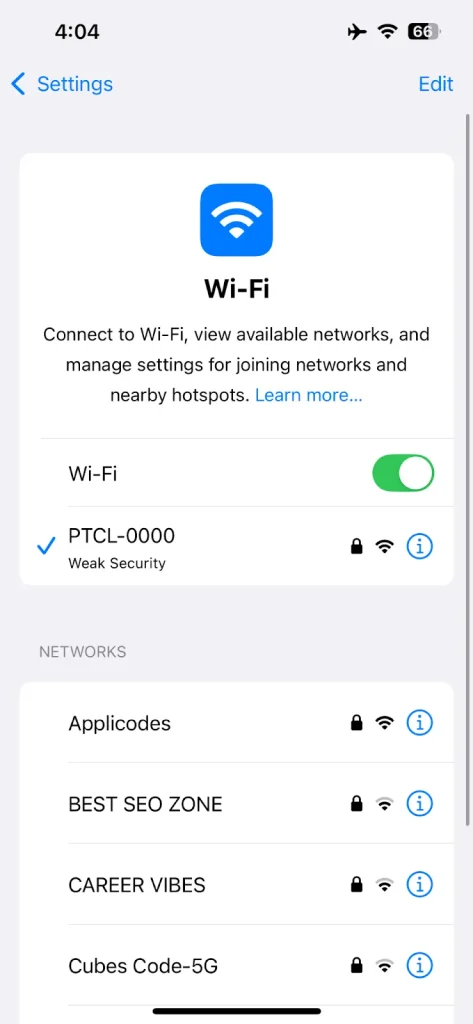
- Next, tap on the “i” icon.
- Now, you have to click on Password.
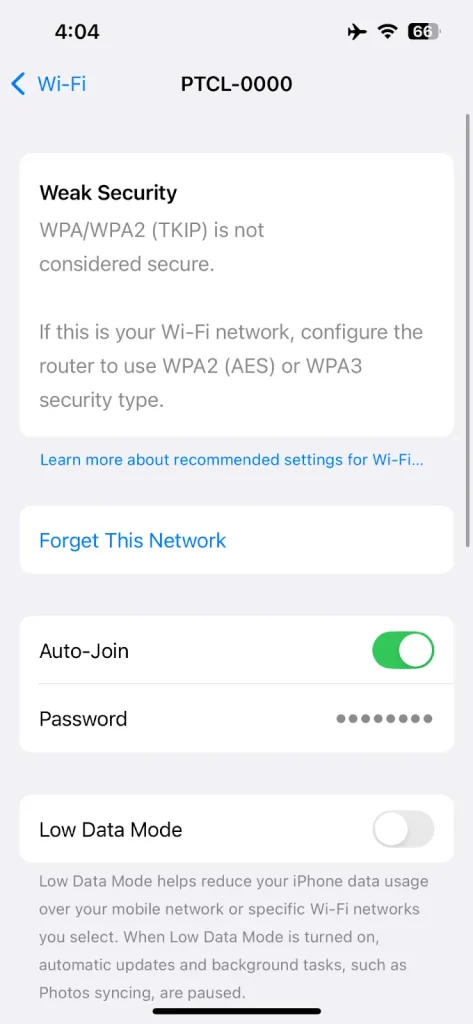
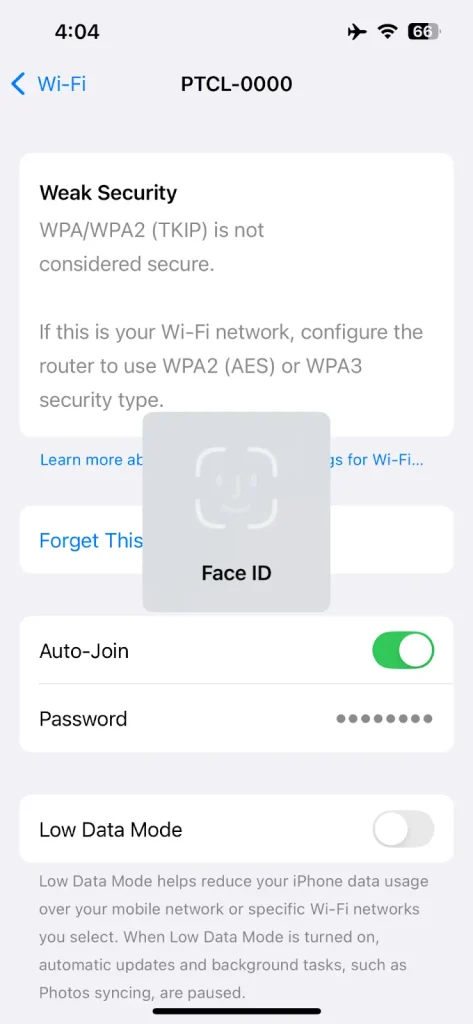
- Confirm your Face ID.
- The password will be revealed.
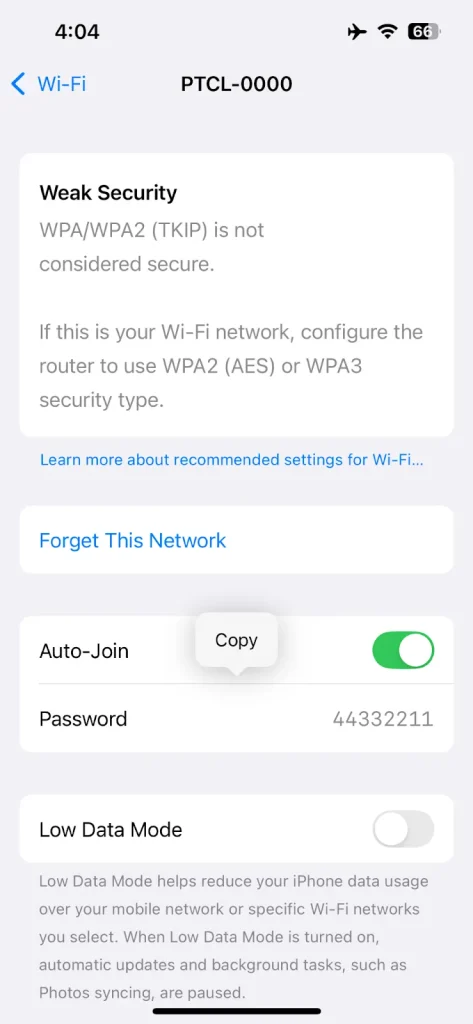
Now, you can tell your guests or send them the screenshot to let them connect to the same WiFi network you are already connected to.
You can also share the wifi password between your other Apple devices automatically.
How to Share a WiFi Password Automatically Between Apple Devices
Apple’s built-in Share Password feature securely sends the saved WiFi credentials from one device to another in just a few taps. But before you start, make sure the following requirements are met:
- Both devices have Wi-Fi and Bluetooth turned on.
- Both devices are unlocked and within Bluetooth range.
- The email address or phone number associated with each person’s Apple Account is saved in the other’s Contacts app.
- Your iPhone, iPad, or Mac is already connected to the WiFi network you want to share.
- The other person’s device is not already connected to that WiFi network.
- Both users must be signed into their respective Apple Accounts
Steps to Share Your WiFi Password
- On the recipient’s Apple device, open Settings > Wi-Fi and select the WiFi network they want to join.
- Bring both devices close to each other.
- A Share WiFi Password prompt will automatically appear on your device.
- Tap Share Password.
- Wait a few seconds while the password is securely transferred.
- Tap Done once the process is complete.
The recipient’s device will connect to the WiFi network automatically without ever displaying the actual password.
How to Share WiFi Password on Android?
On most Android phones running Android 10 or later, users can easily share the WiFi, especially with QR code features baked right into the system. Here is how you can do it.
- Go to your WiFi settings.
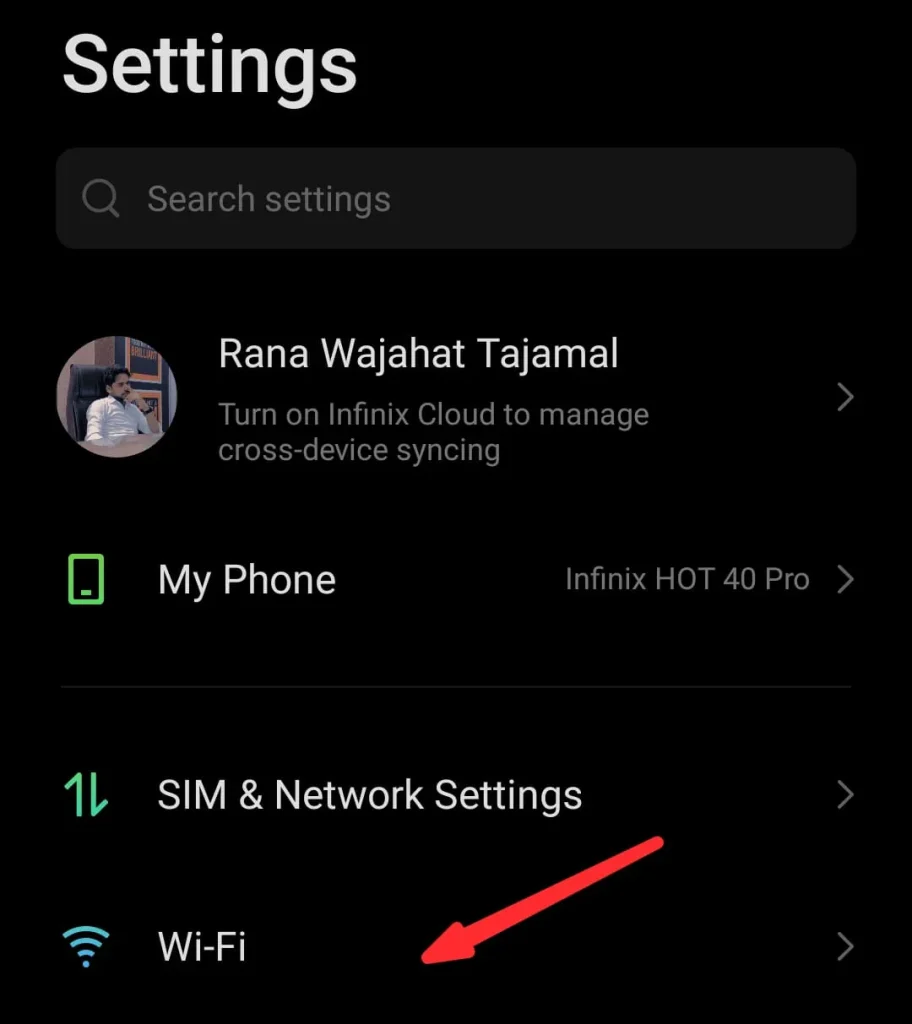
- Tap the name of the network you are connected to.
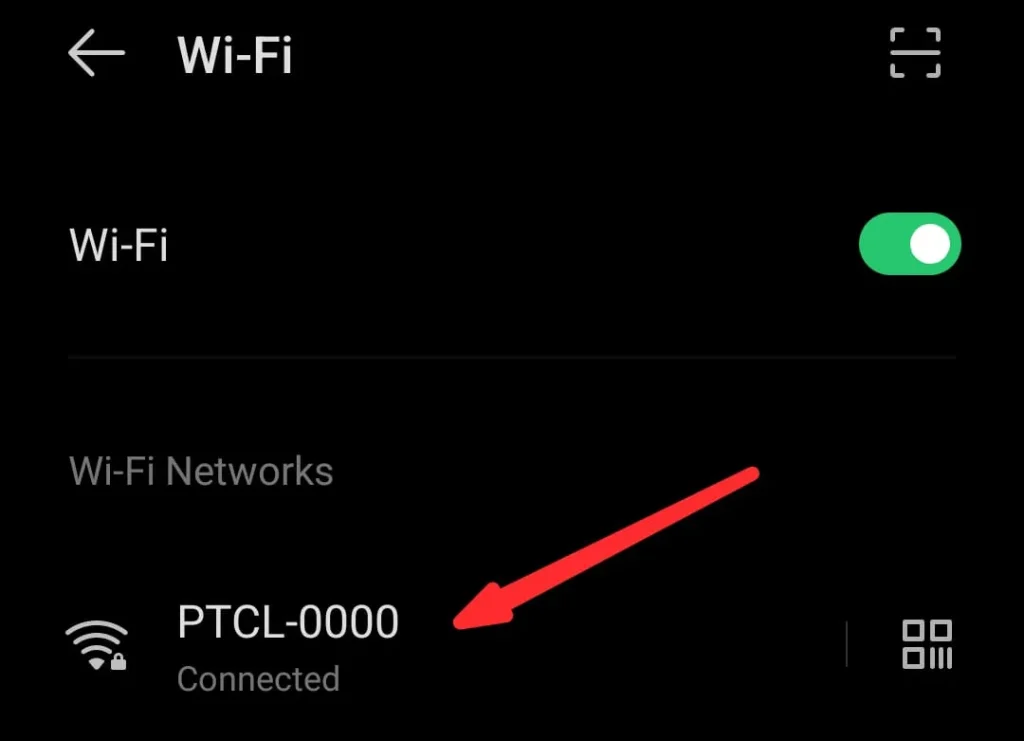
- You will see a small “Share” option with a QR code icon. Tap that.
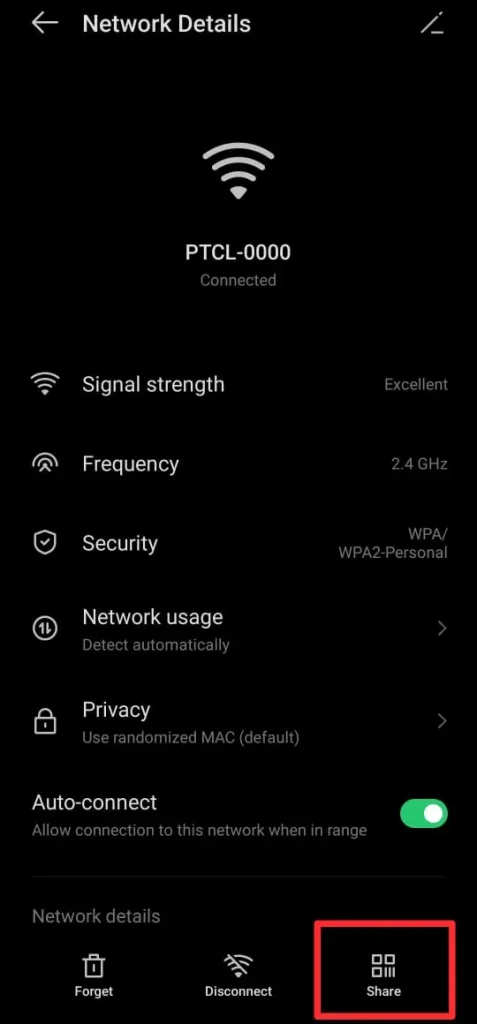
- Depending on your phone’s security, you might need to unlock using a fingerprint, PIN, or face scan.
- Now your phone will display a QR code.
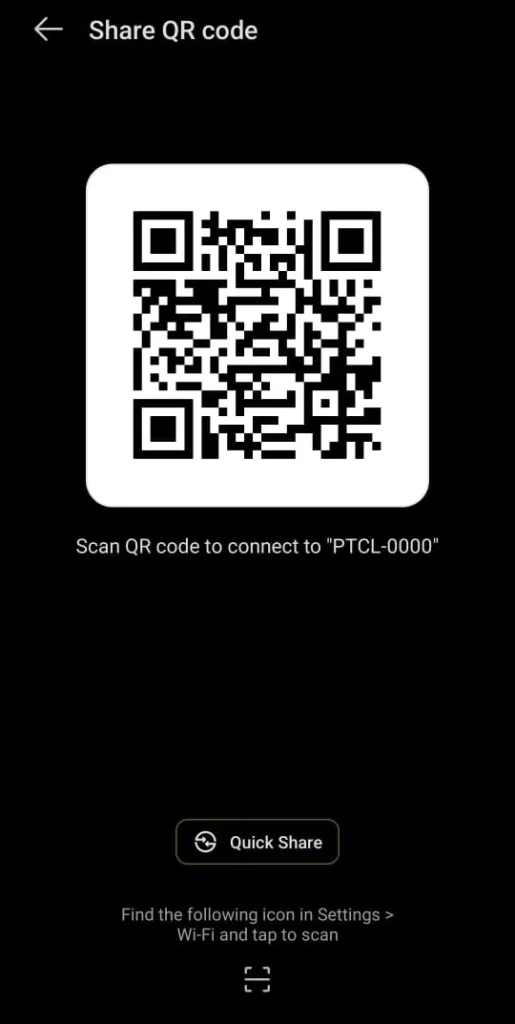
- Your friend can simply scan this code using their phone’s camera or QR scanner app and connect automatically.
👉 Pro Tip: Some older Android versions don’t support QR sharing.
How to Share WiFi Password on Windows
Now let’s talk about Windows. While it is not as seamless as mobile platforms, there is a simple way to share your WiFi from a Windows laptop or PC.
Here is how to find it:
Windows 10
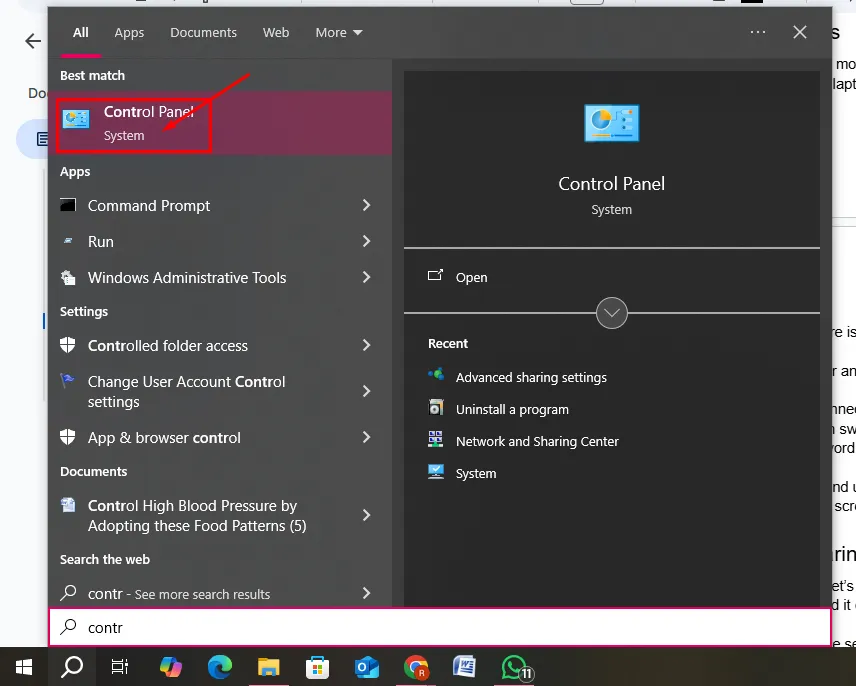
- Search for “Control Panel” in the Windows search bar and open it.
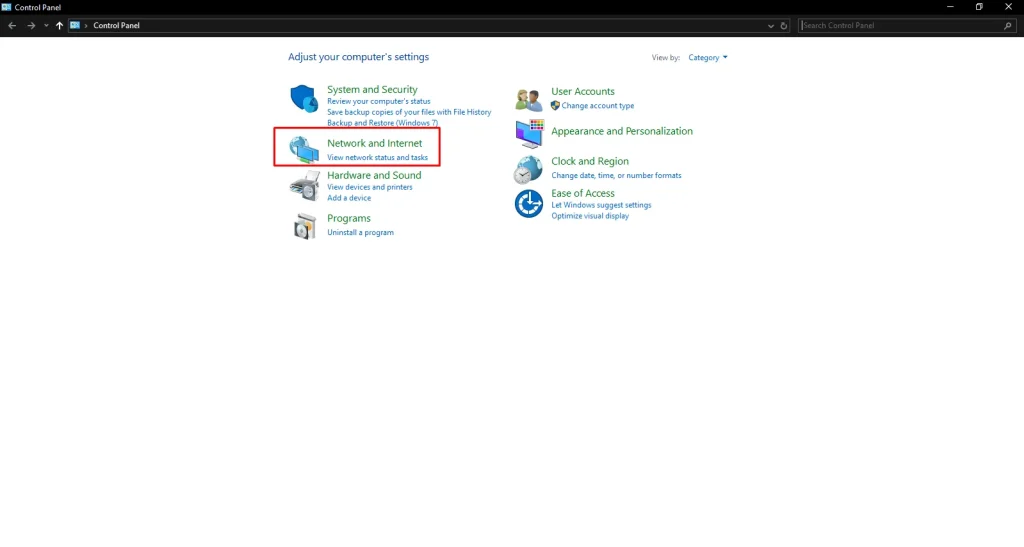
- Choose the Network and Internet.
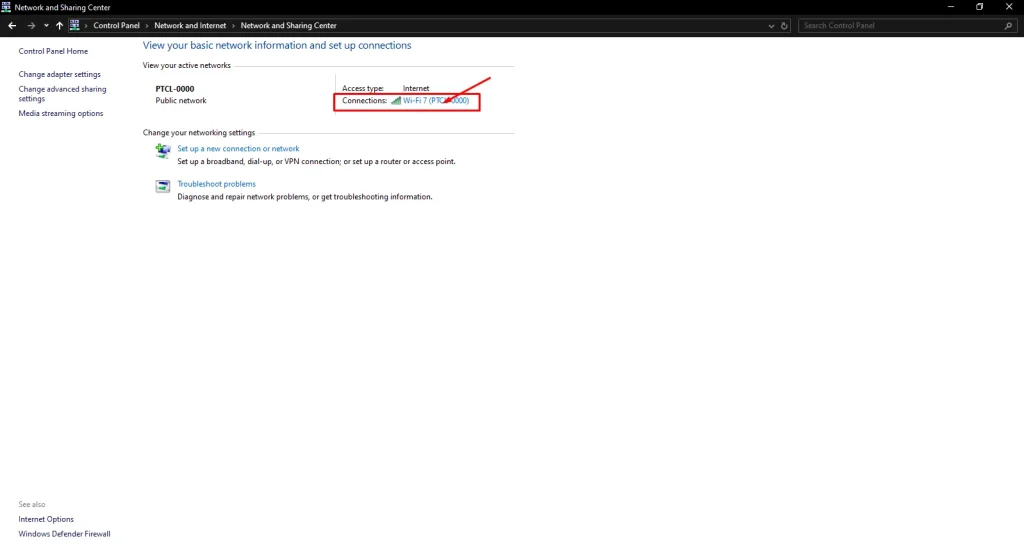
- Click on “Network and Sharing Center.” Then click on your connected WiFi name next to “Connections.”
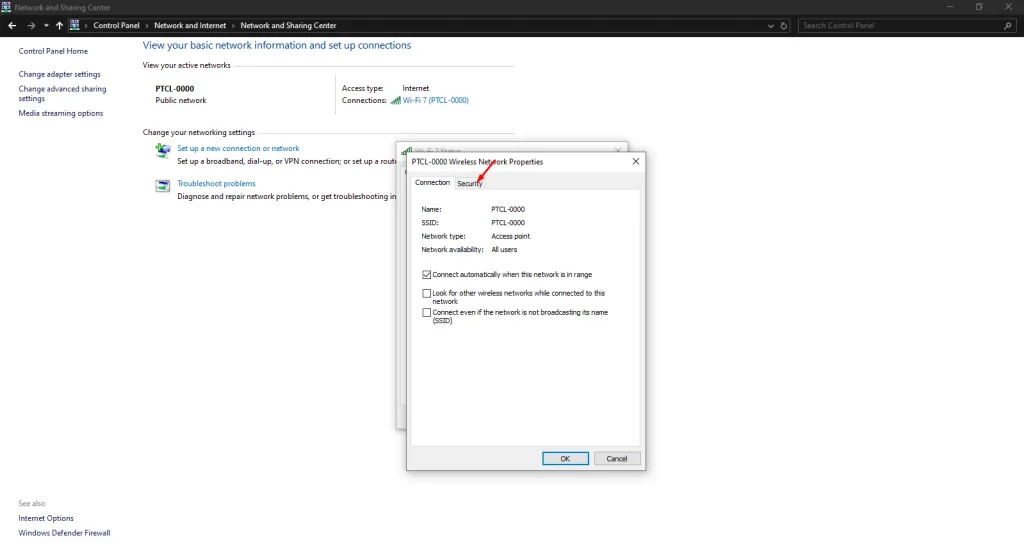
- A pop-up will appear. Click “Wireless Properties.”
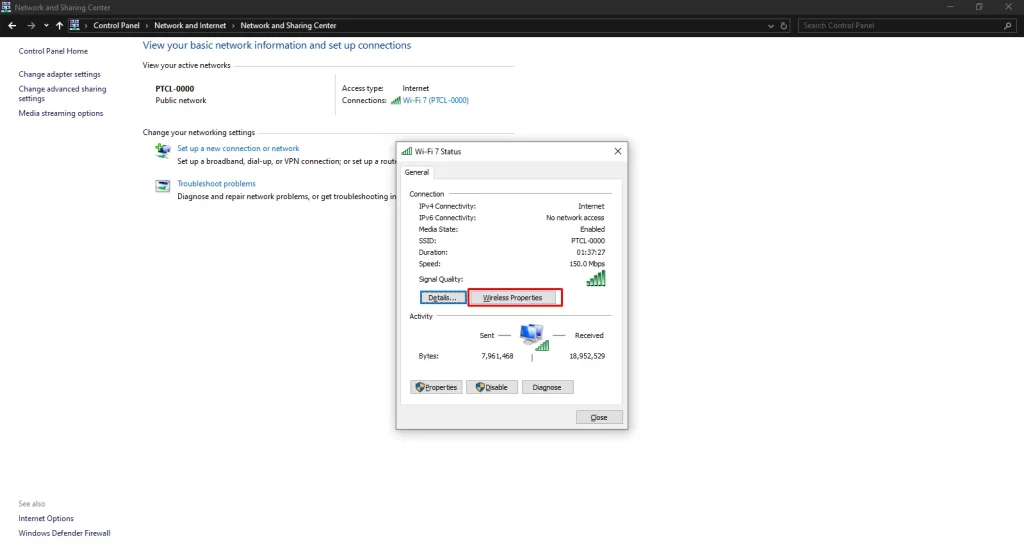
- Then switch to the “Security” tab.
- Check the box for “Show characters,” and your password will be visible.
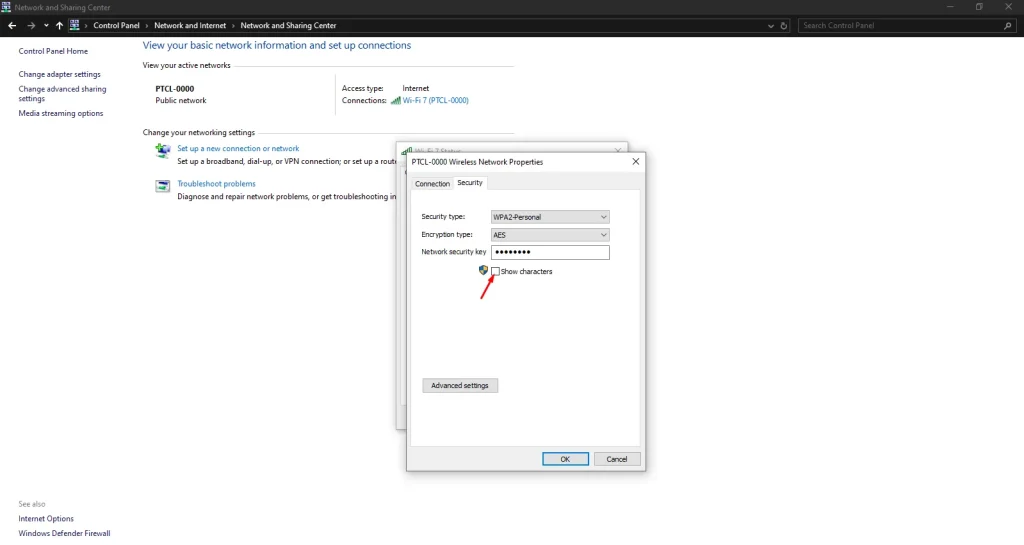
Once you know the password, you can go one step further and use any online QR code generator to create a QR code and let others connect to your Wifi without revealing your password yourself.
Tips to Keep Your WiFi Secure While Sharing
Once you know how to share your WiFi password, let’s make sure you are sharing it wisely. Just because it is easy doesn’t mean you should hand it out like candy.
You should make sure you can share it while keeping the security intact. Below are a few tips.
- Create a Guest Network: Most modern routers allow you to set up a guest WiFi.
- Secure Your Router: Besides controlling who gets your WiFi password, keep your router properly secured. CISA’s home router security guidance recommends changing default router credentials and reviewing its security configuration.
- Use a QR Code Instead of Typing: It is way safer and reduces errors. You don’t have to worry about typos or people seeing your actual password.
- Change Your Password Regularly: If you are someone who hosts a lot of guests, it is a good idea to reset your WiFi password every few months to maintain security.
Frequently Asked Questions
Can I share WiFi from an iPhone to an Android?
Yes, but iPhones don’t generate QR codes, and you have to retrieve the password in Apple’s Settings, as the auto-share feature only works with Apple devices.
Is it safe to share my WiFi password?
Yes, as long as you share it with trusted people. For extra safety, use guest networks, QR codes, or Apple’s Share Password feature to avoid typing the actual password.