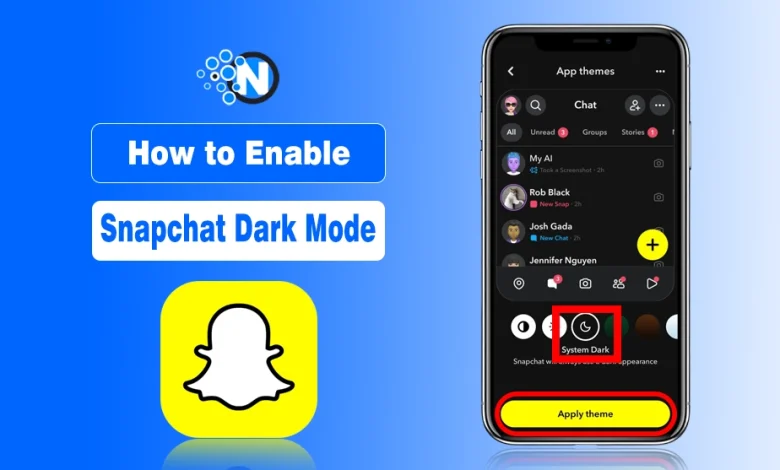
Snapchat Dark Mode is a black theme designed to reduce eye strain and save battery while using the app. It is popular among Gen Z for sharing Snaps, Stories, and streaks.
Snapchat is a fun and engaging platform, but spending long hours, especially at night, can tire your eyes. Dark mode lowers screen brightness, making scrolling more comfortable.
It’s available for iPhone, Android, and Snapchat Plus or free accounts and can be activated through the app or system settings. In this guide, I’ll show you how to enable dark mode and style your app icons with black, white, or neon designs for a modern look.
How to Enable Snapchat Dark Mode?
Now I will show you how to enable Dark Mode on Snapchat for both Android and iPhone using real-time screenshots.
While the official Snapchat Support guide explains it in text, this guide makes it easy to follow step by step.
1. Steps to Activate Snapchat Dark Mode on Android
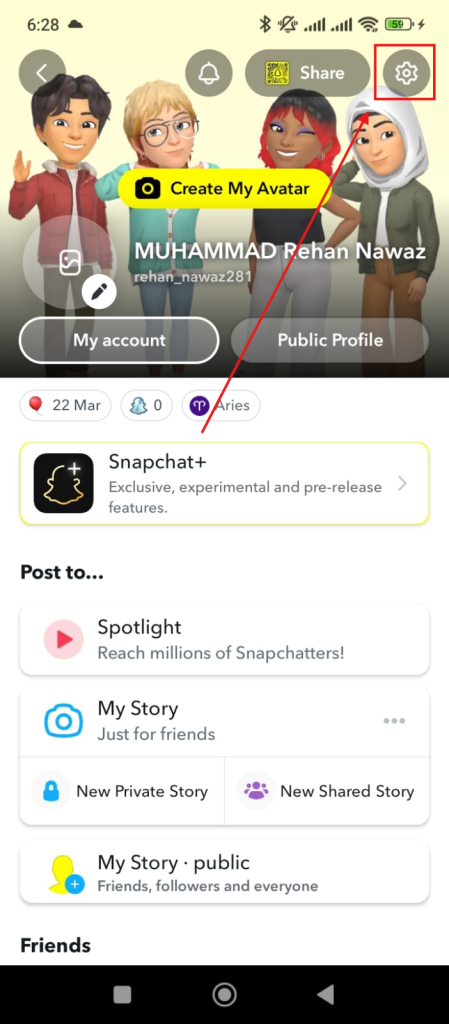
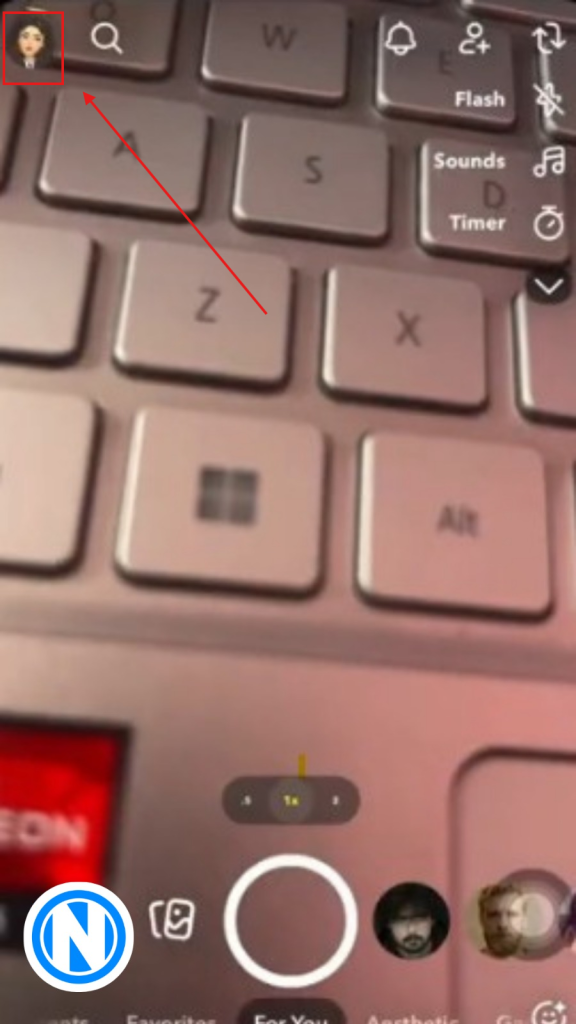
- Open your “Snapchat app” on your Android and tap your avatar in the top-left corner of Snapchat to access your profile.

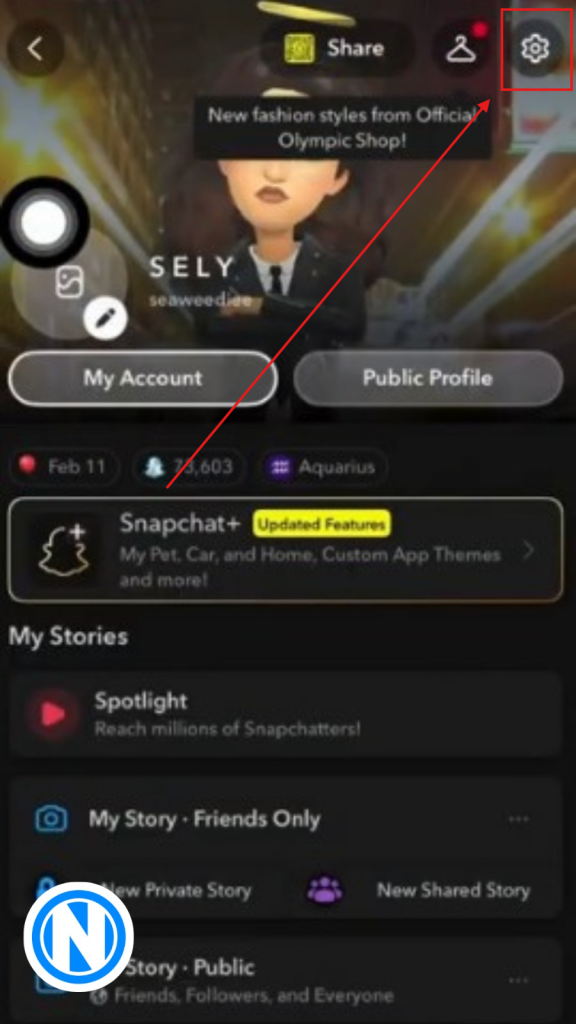
- Tap the gear icon in the top-right corner to open the Settings menu.
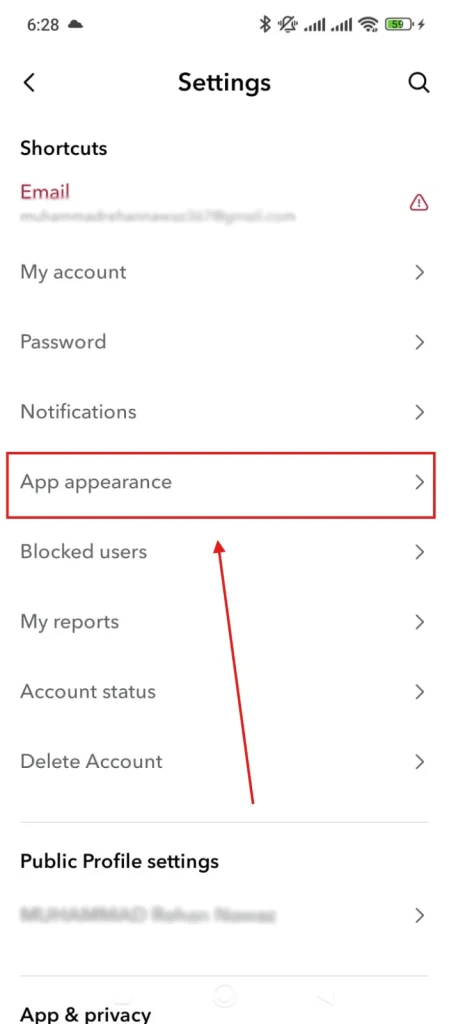
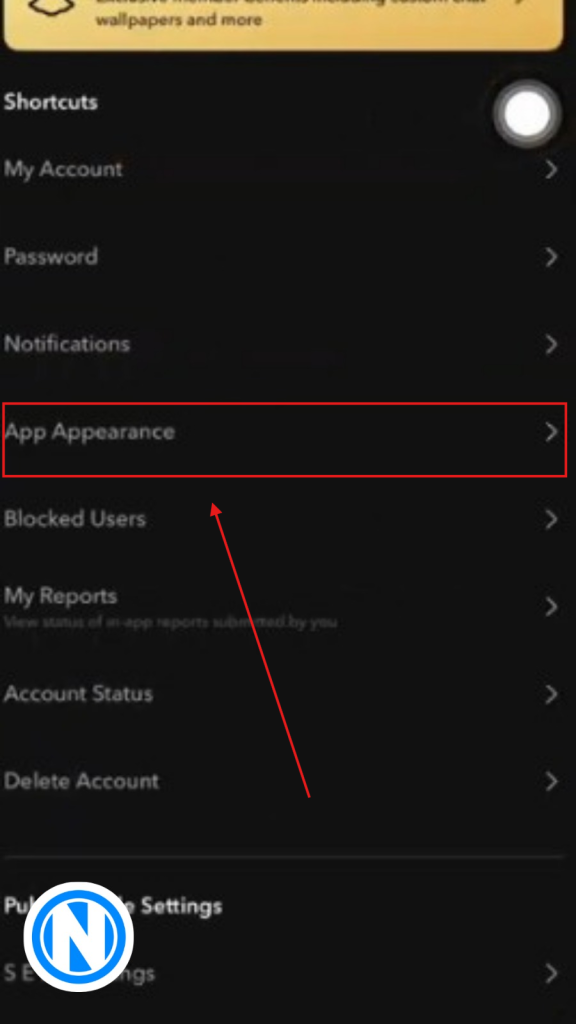
- Tap App Appearance to manage the theme.
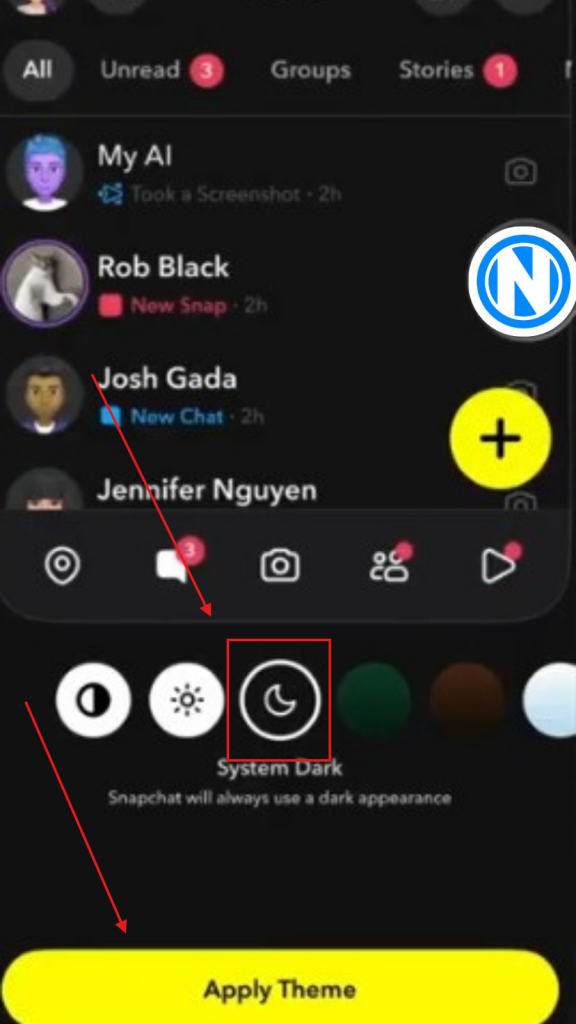
- Select the crescent moon icon for Dark Mode to switch the interface manually.
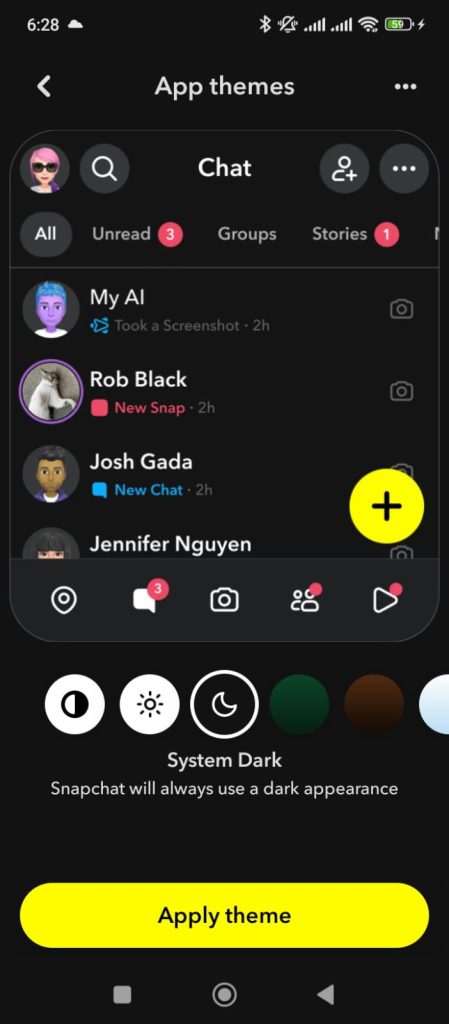
After that, just simply apply the theme and then it will ask for an app restart, and after that, your theme will be applied.
If you’re using an Android and switch your phone’s theme to dark in system settings, it will automatically enable dark mode in most apps, including Snapchat.
2. Steps to Enable Snapchat Dark Mode on iPhone
- Launch the Snapchat app from your iPhone’s home screen. Tap your Bitmoji or profile icon at the top-left corner.
- Tap the gear icon in the top-right to access settings.
- Scroll down and tap App Appearance under the “My Account” section.
- Select Crescent Moon to turn on Dark Mode.
We have discussed the steps to enable dark mode on Snapchat with real-time screenshots. However, if you are still facing issues regarding dark mode on your device, then it is recommended to contact the “Snapchat support center.”
Advantages of Snapchat Dark Mode:
Young people, especially Gen Z, spend most of their time on social media, especially on Snapchat, which is not beneficial for their eyesight and mental health.
However, it can also harm the mobile phone, causing battery damage or heating issues. So, here are some benefits of the dark mode.
Protects Eyesight
Using mobile or computer screens for long periods can cause digital eye strain, which leads to tired or dry eyes and blurred vision, according to the American Academy of Ophthalmology.
In this case, enabling dark mode reduces glare and contrast, making it easier on your eyes and helping prevent eye fatigue. It’s a simple way to make screen time more comfortable and healthier.
Improved Battery Life
If you are using a brighter screen for long, it can affect the mobile battery life. Black or dark mode decreases the screen pixel that consumes less battery than a bright one.
If you are spending time on Snapchat, whether for chatting, video sharing, or marketing goals, use this mode to save battery life that lasts for a long time.
Enhances Chat Looks
It not only reduces eye strain, but it also makes an aesthetic app environment of chat and overall app. Most people love a black theme, which enhances the look.
If you enable dark mode, it will turn into a black theme, leaving an awe-inspiring impression when someone looks.
How Can You Style Your Snapchat Icons for Dark Mode?
You can style your Snapchat icons by switching to black-and-white or neon versions that stand out clearly against dark mode backgrounds.
Dark mode looks best when your Snapchat icon complements it. Customizing icons using unique logos can make your home screen more visually appealing and easier to navigate.
Black and White Snapchat Logos for a Clean Look
Black and white Snapchat icons offer excellent clarity and contrast, making them ideal for dark mode users.
They provide a minimalist and professional look while keeping your app easily recognizable. You can find these icons on various platforms, such as Pinterest and Freepik, or explore other reliable resources for black and white Snapchat logos, with ready-to-use designs for your device.
Benefits of Using Black and White Icons
- Enhances readability and visibility on dark backgrounds
- Matches minimalist or professional phone themes effortlessly
Neon Snapchat Logos for a Creative Look
Neon Snapchat icons bring vibrancy and energy to your app, making it truly pop on any home screen.
They work beautifully with dark mode, creating a glowing, eye-catching effect that’s perfect for users looking for a bold and creative aesthetic.
Using Snapchat neon icons is a fun way to customize your Snapchat and make it stand out among other apps.
Benefits of Using Neon Icons:
- Adds playful or artistic personality to your home screen
- Great for customizing and personalizing your phone interface
- Works well with other neon or bright icons for a cohesive theme
In Closing
Now that you know how to enable Snapchat dark mode and style your icons, you can scroll, chat, and share comfortably without straining your eyes.
Whether you prefer sleek black-and-white icons or vibrant neon designs, dark mode makes your app look stylish while saving battery.
Try it out today and make your Snapchat experience more fun.
FAQ’S
Is Snapchat’s dark mode beneficial?
Yes, Snapchat dark mode protects the user’s eyesight and provides an aesthetic look to the app.
Why is Dark Mode not working?
It happens sometimes when you are using an outdated version of Snapchat or the OS on your mobile.
So make sure to update the app or system and try again. Also, it is important to note that your device supports dark mode.
What devices support dark mode?
Snapchat dark mode is available for every user, whether you are using iOS, Android, a tablet, or the web.
Is Snapchat Dark Mode available for free users?
Yes, whether you are a Snapchat premium member or a free member, this feature is available for free to enable on your device.
Can we set Dark Mode to turn on automatically on Snapchat?
Yes, if your system settings are on support, the night and day theme automatically turns on or off. Snapchat also allows you to turn it on automatically. But it depends on your device.
Can we customize the appearance of dark mode on Snapchat?
It depends on your Snapchat version and the device you’re using. However, there are features for certain versions and devices to customize the theme, contrast, brightness, and elements.