A Full-Featured FTP Client for Mac in Finder: CloudMounter Testing Experience

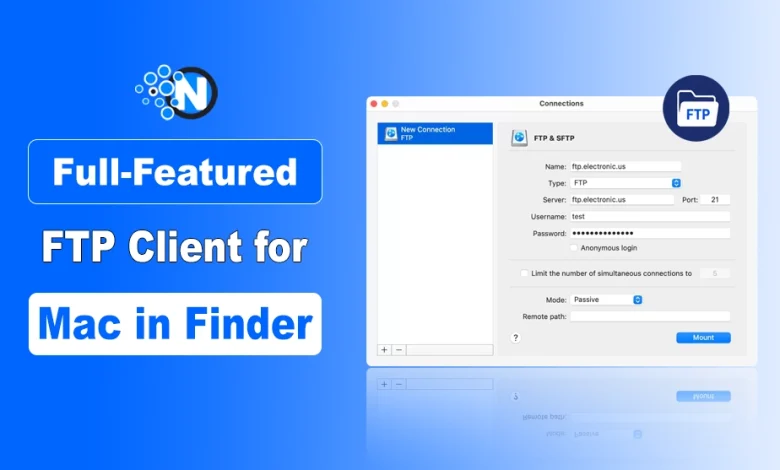
For many macOS professionals, managing remote servers still feels more complicated than it should.
While macOS includes a built-in option through Finder’s “Connect to Server” feature, the experience is often limited to basic access. Users can browse or download files from an FTP server, but uploading, editing, or organizing files directly inside Finder remains restricted.
This limitation pushes developers, designers, and content managers toward third-party utilities with traditional two-pane layouts. Although those applications offer advanced server management, they also interrupt the familiar macOS workflow by forcing constant switching between tools.
During our hands-on testing, CloudMounter approached the problem differently. Instead of creating another isolated workspace, the software transforms Finder into a practical and flexible FTP client for Mac by mounting remote servers as local drives. The result feels far more natural for users already invested in the macOS ecosystem.
- CloudMounter transforms Finder into a functional FTP client for Mac by mounting remote servers as local drives.
- Users can edit, upload, move, and organize remote files directly inside Finder without relying on separate FTP windows.
- Creative teams, developers, and content managers can benefit from a cleaner and more streamlined workspace.
- Secure protocols like SFTP make the platform suitable for professional remote server management.
What is CloudMounter?
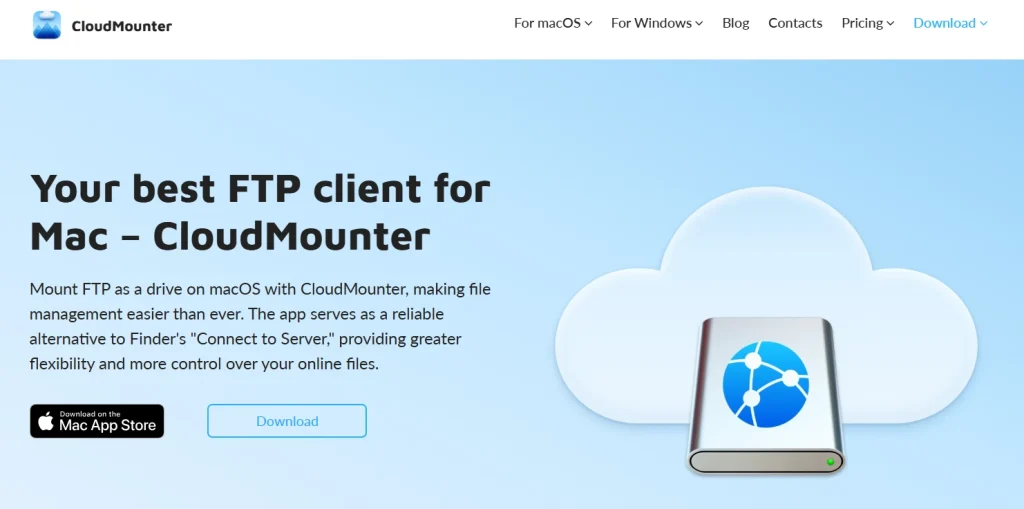
CloudMounter is a cloud storage and remote server management application for macOS (and newer Windows support) that lets users mount cloud services and FTP/SFTP servers as local drives inside Finder.
Instead of opening separate FTP or cloud apps, users can access remote files directly from the native macOS file manager.
It is commonly used as:
- An FTP client for Mac
- An SFTP client
- A cloud storage manager
- A Finder integration tool for remote servers
CloudMounter supports services and protocols such as:
- FTP
- SFTP
- WebDAV
- Amazon S3
- Google Drive
- Dropbox
- OneDrive
- Box
- MEGA
Once connected, remote storage behaves similarly to a local drive. Users can open, edit, upload, move, and organize files directly inside Finder without constantly downloading and re-uploading files manually.
Testing CloudMounter in a Real macOS Workflow
Our evaluation focused on everyday tasks that web developers and digital teams commonly handle:
- Connecting to multiple development servers
- Editing configuration files directly on remote storage
- Uploading media assets
- Managing directories without repeated downloads and re-uploads
- Reducing dependency on separate FTP applications
The goal was simple: make remote files behave like local files inside Finder.
Instead of downloading content to a MacBook, editing it locally, and manually uploading everything again through a separate client, we integrated CloudMounter directly into Finder to see how smoothly the process worked in practice.
The testing workflow included:
- Setting up several FTP connections simultaneously
- Mounting remote servers as local Finder drives
- Testing read and write functionality
- Evaluating transfer responsiveness
- Measuring how many manual steps could be eliminated during daily work
From the beginning, the difference in workflow was noticeable. Rather than opening another standalone FTP window, connected servers appeared directly in the Finder sidebar like external drives or local folders. This created a much cleaner and faster experience for handling server-side files.
What Improved During Daily Usage
The biggest advantage was the reduction in repetitive tasks.
Once the FTP server appeared inside Finder, the traditional “download-edit-upload” cycle largely disappeared. Files could be opened directly in native macOS applications or code editors, edited instantly, and saved back to the server without extra exporting or transfers.
Smooth Finder Integration
Standard FTP access in Finder typically works in read-only mode. During testing, CloudMounter removed that limitation completely.
After mounting the server, we could:
- Create folders
- Rename files
- Move directories
- Delete outdated assets
- Edit permissions
- Upload content directly
All actions happened through the familiar macOS interface rather than a separate management panel.
Fewer Applications Running at Once
Traditional FTP workflows often involve multiple open utilities at the same time:
- Finder for local files
- An FTP client
- A text or code editor
- A browser preview
With CloudMounter, remote directories behaved like native Finder folders. This reduced desktop clutter and simplified multitasking considerably.
For example, transferring an image to a remote website no longer required dragging files between separate application windows. The process felt identical to moving files between local folders on macOS.
Cleaner Workspace Organization
Another noticeable improvement was workspace consistency.
Remote files stayed accessible in neighboring Finder tabs, which made large projects easier to organize. For content teams handling graphics, website assets, or configuration files daily, this kind of workflow continuity can significantly reduce interruptions.
How CloudMounter Works as an FTP Client
The software operates by creating a virtual file system bridge between macOS and the remote server. Once connected, the mounted FTP server behaves like a local storage device inside Finder.
Setting up the connection was straightforward:
- Install and launch CloudMounter
- Choose FTP or SFTP from the connection options
- Select the preferred protocol type
- Enter server credentials
- Click “Mount”
- Access the server directly from Finder
After the connection is established, the mounted server appears alongside local disks and external drives within macOS.
Users can then:
- Open files directly from Finder
- Preview media through Quick Look
- Edit documents in real time
- Access remote directories from native applications
This creates a more unified experience than many traditional FTP managers.
Beyond FTP: Additional Storage Integrations
Although our testing primarily focused on FTP functionality, CloudMounter also supports several other storage protocols and services.
The platform integrates with:
- SFTP
- WebDAV
- Amazon S3
- Google Drive
- Dropbox
- OneDrive
- Box
- MEGA
For professionals working across multiple storage environments, this eliminates the need to install several separate synchronization utilities that consume local storage and system resources.
Instead, every connected service appears as another mounted drive within Finder.
Why This Matters for Mac Professionals
Casual users uploading a file once a month may find basic macOS tools sufficient. However, for developers, webmasters, designers, and content managers who interact with remote storage every day, workflow efficiency matters.
During testing, the biggest benefit was consistency.
Opening a live website stylesheet directly in editors like Visual Studio Code or Sublime Text without downloading local copies made server management considerably faster.
For creative teams managing large media libraries, the Finder-based workflow also preserved familiar macOS productivity features such as:
- Batch renaming
- Sorting by modification date
- Native search functionality
- Finder column organization
- Quick previews
Instead of adapting to another proprietary interface, users continue working inside the environment they already know.
Why CloudMounter is Better for Remote File Management on Mac
After extensive real-world testing, CloudMounter proved to be a practical and reliable solution for remote file management on macOS.
The application successfully addresses one of the most frustrating aspects of traditional FTP software: separation from the operating system itself. By integrating remote servers directly into Finder, it creates a smoother and more intuitive workflow for everyday tasks.
The ability to mount servers as local drives, edit files directly through Finder, and manage multiple remote connections from a single interface makes this FTP client for Mac particularly useful for developers, designers, and digital content teams seeking a simpler workflow without sacrificing functionality.
People Also Ask
What is CloudMounter used for on Mac?
CloudMounter is used to mount FTP servers and cloud storage services as local drives inside Finder, allowing Mac users to access and manage remote files more easily.
Does CloudMounter work with FTP and SFTP?
Yes, CloudMounter supports both FTP and SFTP connections, enabling users to securely manage remote servers directly through Finder.
Can I edit remote files directly in Finder using CloudMounter?
Yes. Once a server is mounted, files can be opened, edited, and saved directly from native macOS applications without manually downloading and re-uploading them.
Is CloudMounter suitable for developers and designers?
Yes. Developers, designers, webmasters, and content teams can benefit from its Finder-based workflow, especially when managing website files, media assets, or remote projects daily.
Can CloudMounter help reduce local storage usage?
Yes. Because cloud services and remote servers can be mounted without fully syncing files locally, users can save SSD space on their Mac devices.