I’ve been using YouTube for over 16 years, from keeping up with global trends to using YouTube for my business. Yet, even with all this experience, I’ve encountered that frustrating moment of a YouTube video refusing to play.
No matter how many times I tried, nothing seemed to work. However, I didn’t stop, even after getting fed up. I went through multiple rounds of trial and error and finally discovered 7 reliable ways to fix the issue.
Now, let me show you the reasons why YouTube videos sometimes don’t play and share those practical solutions, so you can get back to enjoying streaming YouTube videos without any interruptions.
Why are YouTube Videos Not Playing?
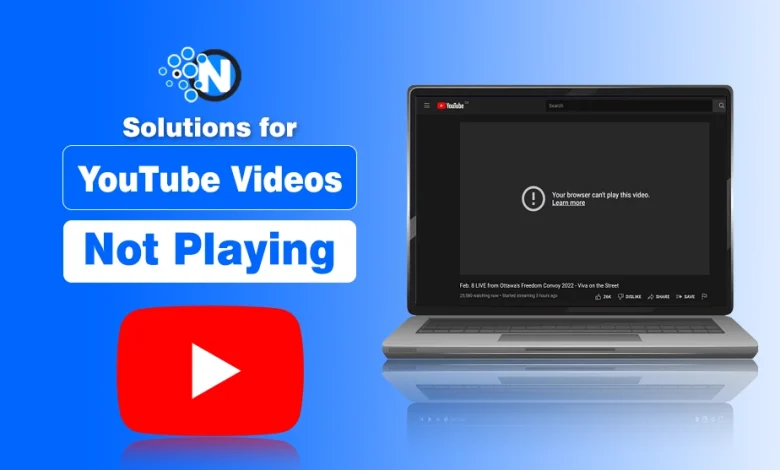
When YouTube videos refuse to play, several factors could be at play. Here’s a breakdown of the most common reasons:
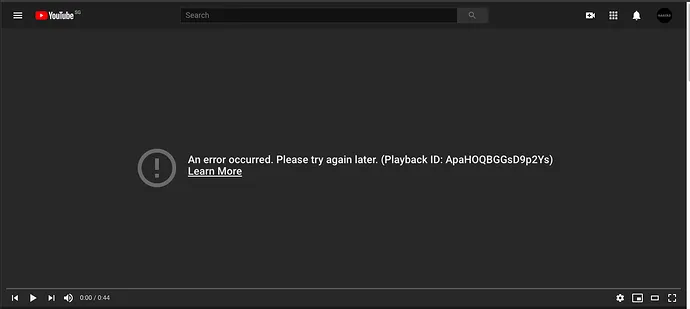
- Internet Connectivity Barriers: A weak or unstable connection often causes videos to buffer or not play at all. Fluctuating Wi-Fi signals or limited mobile data can disrupt streaming.
- Outdated Browser (PC) or Software (Mobile): Using an old browser on your PC or an outdated YouTube app on mobile can cause playback problems, as they may be incompatible with YouTube’s latest features.
- Source File Corruption: Occasionally, a video may fail to play because it was corrupted during upload. In such cases, professional video repair tools like Vidmore Video Fix can help.
- Cache and Cookies Overload: Browsers store temporary data to speed up loading, but too much cache or cookies can cause playback issues. Regular cleanup often fixes this.
- YouTube Server Outages: If YouTube is not playing, sometimes it means YouTube is having downtime, in which case patience is the only solution.
- VPN/Proxy Problems: VPNs or proxies can interfere with YouTube’s geolocation checks, preventing videos from playing properly.
- Device-Specific Reasons: Mobile devices may have background app interference or overheating problems, while tablets and PCs can experience unique bugs that affect playback.
How to Fix YouTube Videos Not Playing
Now that you know what might be causing the issue. Here are some easy fixes to get your YouTube videos playing again.
Fix 1: Update Your Browser
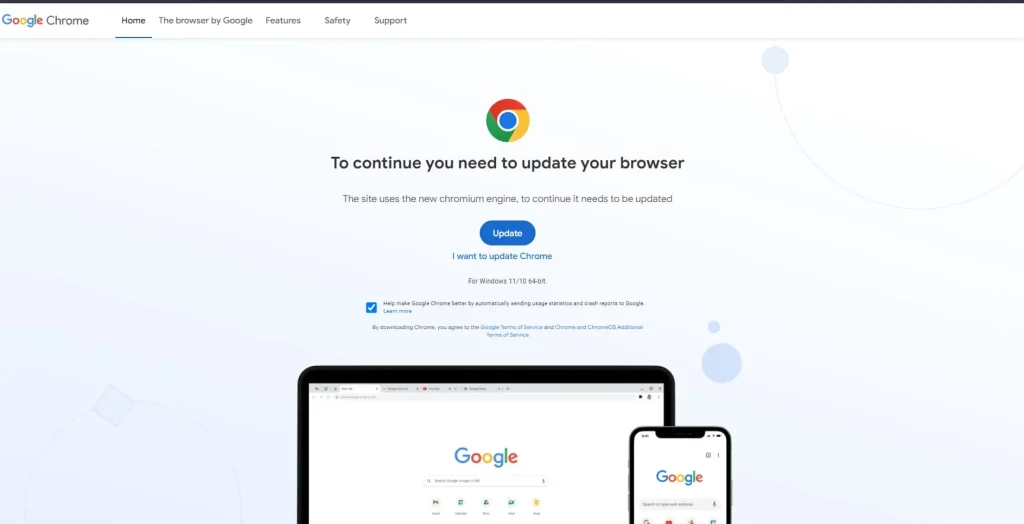
Keeping your browser up to date is necessary for smooth YouTube streaming. Older versions can become incompatible with YouTube’s latest features. To update your browser:
- Open your preferred browser (Chrome, Firefox, Edge, etc.).
- Go to Settings.
- Find the Update section or click About [browser name].
- Install any available updates.
- Restart the browser and check if the videos play correctly.
Fix 2: Refresh the YouTube Page
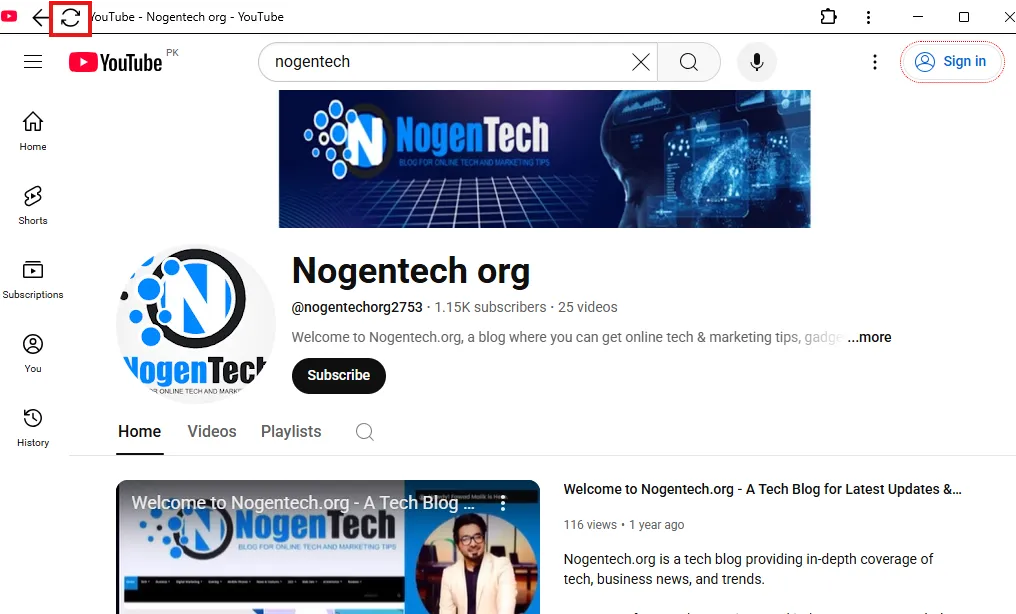
Sometimes, a temporary data interruption needs a simple refresh to recover, similar to rebooting a frozen smartphone.
- Click the circular arrow icon in your browser, or use the keyboard shortcut:
- Ctrl + R (Windows).
- Cmd + R (Mac).
- Wait for the page to fully reload, then try playing the video again.
Fix 3: Digital Cleaning (Browser Cache/ Cookies)
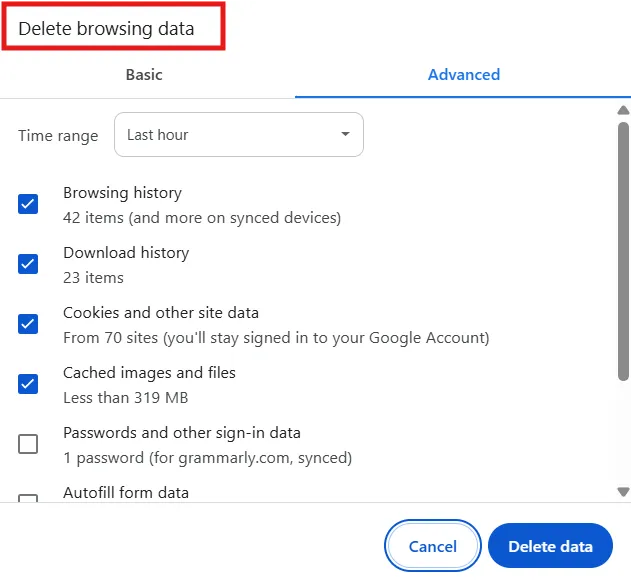
Over time, accumulated cache and cookies can interfere with YouTube playback, causing videos to freeze or not load at all. A quick digital cleanup often restores smooth streaming.
Steps to Clear Cookies and Cache:
- Open your browser’s Settings or History.
- Look for Clear browsing data or Privacy settings.
- Select the option to clear cache and cookies.
- Choose a time range; “All time” works best.
- Click Clear data, then restart your browser and try YouTube again.
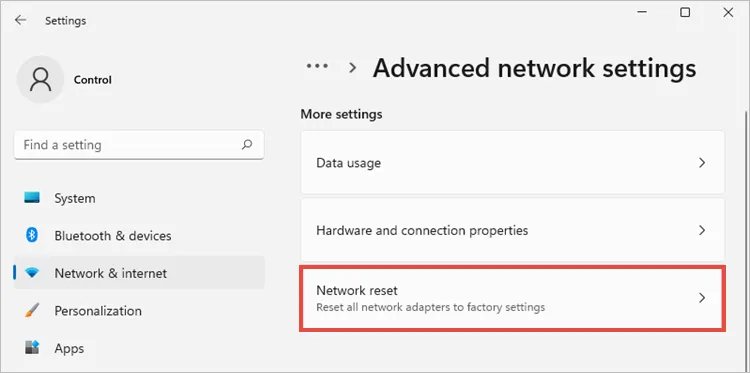
Fix 4: Reset Network Connection
Sometimes, a quick network reset is all it takes to fix buffering or playback issues, as it refreshes your connection and clears temporary glitches.
Steps to Reset Your Connection:
- Open your device’s network settings (Wi-Fi).
- Disconnect from your current network.
- Wait 15–30 seconds to allow your IP address to renew.
- Reconnect to the network. If needed, power cycle your modem/router.
- Try playing the YouTube video again.
Fix 5: Enable/Disable VPN
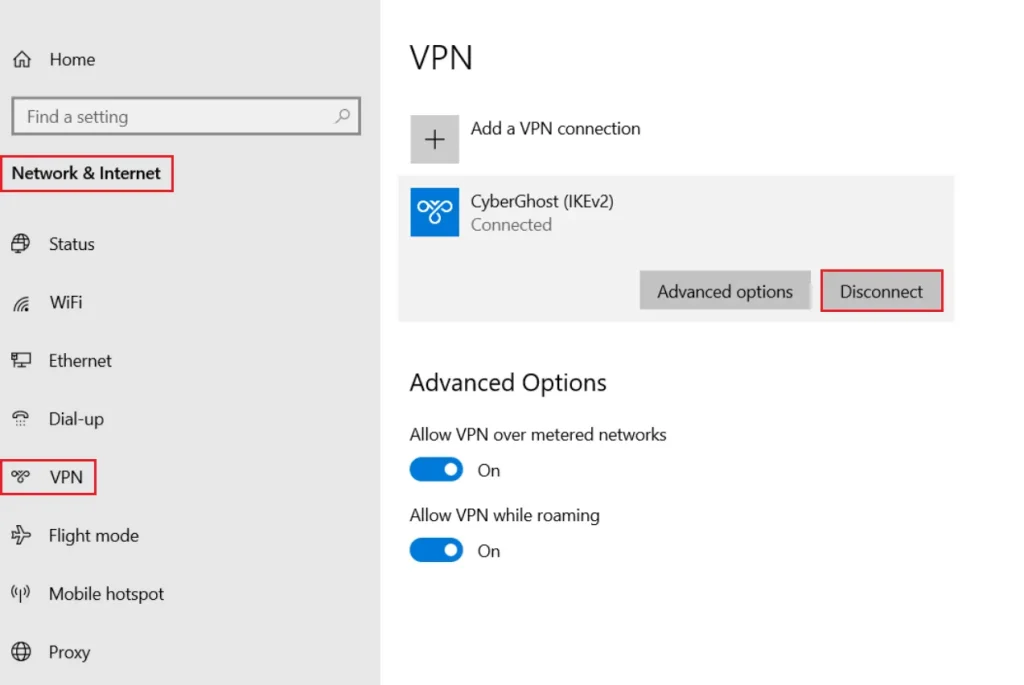
VPNs can sometimes interfere with YouTube’s servers, preventing videos from playing. Switching it on or off can often resolve the issue. This is how it gets done:
- Open your VPN app or software.
- If it’s on, try disabling it and reconnecting to YouTube.
- If it’s off and videos aren’t playing, try enabling the VPN.
- Check if YouTube videos now play correctly.
Fix 6: Restart Your Computer
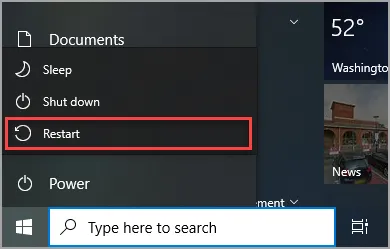
Sometimes, background tasks or temporary glitches can prevent YouTube videos from playing. A quick reboot often clears these issues.
Steps to Restart:
- Save any important work.
- Close all open applications.
- Restart your computer via the Start Menu (Windows) or Apple Menu (Mac).
- Once restarted, open YouTube and try playing the video again.
Fix 7: Mobile Playback Restoration
If YouTube videos aren’t playing on your mobile device, these steps usually do the trick:
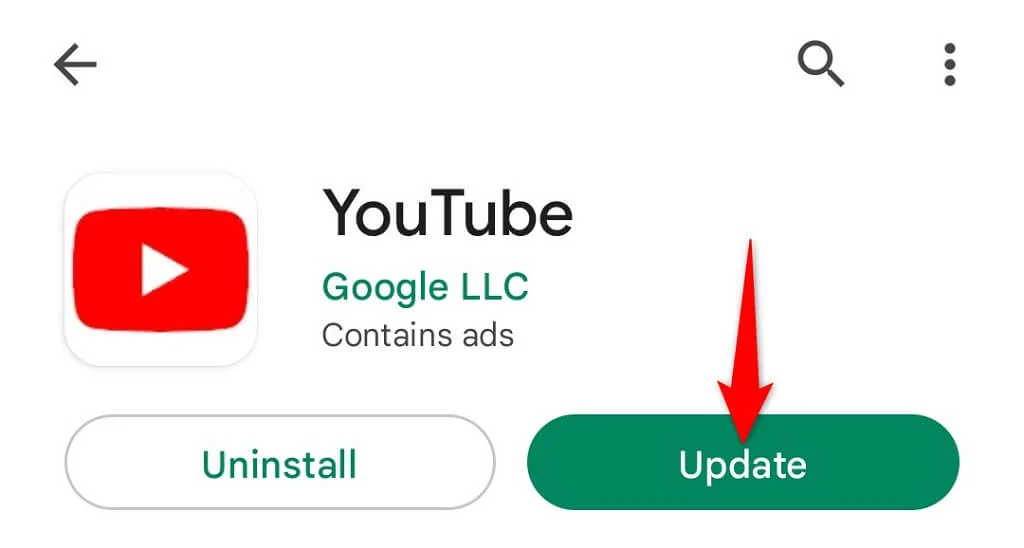
- Update the YouTube App: Open the Google Play Store (Android) or App Store (iOS), search for YouTube, and tap Update if available.
- Restart the App: Swipe YouTube away from recent apps and reopen it.
- Check Permissions: Go to your device settings and ensure mobile data and necessary permissions are enabled.
- Clear Cache or Data: In settings, clear YouTube’s cache (temporary files) or data (full reset).
- Reinstall YouTube: If issues persist, uninstall the app, reinstall it from the store, and log in again.
Repair YouTube videos with a Video Repair Tool
Dealing with damaged video files can be frustrating, but a reliable video repair tool like Vidmore can save the day.
Whether your video shows glitchy playback, frozen frames, or a “file corrupted” message, this software can fix it. It supports formats like MP4, MOV, and AVI, making the process simple even for non-tech users.
Steps to Fix a YouTube Video Using Vidmore Video Fix
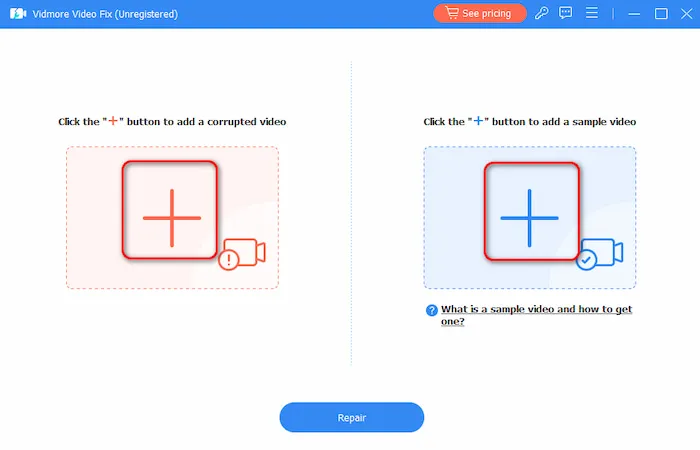
Step 1: Launch Vidmore on your computer and click the “+” button to add the corrupted video and a sample video.
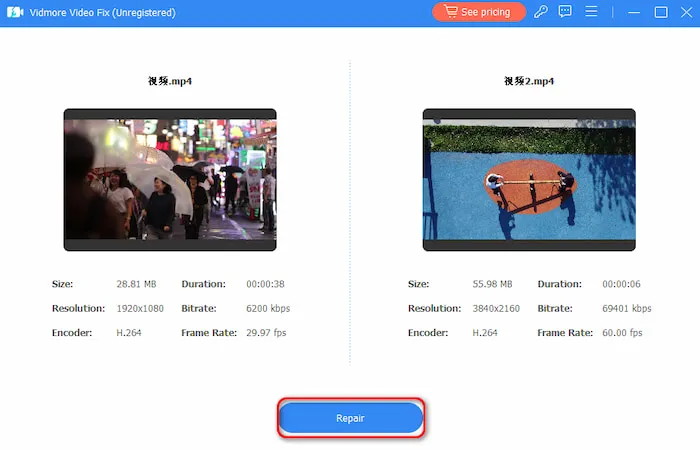
Step 2: Check the file details and click Repair.
Step 3: Once completed, choose Preview to verify the result or Save to download the repaired video.
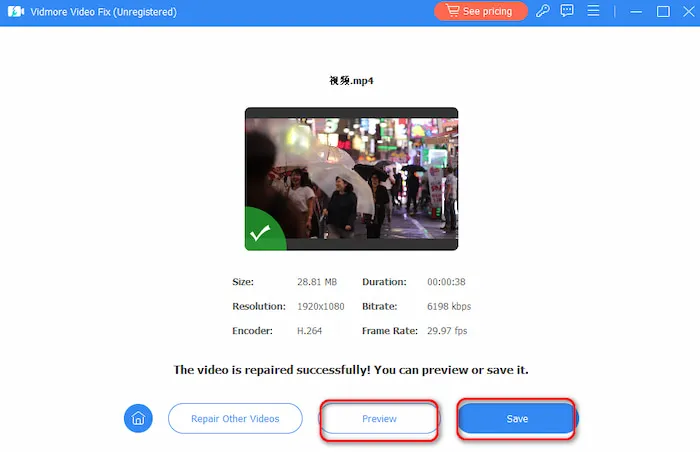
With the above quick and easy steps, you can now obtain the repaired YouTube video for watching.
Finally Enjoy YouTube Without Interruptions
One thing is clear: no matter how long you’ve used YouTube, playback issues can happen. However, the good news is that whether caused by VPNs, network glitches, overloaded cache, or corrupted files, these problems are fixable.
Simple steps like refreshing, updating, clearing data, or using Vidmore Video Fix can restore smooth streaming. From my experience, following these solutions ensures you can enjoy YouTube videos without buffering, freezing, or interruptions.