Microsoft Copilot can answer questions, summarize information, and help with everyday tasks. But its value grows when it can access the business data your team already uses.
Data connectors make that possible. They bring information from external platforms into Copilot, helping teams find answers and work with their data.
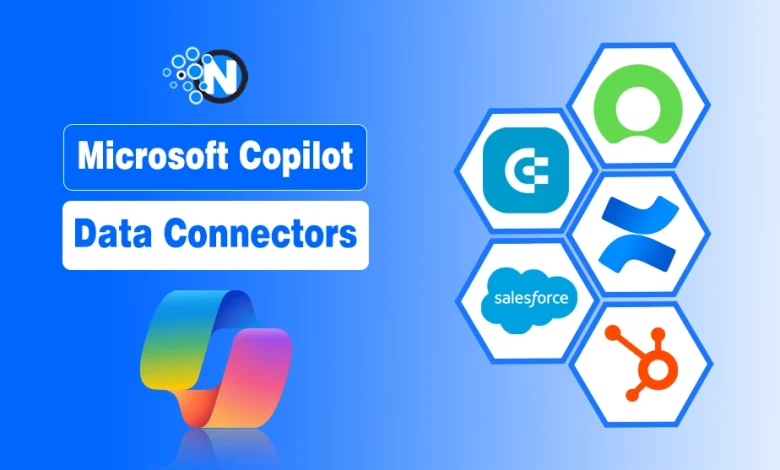
Let’s compare five Microsoft Copilot data connectors worth considering in 2026. These connectors support different use cases. Some help Copilot work with structured business data, while others focus on retrieving information from specific platforms and knowledge bases.
What are Microsoft Copilot Data Connectors?
Microsoft Copilot data connectors give Copilot access to information stored outside Microsoft 365. This can include CRM records, knowledge bases, marketing data, customer information, and internal documentation.
Connectors work in different ways. Synced connectors index external content in Microsoft 365. Federated connectors retrieve information from the source when it is needed. Other integrations can connect Copilot agents to prepared business datasets for analysis.
Microsoft Copilot Data Connectors: Comparison Table
| Connector | Best for | Data access | Setup |
| Coupler.io | Cross-source business analytics | Scheduled, refreshed data | Copilot Studio |
| Salesforce | CRM and customer data | Synced | Microsoft 365 admin center |
| ServiceNow | IT and knowledge data | Synced | Microsoft 365 admin center |
| Confluence | Internal documentation | Synced | Microsoft 365 admin center |
| HubSpot | CRM and marketing data | Federated | Microsoft 365 admin center |
1. Coupler.io
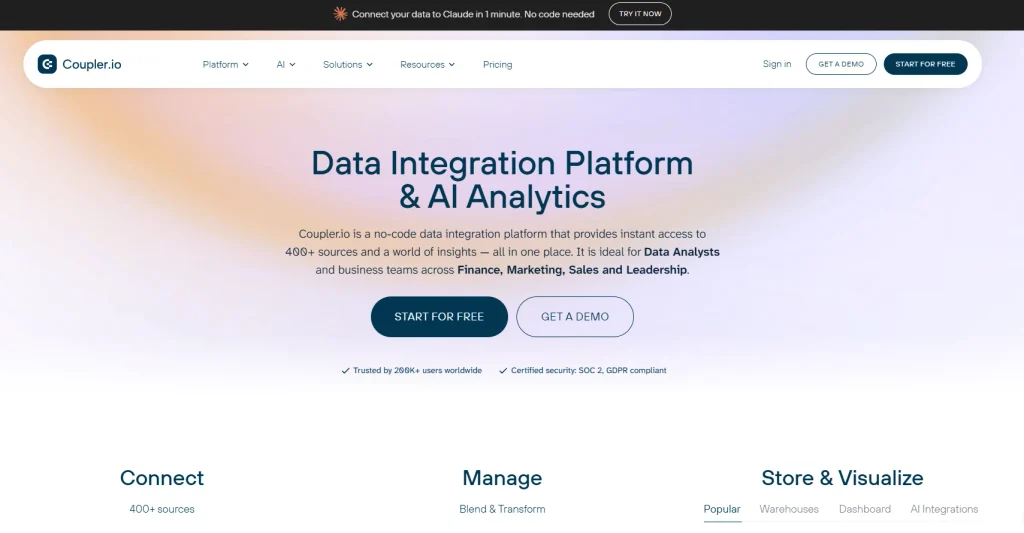
The Coupler.io data connector for Copilot connects structured business data to Microsoft Copilot through Copilot Studio. It is designed for teams that need to work with data from several sources instead of retrieving information from one platform.
Coupler.io supports 400+ data sources, including Google Ads, Facebook Ads, HubSpot, Salesforce, Shopify, QuickBooks, and GA4. You can combine and transform this data before making it available to a Copilot agent. Refreshes can also run automatically on a schedule.
Its Analytical Engine processes data requests and returns calculated results to Copilot. This is useful for questions involving metrics, trends, and comparisons across different platforms.
Best for: Cross-source business data analysis.
Key features:
- 400+ supported data sources
- Automated data refreshes
- Data transformation and blending
- Custom business context
- Analytical Engine for calculations
Consideration: Setup requires maker access in Copilot Studio.
2. Salesforce
Salesforce connectors make CRM and customer information available through Microsoft 365 Copilot. They are useful for teams that spend much of their day working with sales, service, and customer data.
Depending on the connector, Copilot can retrieve supported Salesforce content and surface relevant information without requiring users to search the CRM separately. For example, a sales representative could find customer or account information while working in the Microsoft environment.
Microsoft and its partners provide different connector options for the Salesforce ecosystem. This means available features depend on the connector and Salesforce product you use.
Best for: Sales and customer-facing teams using Salesforce.
Key features:
- Salesforce content in Microsoft Search and Copilot
- Access to CRM information
- Permission-aware retrieval
- Centralized enterprise search
- Microsoft and partner-built connector options
Consideration: Capabilities vary depending on which Salesforce connector you deploy.
3. ServiceNow
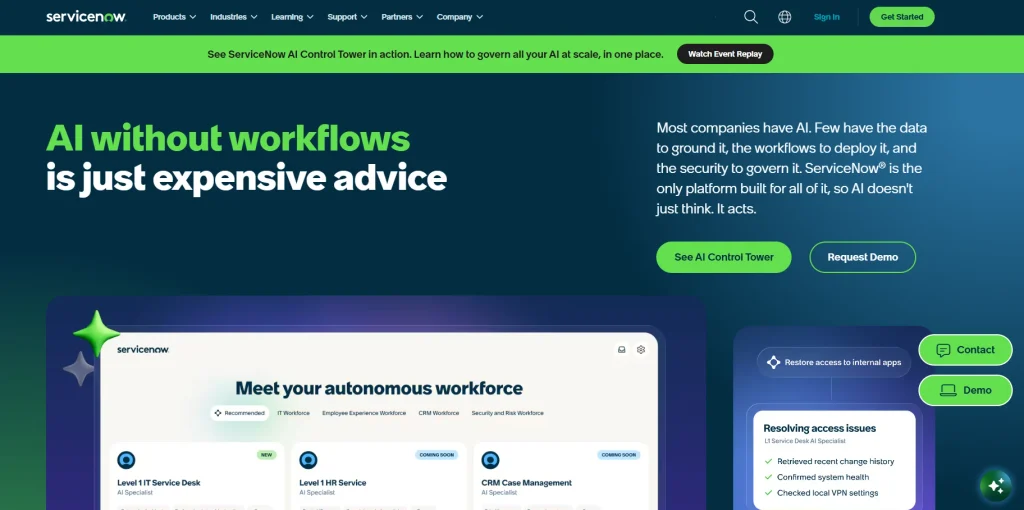
ServiceNow connectors bring IT and service management information into Microsoft 365 Copilot. They are particularly useful for organizations that rely on ServiceNow for internal support.
For example, the ServiceNow Knowledge connector can index knowledge base articles. Employees can then ask Copilot about troubleshooting steps, internal procedures, or known issues without manually searching through ServiceNow.
Other connector options cover additional ServiceNow content. Existing permissions are respected, so employees only receive information they are allowed to access. The focus is retrieval rather than broad data analysis.
Best for: IT service management and internal support.
Key features:
- Knowledge base indexing
- Service catalog support
- Permission-aware access
- Microsoft Search integration
- Multiple ServiceNow connector options
Consideration: It is primarily useful for ServiceNow content and knowledge retrieval.
4. Confluence
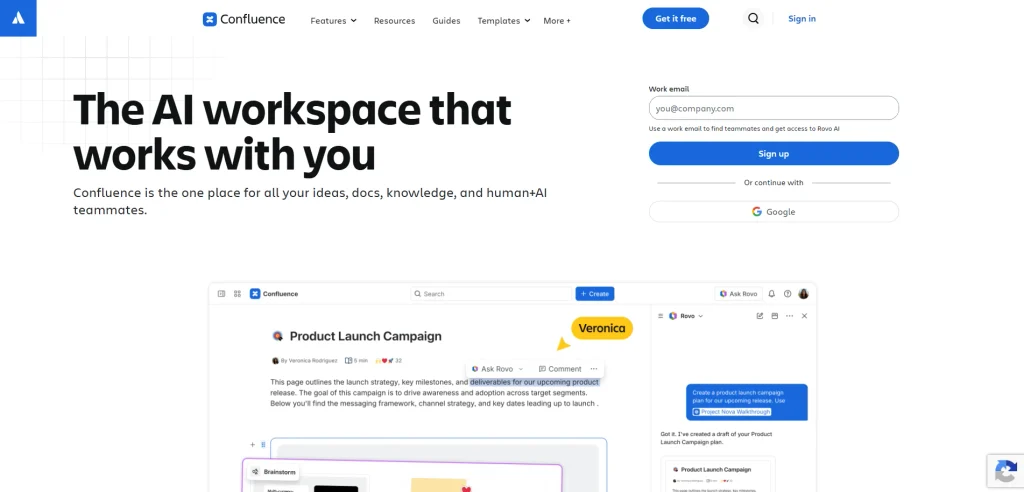
Confluence connectors make internal documentation available through Microsoft 365 Copilot. They work well for organizations that use Confluence as a central place for policies, project documentation, processes, and other company knowledge.
Depending on the connector, Copilot can access content such as pages, spaces, blogs, comments, and attachments. An employee could ask about a company policy or project process instead of searching through several Confluence spaces manually.
Connector options are available for different Confluence environments, including Cloud and on-premises deployments.
Best for: Company documentation and internal knowledge.
Key features:
- Confluence page indexing
- Support for attachments and comments
- Enterprise search
- Permission-aware access
- Cloud and on-premises options
Consideration: It works best for knowledge retrieval rather than numerical analysis.
5. HubSpot
The HubSpot connector gives Microsoft 365 Copilot access to CRM and marketing information stored in HubSpot. It is useful for teams that rely on HubSpot as their main platform for managing customer and marketing data.
HubSpot is available as a federated Copilot connector. Instead of first copying information into Microsoft’s search index, federated connectors retrieve relevant data from the source when a user makes a request.
This approach provides access to current information while respecting the user’s permissions in HubSpot. However, it remains focused on data from that platform rather than combining several unrelated business sources.

Best for: Teams that rely heavily on HubSpot.
Key features:
- Real-time data retrieval
- No Microsoft 365 indexing required
- Source-level permission controls
- CRM and marketing context
- Federated connector architecture
Consideration: Federated connectors are not supported across every Copilot experience.
How to Choose a Microsoft Copilot Data Connector
The right connector depends on what you expect Copilot to do with your data. Start with three questions:
- Where does your data live? A dedicated connector works well when most of the information is in one platform.
- Do you need retrieval or analysis? ServiceNow and Confluence focus mainly on finding existing information. Coupler.io is designed for analyzing structured data from multiple sources.
- How current should the data be? Check whether the connector uses indexing, federated access, or scheduled data refreshes.
Your existing technology stack also matters. A company centered on Salesforce or HubSpot may prefer its dedicated connector. A team working across many marketing, sales, and financial platforms may need a broader data integration approach.
The AI model itself can also affect the quality of analytical workflows. This comparison of the best LLMs for data analysis explains how leading models differ when working with business data.
FAQs
What are Microsoft Copilot connectors?
Copilot connectors make information from external systems available to Microsoft 365 Copilot. They can connect sources such as CRMs, knowledge bases, file systems, and business applications.
What is the difference between synced and federated Copilot connectors?
Synced connectors copy external content into Microsoft’s index and update it periodically. Federated connectors retrieve information directly from the source when Copilot needs it.
Can Microsoft Copilot connect to multiple data sources?
Yes. Microsoft and its partners provide more than 100 prebuilt connectors. Tools such as Coupler.io can also bring data from hundreds of business applications into a Copilot workflow.
Do I need admin access to add a Copilot connector?
It depends on the connector. Many Microsoft 365 Copilot connectors require an administrator to configure them. Integrations built through Copilot Studio can have different access requirements.
So, Which Microsoft Copilot Data Connector Should You Choose?
Microsoft Copilot data connectors help teams bring more of their everyday business information into the Copilot environment. The best connector depends on where your data is stored, how often it changes, and what you want to do with it.
By choosing the right setup, businesses can reduce manual work, access information faster, and get more value from Copilot.